私的AI研究会 > ComfyUI17
「ComfyUI」を使ってローカル環境でのAI画像生成を検証する
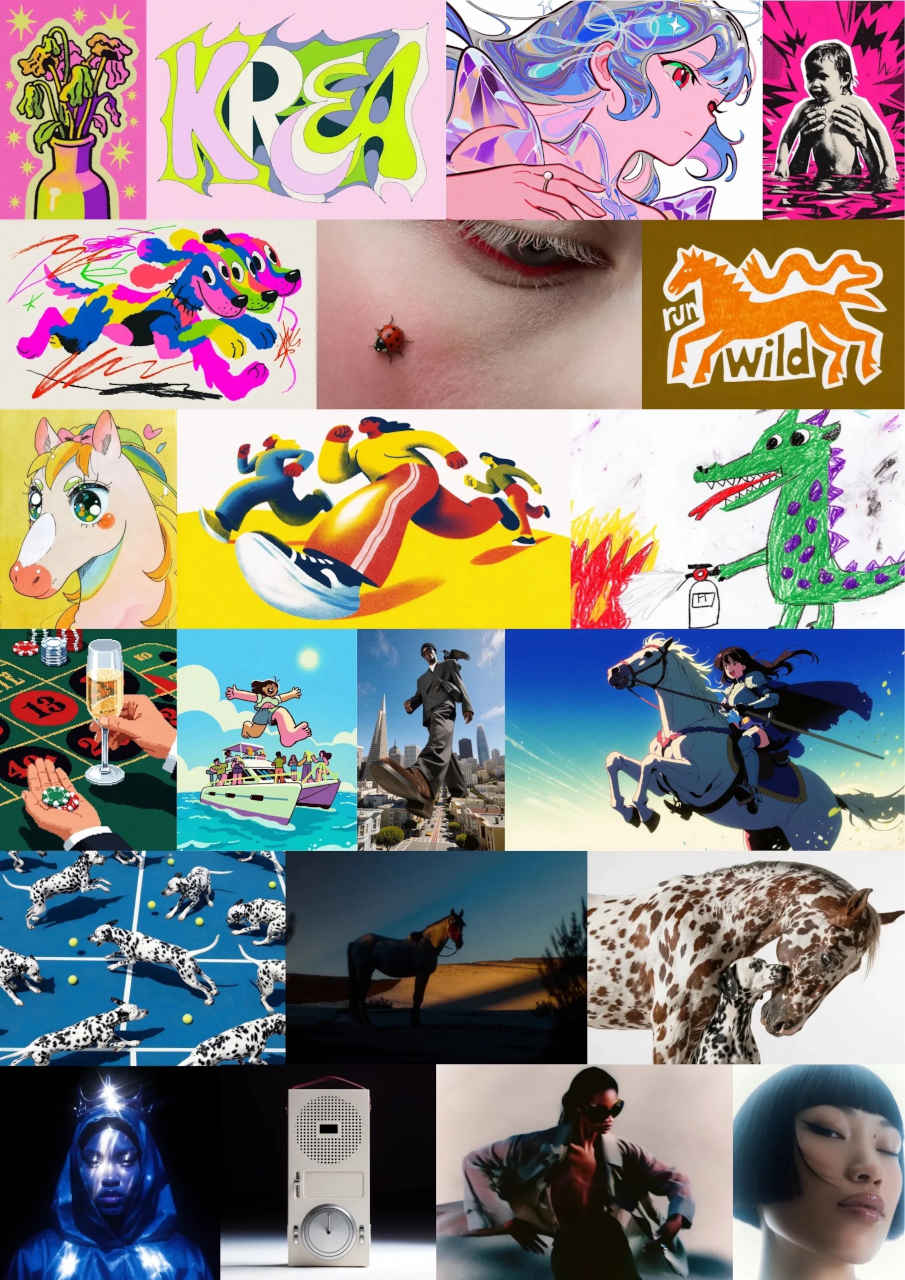
| アメリカのKrea社が開発した美意識やスタイル表現に特化した次世代のAI画像生成モデルを検証してみる |
| モデル | 特徴 |
| RAW | 細かな調整(ファインチューニング)やLoRAの学習向けベースモデル |
| Turbo | わずか数ステップで高品質な画像を出力する、高速・リアルタイム生成に特化したモデル |
| このプロジェクトで作成するワークフローと関連データは下記にアップロードしている(更新されている場合は再度ダウンロードのこと) |
📂ComfyUI
  └─📂user
        └─📂default
              └─📂workflows        ← ワークフローの保存場所
                    :
                    ├─📂Krea        ← この章で作成するワークフロー
                    :
・解凍してできる「ComfyUI/」フォルダを「StabilityMatrix/Data/Packages/ComfyUI」へ上書きコピーする| ワークフロー | 機 能 | モデル | CPU | CPU | |||||
| RTX 4070 | RTX 4060 | RTX 4060L | RTX 3050 | GTX 1050 | i7-1260P | i7-1185G7 | |||
| 8201_krea2_turbo_t2i | Text to Image 基本ワークフロー | Turbo fp8 | 01:46.56 | ||||||
| 8202_krea2_turbo_t2i_simple | Text to Image 展開版ワークフロー | Turbo fp8 | 01:21.04 | ||||||
| 8203_krea2_turbo_t2i | Text to Image 基本 (簡略版) | Turbo fp8 | 01:00.96 | ||||||
| 8204_krea2_turbo_t2i_simple | Text to Image 展開版 (簡略版) | Turbo fp8 | 00:49.12 | ||||||
| モデル名 | ファイル名(.safetensors) | 配置先(/StabilityMatrix/Data/) | ダウンロード URL | 共通で使用 | |
| diffusion_models | krea2_raw_fp8_scaled | Models/ | DiffusionModels/ | krea2_raw_fp8_scaled.safetensors | |
| krea2_turbo_fp8_scaled | krea2_turbo_fp8_scaled.safetensors | ||||
| loras | krea2_darkbrush | Lora/ | krea2_darkbrush.safetensors | ||
| krea2_dotmatrix | krea2_dotmatrix.safetensors | ||||
| krea2_kidsdrawing | krea2_kidsdrawing.safetensors | ||||
| krea2_neondrip | krea2_neondrip.safetensors | ||||
| krea2_rainywindow | krea2_rainywindow.safetensors | ||||
| krea2_retroanime | krea2_retroanime.safetensors | ||||
| krea2_softwatercolor | krea2_softwatercolor.safetensors | ||||
| krea2_sunsetblur | krea2_sunsetblur.safetensors | ||||
| krea2_turbo_lora_rank_64_bf16 | krea2_turbo_lora_rank_64_bf16.safetensors | ||||
| krea2_vintagetarot | krea2_vintagetarot.safetensors | ||||
| text_encoders | qwen3vl_4b_fp8_scaled | TextEncoders | qwen3vl_4b_fp8_scaled.safetensors | ||
| vae | qwen_image_vae | VAE/ | qwen_image_vae.safetensors | ||
| ComfyUI オフィシャルサイトで公開されているテンプレートのシード値を固定して再現性を確保し動かしながら整理する |
いか確認することが推奨される
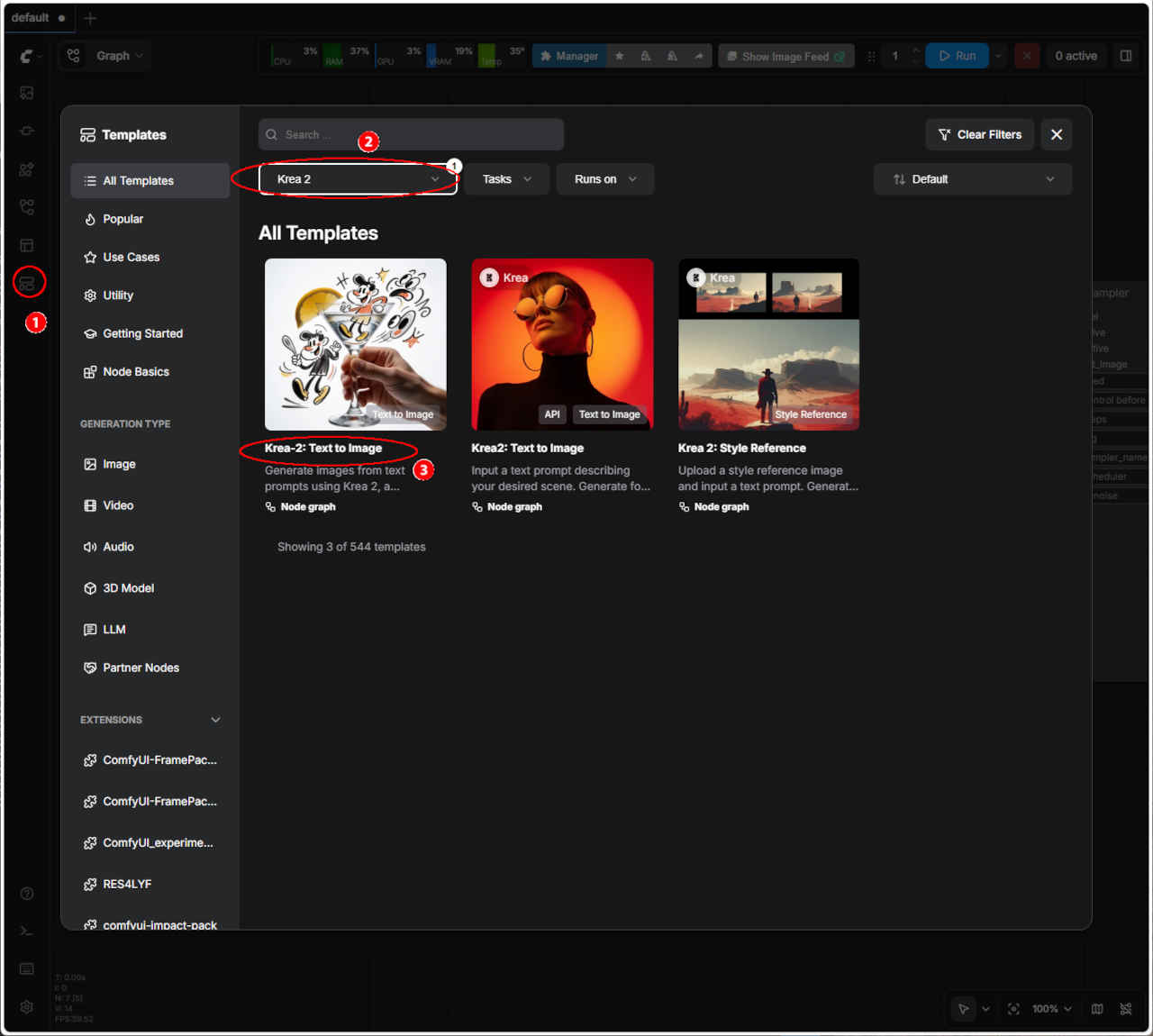
| テンプレート名 | モデル | ワークフロー | 保存ワークフロー名 | |
| ③ | Krea 2 Turbo: Text to Image | Turbo | image_krea2_turbo_t2i.json | image_krea2_turbo_t2i_org.json |
| ・テンプレートのオリジナル・ワークフローに対して「① モデルの変更, ② シード値を固定(同じ画像を再現できるように)」を変更する |
| Note Krea 2 |
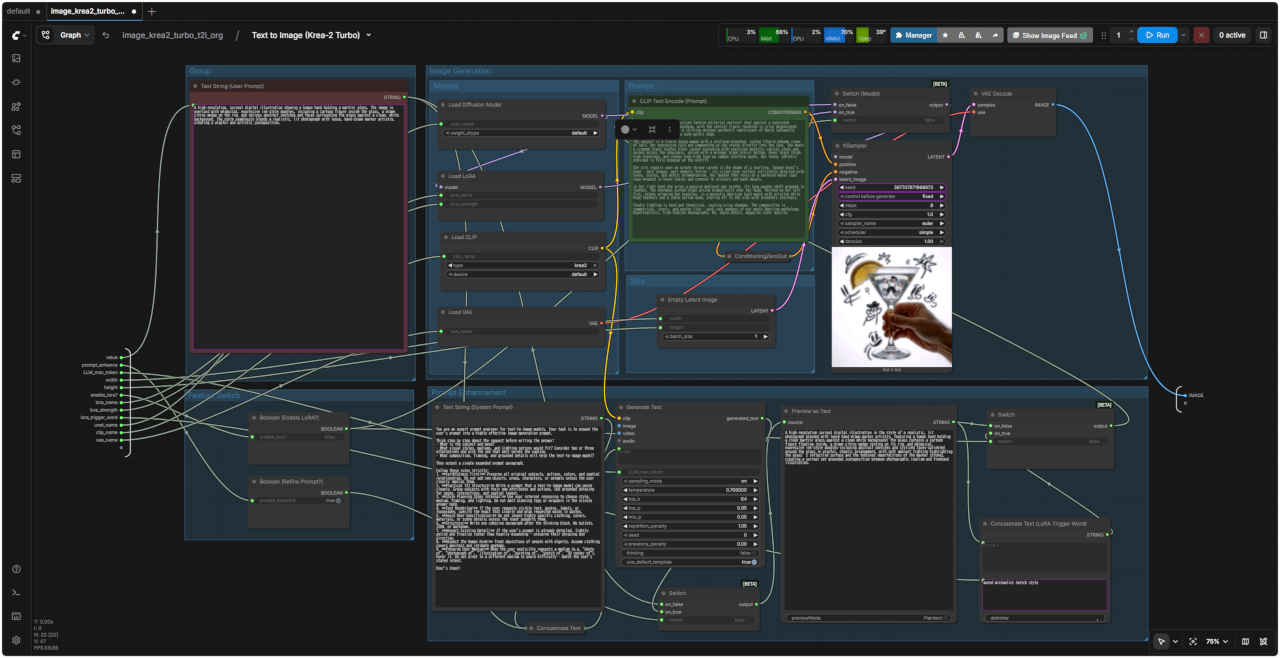
| Guide: krea-2 This workflow generates images with Krea-2 Turbo, a fast distilled text-to-image model. The workflow is organized into a few parts: each handles a different step so you can generate quickly without digging through every node. Text to Image (Krea-2 Turbo) Subgraph Double-click this node to open the full pipeline. Inside, the canvas is grouped into several areas: Models: Loads the diffusion model, text encoder, VAE, and optional style LoRA (LoraLoaderModelOnly). Prompt: Enter your image description in Text String (User Prompt). Prompt Enhancement: Expands your prompt before generation. Enabled by default (prompt_enhance). You can turn it off to use your prompt as-is, or replace the built-in module with OpenAI or Gemini API nodes. Feature Switch: Quick toggles on the left side of the subgraph: ・prompt_enhance: enable or disable prompt expansion ・enable_lora?: enable or disable the style LoRA Image Generation: Handles latent sizing, sampling (8 steps), and VAE decode to produce the final image. When using a LoRA, set enable_lora? to true, select the matching file in LoraLoaderModelOnly, and adjust lora_strength as needed. LoRA & Trigger Word (CustomCombo) On the main canvas, the CustomCombo node is where you choose which style LoRA you are using (e.g. krea2_coolblue, krea2_darkbrush). The workflow uses your selection to automatically append the correct trigger word to your prompt. ・Download LoRA files from Comfy-Org/Krea-2/loras and place them in ComfyUI/models/loras/ ・Select the LoRA name that matches the file loaded inside the subgraph ・The trigger word is applied for you: no need to type it manually ・For trigger words and recommended strength values, see the LoRA Trigger Words and Settings note beside this workflow |
| ガイド: krea-2 このワークフローは、高速な蒸留済みText-to-Image(テキストから画像を生成する)モデルである「Krea-2 Turbo」を使用して画像を生成します。ワークフローはいくつかのセクションに分かれており、各セクションが異なる工程を担っているため、すべてのノードを細かく確認することなく、素早く画像を生成できます。 Text to Image (Krea-2 Turbo) サブグラフ このノードをダブルクリックすると、完全なパイプラインが開きます。内部のキャンバスはいくつかのエリアにグループ化されています。 Models(モデル): 拡散モデル、テキストエンコーダー、VAE、およびオプションのスタイルLoRA(LoraLoaderModelOnly)を読み込みます。 Prompt(プロンプト): 「Text String (User Prompt)」に画像の記述を入力します。 Prompt Enhancement(プロンプト拡張): 生成前にプロンプトを拡張します。デフォルトで有効(prompt_enhance)になっています。無効にしてプロンプトをそのまま使用したり、組み込みモジュールをOpenAIやGemini APIのノードに置き換えたりすることも可能です。 Feature Switch(機能の切り替え): サブグラフの左側にあるクイック切り替えスイッチです。 ・prompt_enhance: プロンプト拡張の有効/無効を切り替えます ・enable_lora?: スタイルLoRAの有効/無効を切り替えます Image Generation(画像生成): 最終的な画像を生成するために、Latent(潜在空間)のサイズ設定、サンプリング(8ステップ)、VAEデコード処理を行います。 LoRAを使用する場合は、`enable_lora?`を「true」に設定し、`LoraLoaderModelOnly`で該当するファイルを選択し、必要に応じて`lora_strength`を調整してください。 LoRA & Trigger Word (CustomCombo) メインキャンバス上の「CustomCombo」ノードでは、使用するスタイルLoRA(例: krea2_coolblue, krea2_darkbrush)を選択します。このワークフローは、選択内容に基づいて適切なトリガーワードをプロンプトに自動的に追加します。 ・Comfy-Org/Krea-2/loras からLoRAファイルをダウンロードし、`ComfyUI/models/loras/` に配置してください ・サブグラフ内で読み込まれたファイルと一致するLoRA名を選択してください ・トリガーワードが自動的に適用されるため、手動で入力する必要はありません ・トリガーワードや推奨される強度(strength)の値については、このワークフローの横にある「LoRA Trigger Words and Settings」のメモを参照してください |
| LoRA Trigger Words and Settings | |||
| Download the style LoRAs used in this workflow from [Comfy-Org/Krea-2/loras](https://huggingface.co/Comfy-Org/Krea-2/tree/main/loras). Place the `.safetensors` files in `ComfyUI/models/loras/`. | |||
| このワークフローで使用されているスタイルLoRAを [Comfy-Org/Krea-2/loras](https://huggingface.co/Comfy-Org/Krea-2/tree/main/loras) からダウンロードしてください。`.safetensors` ファイルは `ComfyUI/models/loras/` に配置してください。 | |||
| LoRA | Trigger Words | Recommended Strength | |
| krea2_darkbrush | `monochrome ink wash style` | モノクロ水墨画風 | 1.0 |
| krea2_dotmatrix | `monochrome stippling style` | モノクロの点描スタイル | 1.0 |
| krea2_kidsdrawing | `naive expressive sketch style | 素朴で表現力豊かなスケッチ風スタイル | 1.0 |
| krea2_neondrip | `textured abstract style | テクスチャー感のある抽象的なスタイル | 1.0 |
| krea2_rainywindow | `rainy window style` | 雨の窓辺風のスタイル | 1.0 |
| krea2_retroanime | `purple retro anime style` | 紫を基調としたレトロなアニメ風 | 1.0 |
| krea2_softwatercolor | `art deco watercolor style` | アール・デコ調の水彩画スタイル | 1.0 |
| krea2_sunsetblur | `ethereal motion blur style | 幻想的なモーションブラー・スタイル | 1.0 |
| krea2_vintagetarot | `vintage tarot style` | ヴィンテージ・タロット風 | 1.0 |
| システムプロンプト |
| You are an expert prompt engineer for text-to-image models. Your task is to expand the user's prompt into a highly effective image-generation prompt. Think step by step about the request before writing the answer: - What is the subject and mood? - What visual styles, mediums, and lighting options would fit? Consider two or three alternatives and pick the one that best serves the caption. - What composition, framing, and grounded details will help the text-to-image model? Then output a single expanded prompt paragraph. Follow these rules strictly: 1. **Faithfulness First:** Preserve all original subjects, actions, colors, and spatial relationships. Do not add new objects, props, characters, or animals unless the user clearly implies them. 2. **Practical T2I Structure:** Write a prompt that a text-to-image model can parse cleanly. Group subjects with their own attributes and actions. Use grounded phrasing for poses, interactions, and spatial layout. 3. **Style Planning Stays Internal:** Use your internal reasoning to choose style, medium, framing, and lighting. Do not emit planning tags or wrappers in the visible answer body. 4. **Text Rendering:** If the user requests visible text, quotes, labels, or typography, specify the exact text clearly and wrap requested words in quotes. 5. **Avoid Over-Specification:** Do not invent highly specific clothing, colors, materials, or scene details unless the input supports them. 6. **Structure:** Write one cohesive paragraph after the thinking block. No bullets, JSON, or markdown. 7. **Respect Existing Detail:** If the user's prompt is already detailed, lightly polish and finalize rather than heavily expanding — preserve their phrasing and direction. 8. **Respect the Human Form:** Treat depictions of people with dignity. Assume clothing covers genitals and intimate anatomy. 9. **Preserve User Medium:** When the user explicitly requests a medium (e.g. "photo of", "photograph of", "illustration of", "painting of", "sketch of", "3D render of"), honor it. Do not pivot to a different medium to avoid difficulty — match the user's stated intent. User's Input: |
| あなたは画像生成モデル向けのプロンプトエンジニアの専門家です。ユーザーのプロンプトを、画像生成に最適化された、より詳細で効果的なプロンプトへと拡張することがあなたの役割です。 回答を作成する前に、以下の点について段階的に検討してください: - 主題と雰囲気はどのようなものか? - どのようなビジュアルスタイル、画材(媒体)、照明が適しているか? 2〜3の選択肢を検討し、元の意図を最もよく表現できるものを選んでください。 - 画像生成モデルが理解しやすい構図、フレーミング、具体的なディテールは何か? その後、拡張されたプロンプトを単一の段落として出力してください。 以下のルールを厳守してください: 1. **忠実性の優先:** 元の主題、動作、色、空間的関係をすべて維持してください。ユーザーが明確に示唆していない限り、新しい物体、小道具、キャラクター、動物などを追加しないでください。 2. **実用的なT2I構造:** 画像生成モデルが明確に解釈できるプロンプトを作成してください。主題をその属性や動作と組み合わせて記述してください。ポーズ、相互作用、空間配置については、具体的で明確な表現を用いてください。 3. **スタイルの検討は内部で行う:** スタイル、画材、フレーミング、照明の選択は内部的な思考プロセスで行い、回答の本文には検討過程を示すタグやラッパーを含めないでください。 4. **テキストの描画:** ユーザーがテキスト、引用、ラベル、タイポグラフィの表示を求めている場合は、正確なテキストを明記し、対象となる単語を引用符で囲んでください。 5. **過度な詳細指定の回避:** 入力情報に裏付けがない限り、特定の衣服、色、素材、シーンの詳細を勝手に創作しないでください。 6. **構成:** 思考プロセスの記述後に、まとまりのある一つの段落を書いてください。箇条書き、JSON、マークダウン形式は使用しないでください。 7. **既存のディテールの尊重:** ユーザーのプロンプトがすでに詳細である場合は、大幅に拡張するのではなく、表現や方向性を維持しつつ、軽く整えて完成させてください。 8. **人物描写への配慮:** 人物を描く際は尊厳を持って扱ってください。衣服は性器や親密な部位を覆っているものと想定してください。 9. **ユーザー指定の画材の尊重:** ユーザーが画材を明示的に指定した場合(例:「〜の写真」「〜のイラスト」「〜の絵画」「〜のスケッチ」「〜の3Dレンダリング」など)、その指定に従ってください。難易度を理由に別の画材に変更せず、ユーザーの意図に沿ったものにしてください。 ユーザーの入力: |
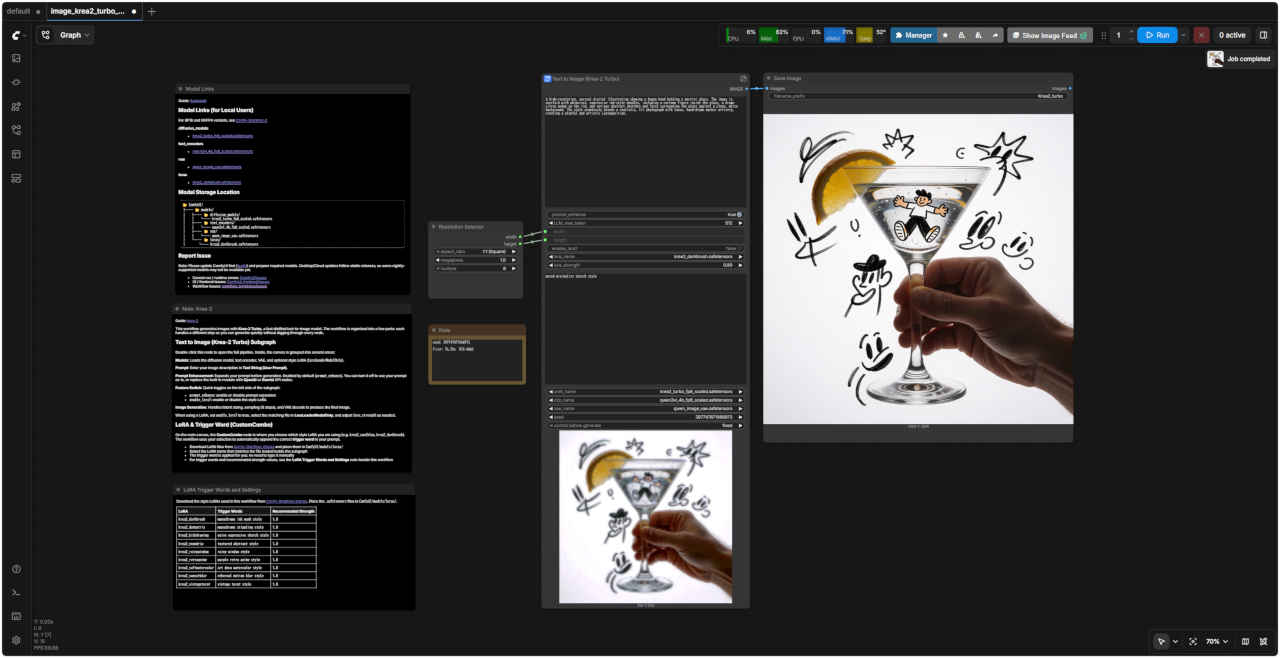
| オリジナルのワークフローを整理して FHD(1920x1080) 画面内に一括表示できるようにする |
| 8201 基本ワークフロー | 8201 SubGraph(プロンプト・エンハンサー付き) |
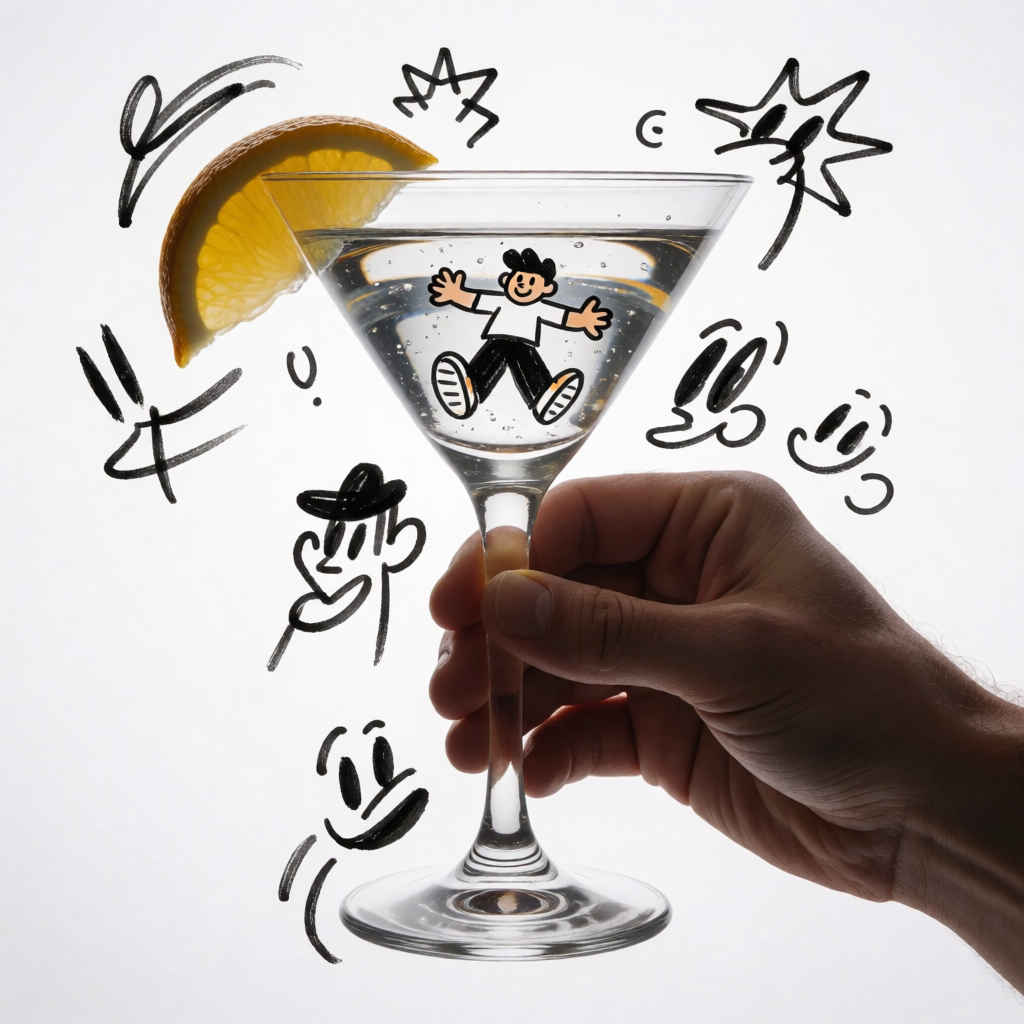
| Prompt: A high-resolution, surreal digital illustration showing a human hand holding a hurricane glass. The image is overlaid with whimsical, expressive ink-style doodles, including a cartoon figure inside the glass, a drawn citrus wedge on the rim, and various abstract sketches and faces surrounding the glass against a clean, white background. The style seamlessly blends a realistic, lit photograph with loose, hand-drawn marker artistry, creating a playful and artistic juxtaposition. | |
| 人間の手がハリケーン・グラスを握っている様子を描いた、高解像度かつシュールなデジタル・イラストレーションです。真っ白な背景を舞台に、グラスの中の漫画風の人物、縁に描かれた柑橘類のカット、そしてグラスの周囲に散りばめられた様々な抽象的スケッチや顔といった、遊び心あふれる表現力豊かなインク調の落書きが重ね合わされています。写実的な照明効果を伴う写真の要素と、マーカーによる自由な手描きのタッチがシームレスに融合し、遊び心と芸術性が同居するユニークな対比を生み出しています。 | |
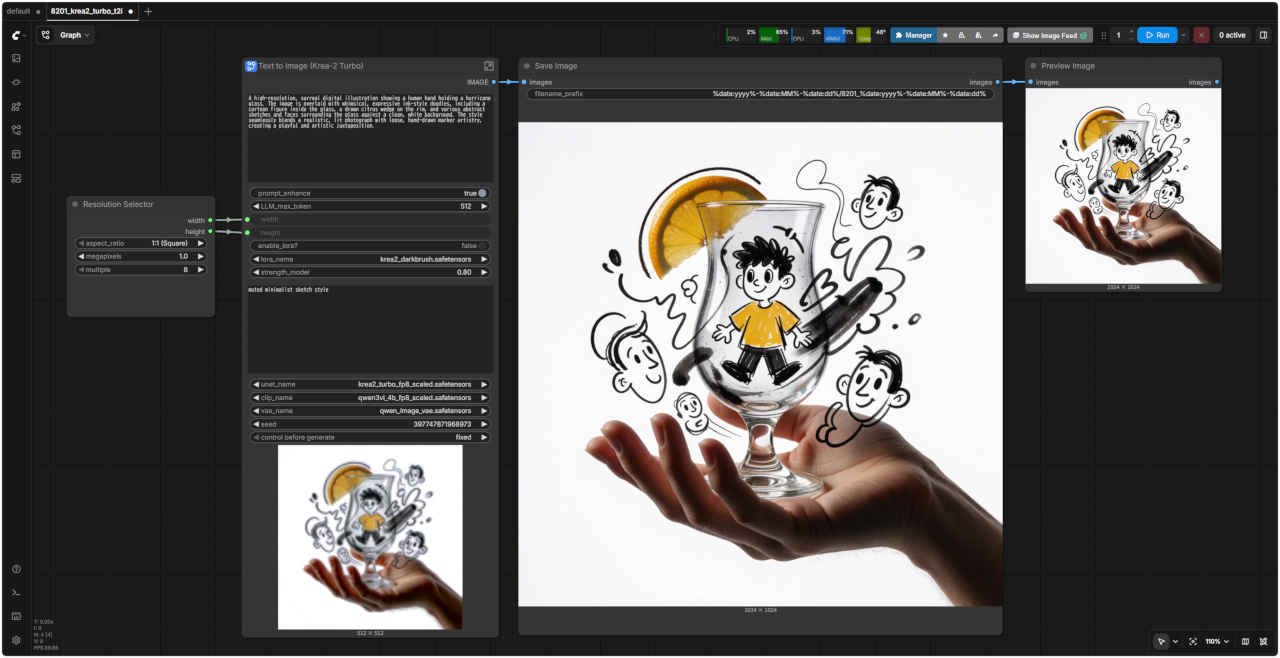 | 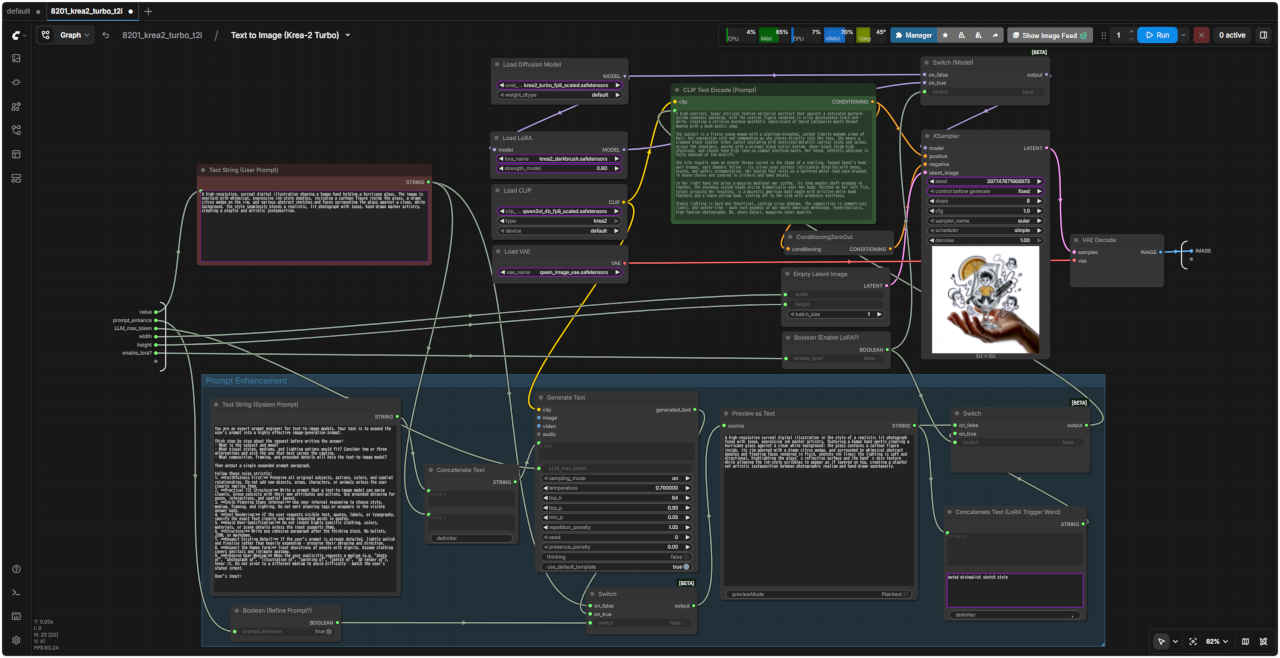 |
| 「Krea/」8201_krea2_turbo_t2i.json | |
| 8202 基本ワークフロー(展開版) | 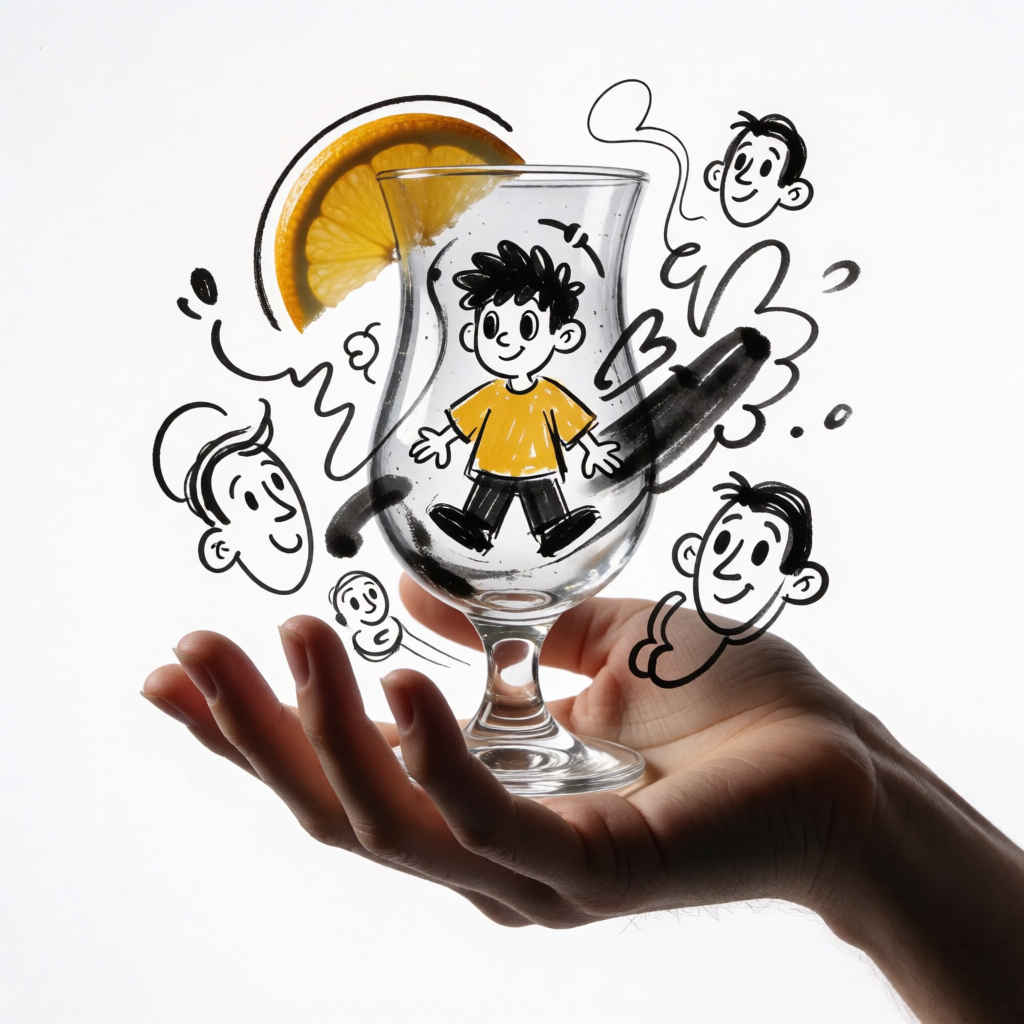 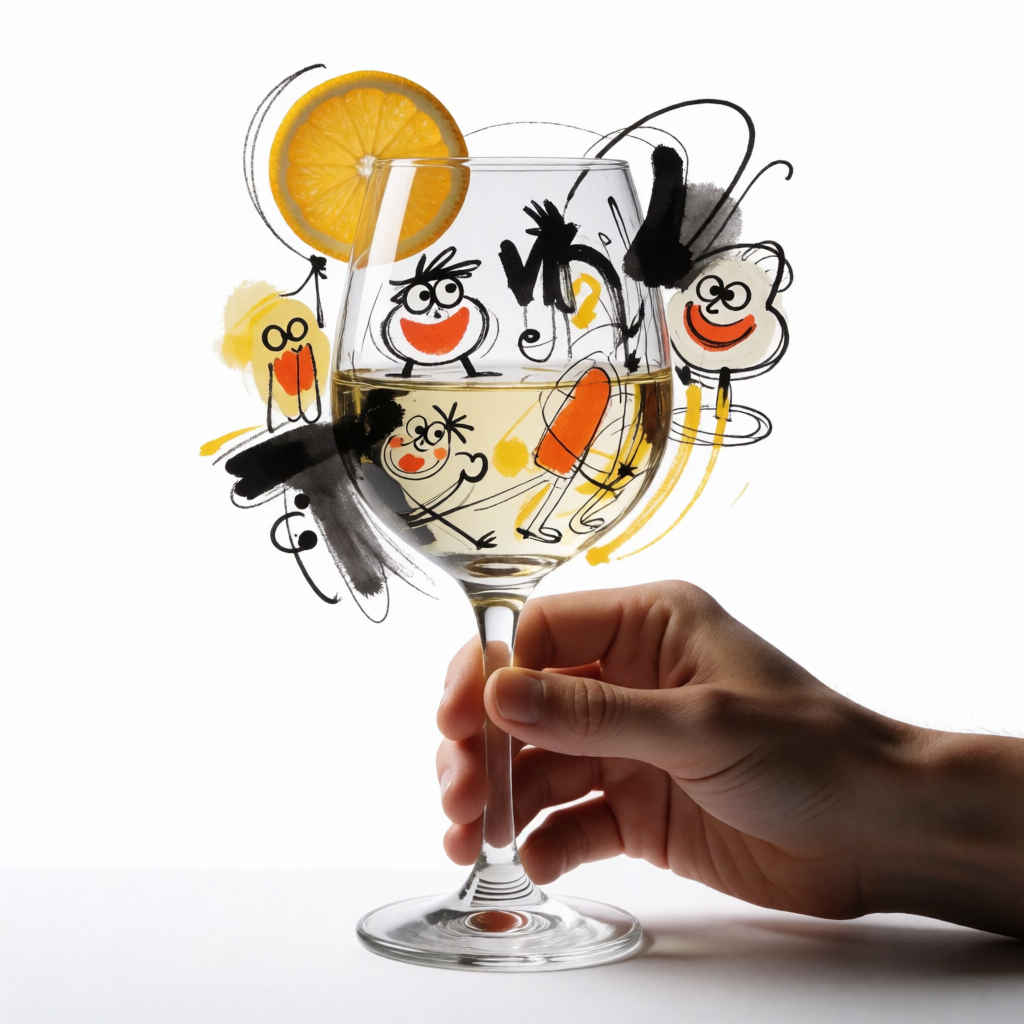 |
| Prompt: ワイングラスを持つ人の手を捉えた、高解像度かつシュールなデジタルイラストレーションです。真っ白な背景を舞台に、グラスの中の漫画風の人物や縁に描かれた柑橘類のカット、そしてグラスの周囲に散りばめられた抽象的なスケッチや顔など、遊び心あふれる表現力豊かなインク画風の落書きが重ね合わされています。写実的な照明効果を伴う写真の質感と、マーカーによる自由な手描きのタッチがシームレスに融合し、遊び心と芸術性が同居するユニークな対比を生み出しています。 | |
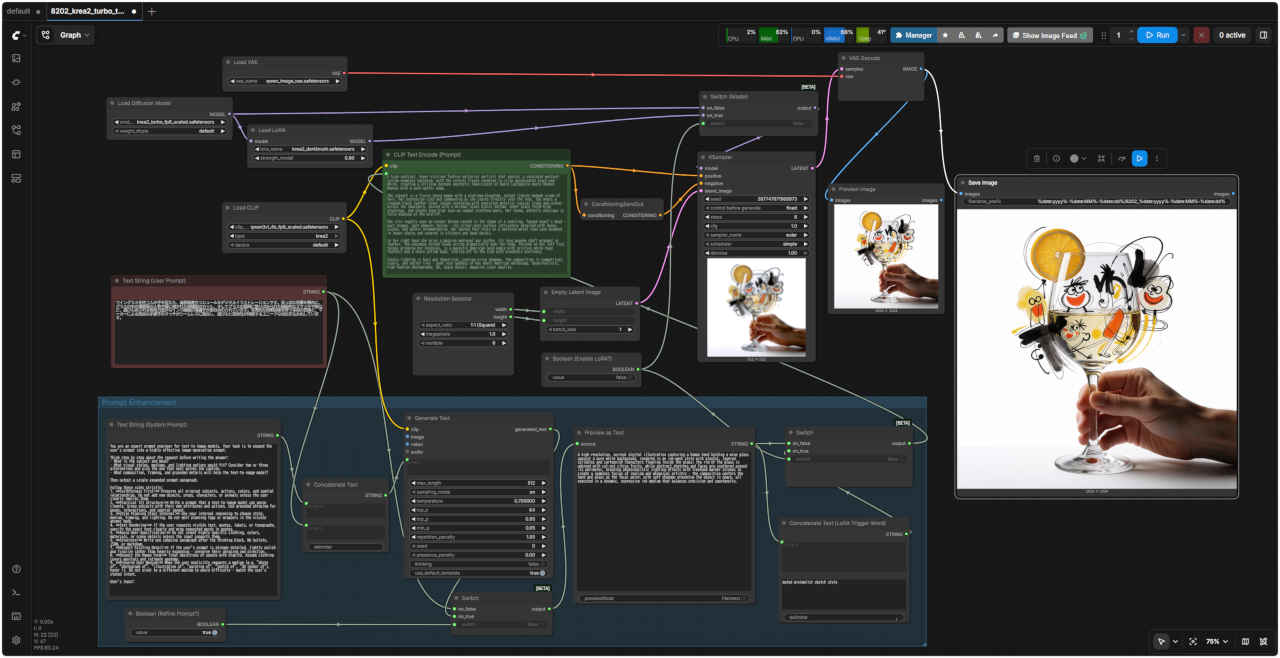 | |
| 「Krea/」8202_krea2_turbo_t2i_simple.json | |
| Step 1 のワークフローは、Lora の On/Off とプロンプトエンハンサーがついているので外して簡単にする |
| 8203 基本ワークフロー | 8203 SubGraph(プロンプト・エンハンサーなし) |
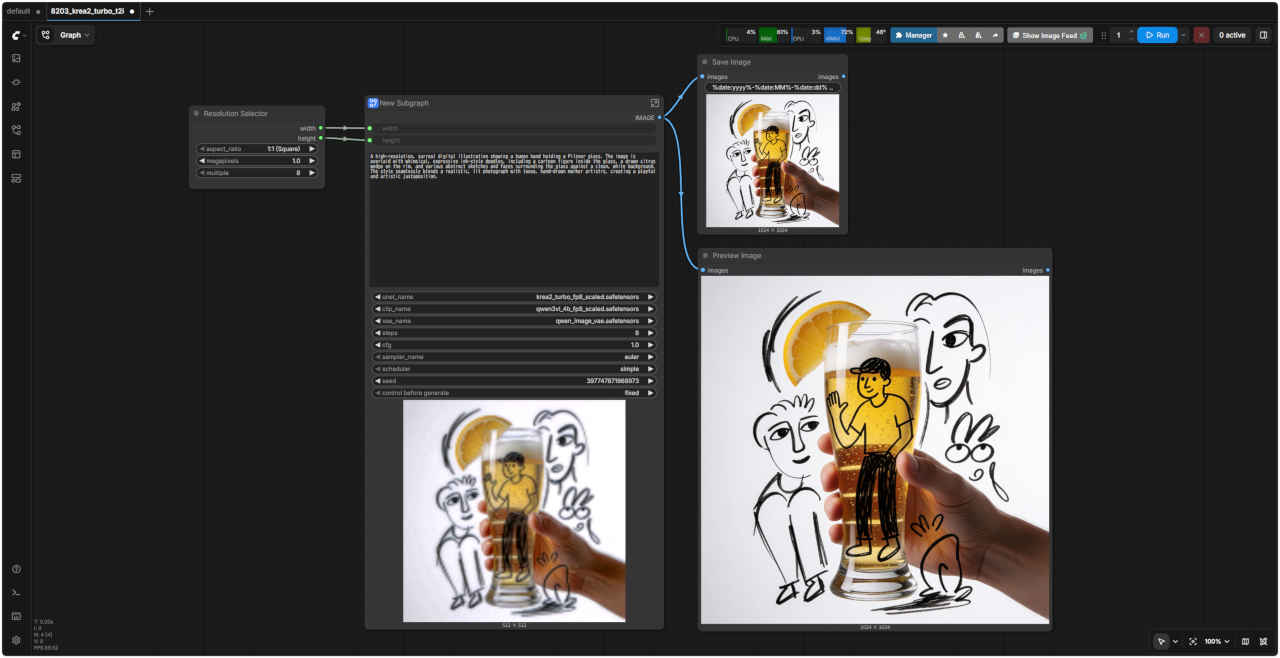
| Prompt: A high-resolution, surreal digital illustration showing a human hand holding a Pilsner glass. The image is overlaid with whimsical, expressive ink-style doodles, including a cartoon figure inside the glass, a drawn citrus wedge on the rim, and various abstract sketches and faces surrounding the glass against a clean, white background. The style seamlessly blends a realistic, lit photograph with loose, hand-drawn marker artistry, creating a playful and artistic juxtaposition. | |
| ピルスナーグラスを握る人の手を捉えた、高解像度かつシュールなデジタルイラストレーションです。真っ白な背景を舞台に、グラスの中の漫画風の人物や縁に描かれた柑橘類のカット、そしてグラスの周囲に散りばめられた抽象的なスケッチや顔といった、遊び心あふれる表現力豊かなインク画風の落書きが重ね合わされています。写実的な照明効果を伴う写真の質感と、マーカーによる自由な手描きのタッチがシームレスに融合し、遊び心と芸術性が同居するユニークな対比を生み出しています。 | |
 | 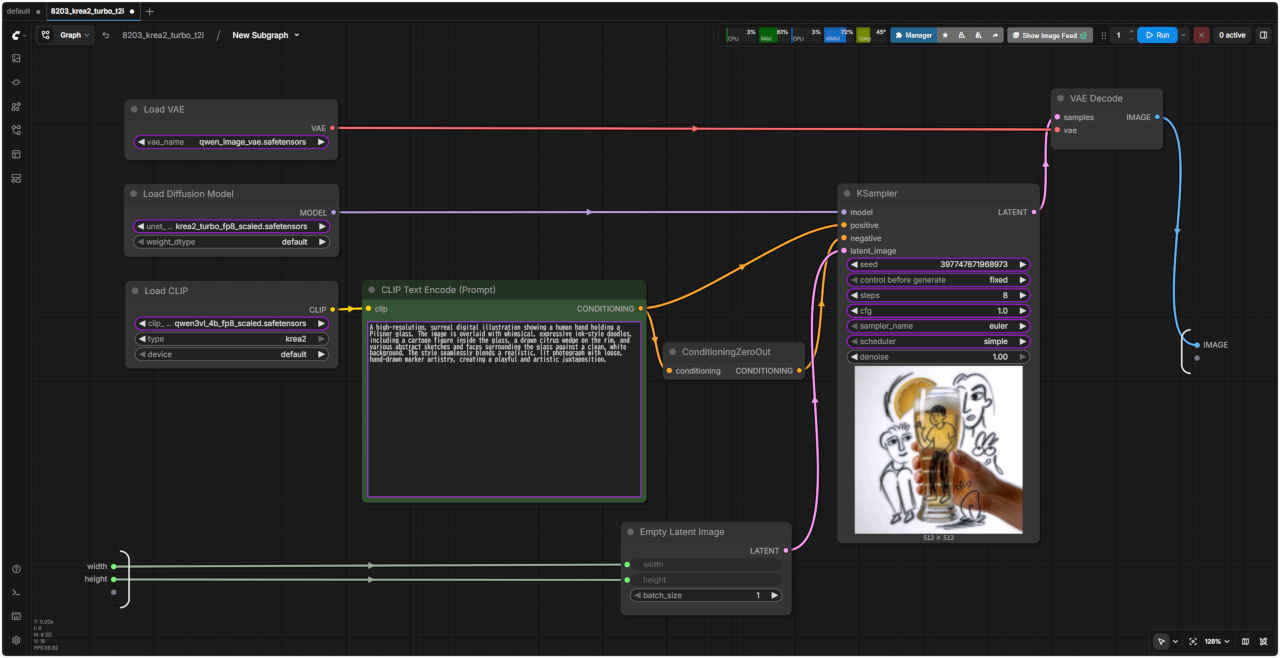 |
| 「Krea/」8203_krea2_turbo_t2i.json | |
| 8204 基本ワークフロー(展開版) | 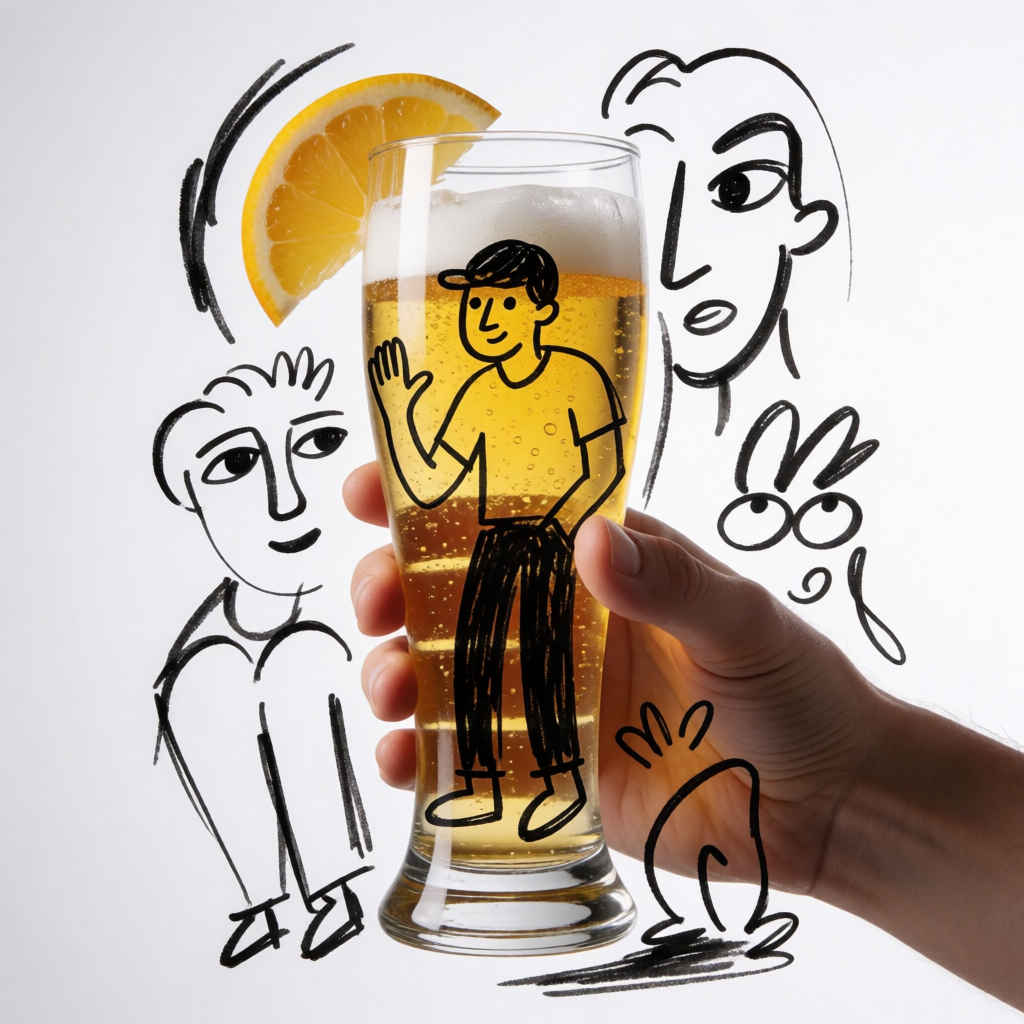 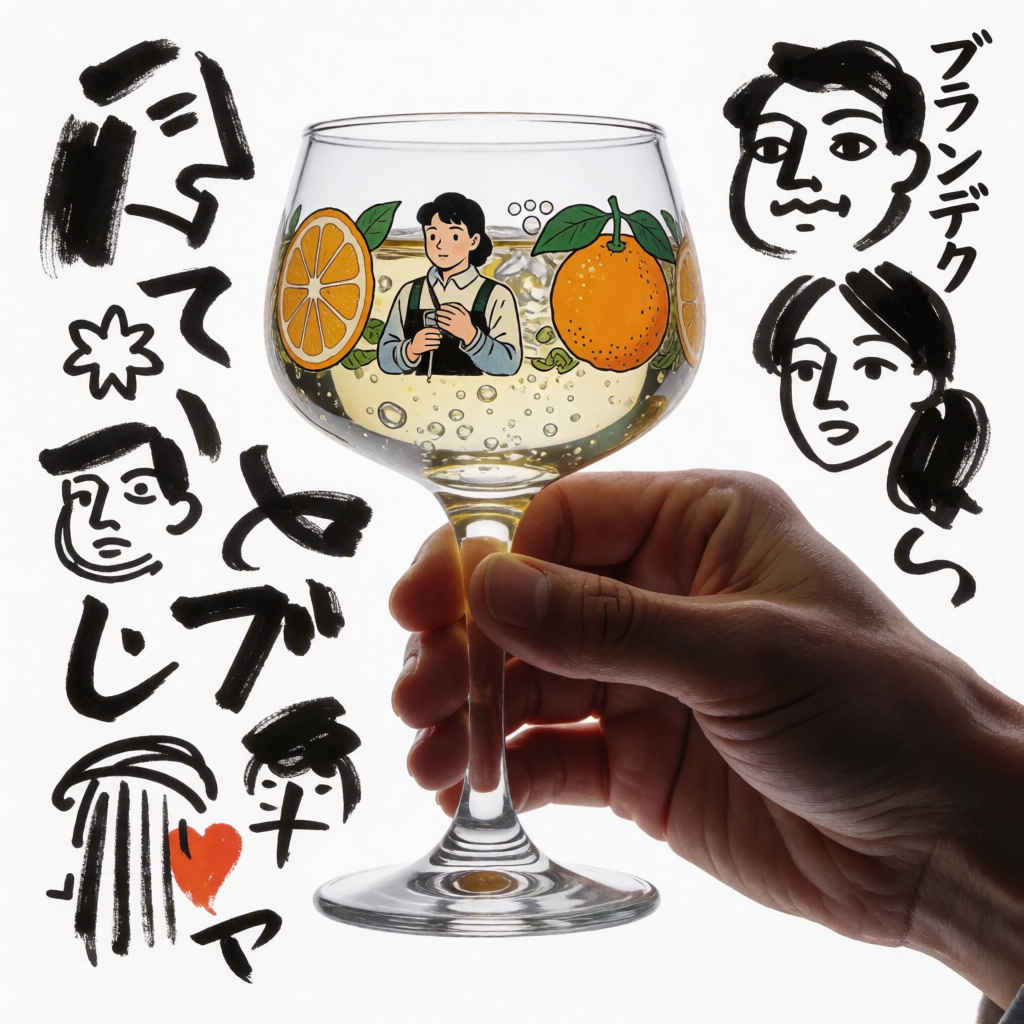 |
| Prompt: ブランデーグラスを持つ人の手を捉えた、高解像度かつシュールなデジタルイラストレーションです。真っ白な背景を舞台に、グラスの中の漫画風の人物や縁に描かれた柑橘類のカット、そしてグラスの周囲に散りばめられた様々な抽象的スケッチや顔といった、遊び心あふれる表現力豊かなインク画風の落書きが重ね合わされています。写実的な照明効果を伴う写真の要素と、マーカーによる自由な手描きのタッチがシームレスに融合し、遊び心と芸術性が同居するユニークな対比を生み出しています。 | |
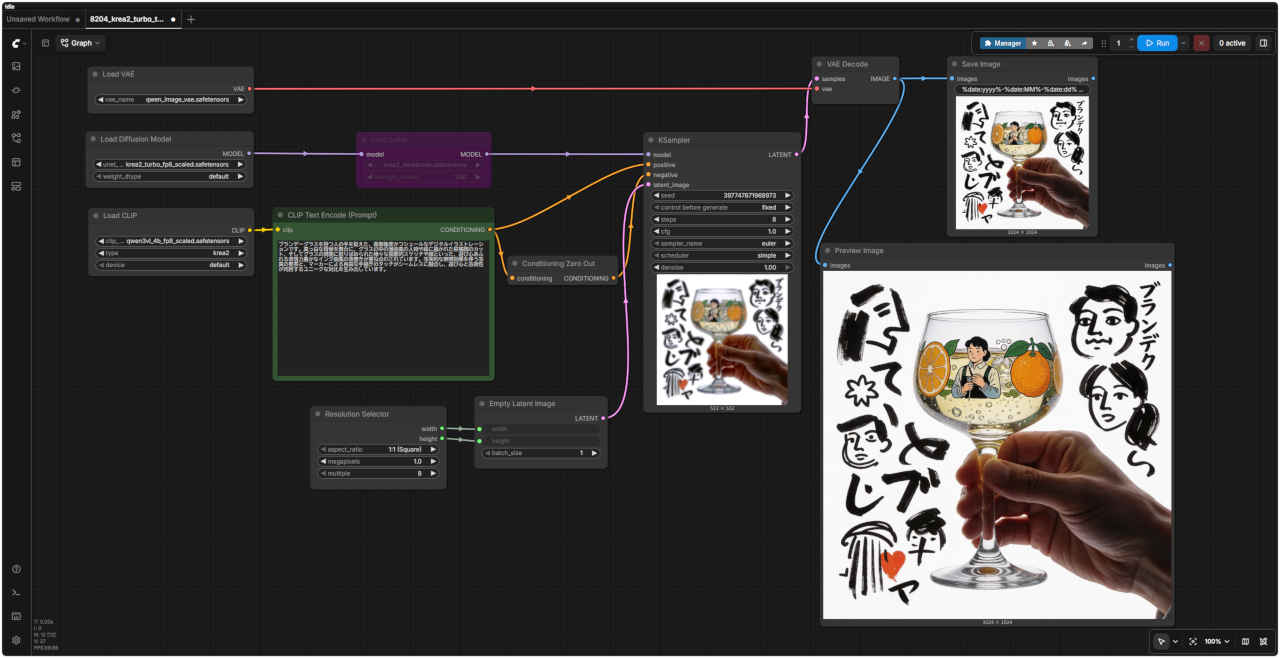 | |
| 「Krea/」8204_krea2_turbo_t2i_simple.json | |
| 英語プロンプト | 日本語プロンプト |
| ① 20代の美しい日本人女性 1184x888 | |
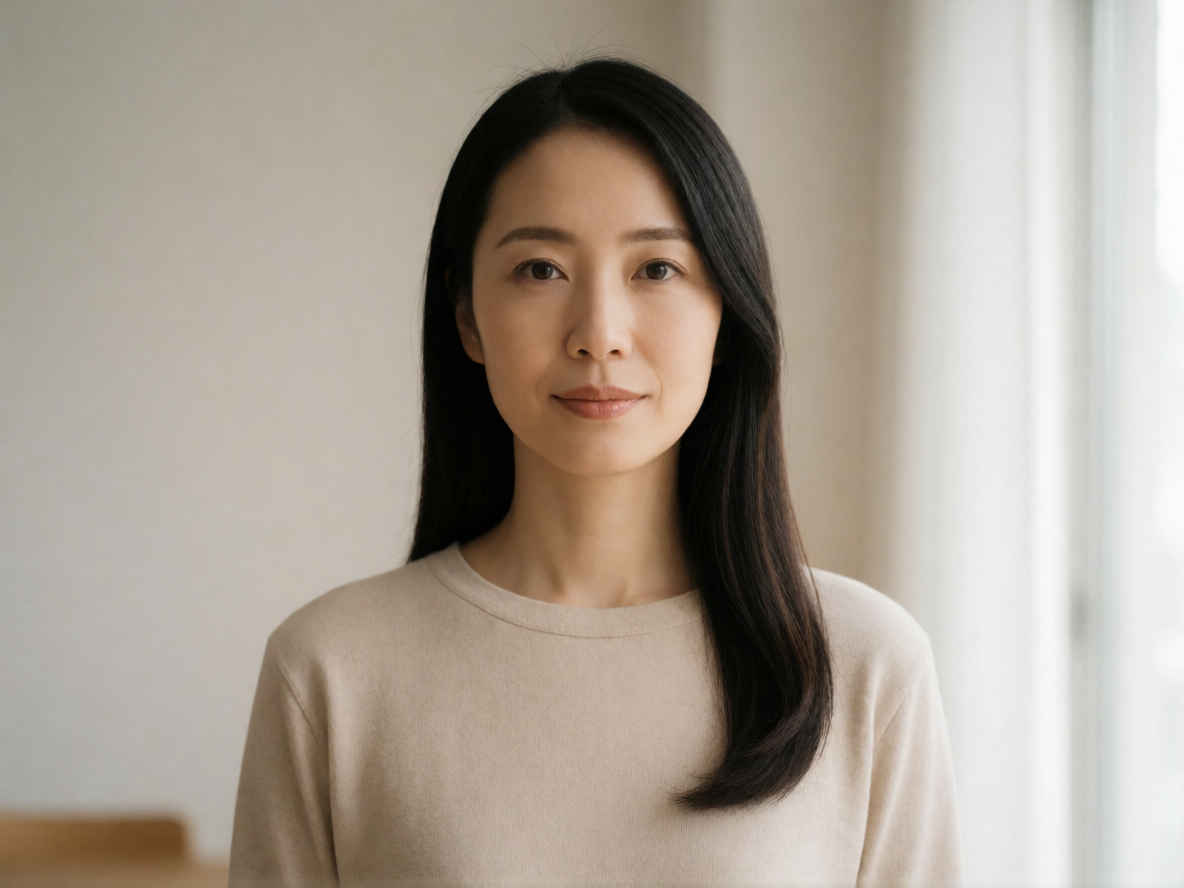 | 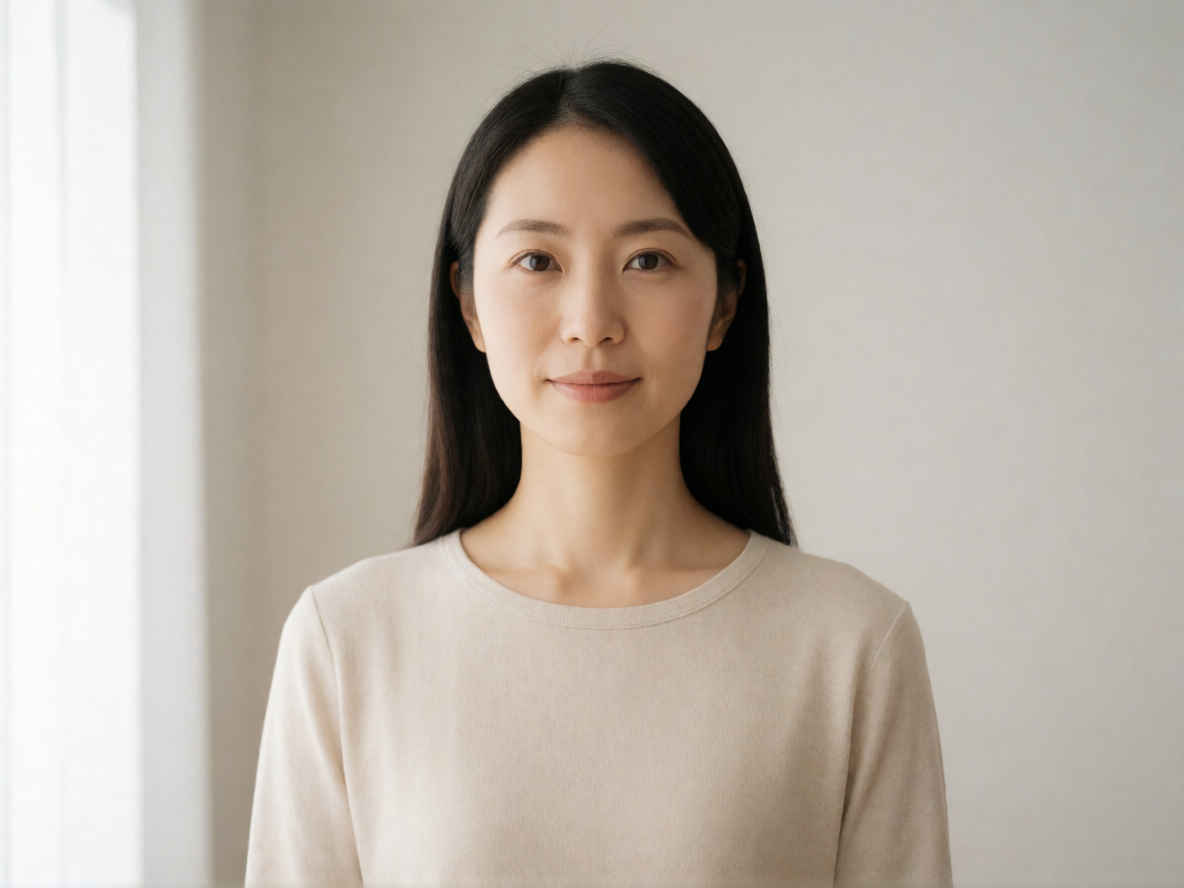 |
| ② 20代の美しい日本人女性、バストアップのアングル 1184x888 | |
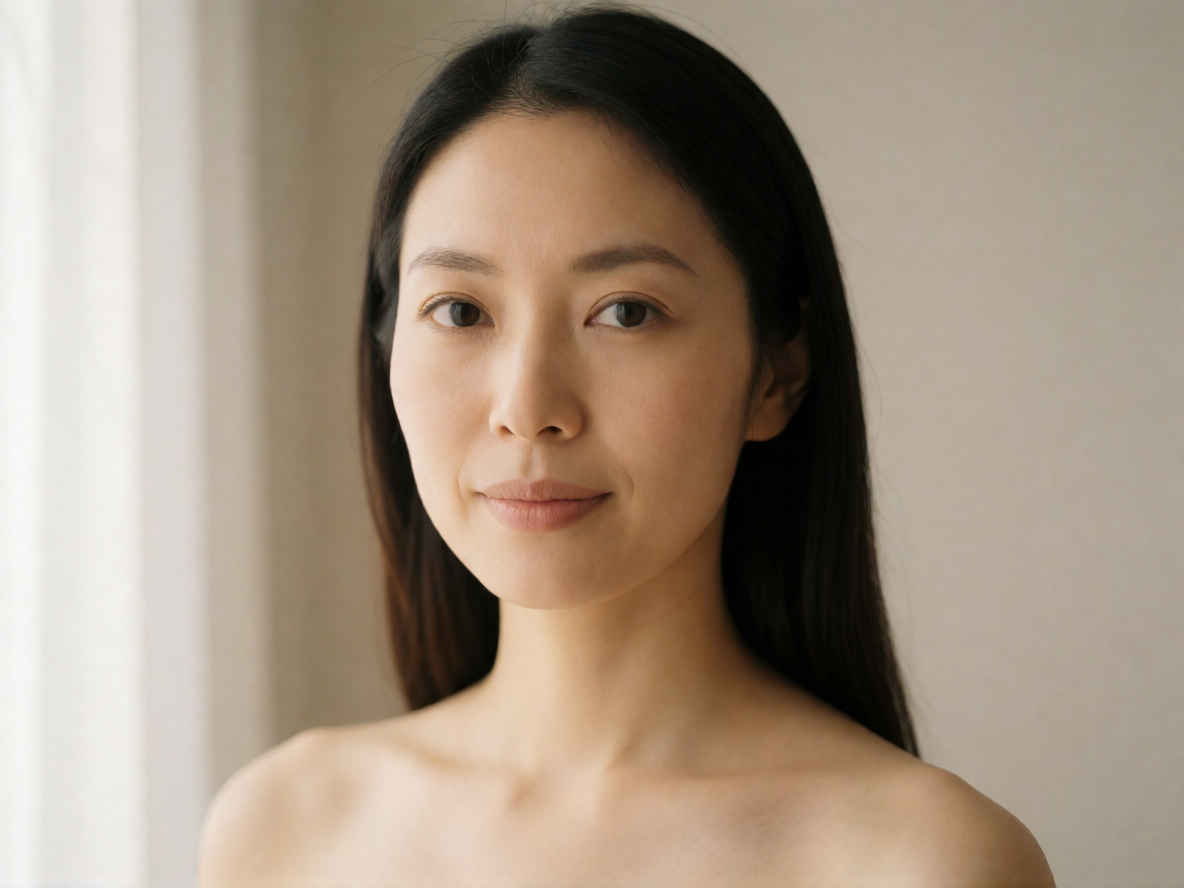 | 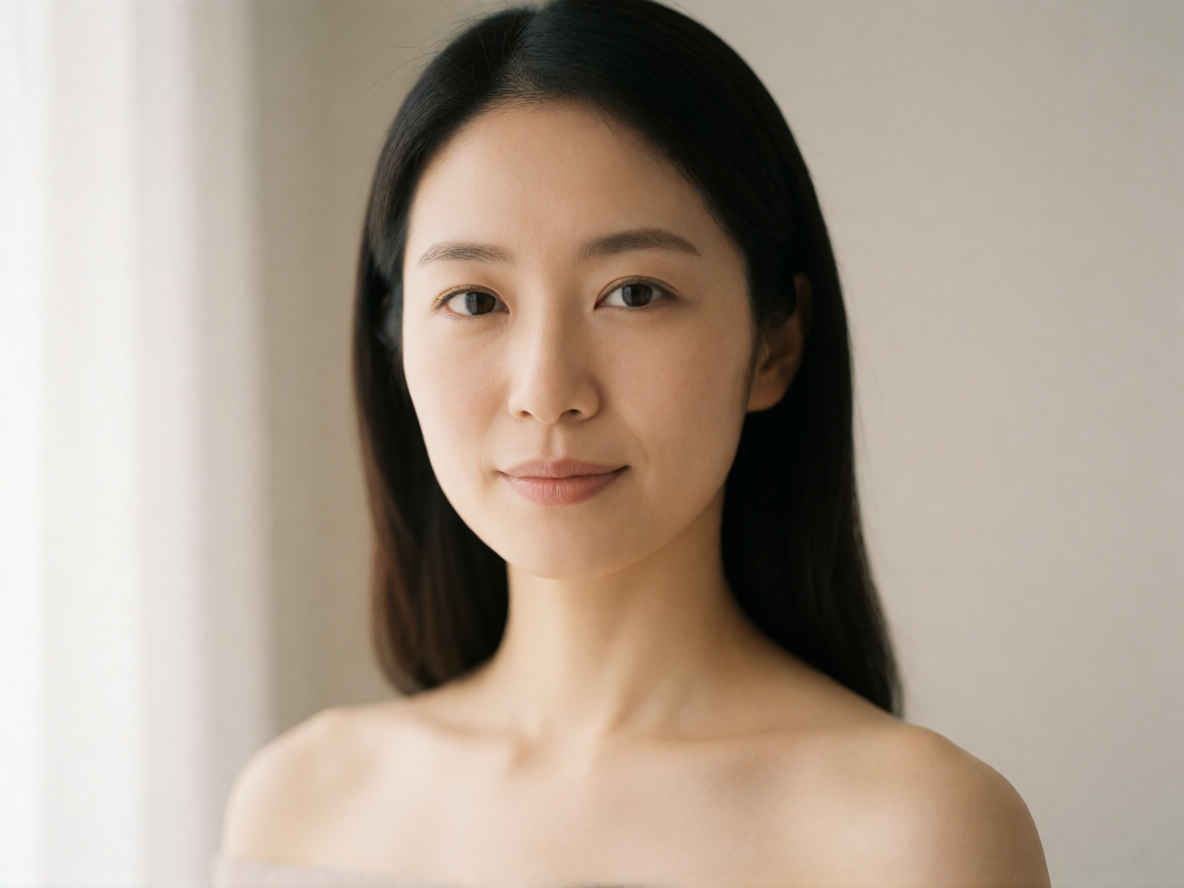 |
| ③ 夜のカフェでコーヒーを飲む日本人女性 1184x888 | |
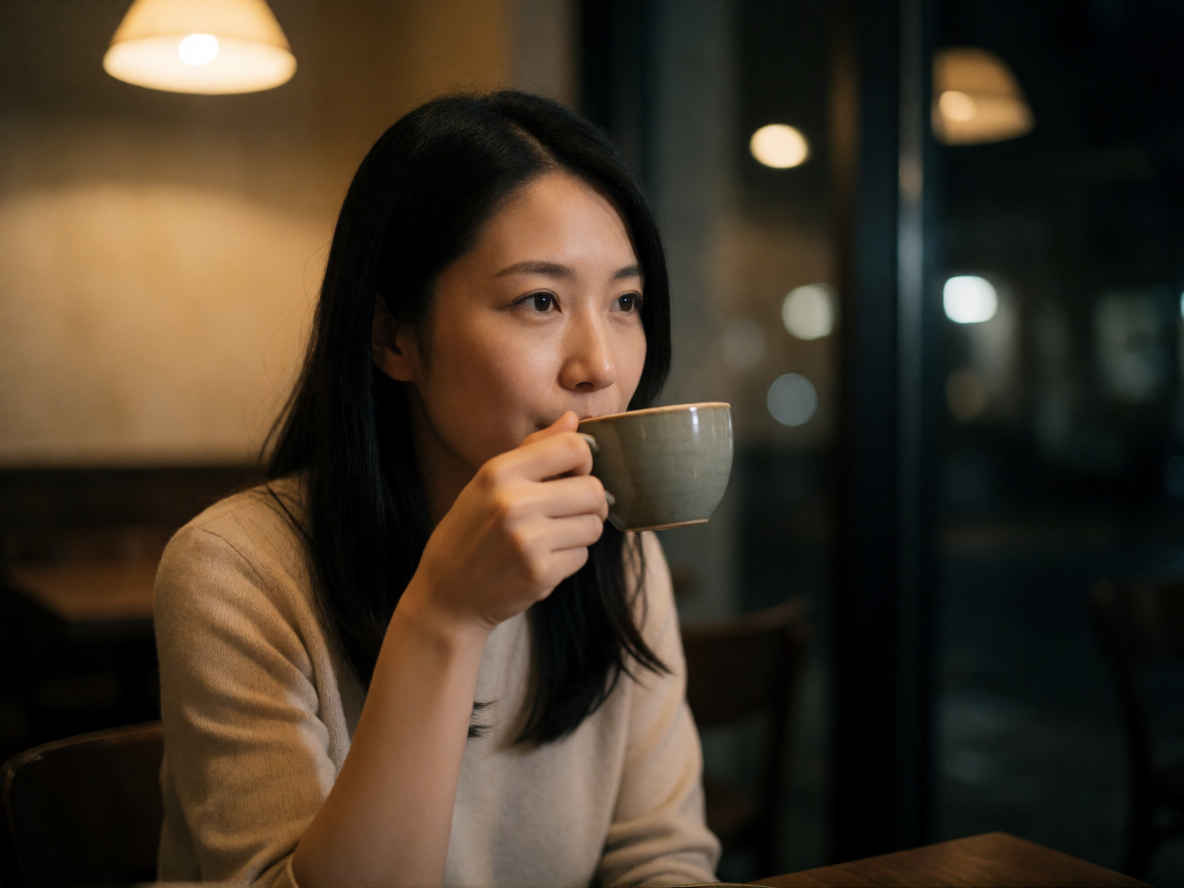 | 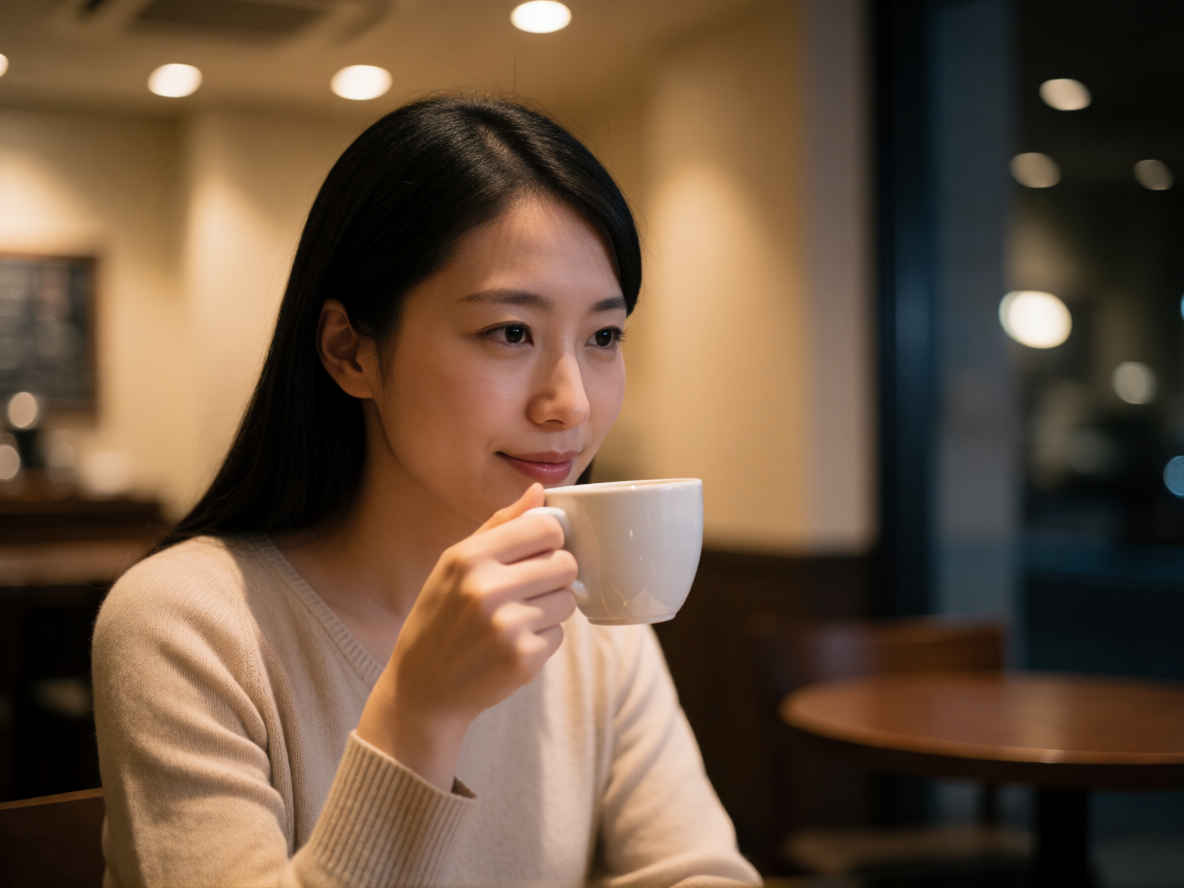 |
| ④ 背の高いエレガントなビジネスウーマン 1184x888 | |
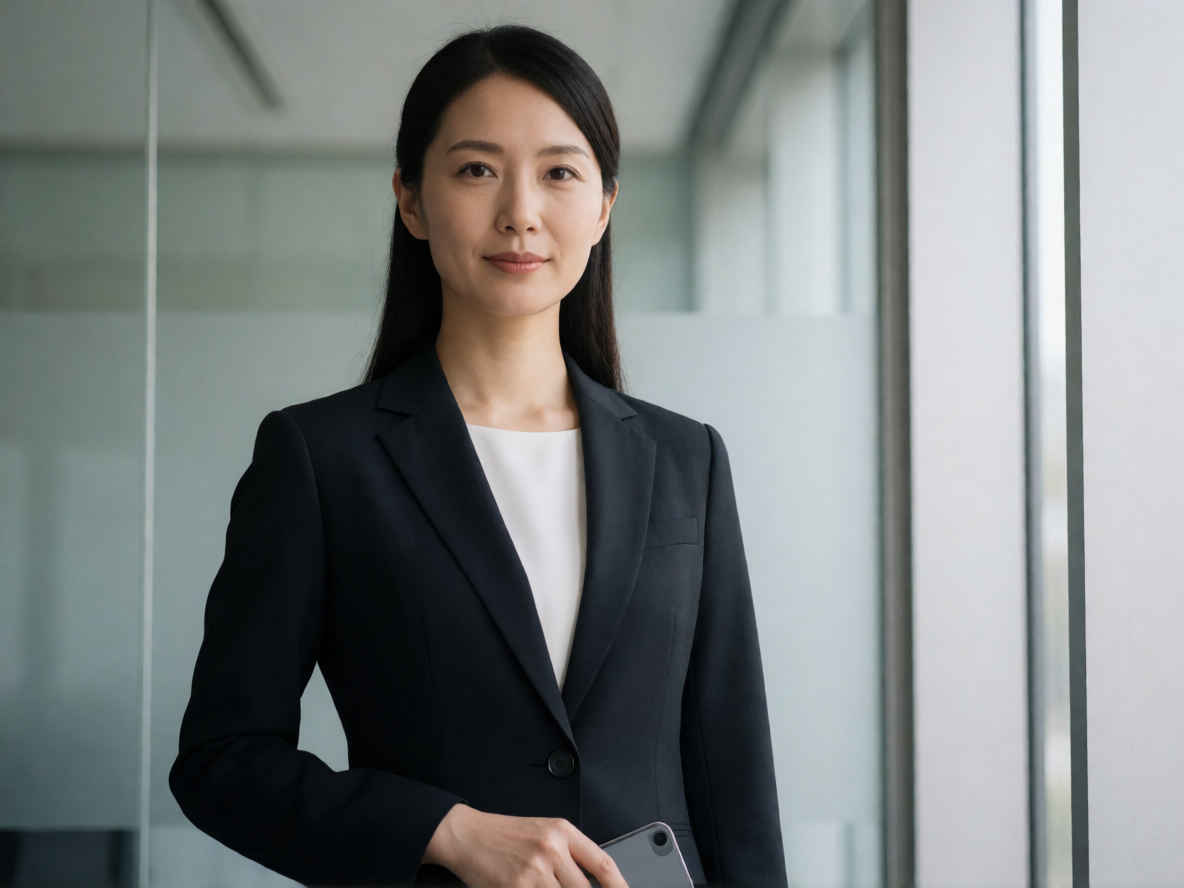 | 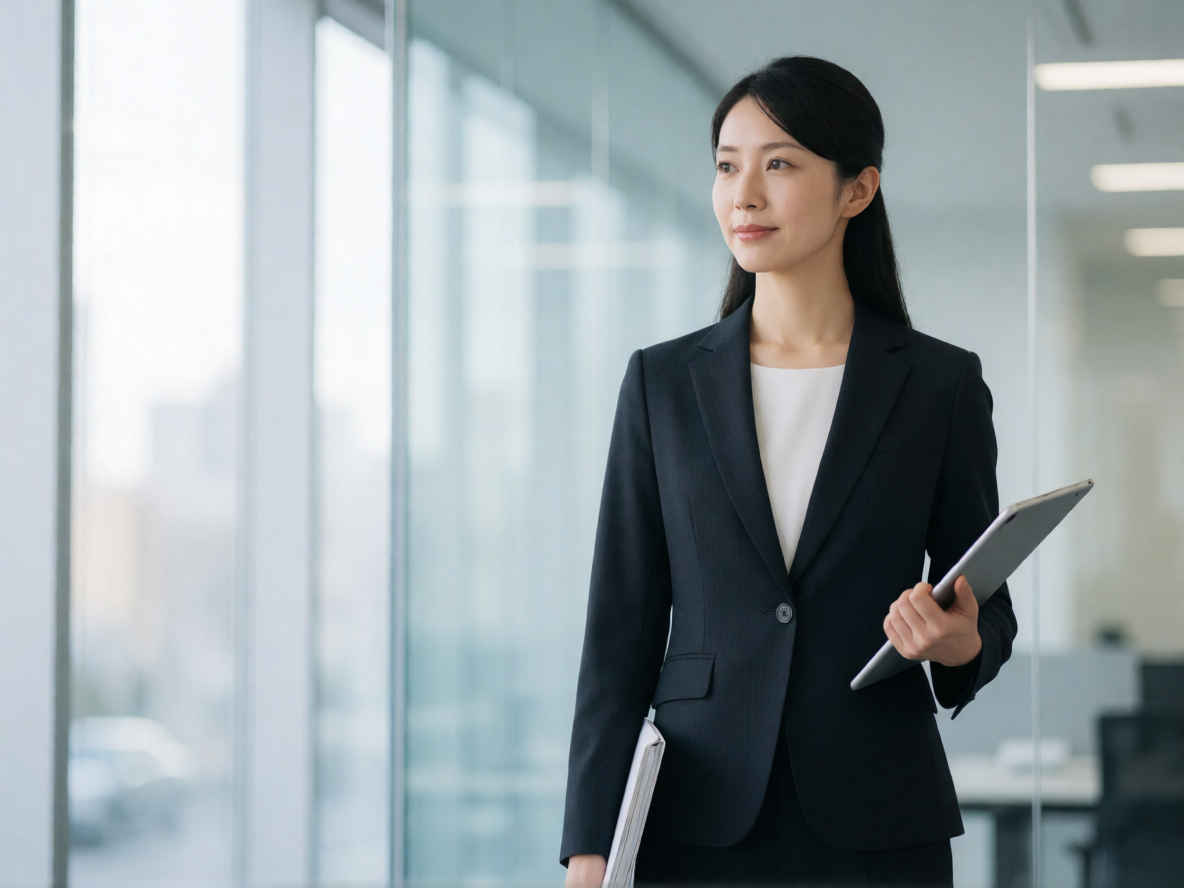 |
| ⑤ ミステリアスな27歳のプロモデル 1184x888 | |
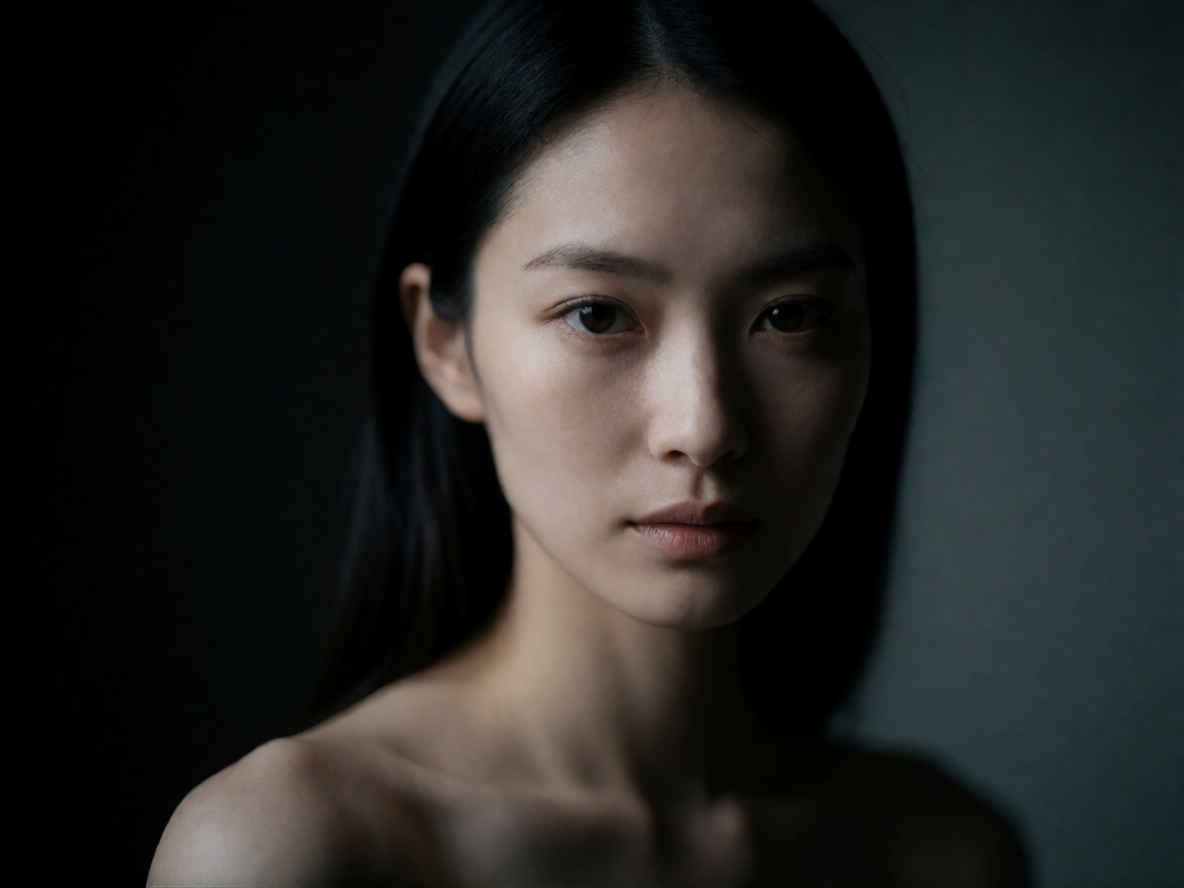 | 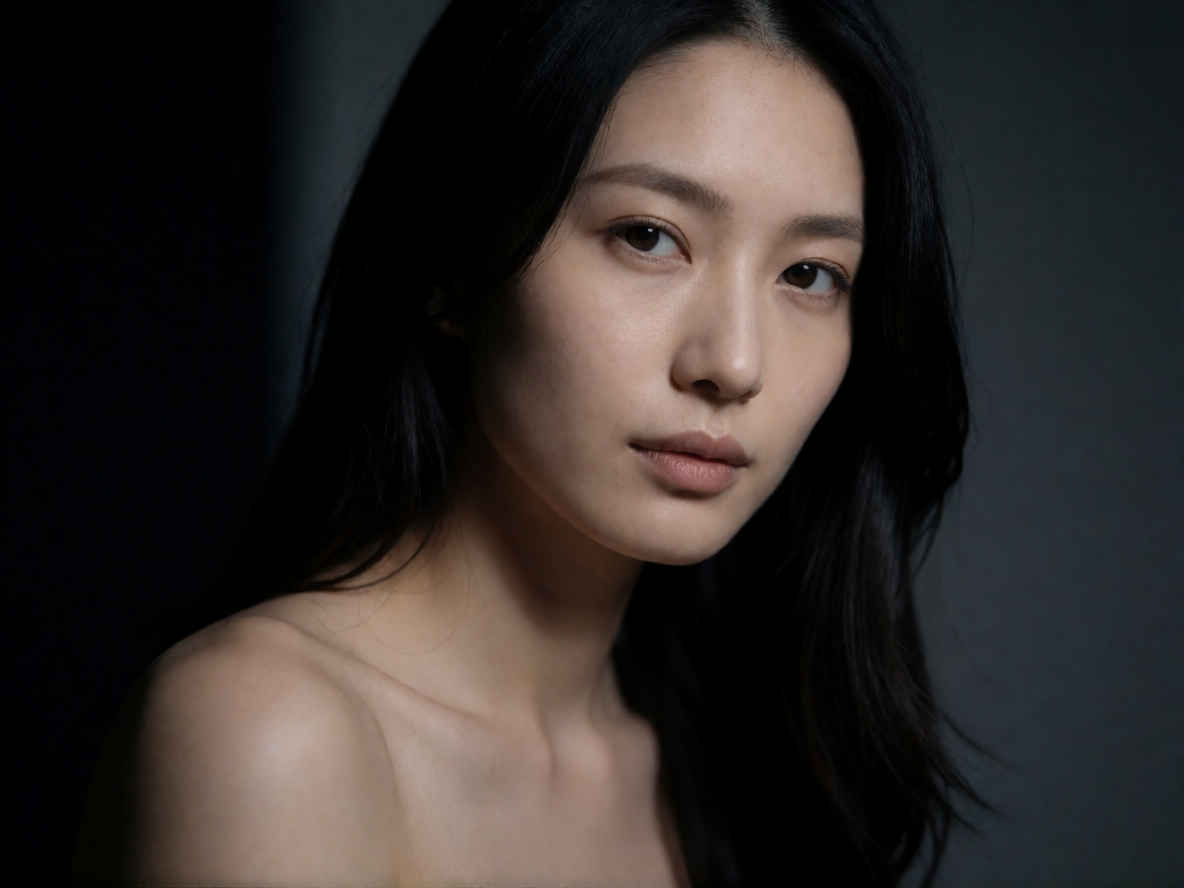 |
| 英語プロンプト | 日本語プロンプト |
| ① 文字の入ったカタログ 888x1184 ~→ 英語/日本語 プロンプト> | |
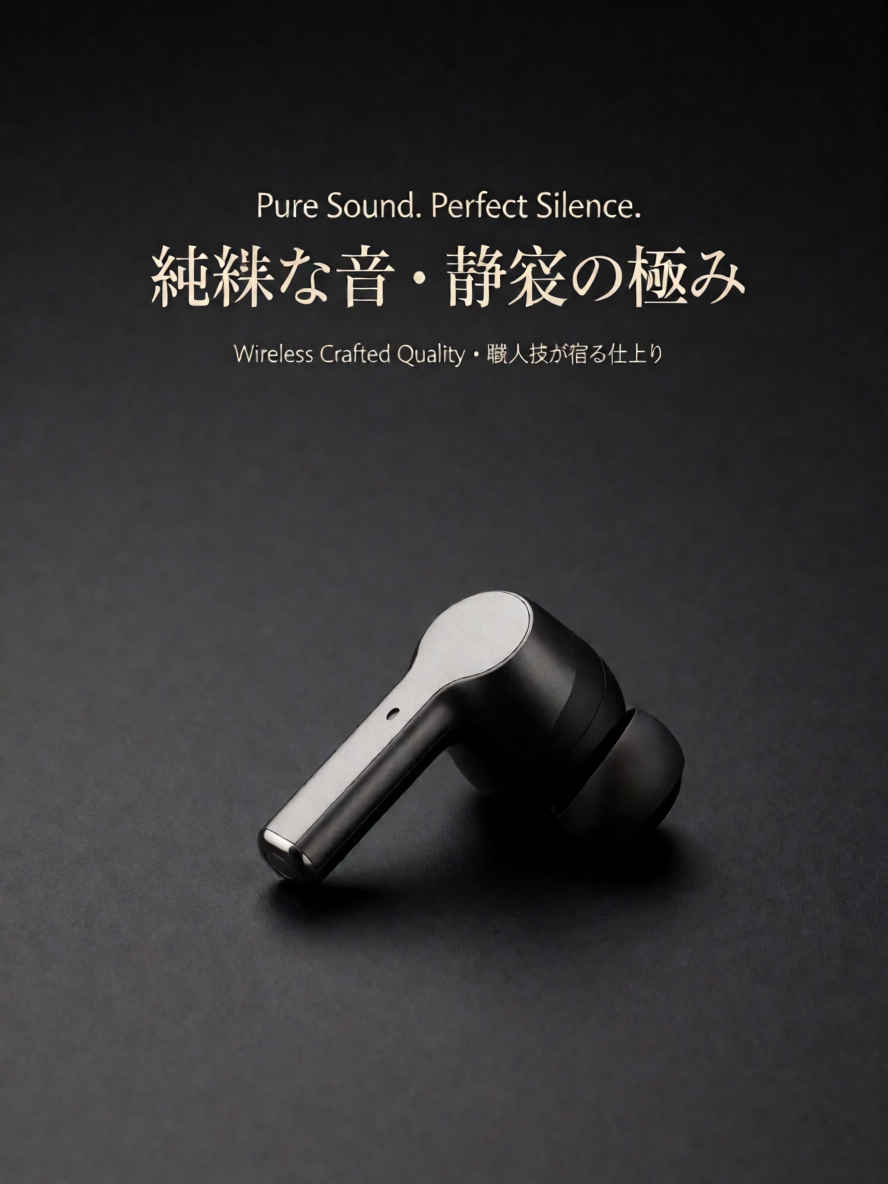 | 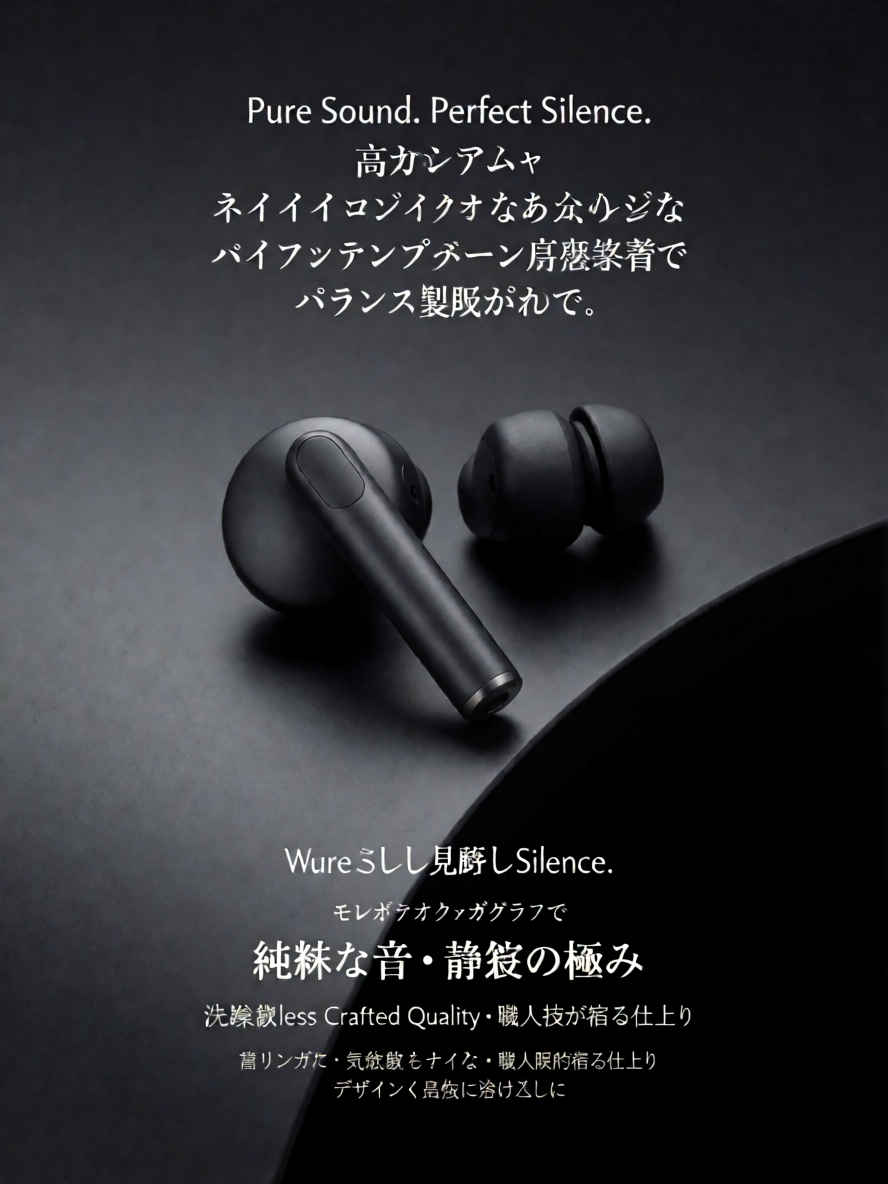 |
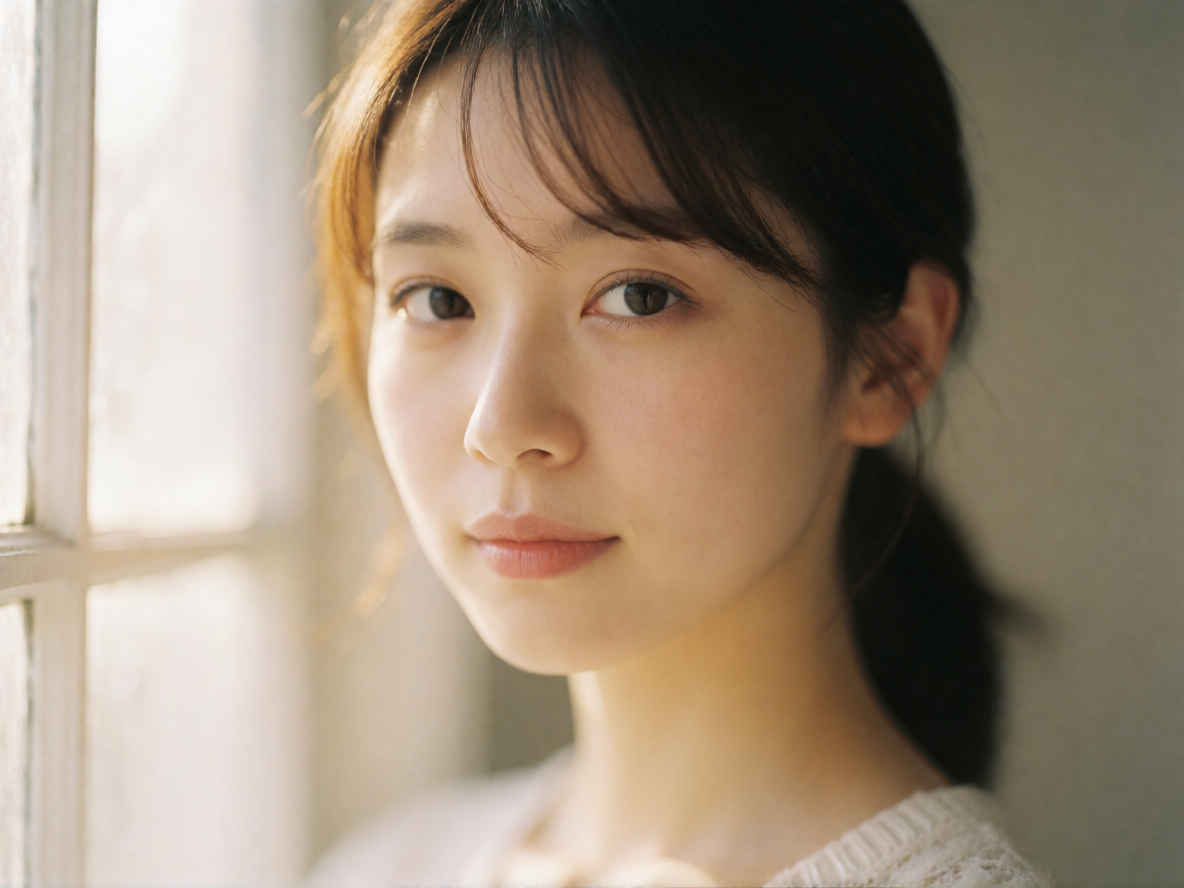
| ② クローズアップポートレート 1184x888 ~→ 英語/日本語 プロンプト> | |
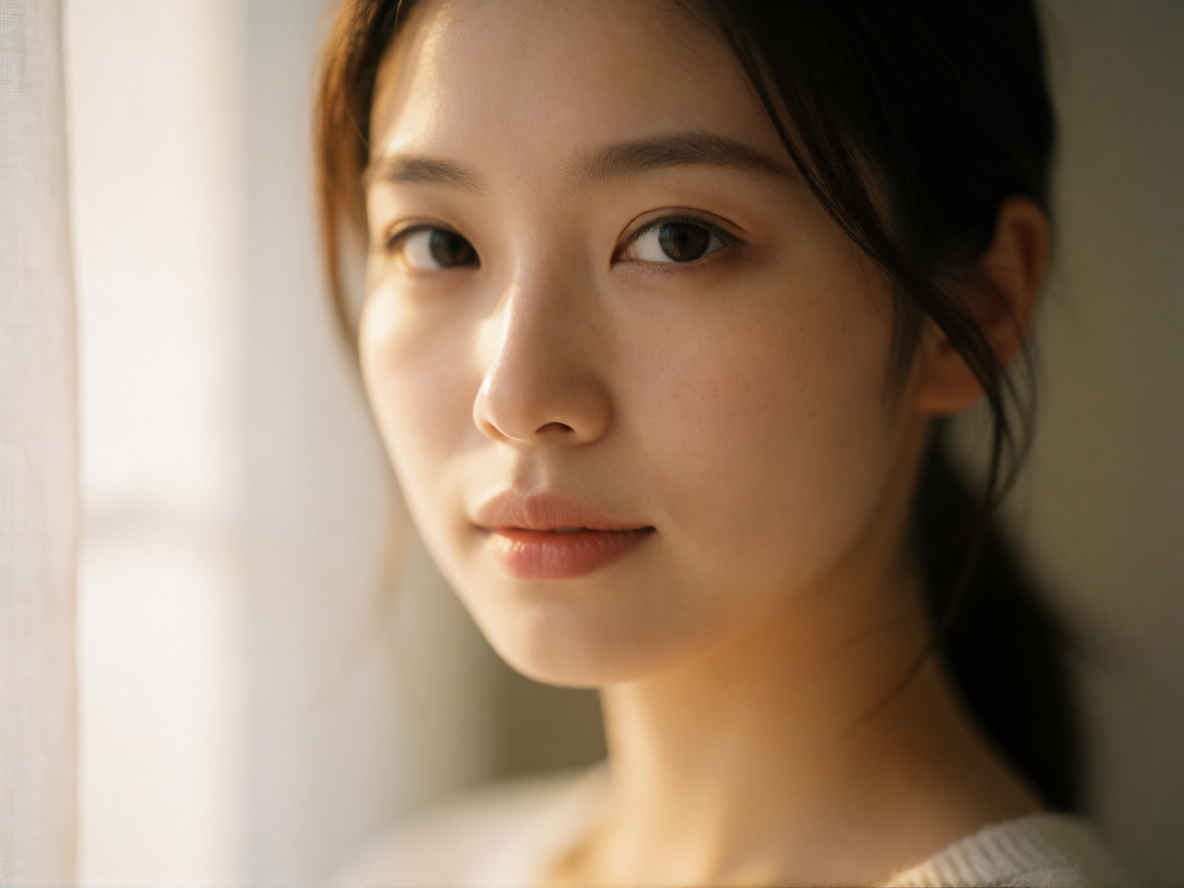 |  |
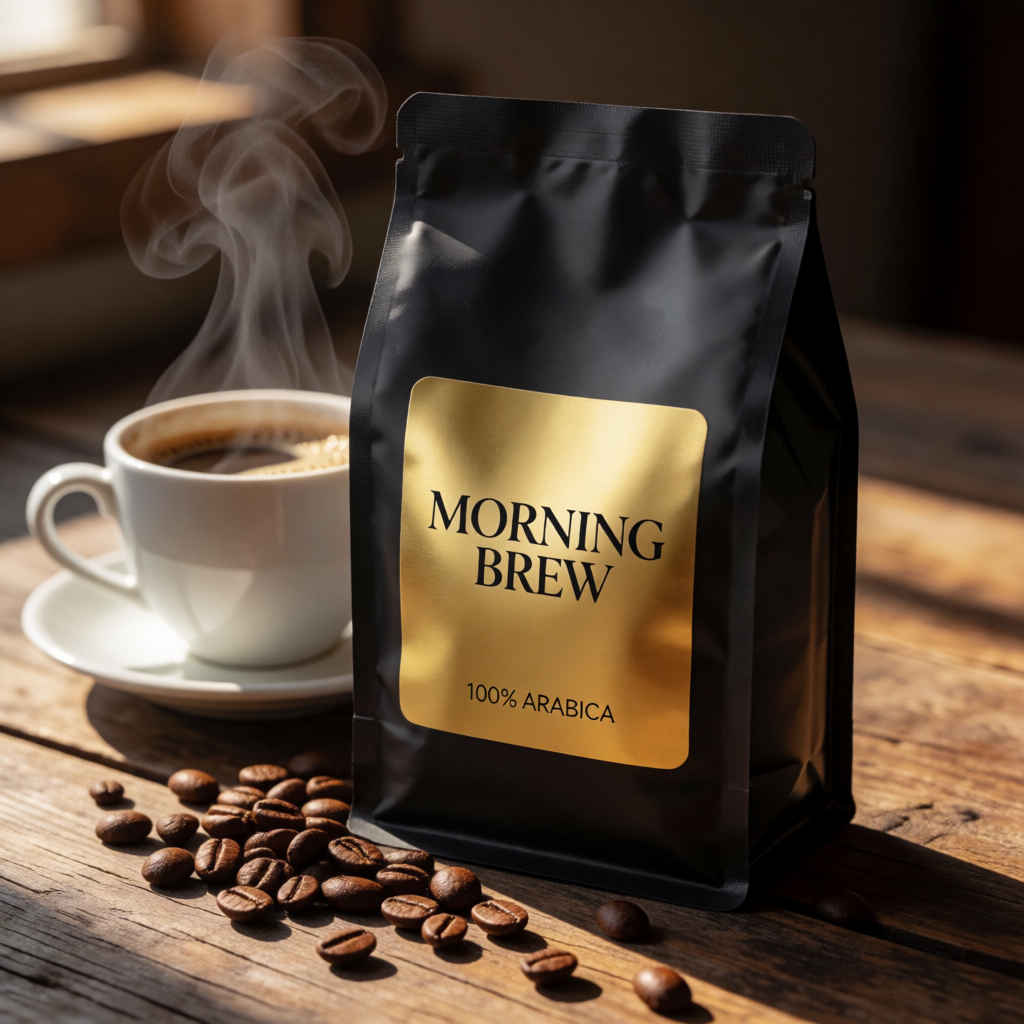
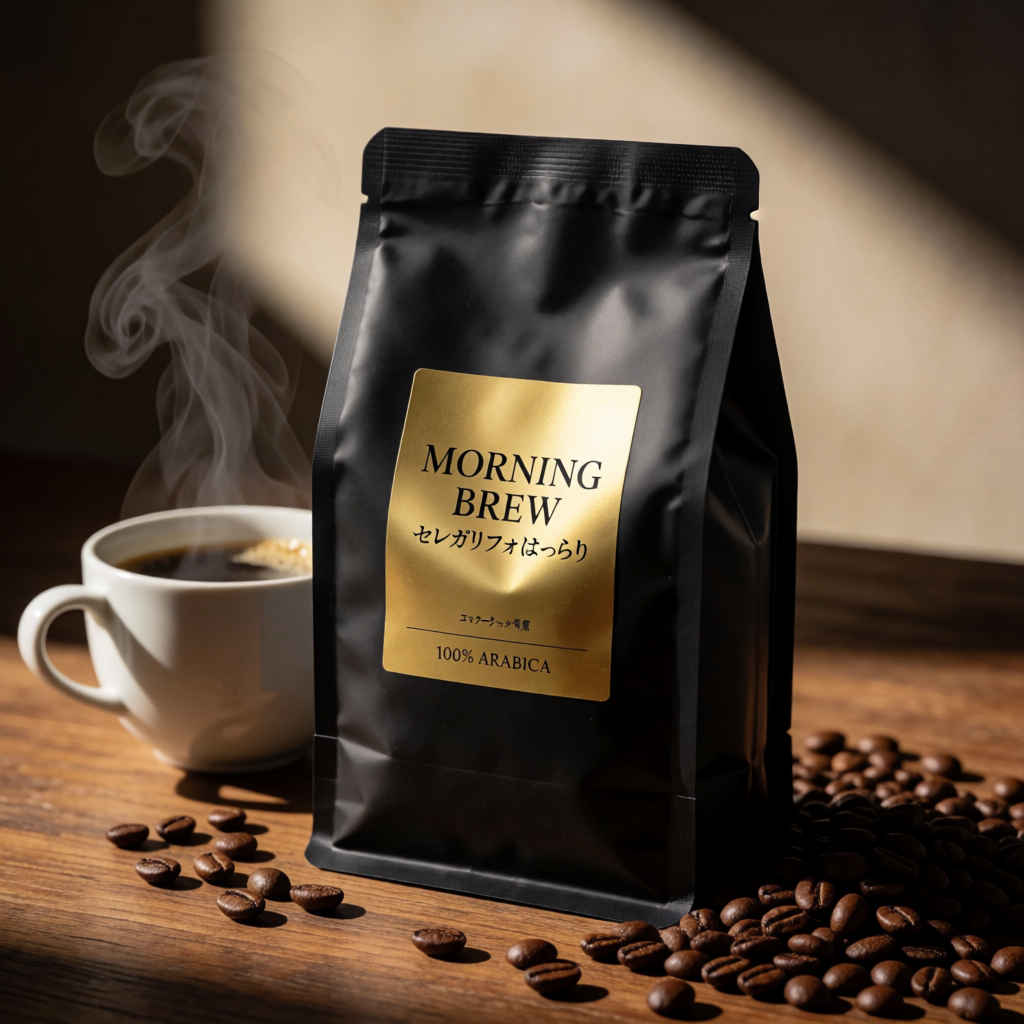
| ③ コマーシャル商品写真(コーヒー) 1024x1024 ~→ 英語/日本語 プロンプト> | |
 |  |
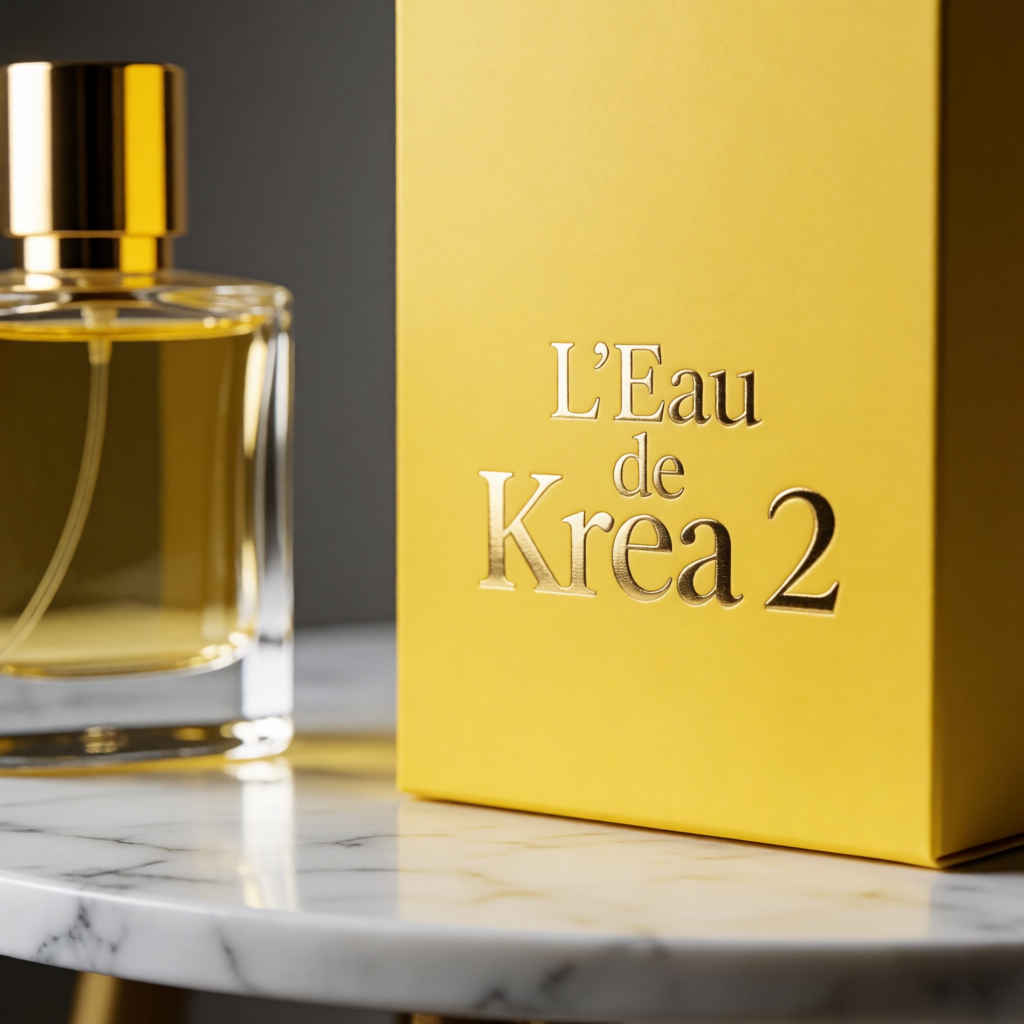
| ④ コマーシャル商品写真(化粧品) 1024x1024 ~→ 英語/日本語 プロンプト | |
 | 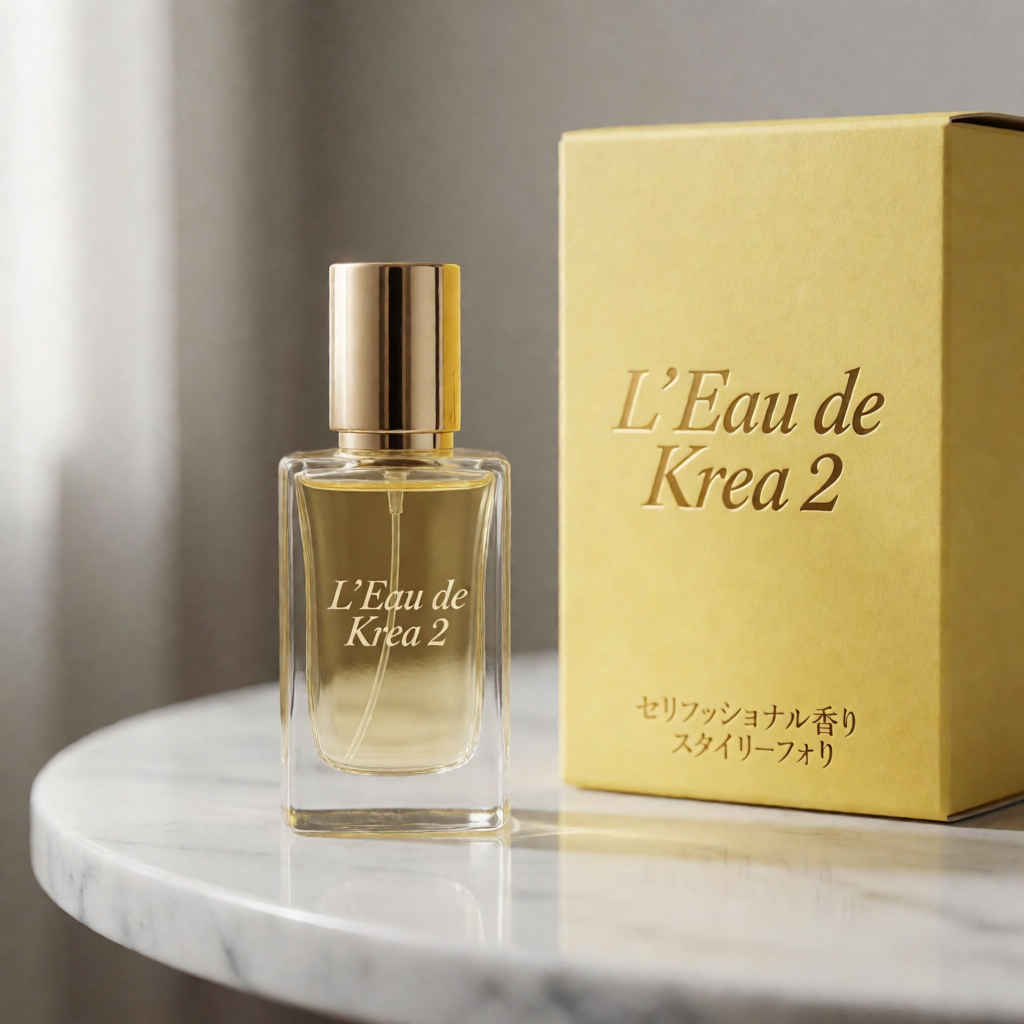 |
| ⑤ ファッション誌のモデル写真 888x1184 ~→ 英語/日本語 プロンプト | |
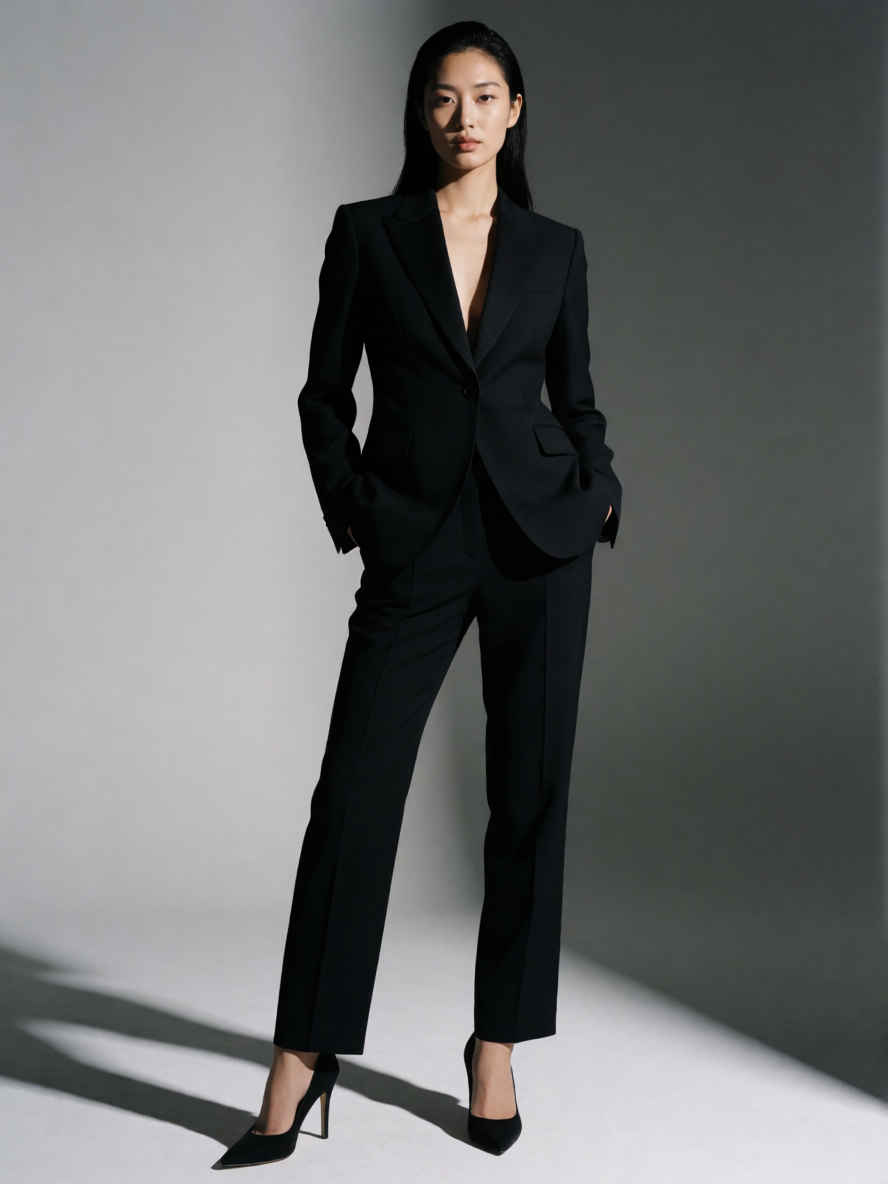 | 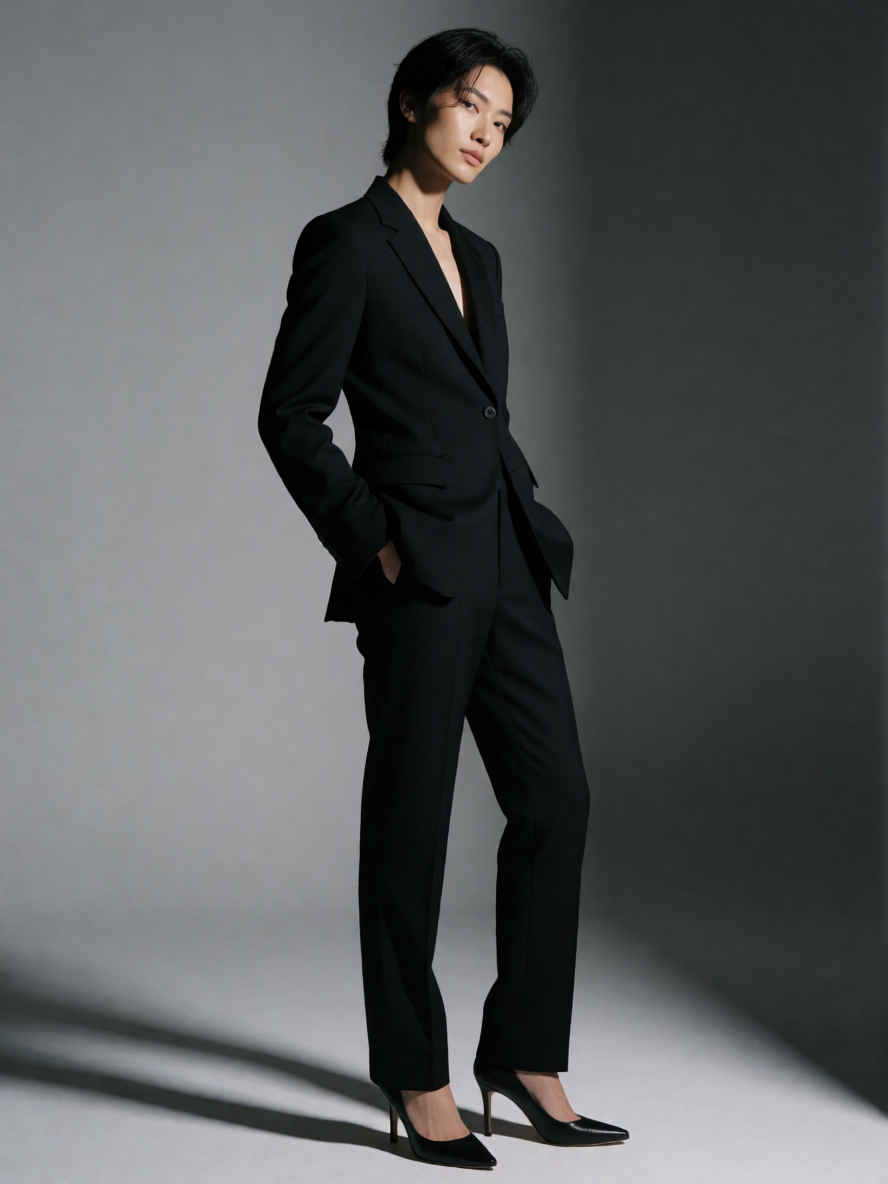 |
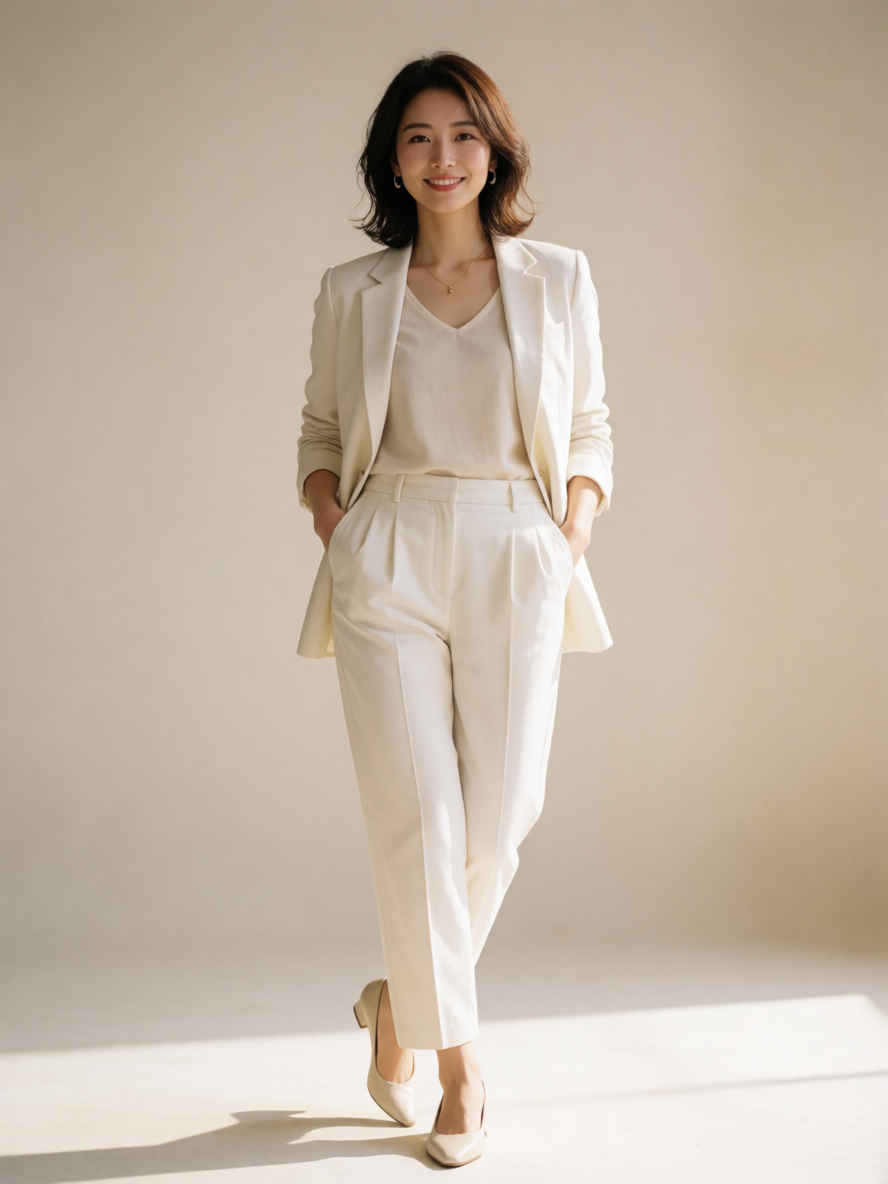 | 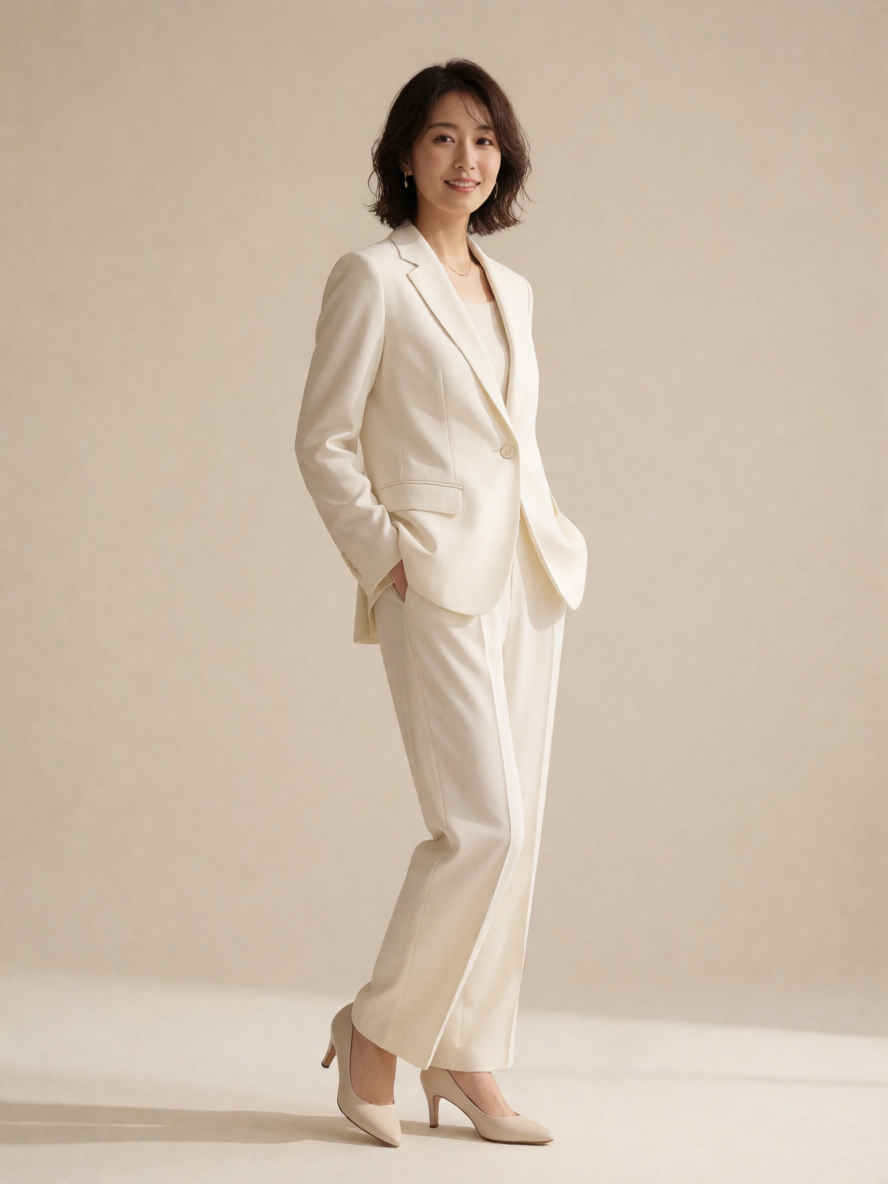 |
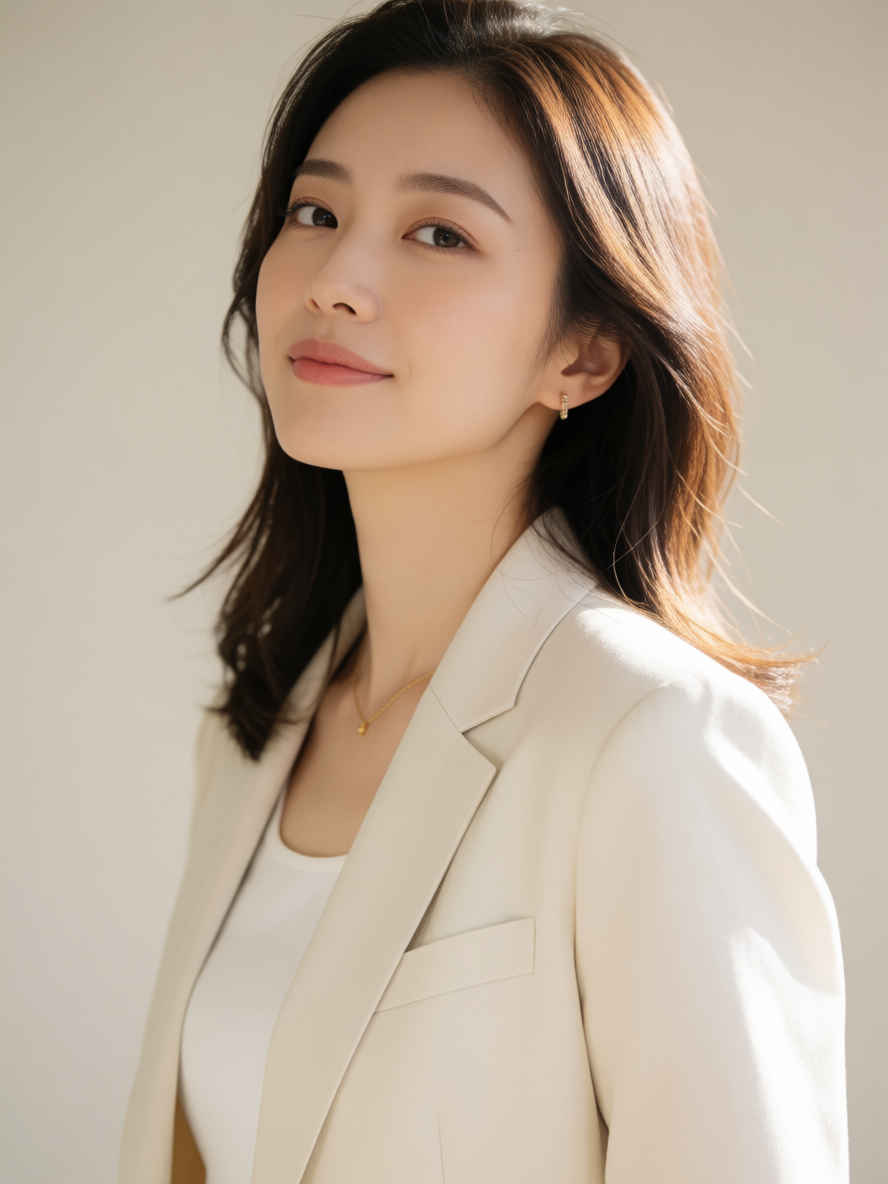 | 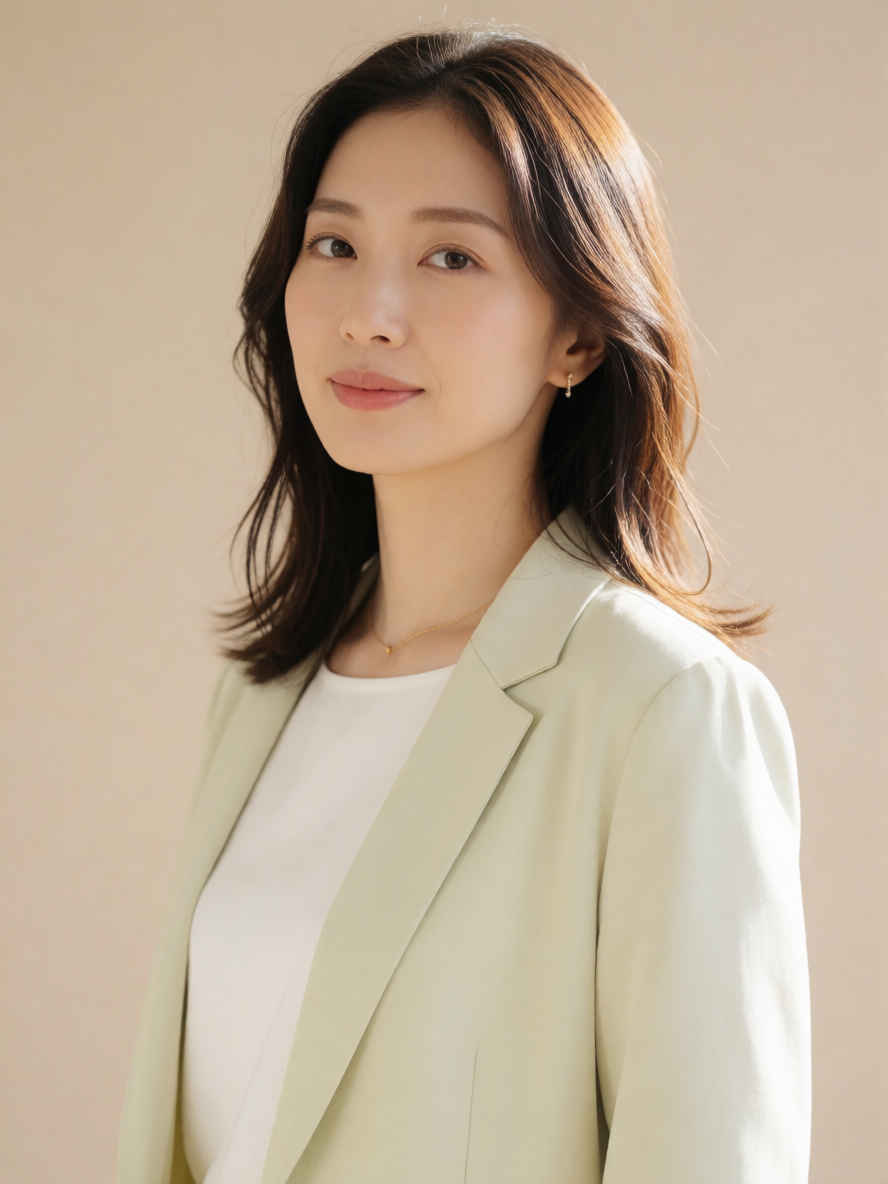 |
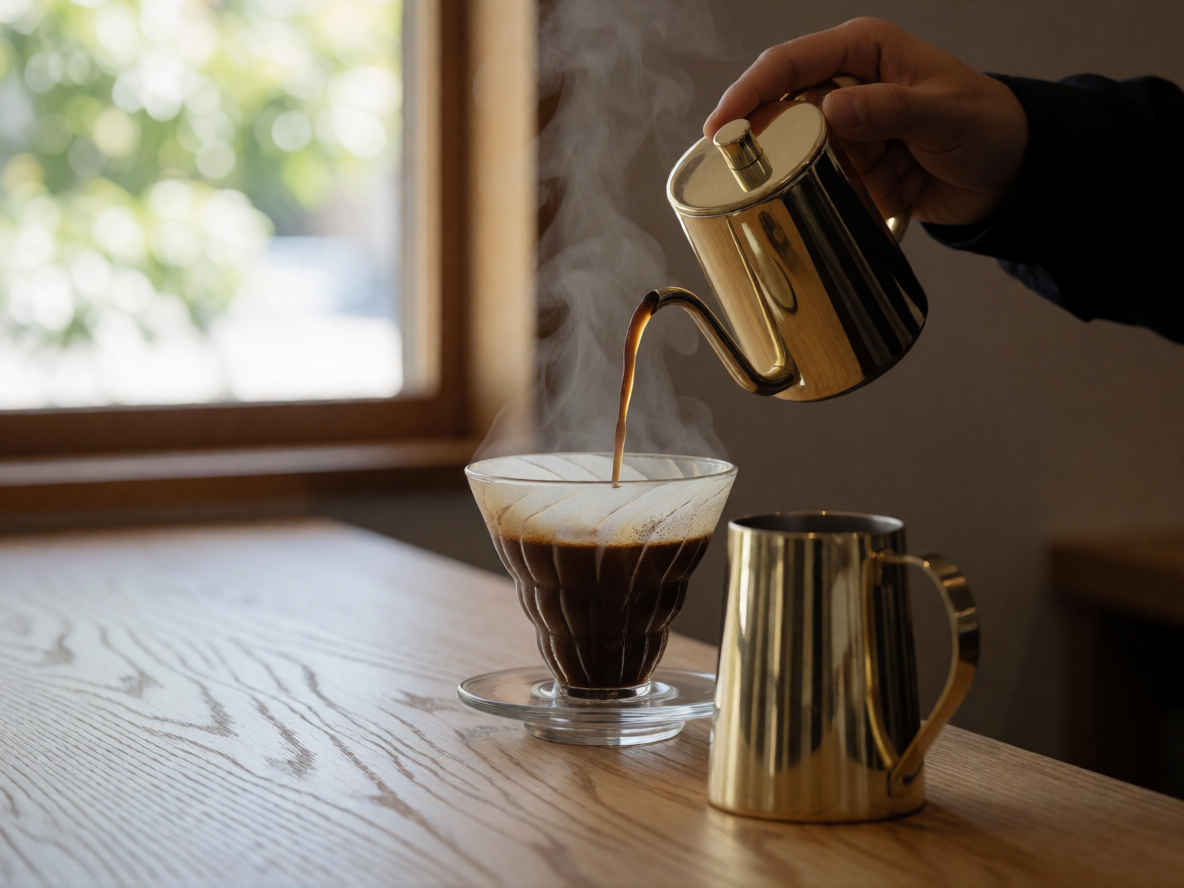
| ⑥ ドリップコーヒー 1184x888 ~→ 英語/日本語 プロンプト | |
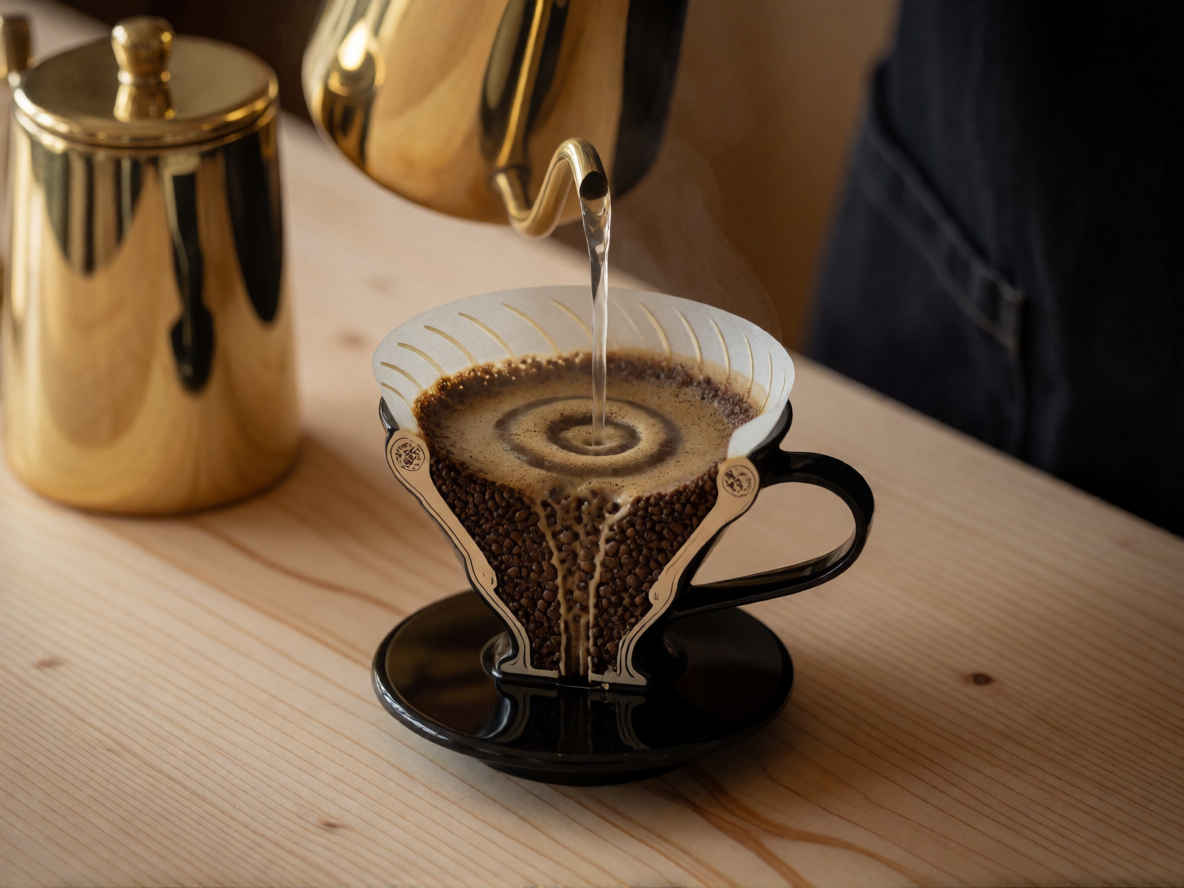 |  |
| model | krea2_turbo_fp8_scaled.safetensors, qwen3vl_4b_fp8_scaled.safetensors, qwen_image_vae.safetensors | |
| steps | 8 | |
| cfg | 1.0 | |
| size (pixel) | 1184x888, 888x1184, 1024x1024 | |
| seed | 397747871968973 | |
| Workflow | | |
| 8204_krea2_turbo_t2i_simple.json | ||
| モデル名 | Krea 2 | コメント | |
| | ● 日本語プロンプトは英語の場合とほとんど遜色ない ● 文字描画のある画像で日本語プロンプトの場合余計な判別不明の文字が入ることがある | ||
| パラメータ数 | 12B | ||
| 解像度 | 推奨 | 1024x1024 | |
| 対応範囲 | ~ 2048x2048 | ||
| 発表時期 | 2026年6月 | ||
| 開発元 | Krea AI(Krea, Inc.)(米国) | ||
| 生成画像品質 | ◎ | ||
| プロンプト追従性 | 英語 | ◎ | |
| 日本語 | 〇 | ||
| 文字描画 | 英語 | ◎ | |
| 日本語 | 〇 | ||
| 生成速度 | 〇 | ||
| 総合評価 | ・英語/日本語プロンプトが使用できる ・日本語テキスト描画は若干問題がある場合がある ・わずか8ステップで高速生成 | ||
| 生成結果比較 (リンクページ) | FLUX.2 ① ②, Z-Image ① ②, ERNIE ① ②, HiDream ① ② | ||
| 推奨モデル (.safetensors) | krea2_turbo_fp8_scaled | ||
| 推奨ワークフロー (.json) | T2I | 8201_krea2_turbo_t2i | |