私的AI研究会 > ComfyUI19a

画像生成AI「ComfyUI」19(応用編Ⅶ) == 編集中 ==†

 「ComfyUI」を使ってローカル環境でのAI画像生成を検証する

▲ 目 次
※ 最終更新:2026/10/01 

『Qwen-Image-2.1』を検証する2†


Image Edit を深掘りする†

 画像編集を参試してみる
 参考URL → https://comfyui.nomadoor.net/ja/basic-workflows/qwen-image-2-1/

  1. 画像編集の基本
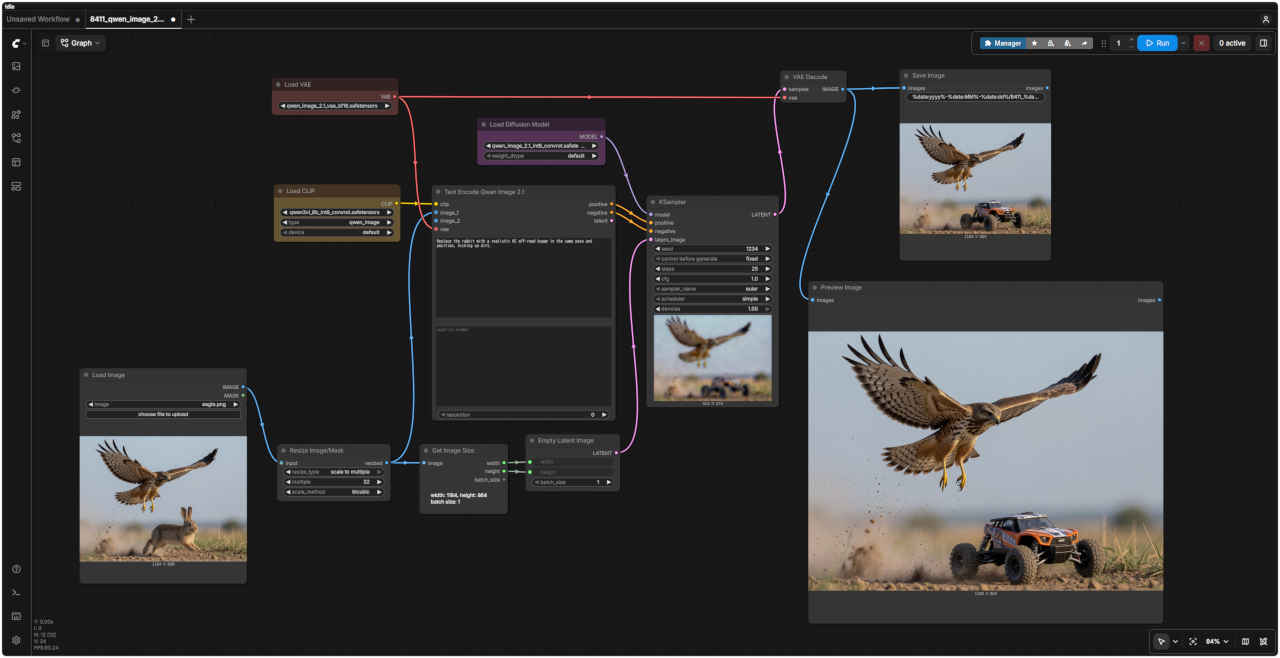
    参照画像ワークフロー 8411_qwen_image_2.1_edit_base.json
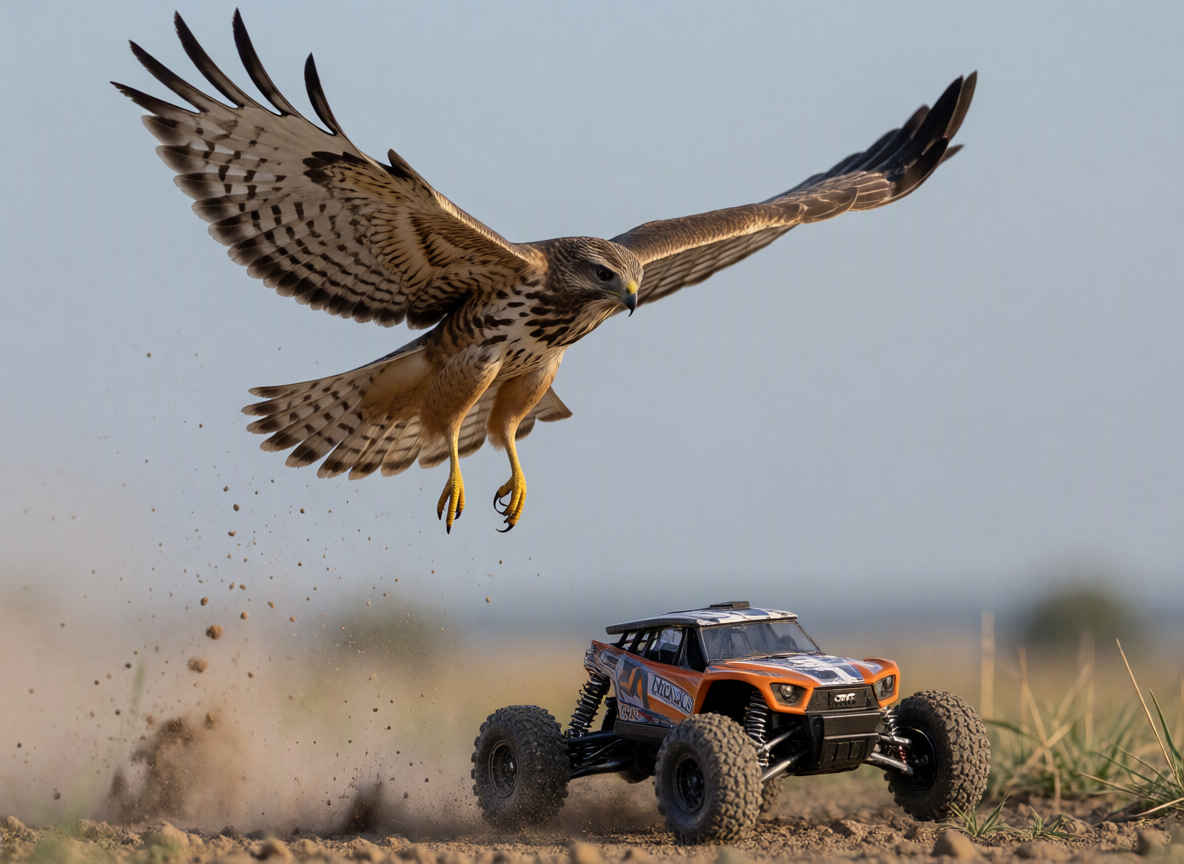
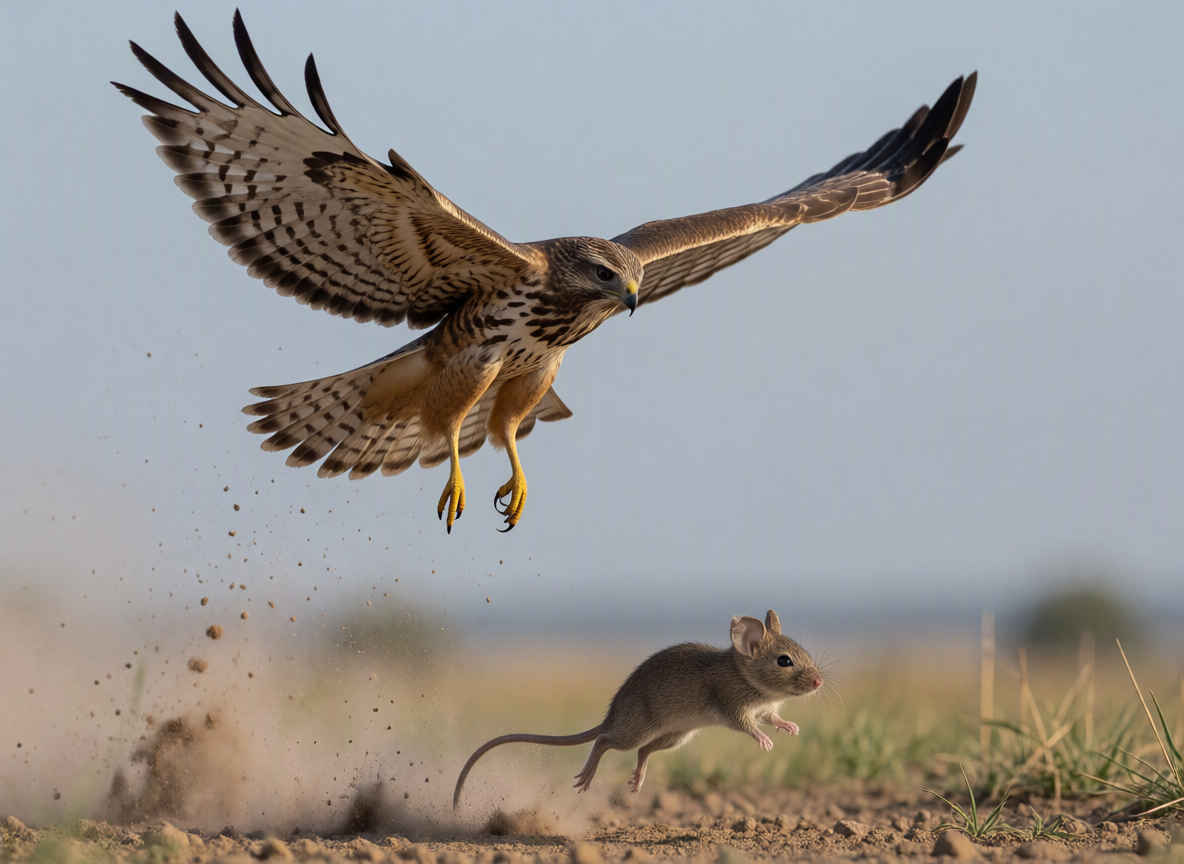
    eagle_m.jpg comfyui_A55_m.jpg
    編集内容プロンプト生成画像
    ①基本の編集指示

    ・「男性を消して」「服を赤くして」「水彩画に変えて」のように参照画像の中の変更内容を指定する
    Replace the rabbit with a realistic RC off-road buggy in the same pose and position, kicking up dirt. 8411_2026-09-24_00001_m.jpg
    ウサギを、同じポーズと位置で土を跳ね上げているリアルなRCオフロードバギーに置き換えてください。

  2. 複数の参照画像から生成
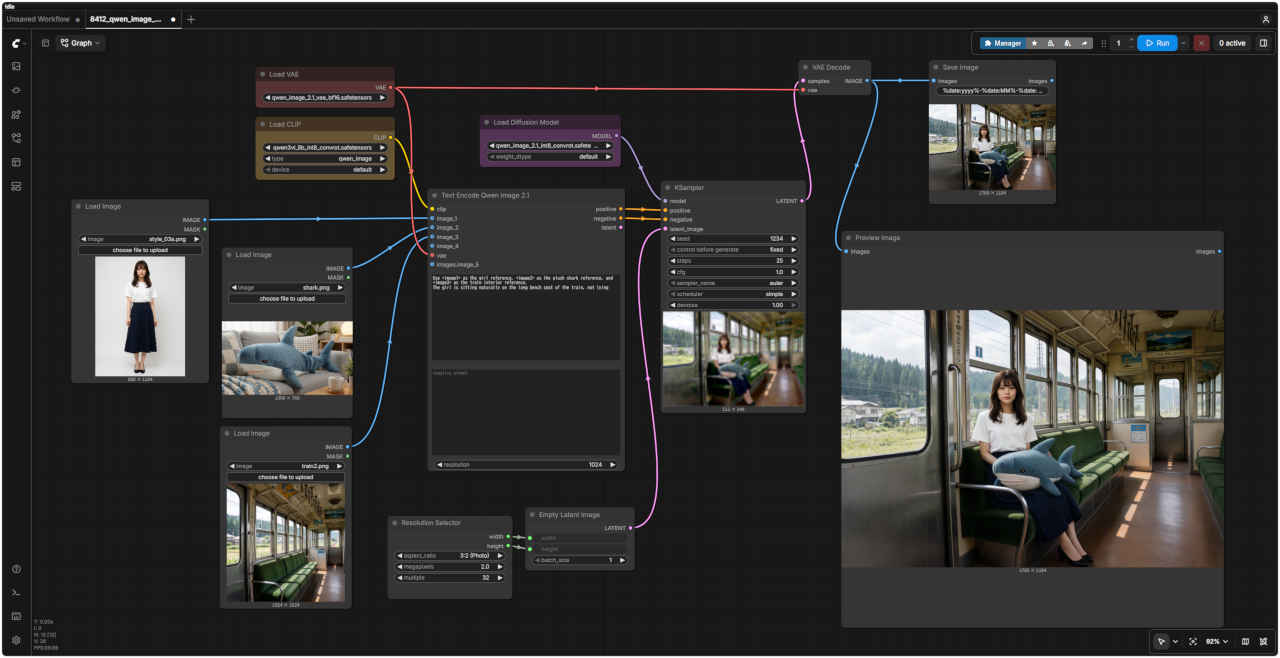
    参照画像ワークフロー 8412_qwen_image_2.1_ref2image.json
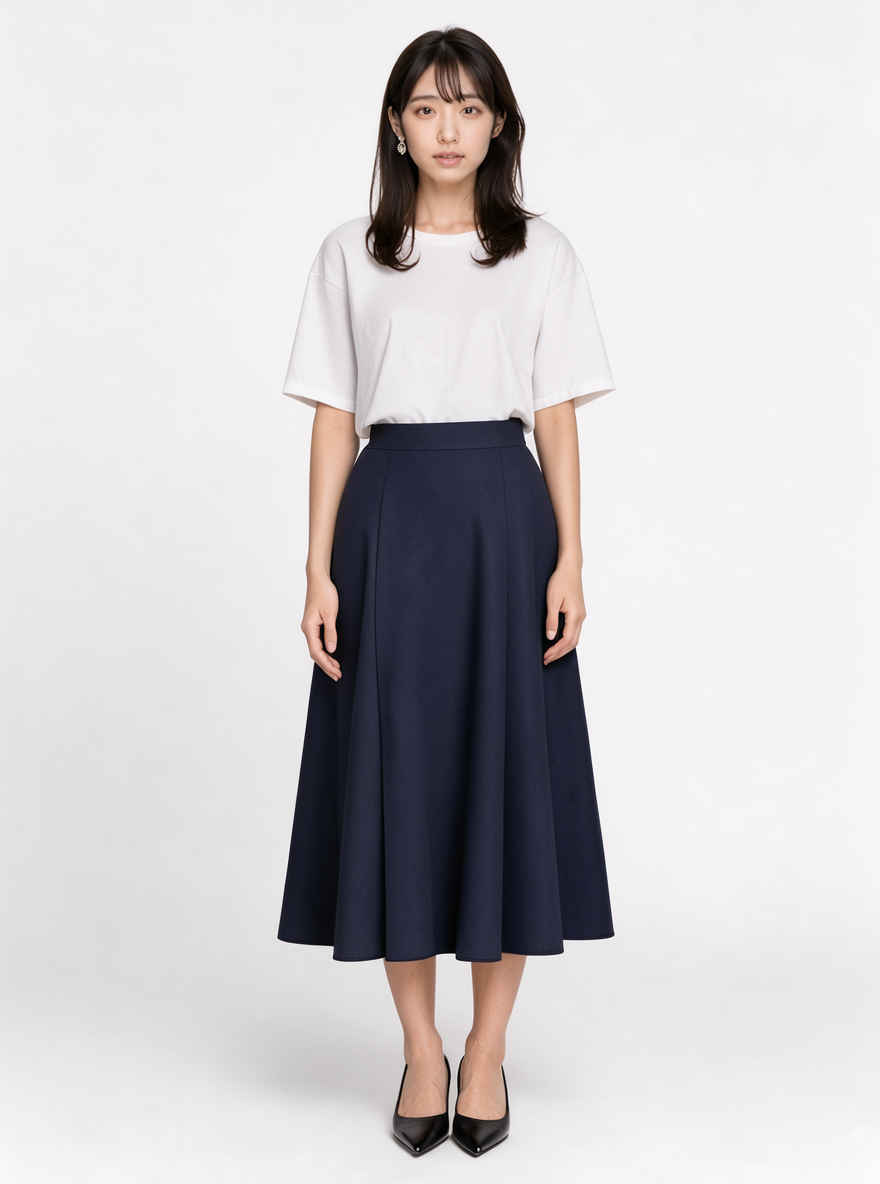
    style_03a_m.jpg
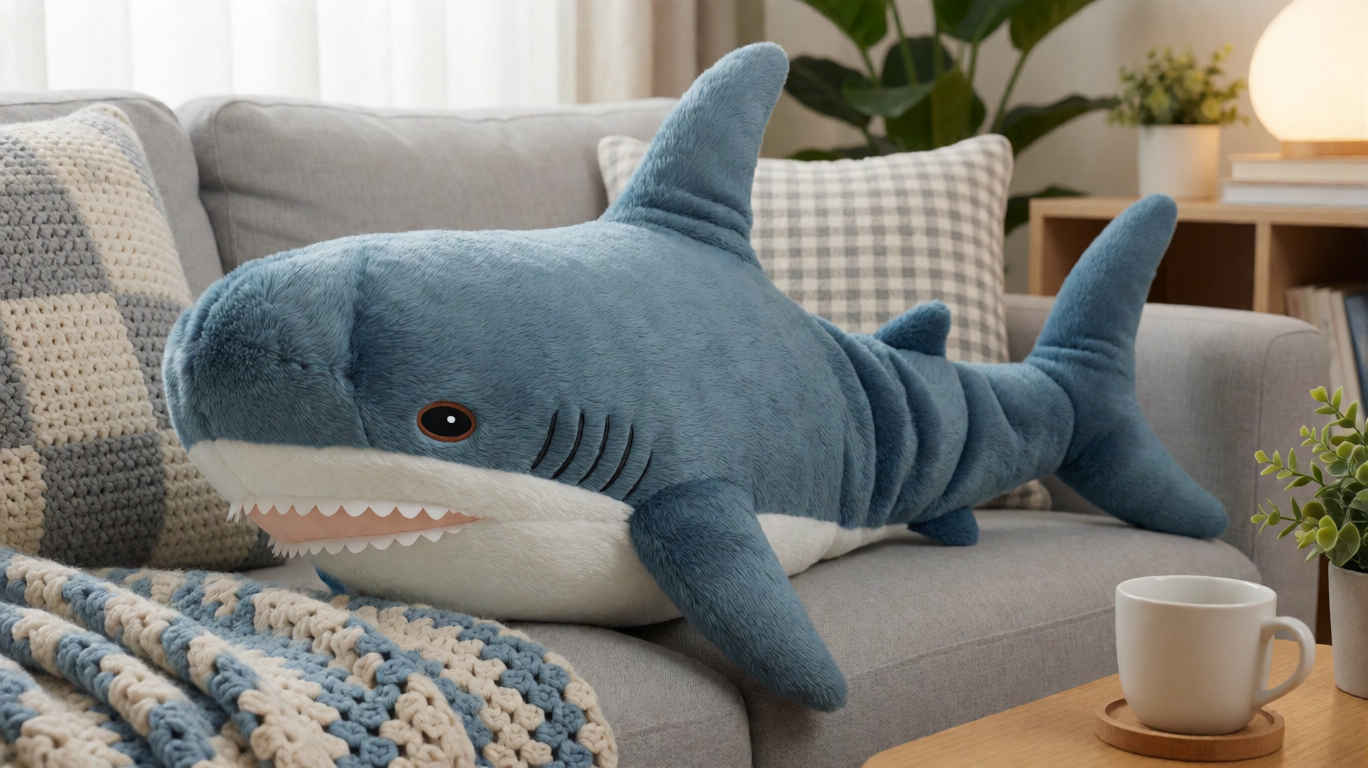
    shark_m.jpg
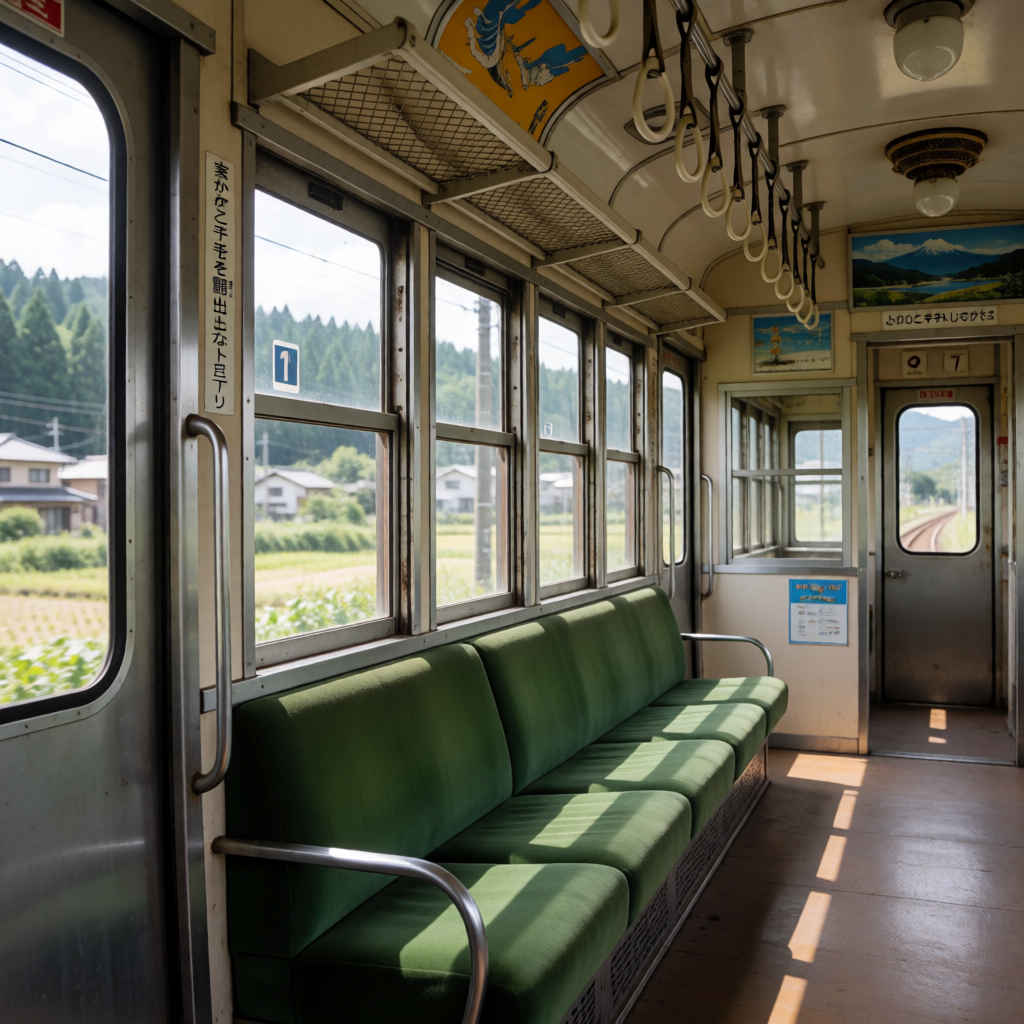
    train2_m.jpg comfyui_A56_m.jpg
    編集内容プロンプト生成画像
    ②参照画像を組み合わせる

    ・参照画像は最大 10 枚まで
    ・プロンプトで「<image1> の女性が <image2> の場所に座っている」のように、どの画像を使うのか指定する
    Use <image1> as the girl reference, <image2> as the plush shark reference, and <image3> as the train interior reference.
    The girl is sitting naturally on the long bench seat of the train, not lying
    &ref(): File not found: "8412_2026-09-24_00001_m.jpg" at page "ComfyUI19a";
    <image1>を少女の参考画像、<image2>をサメのぬいぐるみの参考画像、<image3>を電車の車内の参考画像として使用してください。
    少女は横たわるのではなく、電車の長いベンチシートに自然な姿勢で座っています。

  3. 位置指定して編集
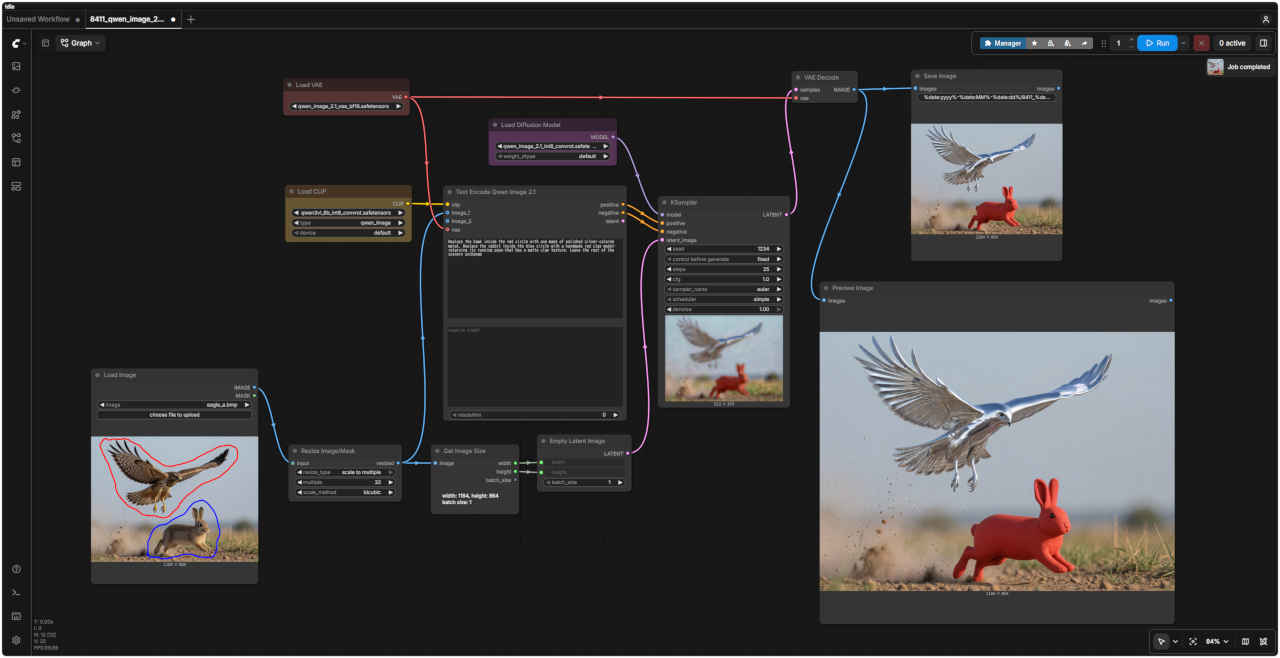
    参照画像ワークフロー 8411_qwen_image_2.1_edit_base.json
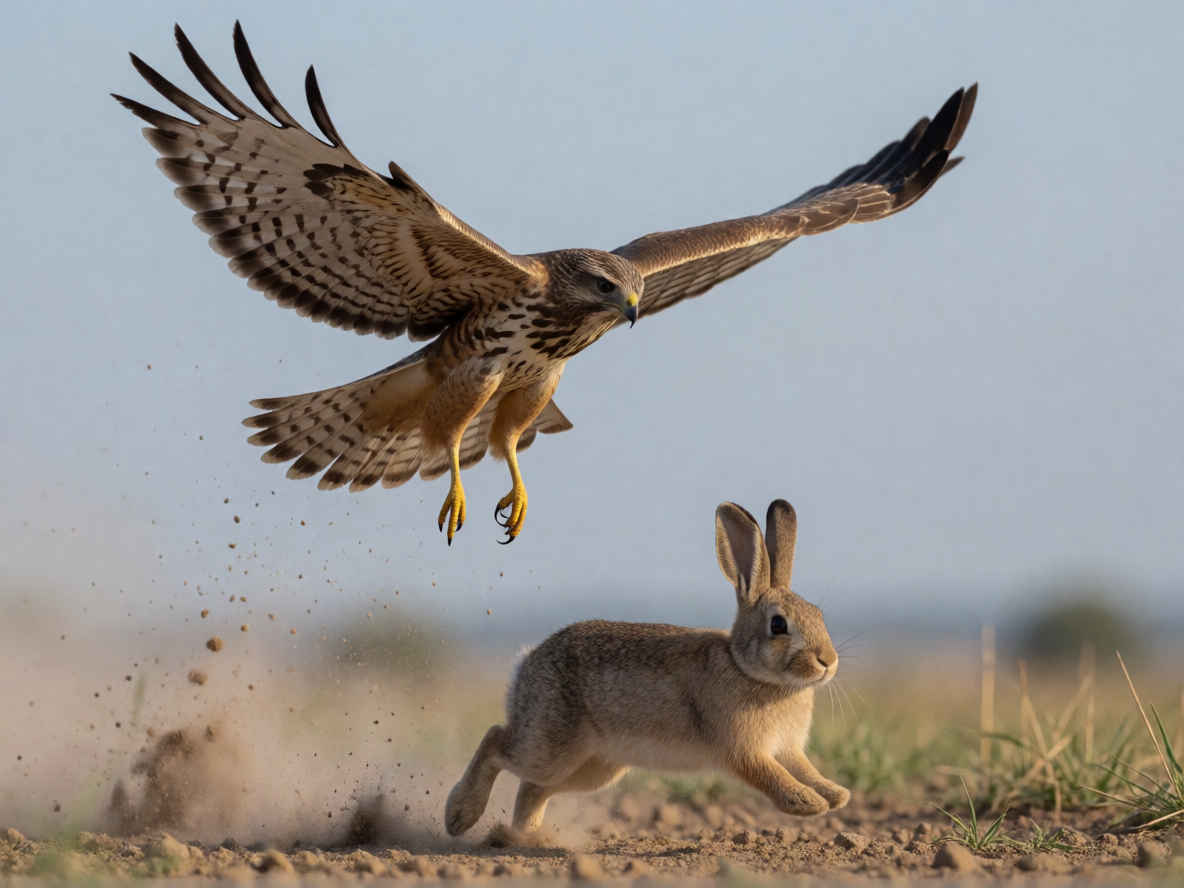
    eagle_a_m.jpg comfyui_A61_m.jpg
    編集内容プロンプト生成画像
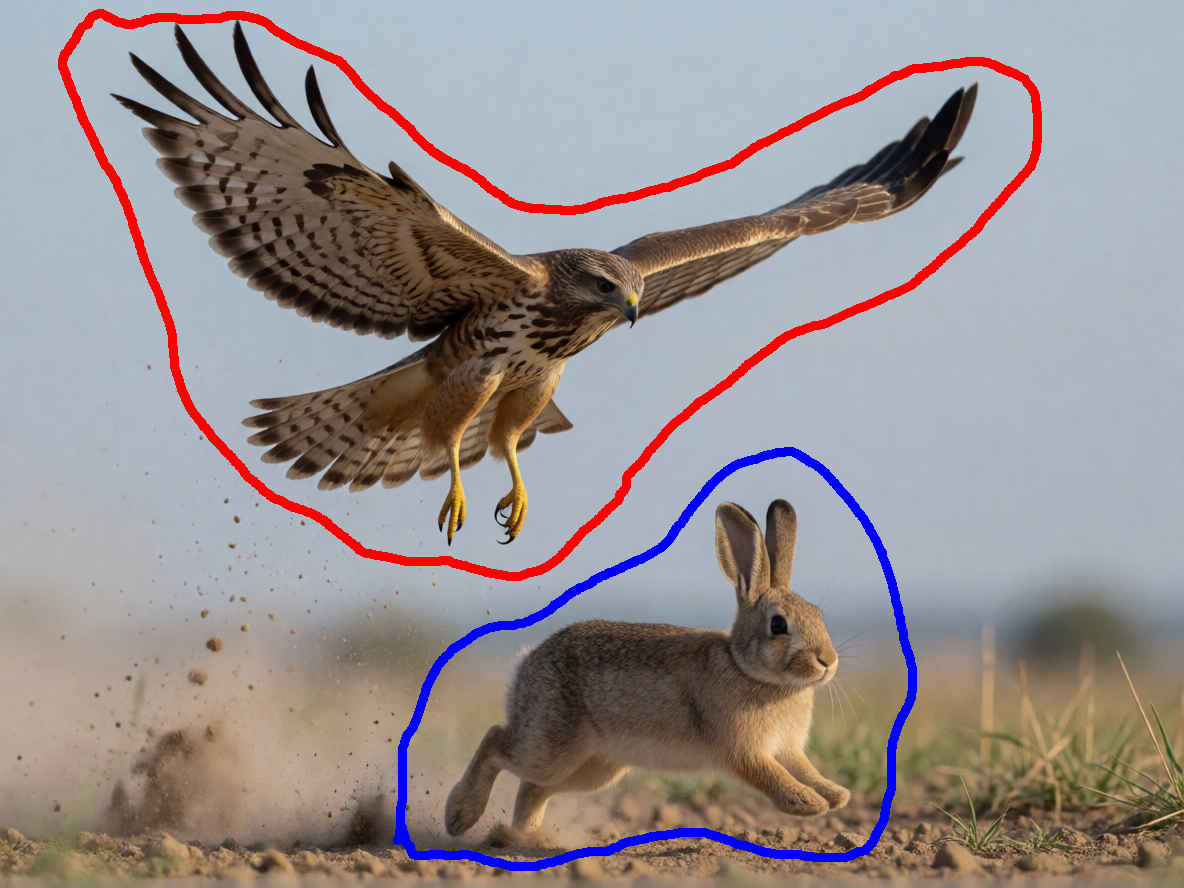
    ③場所を色ペンで囲って指示

    ・編集したい画像に直接、編集させたいオブジェクトを囲む・「赤丸で囲った腕時計を消して」のように指示
    ・Load Image ノードの Mask Editor でも指定可能
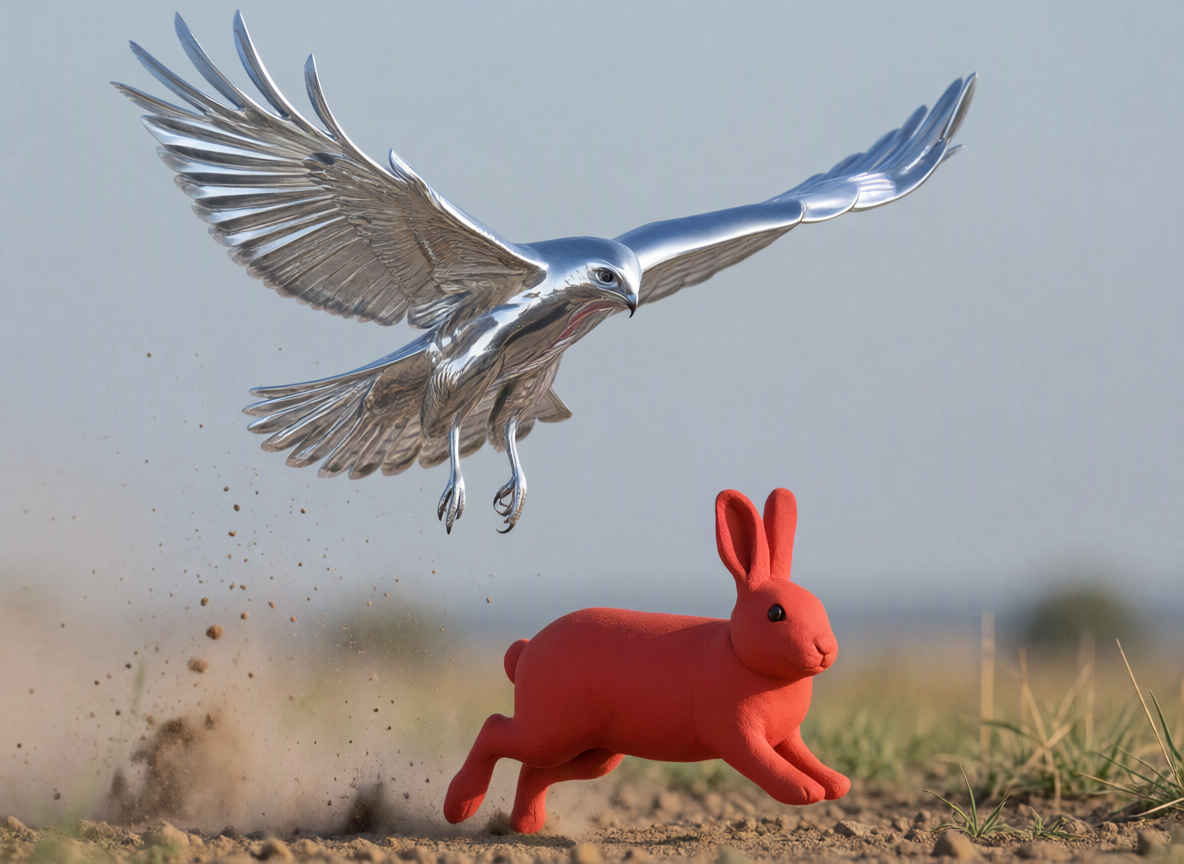
    Replace the hawk inside the red circle with one made of polished silver-colored metal. Replace the rabbit inside the blue circle with a handmade red clay model—retaining its running pose—that has a matte clay texture. Leave the rest of the scenery unchange 8411_2026-09-24_00003_m.jpg
    赤い円の中にあるタカを、磨き上げられた銀色の金属製のものに置き換えてください。青い円の中にあるウサギは、走っているポーズはそのままに、赤い粘土で手作りされた、つや消しの質感を備えたモデルに置き換えてください。それ以外の風景は変更しないでください。

  4. マスクで編集(Inpainting)
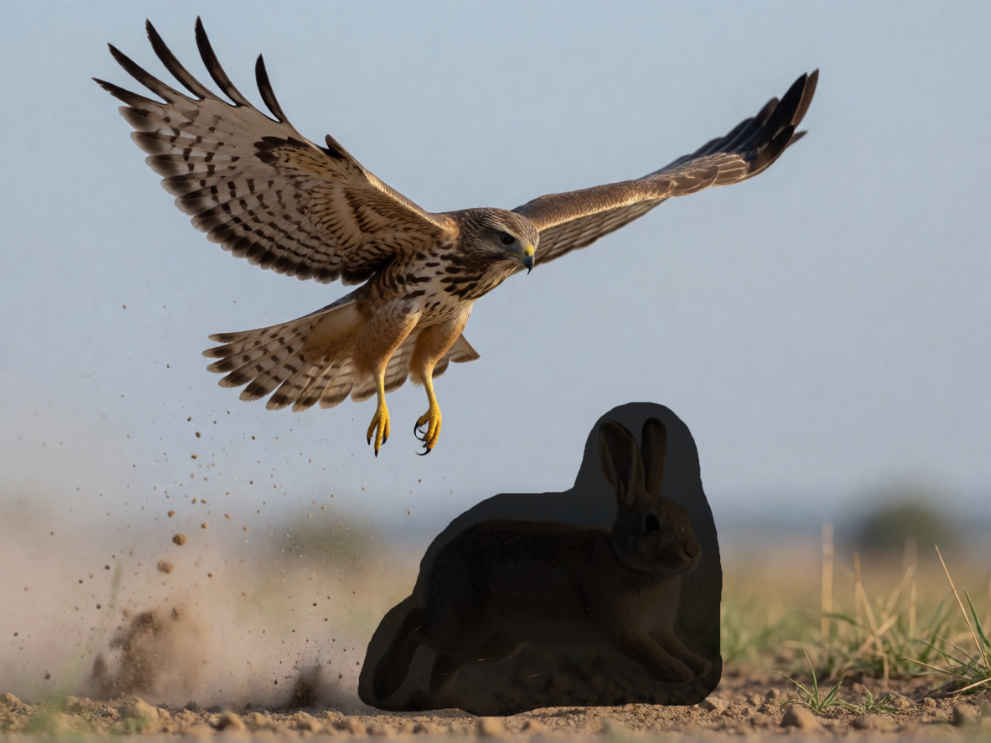
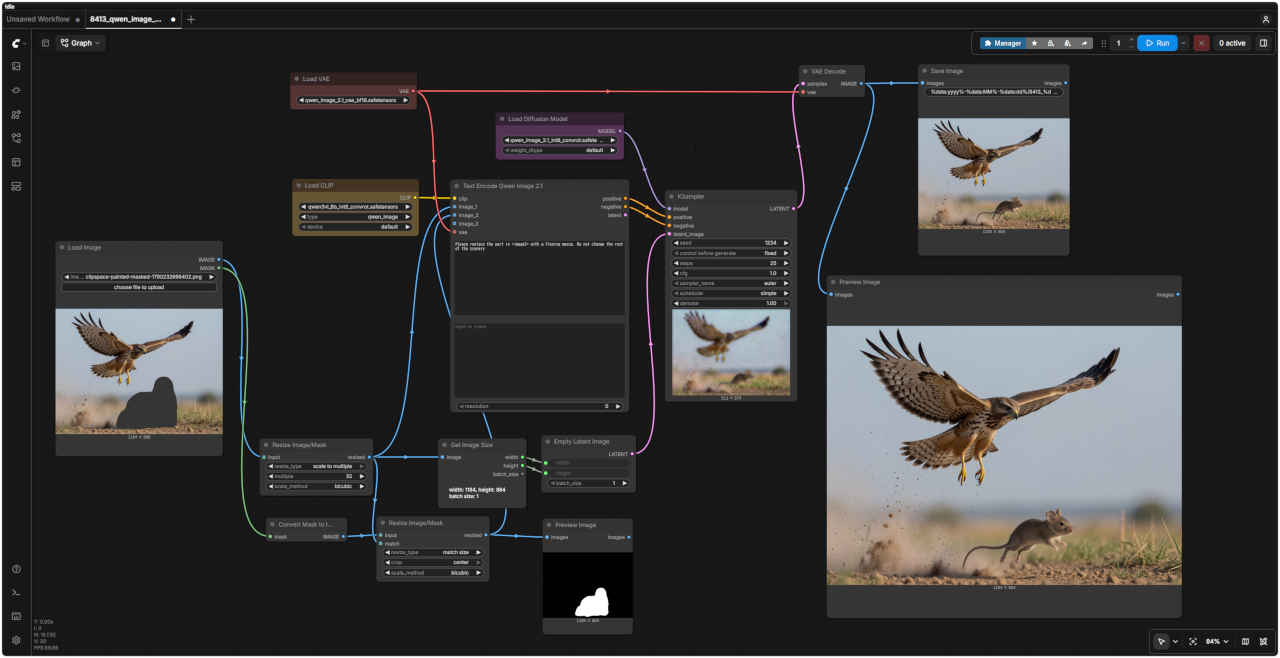
    参照画像ワークフロー 8413_qwen_image_2.1_edit_mask.json
    eagle_b_m.jpg comfyui_A57_m.jpg
    編集内容プロンプト生成画像
    ④場所をマスクで囲って指示

    ・編集したい画像に直接、編集させたいオブジェクトを囲む・Load Image の MASK 出力を Convert Mask to Image で白黒画像に変換し、image_2 へ入力
    ・マスクから変換せず、黒い背景に白で塗った画像を直接用意してもよい
    Please replace the part in <image2> with a fleeing mouse. Do not change the rest of the scenery 8413_2026-09-24_00001_m.jpg
    <image2>の箇所を、逃げているネズミに置き換えてください。それ以外の風景は変更しないでください。

  5. アウトペイント(OutPainting)
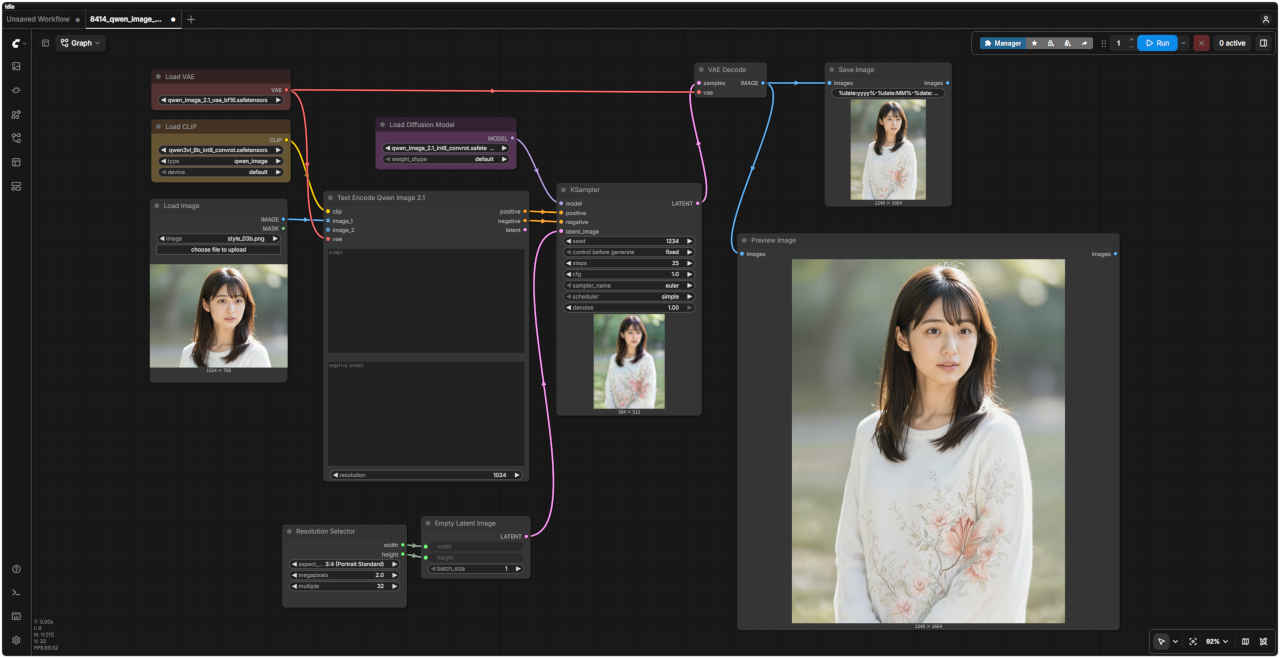
    参照画像ワークフロー 8414_qwen_image_2.1_outpaint.json
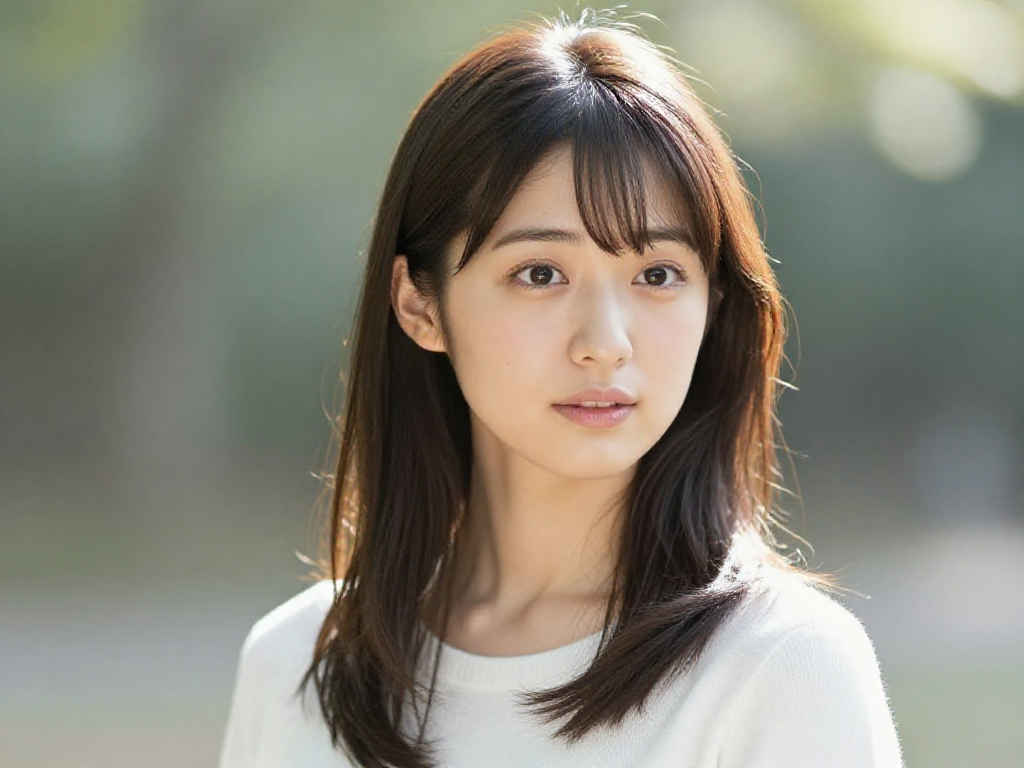
    style_03b_m.jpg comfyui_A58_m.jpg
    編集内容プロンプト生成画像
    ⑤周囲の画像を追加

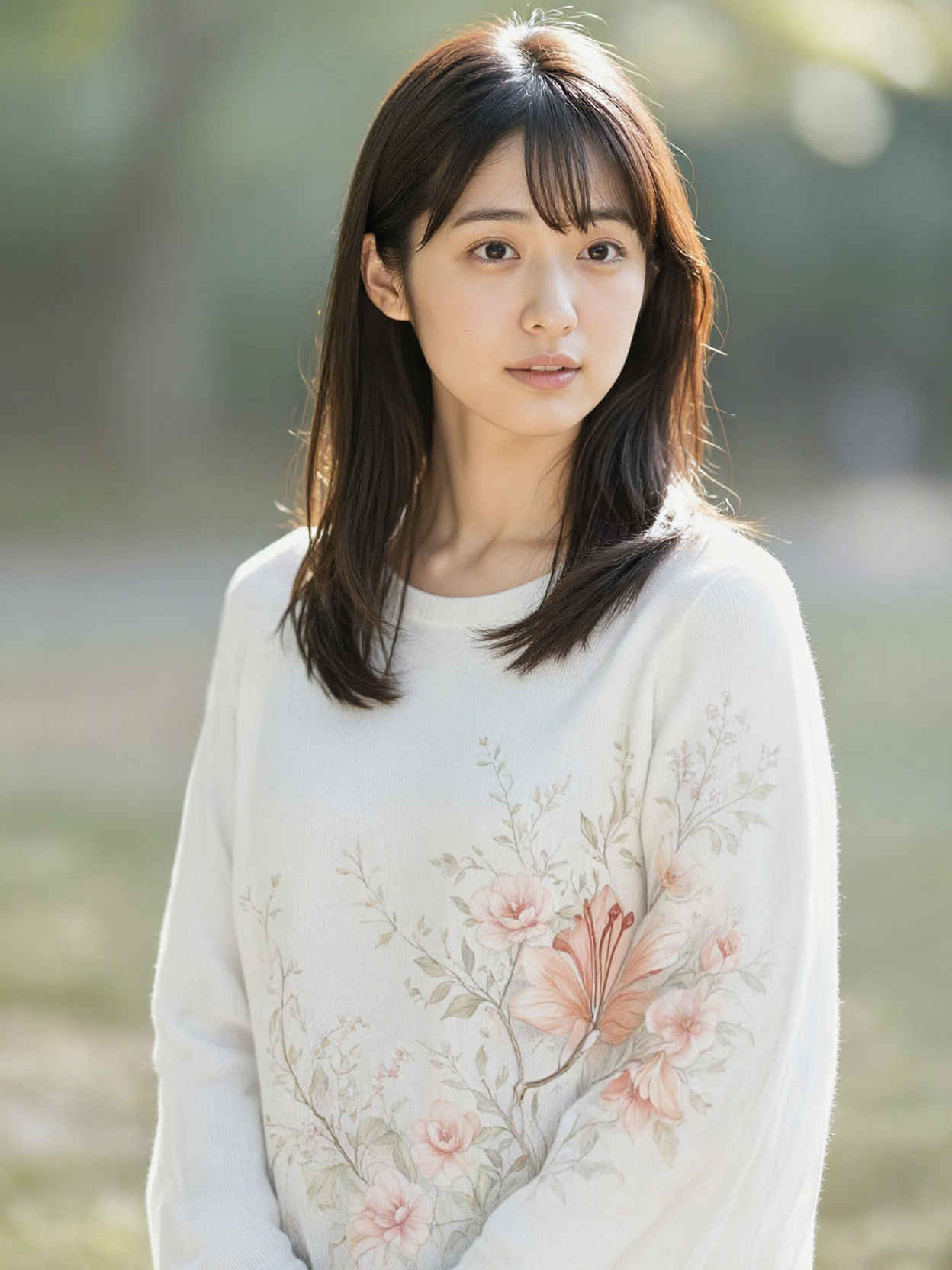
    ・横長の画像を縦長するなど周囲を埋めた画像を生成・余白のみならず画像全体を描き直しているので、元の部分も多少変化する
      8414_2026-09-24_00001_m.jpg

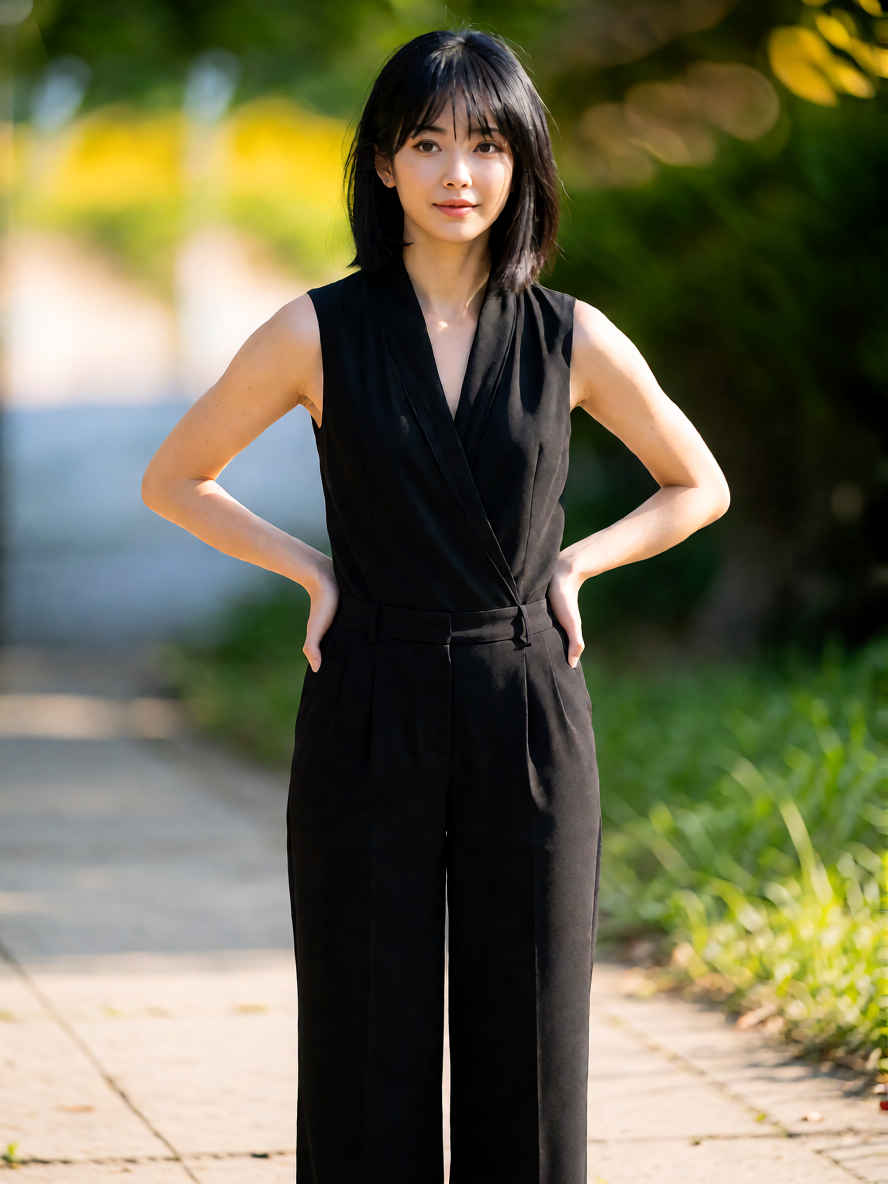
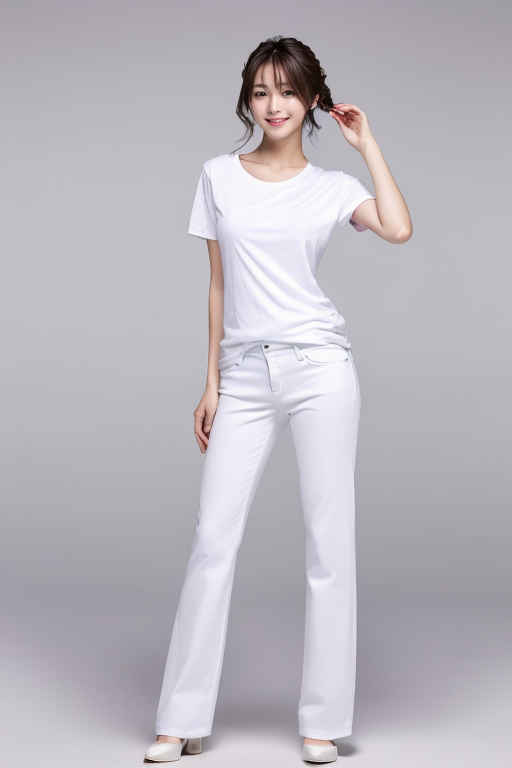
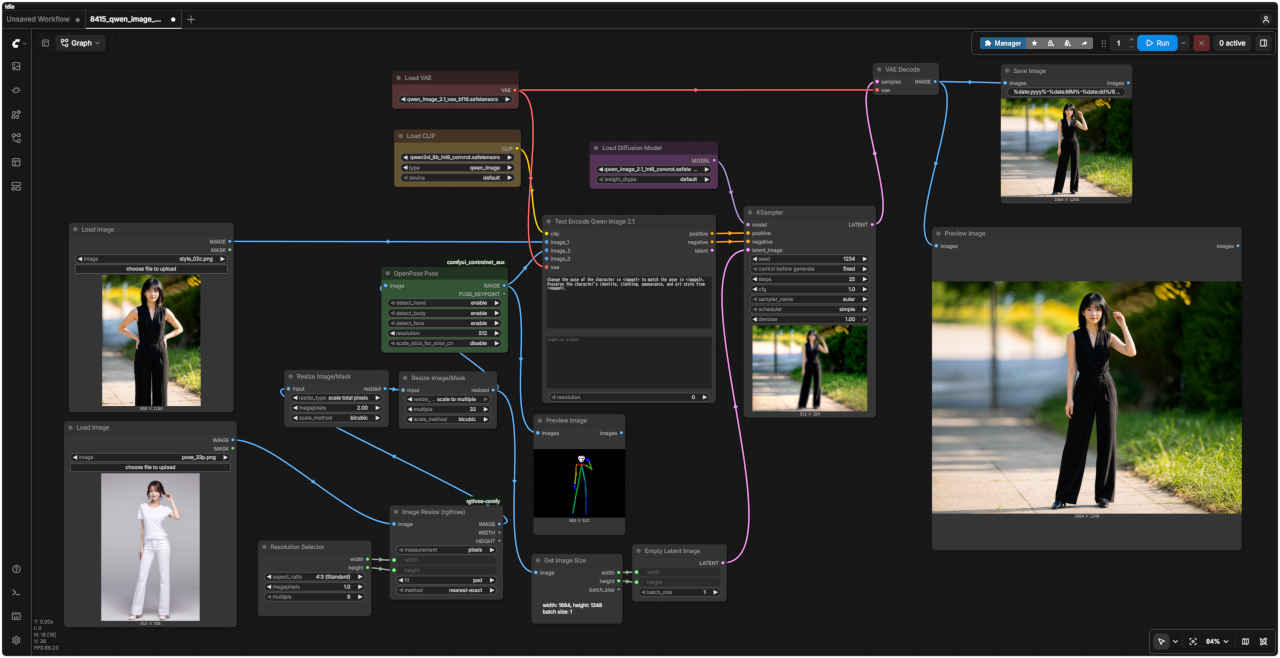
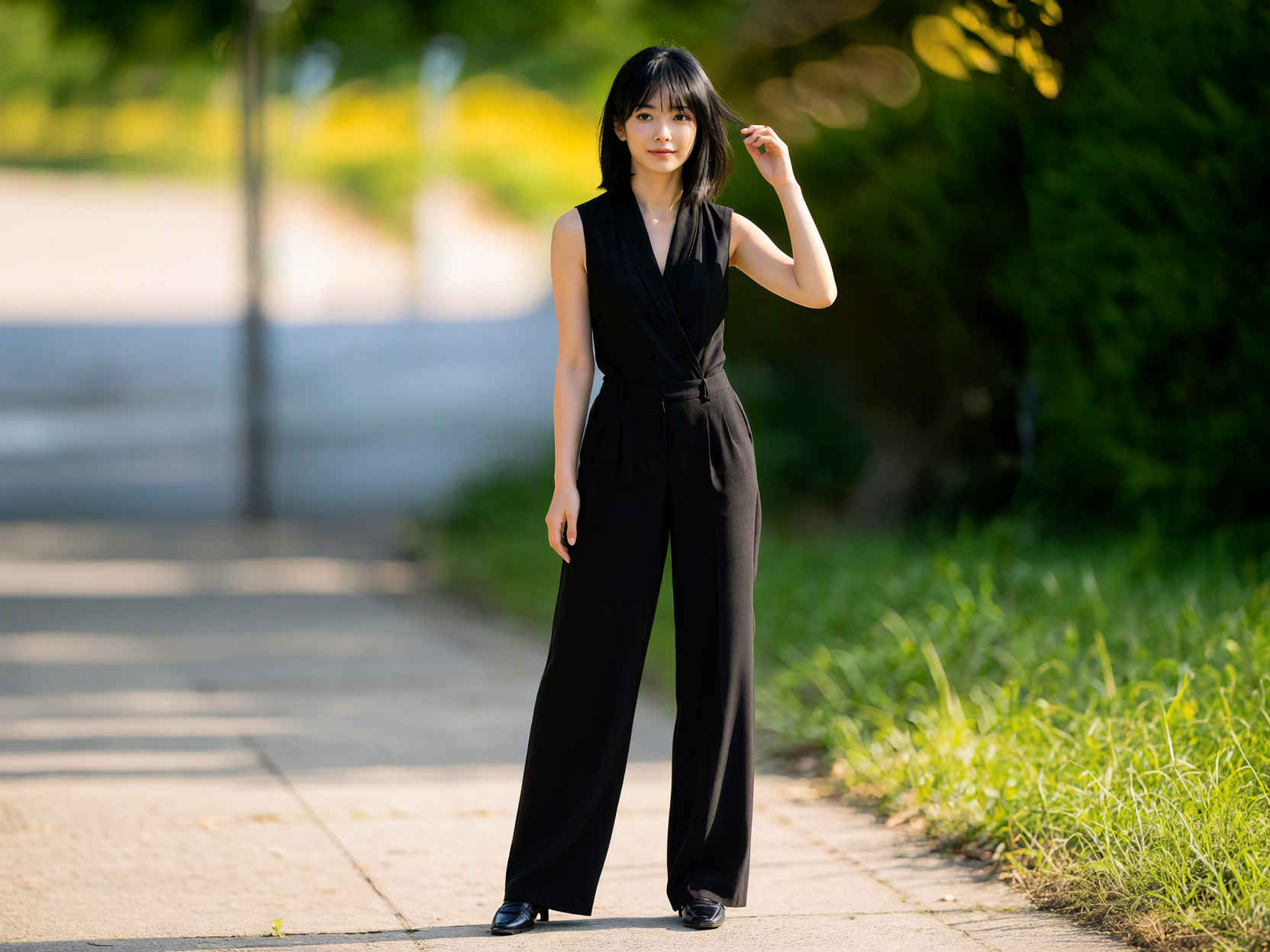
  6. ポーズを変える(OpenPose)
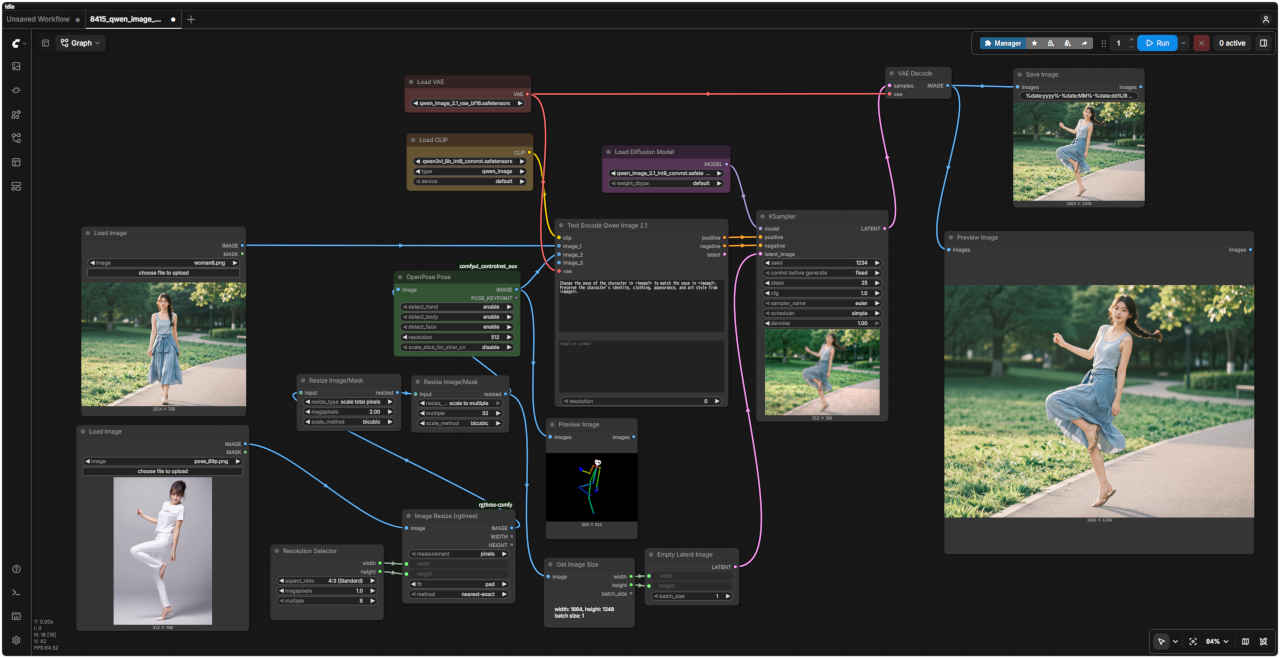
    参照画像ワークフロー 8415_qwen_image_2.1_openpose.json
    style_02c_m.jpg 33p_m.jpg comfyui_A59_m.jpg
    編集内容プロンプト生成画像
    ⑥人物を指定したポーズにする

    ・ControlNet で参照画像から余計な情報を削ぎ落とし、ポーズや形だけを取り出して渡す
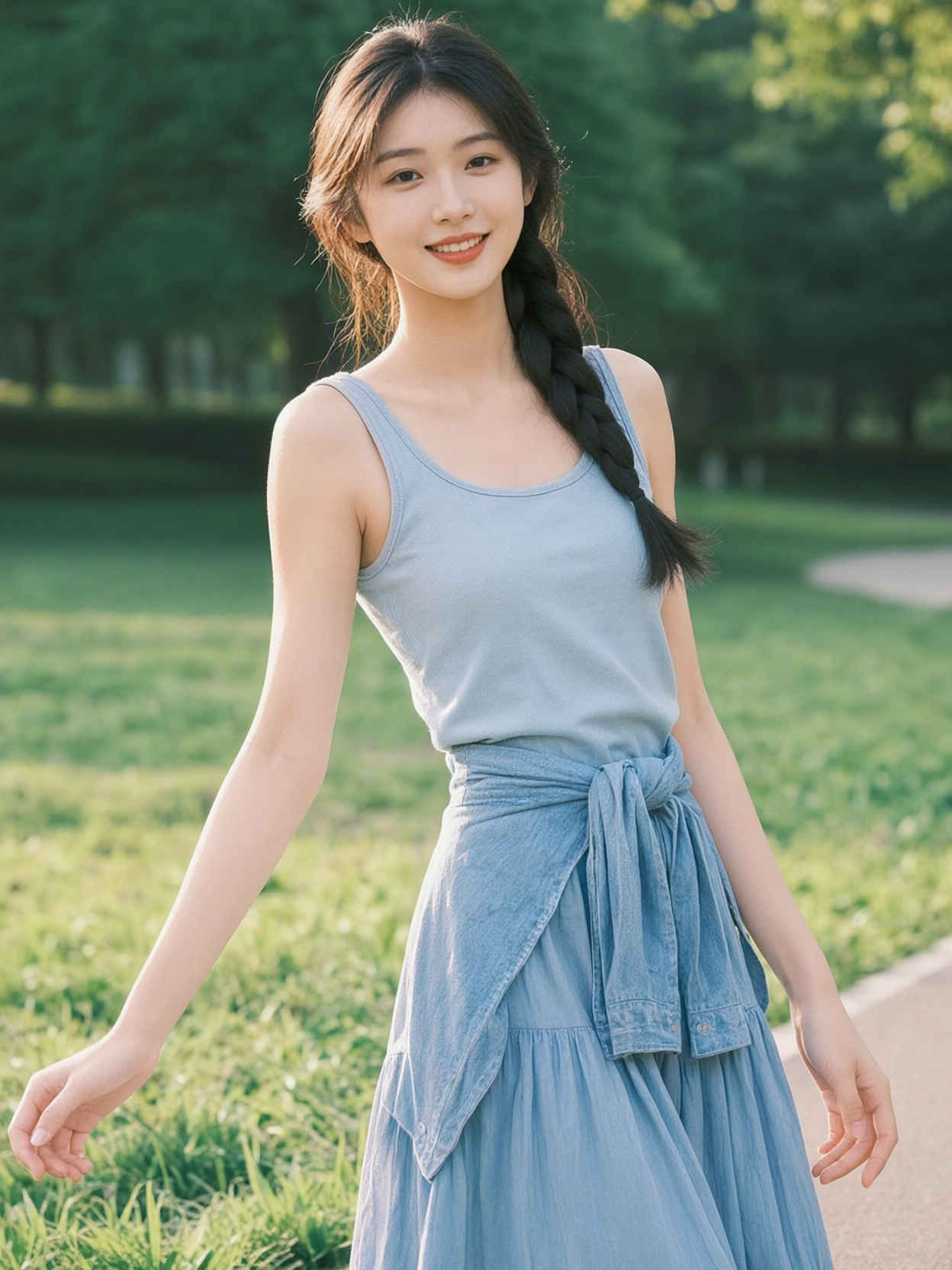
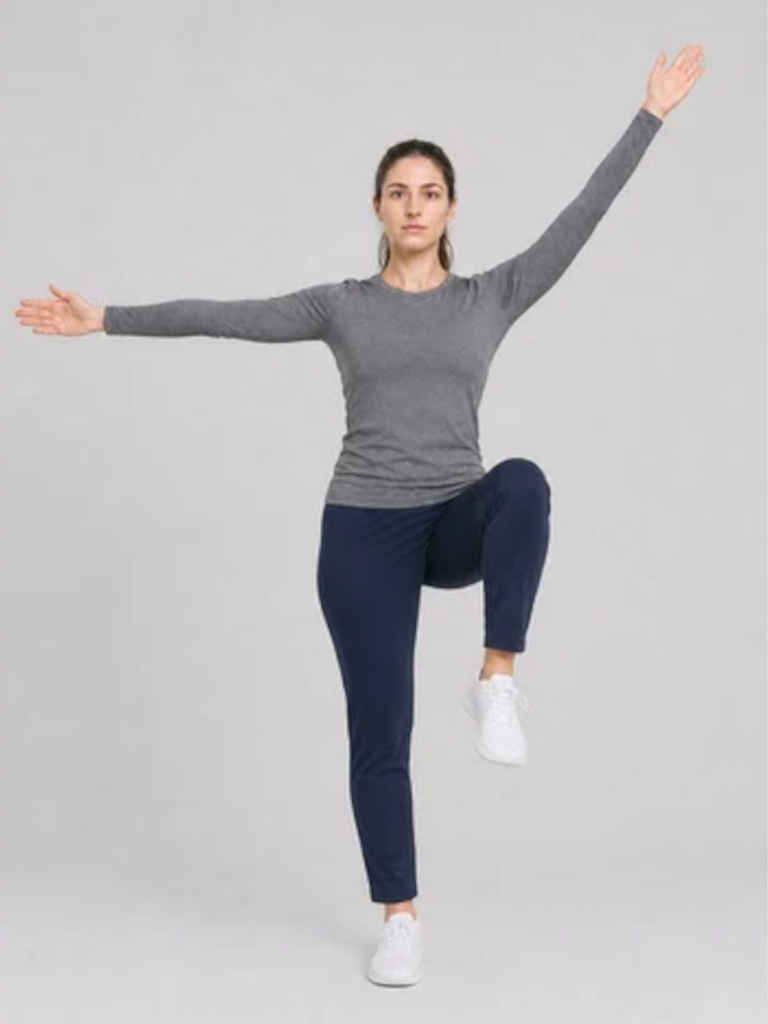
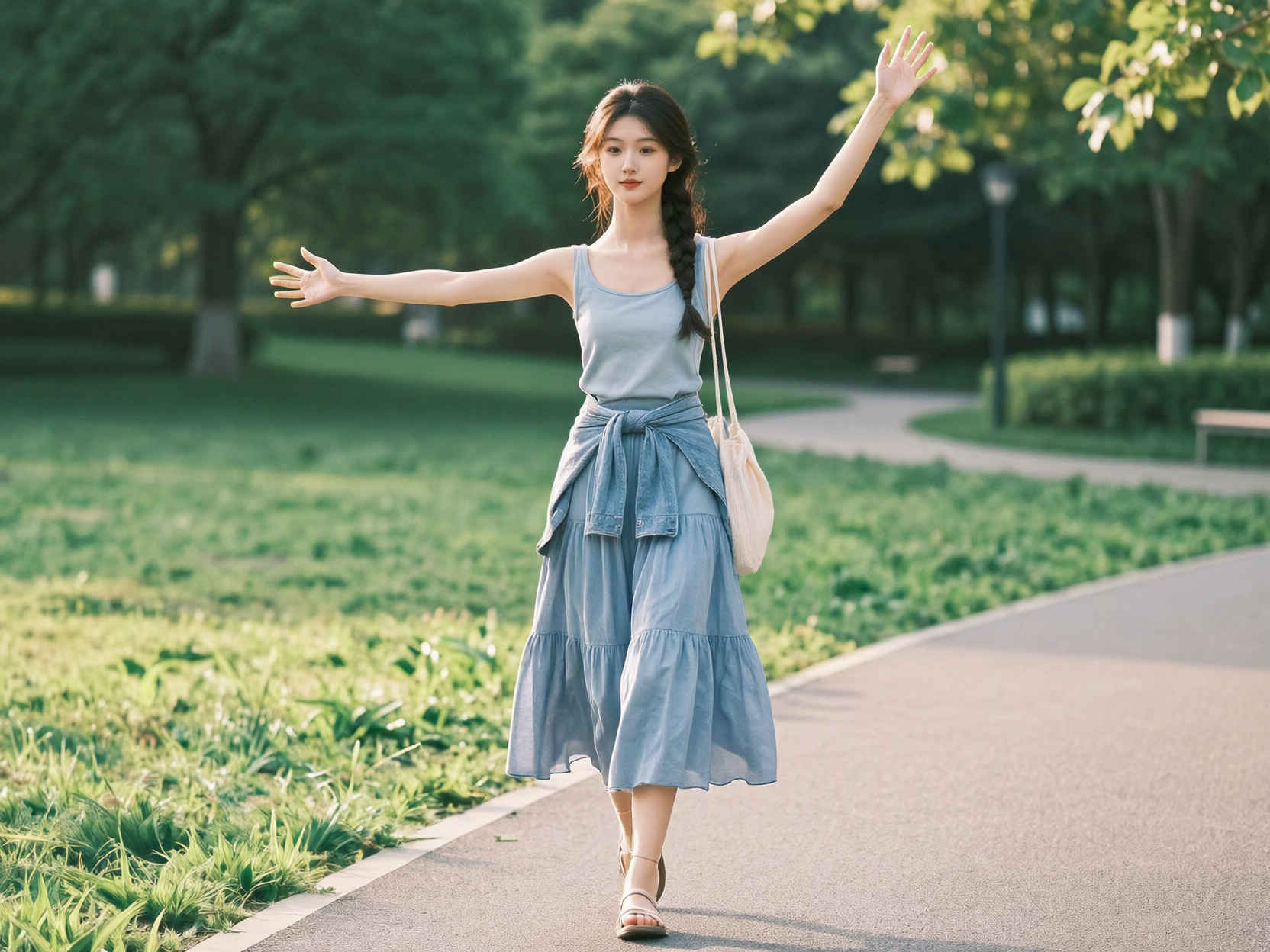
    Change the pose of the character in <image1> to match the pose in <image2>. Preserve the character's identity, clothing, appearance, and art style from <image1>. 8415_2026-09-24_00001_m.jpg
    <image1>のキャラクターのポーズを、<image2>のポーズに合わせて変更してください。<image1>のキャラクターのアイデンティティ、服装、外見、および画風は維持してください。

  7. ポーズを変える2
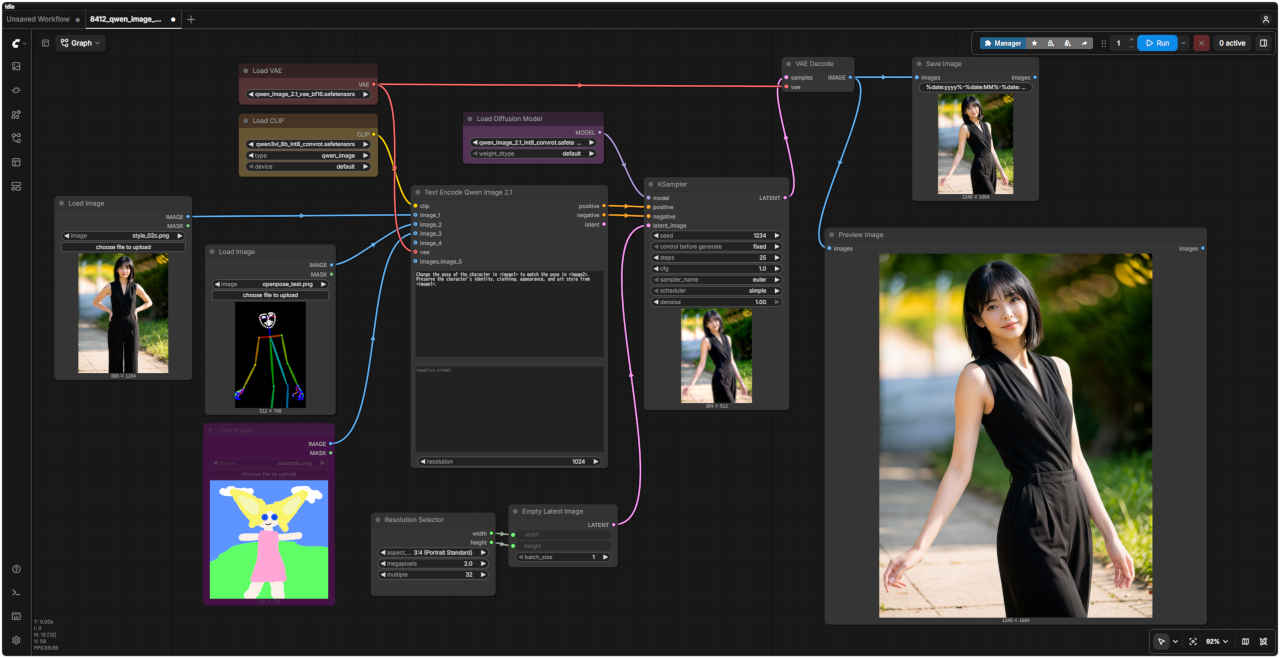
    参照画像ワークフロー 8412_qwen_image_2.1_ref2image.json
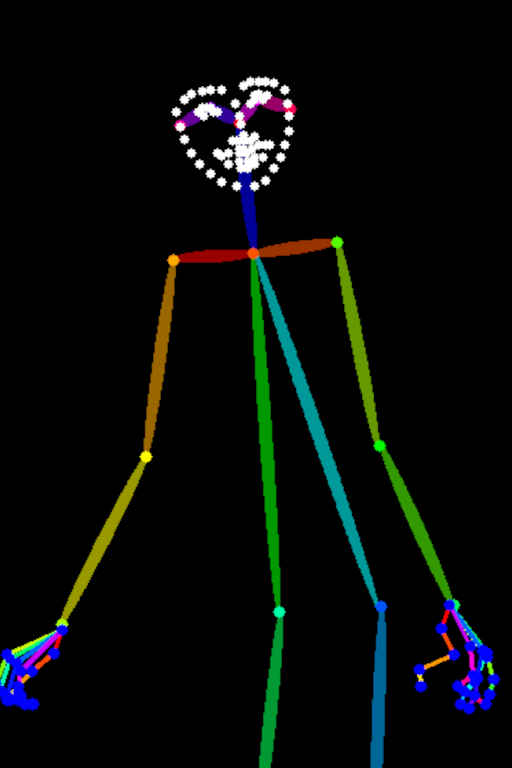
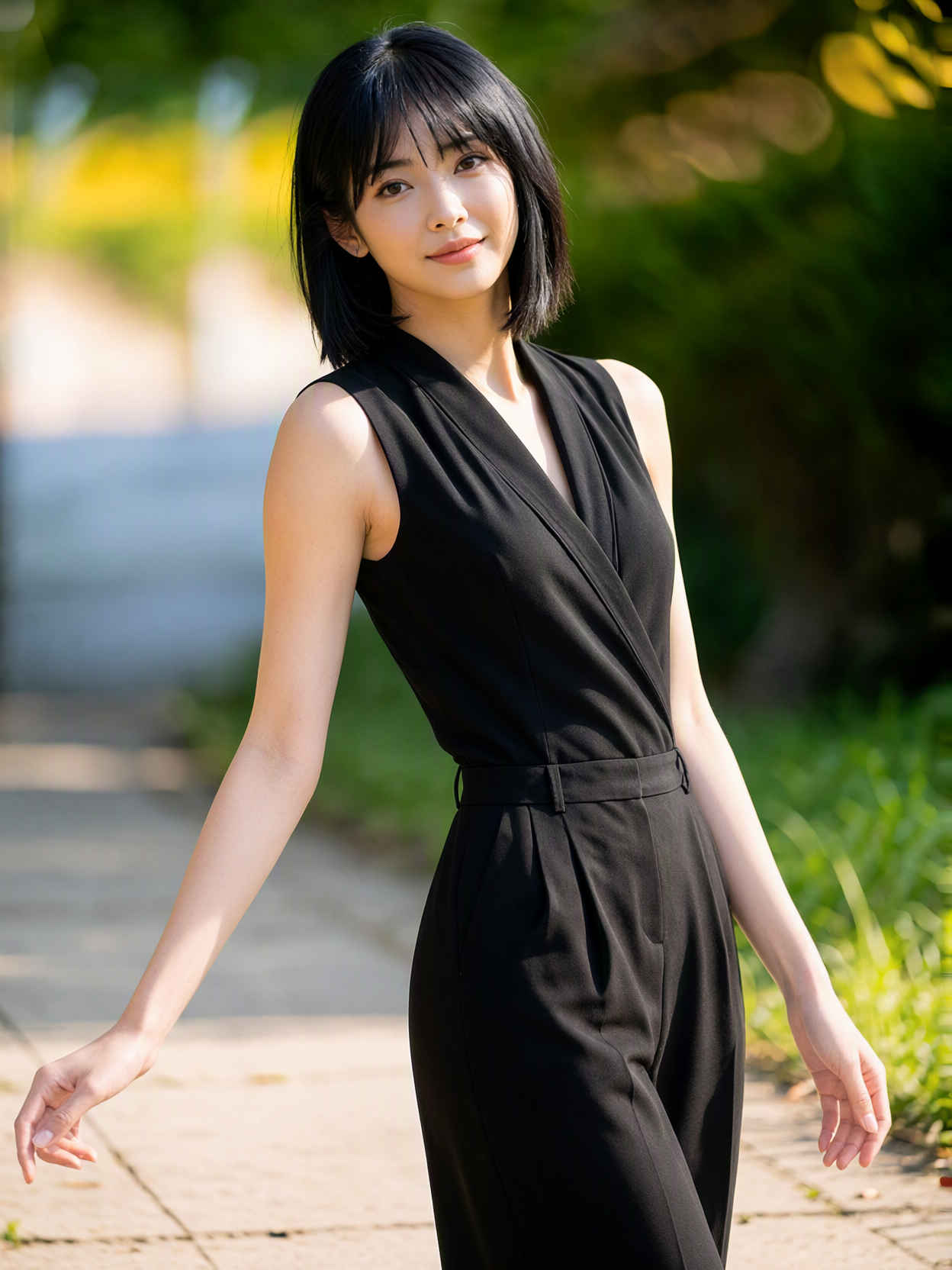
    style_02c_m.jpg openpose_test_m.jpg comfyui_A60_m.jpg
    編集内容プロンプト生成画像
    ⑦人物を指定したポーズにする

    ・ポーズ画像(棒人間の画像)を直接入力する

     → ポーズ集
    Change the pose of the character in <image1> to match the pose in <image2>. Preserve the character's identity, clothing, appearance, and art style from <image1>. 8412_2026-09-25_00011_m.jpg
    <image1>のキャラクターのポーズを、<image2>のポーズに合わせて変更してください。<image1>のキャラクターのアイデンティティ、服装、外見、および画風は維持してください。

  8. 高精細化(Upscale)
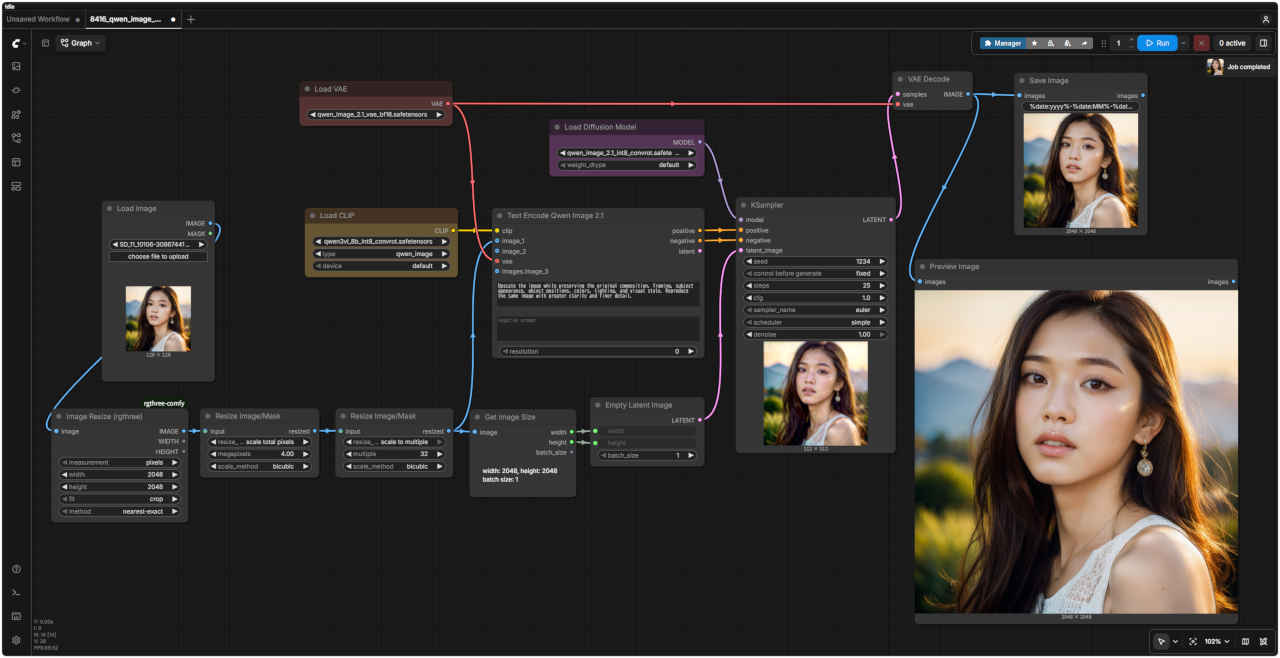
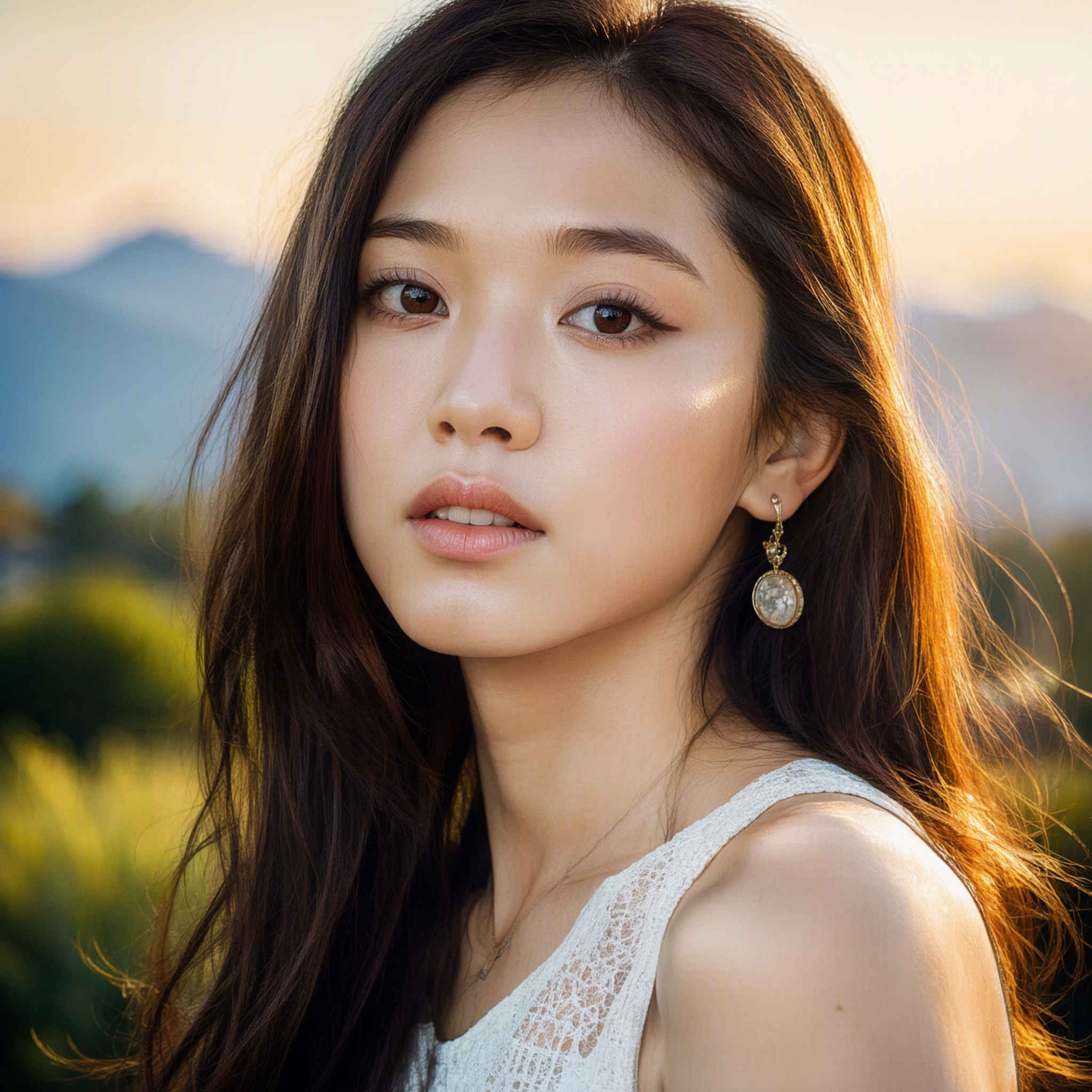
    参照画像ワークフロー 8416_qwen_image_2.1_upscale.json
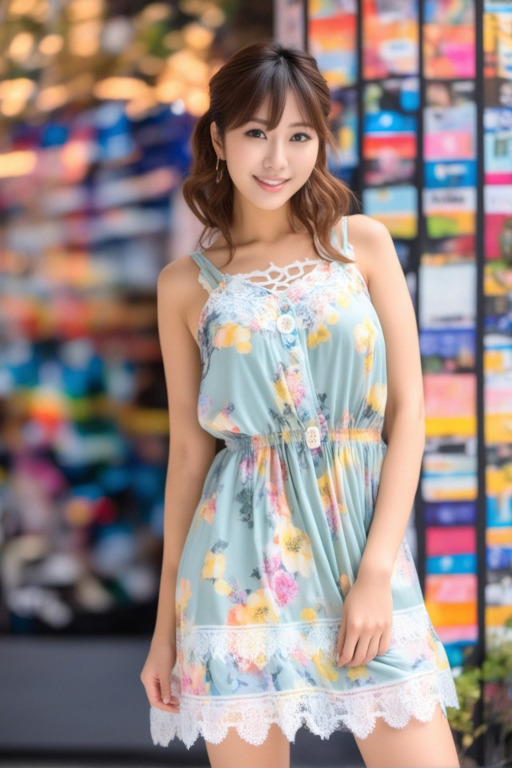
    SD_11_10106-3086744152_128x128_m.jpg comfyui_A68_m.jpg
    編集内容プロンプト生成画像
    ⑧小さい画像を大きくする
    SD_11_10106-3086744152_128x128_m.jpg
    Upscale the image while preserving the original composition, framing, subject appearance, object positions, colors, lighting, and visual style. Reproduce the same image with greater clarity and finer detail. 8416_2026-09-26_00001_m.jpg
    元の構図、フレーミング、被写体の外観、物体の配置、色、照明、そして視覚的なスタイルを維持したまま、画像をアップスケールしてください。より高い鮮明さと緻密なディテールで、同じ画像を再現してください。

  9. 透過画像・切り抜き
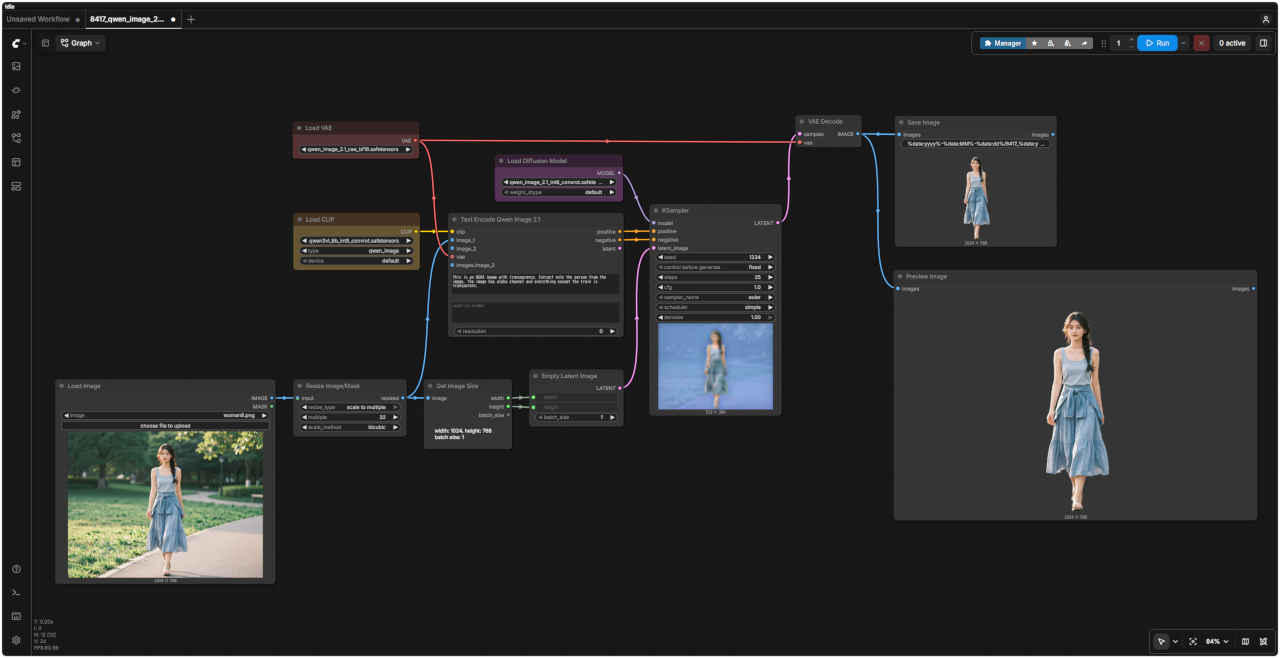
    基本プロンプトワークフロー 8417_qwen_image_2.1_extraction.json
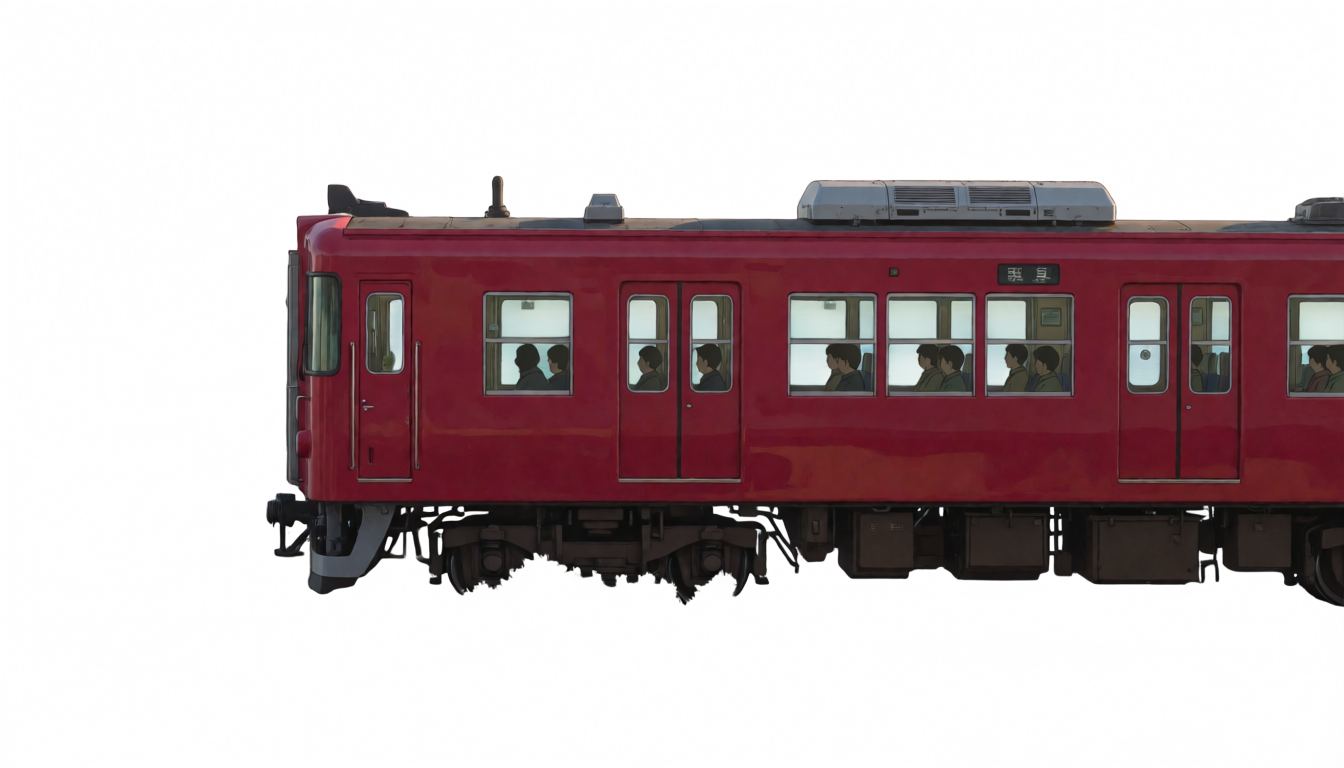
    This is an RGBA image with transparency. <ここに生成したいもののプロンプト>. The image has alpha channel and the background is transparent. comfyui_A69_m.jpg
    これは透明度情報を含むRGBA画像です。<ここに生成したいもののプロンプト>。この画像にはアルファチャンネルが含まれており、列車以外の部分はすべて透明になっています。
    参照画像プロンプト (基本プロンプト赤字部分)生成画像
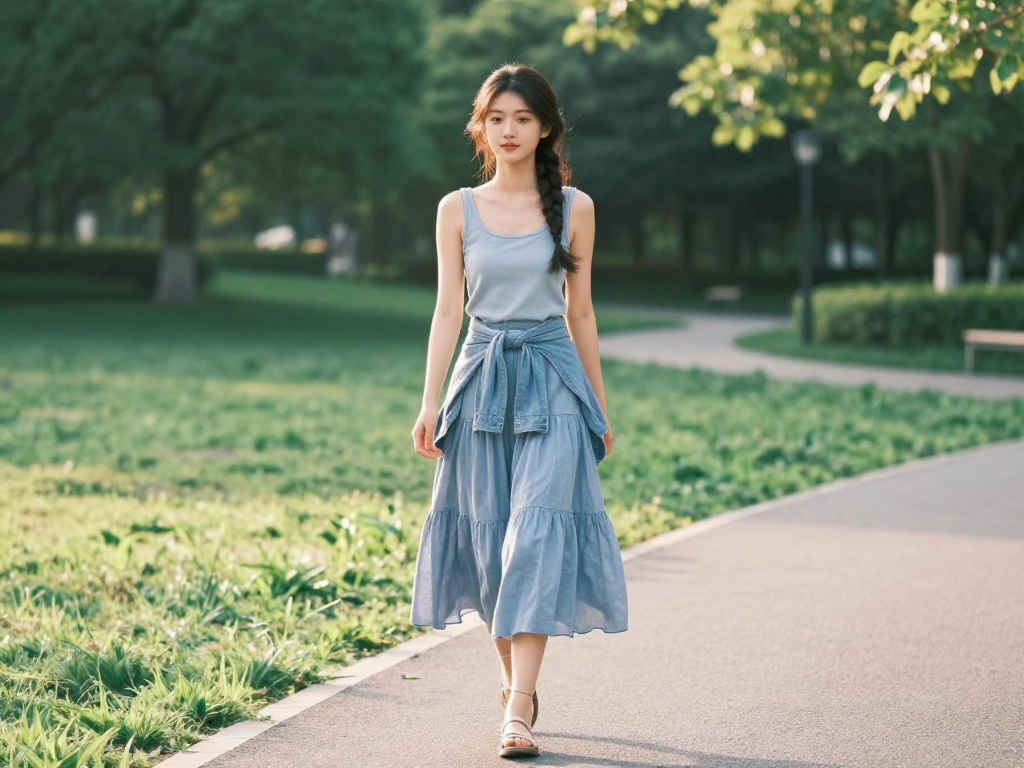
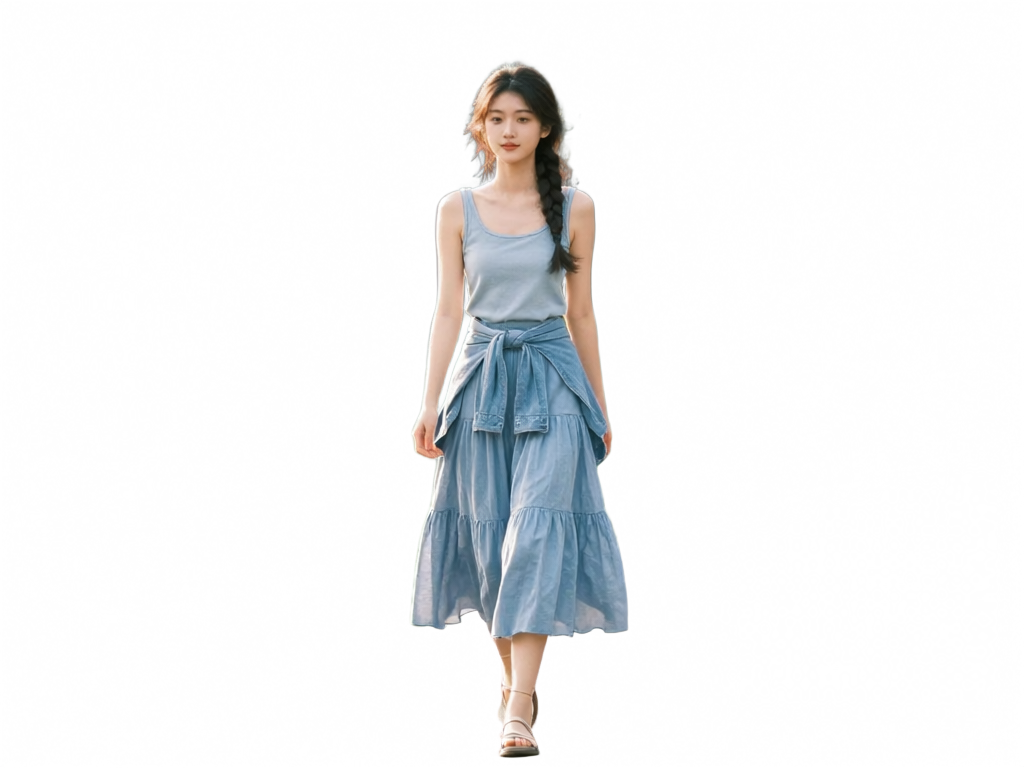
    ⑨ woman8_m.jpg Extract only the person from the image. 8417_2026-09-28_00001_.png
    画像から人物だけを抽出してください。
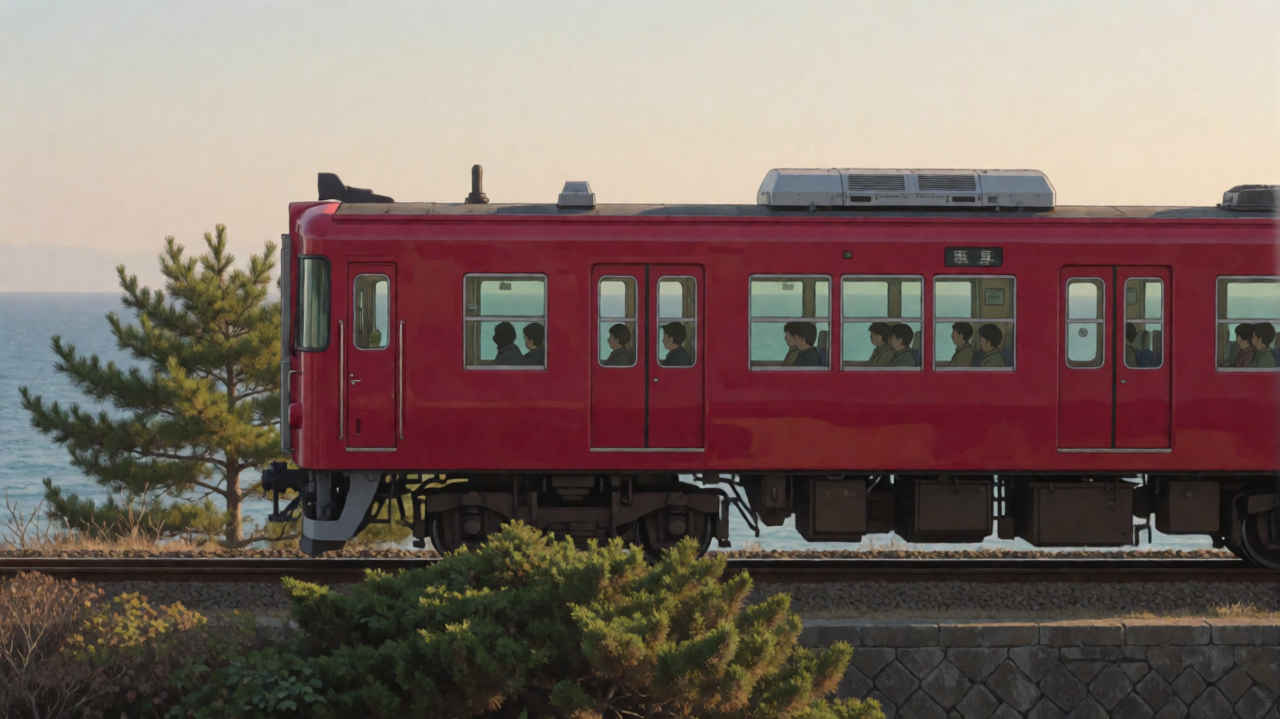
    train3_m.jpg Extract only the red train from the image. 8417_2026-09-27_00001_.png
    画像から赤い列車だけを抽出してください。

  10. パノラマ画像生成
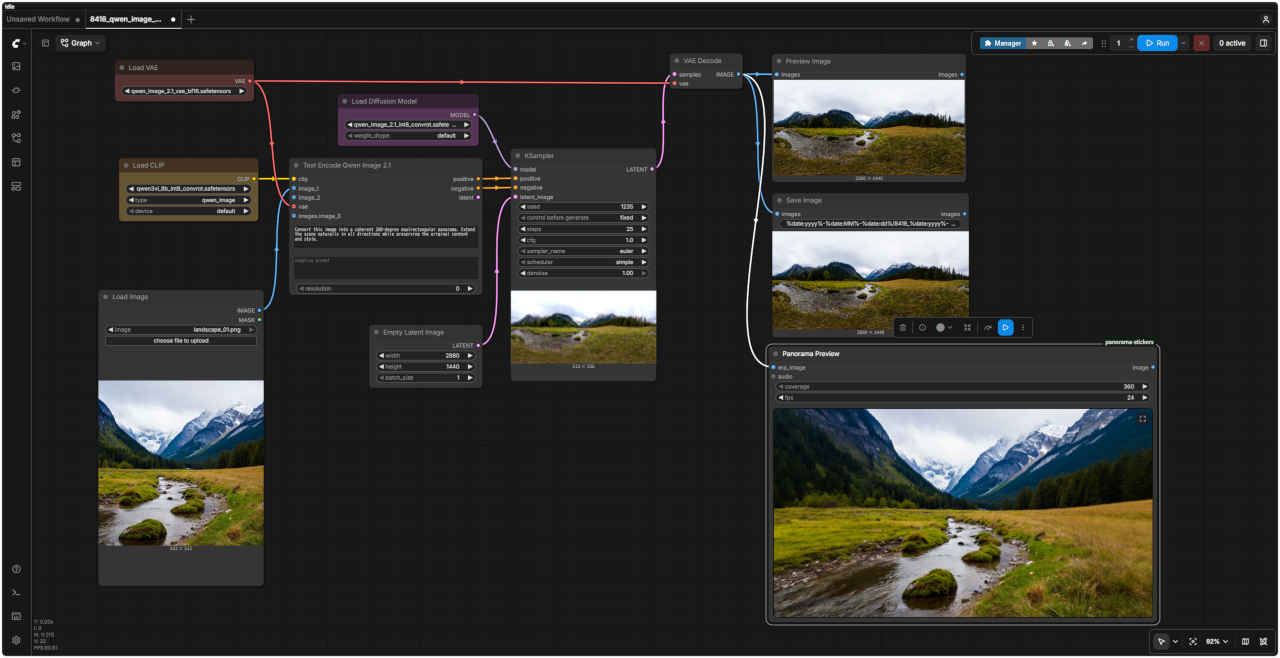
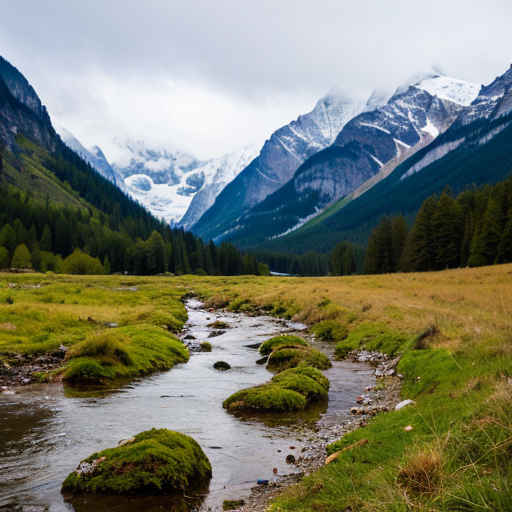
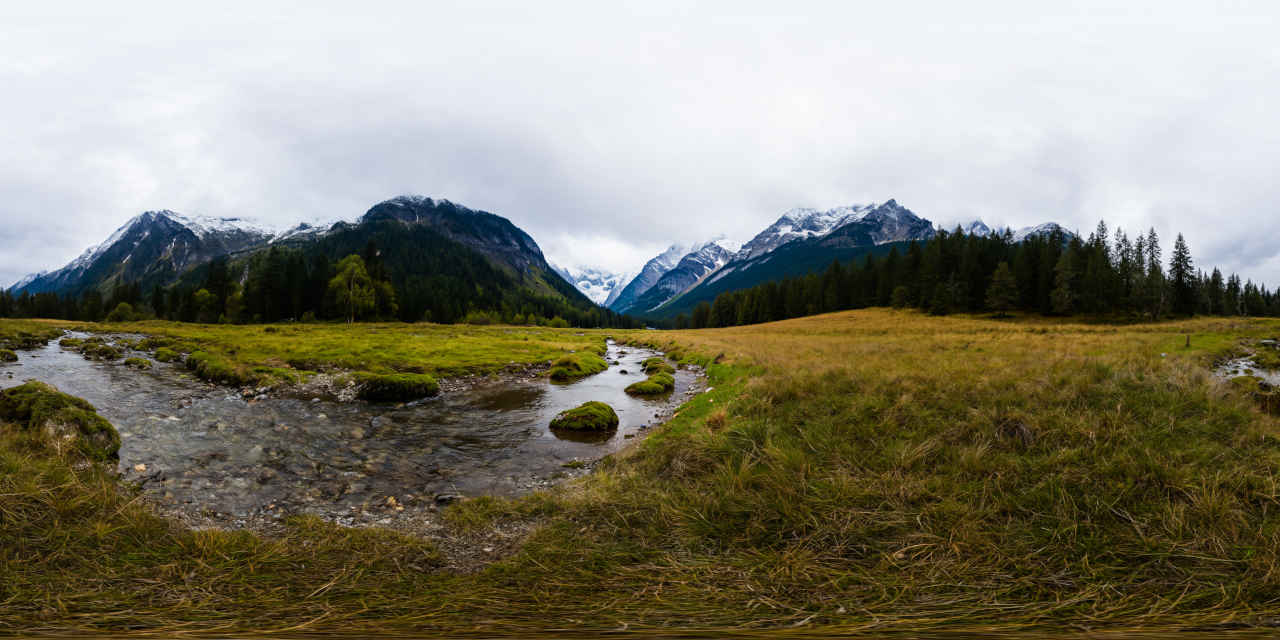
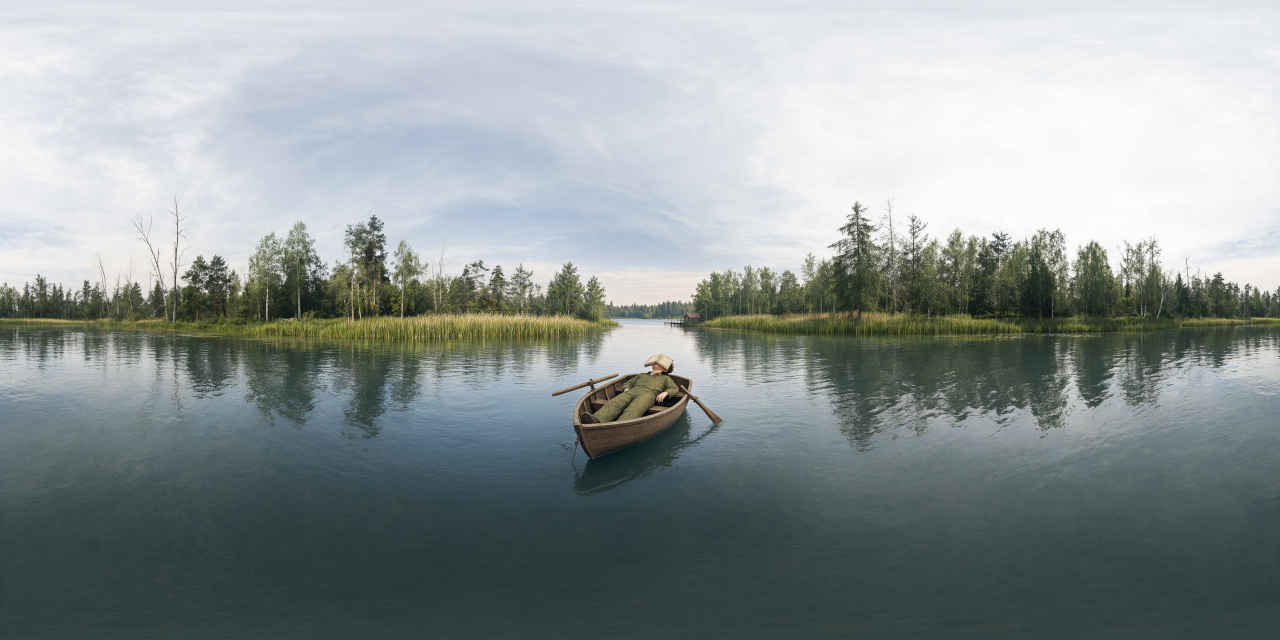
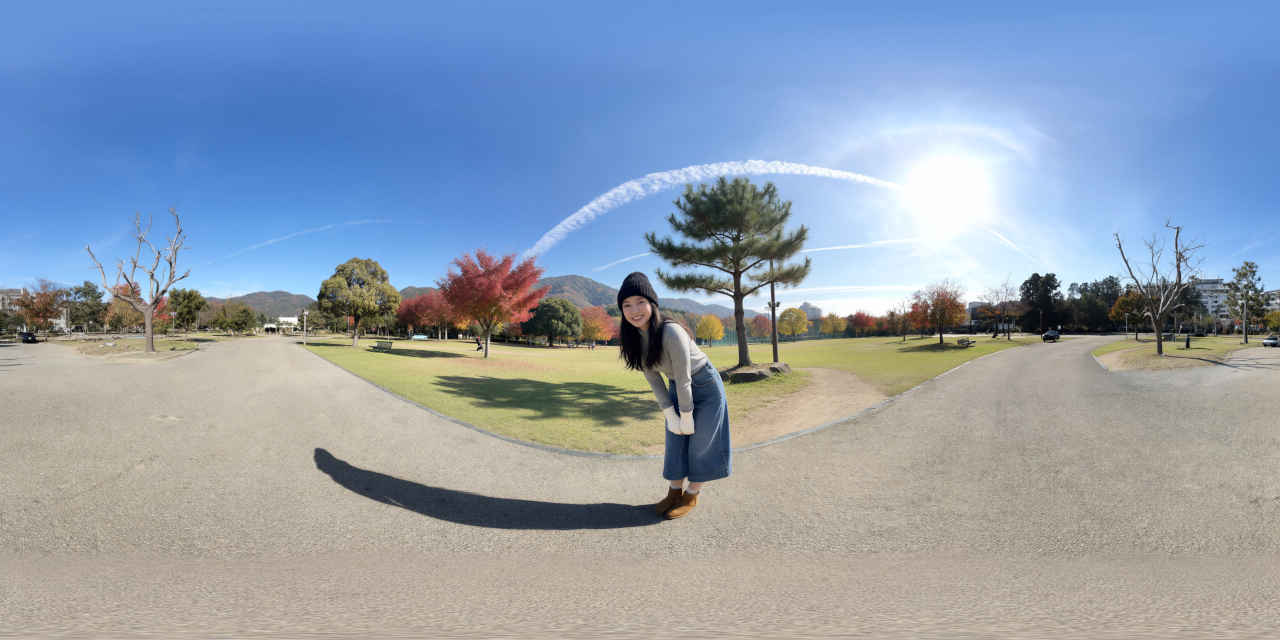
    ・任意の参照画像を2:1 の解像度で ERP として生成して 360度パノラマ画像を生成することができる
    ・パノラマ・ビューア → 拡張ノード: ComfyUI Manager から Panorama Stickers で検索、nomadoor/ComfyUI-Panorama-Stickers
    パノラマ画像 プレビューワークフロー 8418_qwen_image_2.1_panorama.json
    comfyui_A70_m.jpg
    参照画像プロンプト生成画像
    ⑩ landscape_01_m.jpg Convert this image into a coherent 360-degree equirectangular panorama. Extend the scene naturally in all directions while preserving the original content and style. 8418_2026-09-28_00001_m.jpg
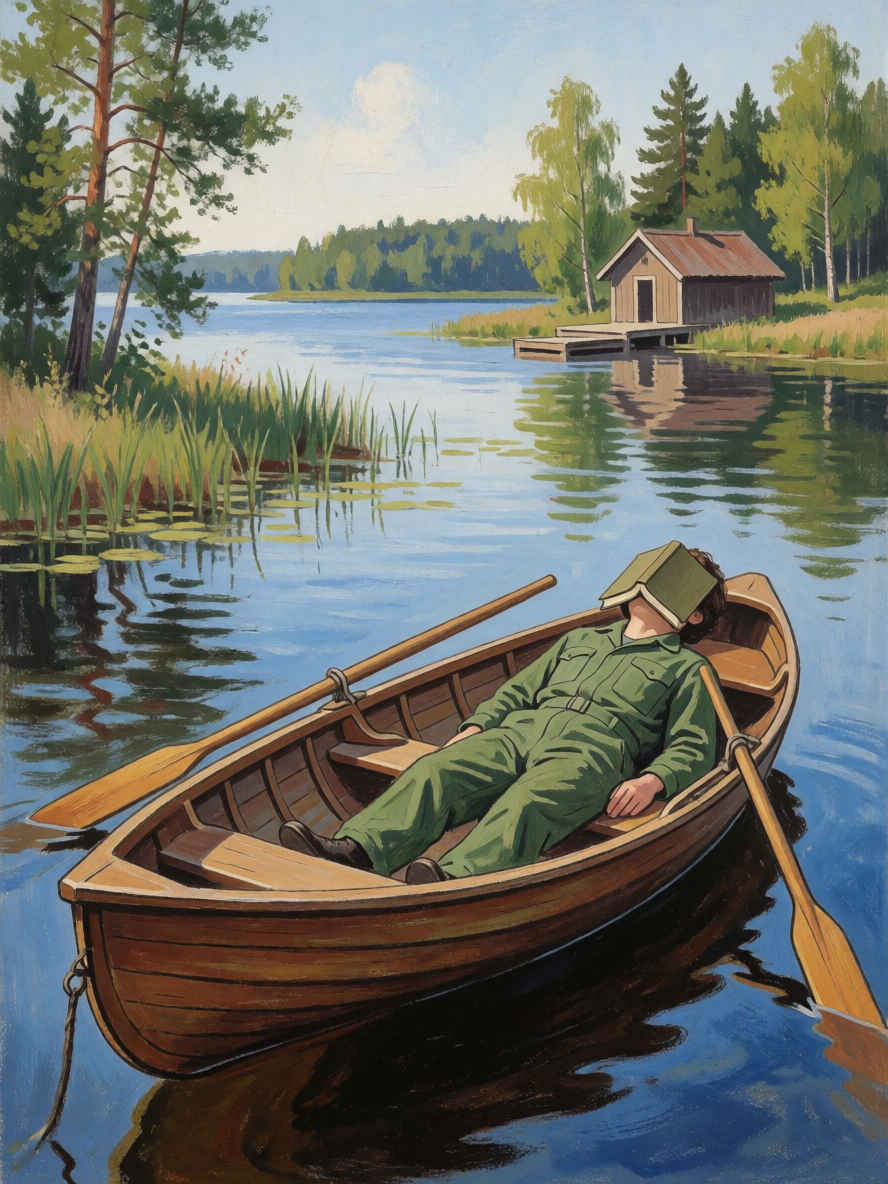
    boat_m.jpgこの画像を、整合性のある360度正距円筒図法のパ​​ノラマに変換してください。元の内容とスタイルを維持しつつ、全方向に自然な形で風景を拡張してください。 8418_2026-09-27_00001_m.jpg
    参照画像生成画像パノラマ画像 プレビュー
    8210_2026-09-30_00001_m.jpg 8418_2026-09-30_00001_m.jpg&ref(): File not found: "8418_2026-09-30_prv02.gif" at page "ComfyUI19a";

簡潔で汎用的なプロンプトを使用する†

 画像編集に優たモデルは、『Krea 2』『JoyAI-Image』などがあるが、『Qwen-Image-2.1』は抽象的な指示で画像編集ができる点に優位性がある
 ・簡潔で汎用的な表現で目的とする画像を生成する方法を検証してみる
  1. 参照画像2枚とプロンプトによる画像編集
    他のモデルでの生成画像(共通のプロンプトで比較)
    FLUX.2 kleinZ-ImageERNIE-ImageHiDream-O1Ideogram4 4,0Boogu-ImageKrea 2JoyAI-ImagQwen-Image-2.1
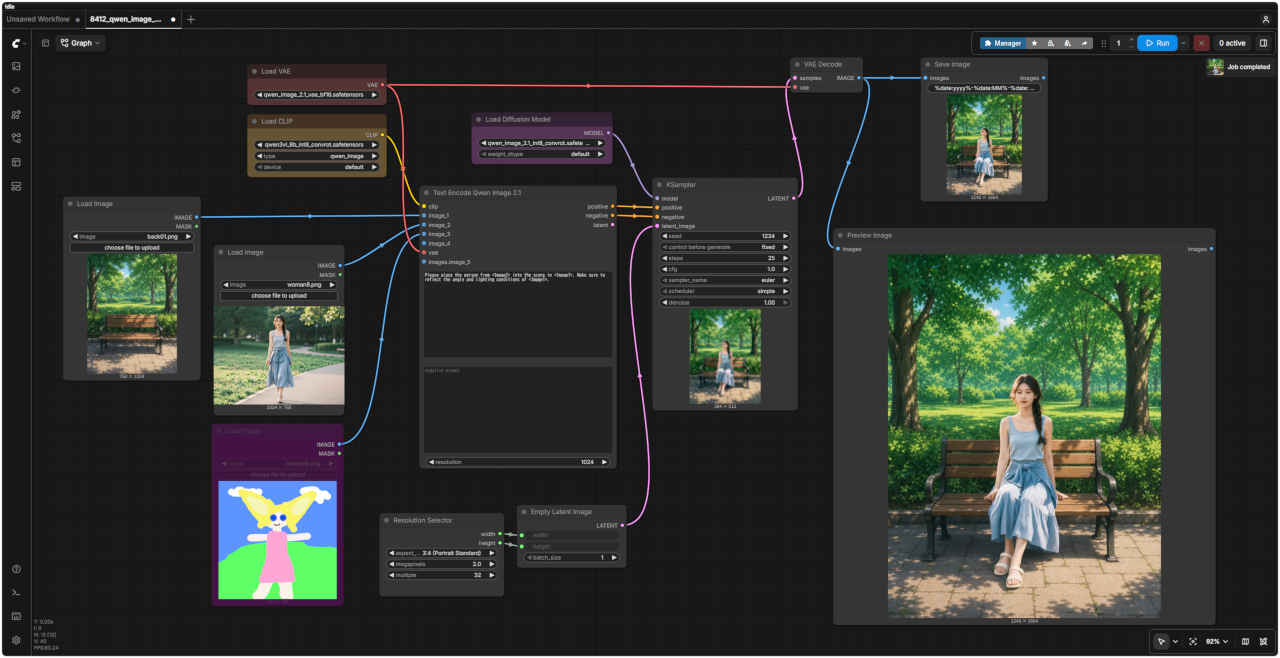
    参照画像 ①ワークフロー 8412_qwen_image_2.1_ref2image.json
    woman8_m.jpg comfyui_A62_m.jpg
    ① ~ ④ プロンプト
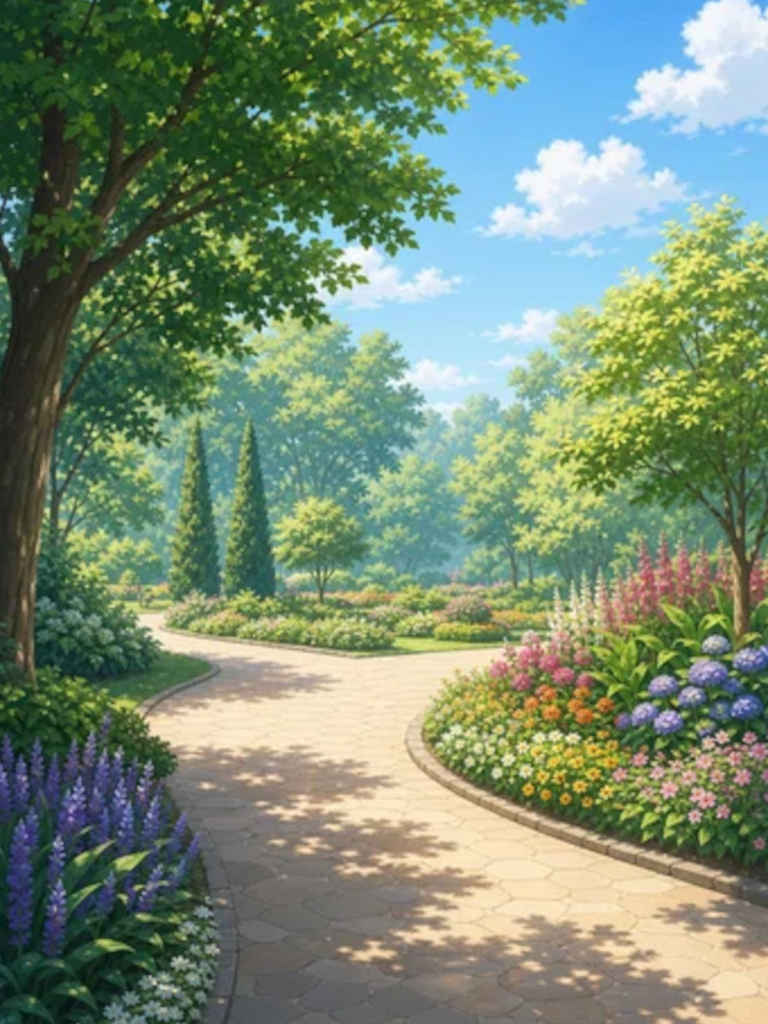
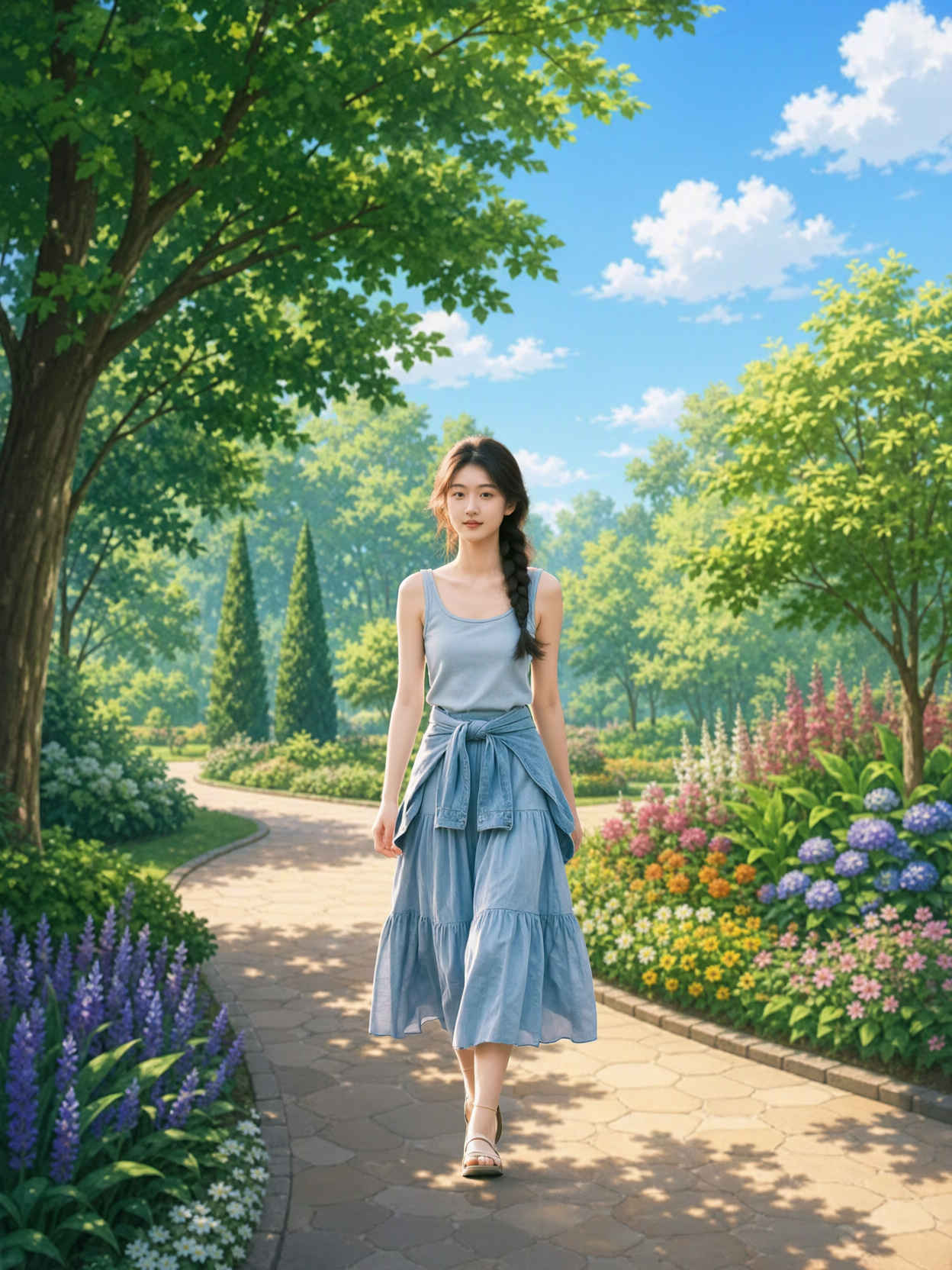
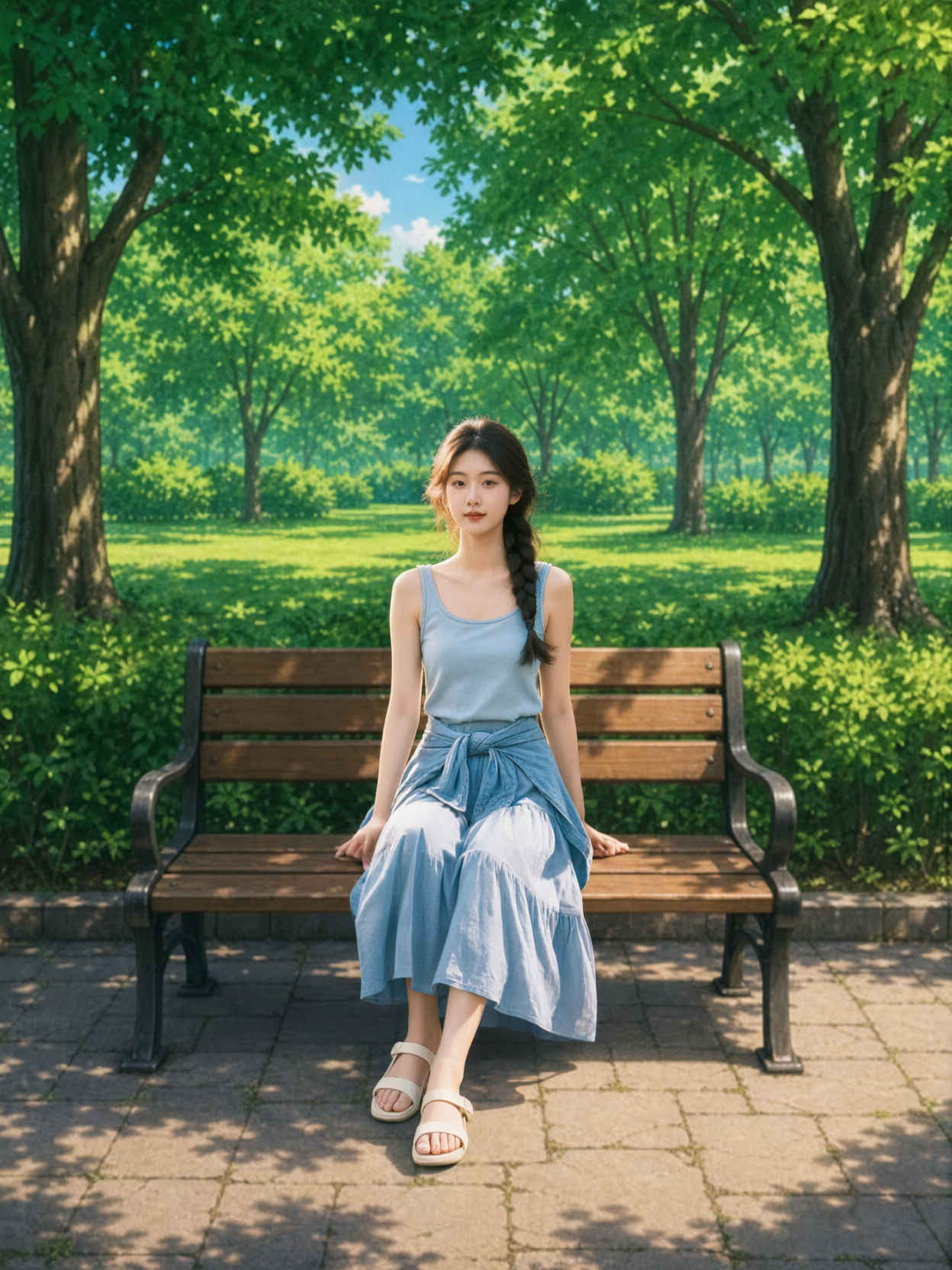
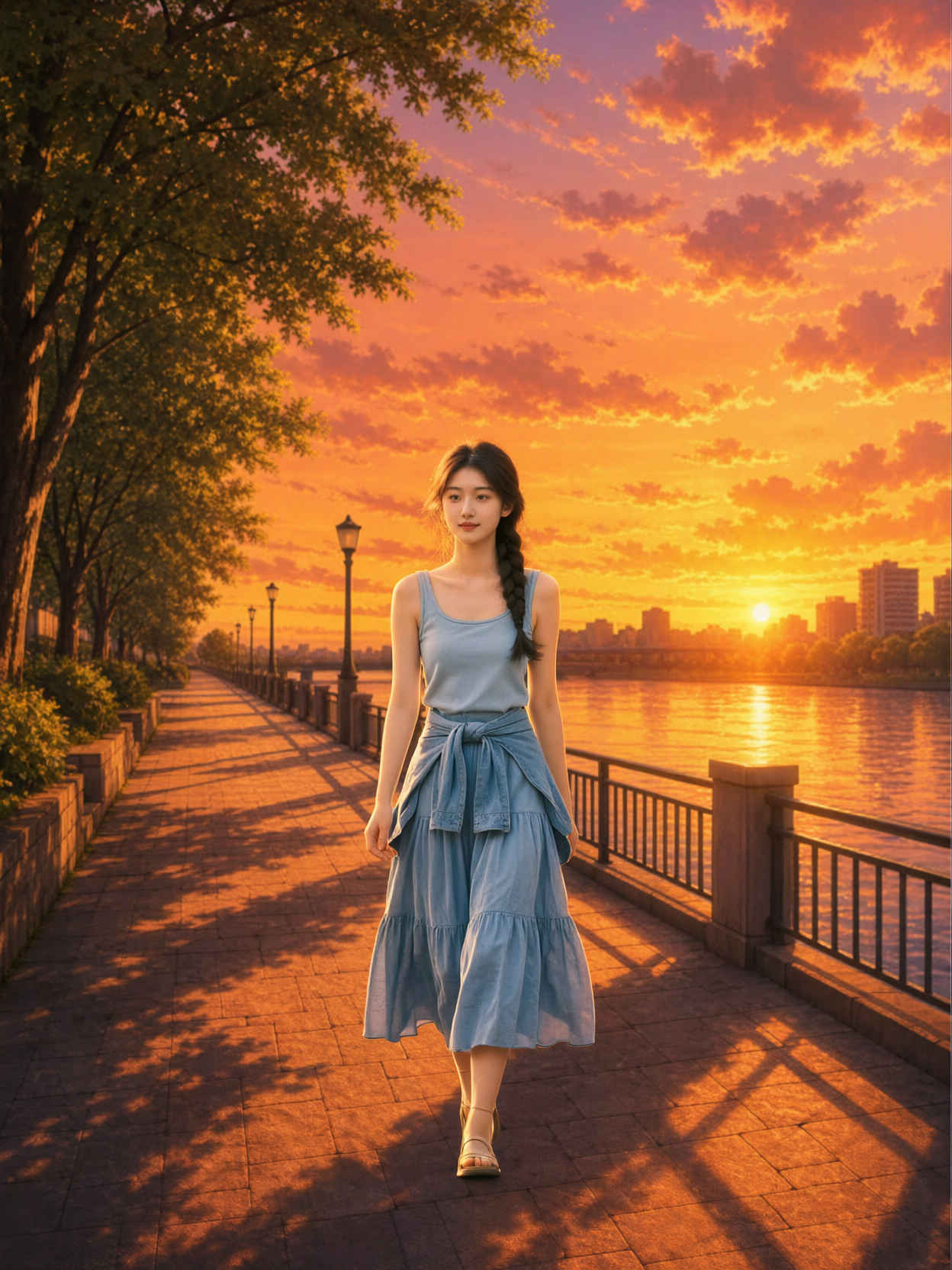
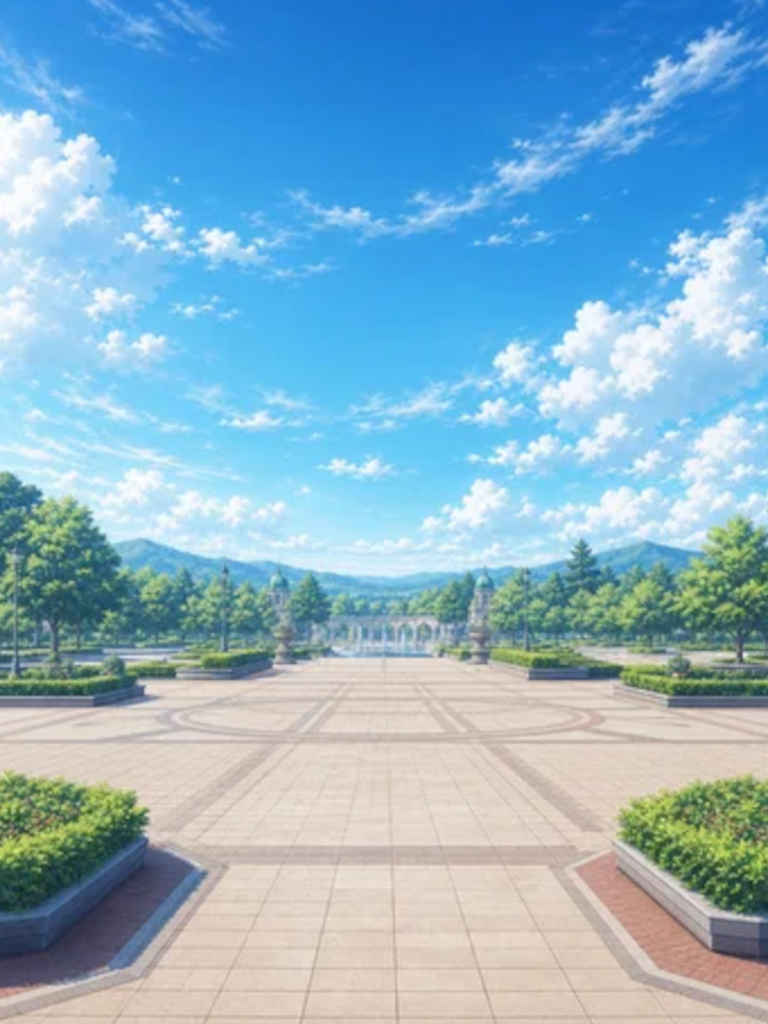
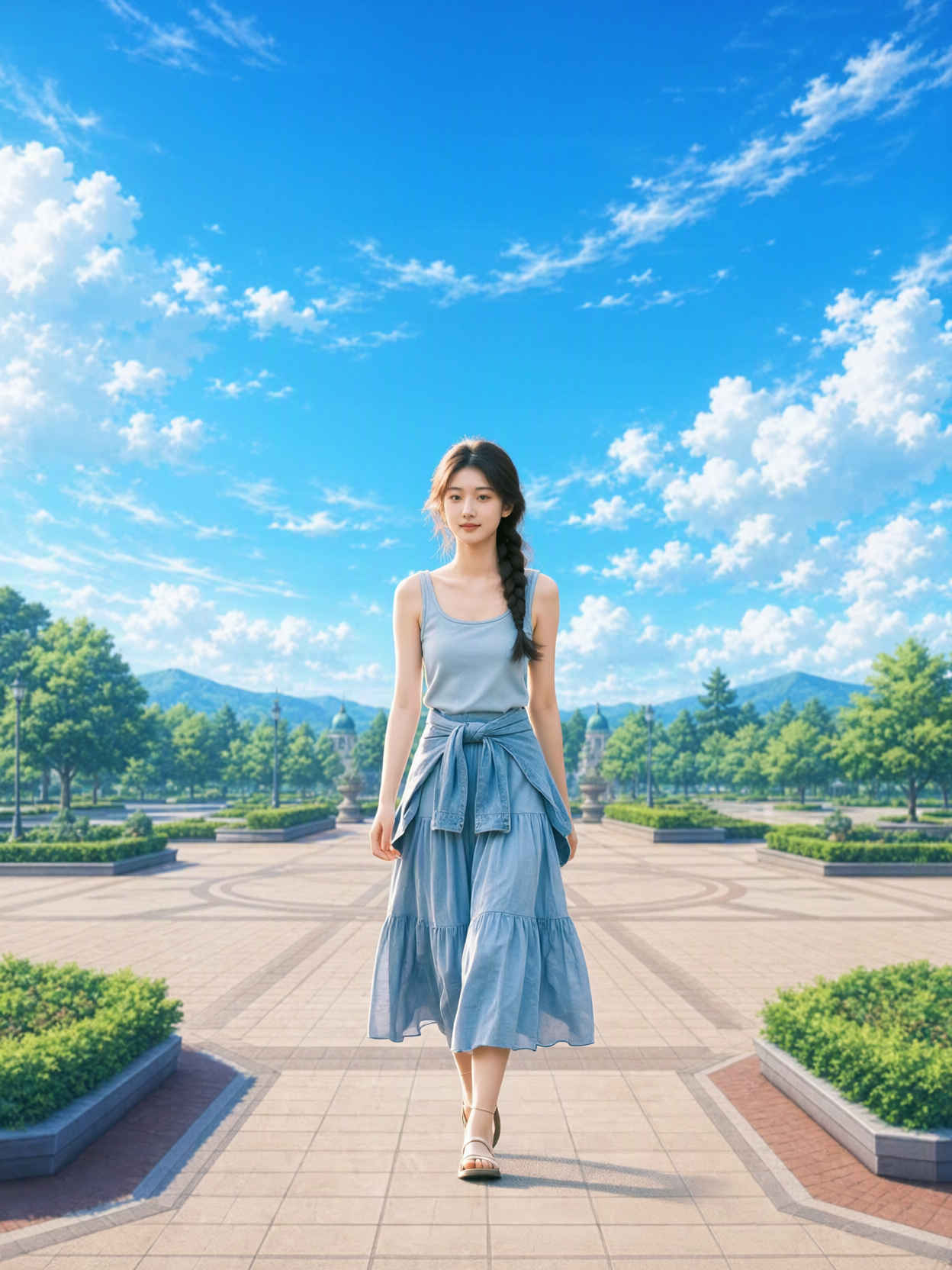
    Please place the person from <Image2> into the scene in <Image1>. Make sure to reflect the angle and lighting conditions of <Image1>.
    <Image2>の人物を<Image1>のシーンに配置してください。その際、<Image1>の角度や照明条件を反映させるようにしてください。
    参照画像 ②生成画像参照画像 ②生成画像
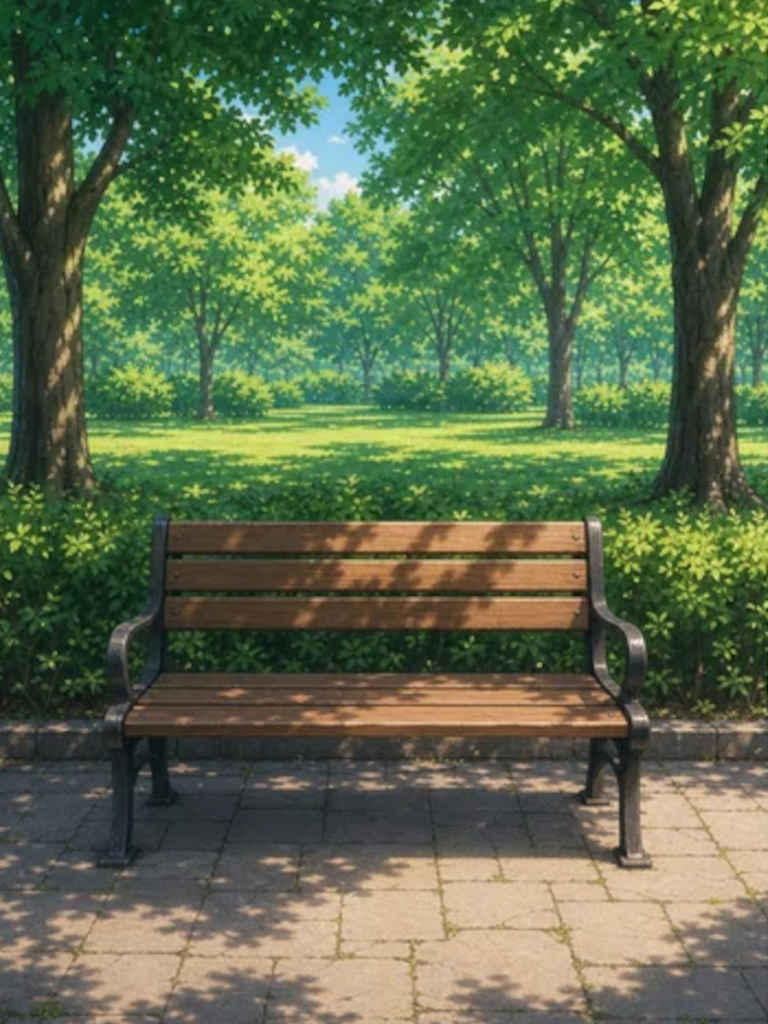
     ① 人物と公園背景を合成する ② 背景へ合成して人物を座らせる
    back02_m.jpg 8412_2026-09-25_00001_m.jpg back01_m.jpg 8412_2026-09-25_00002_m.jpg
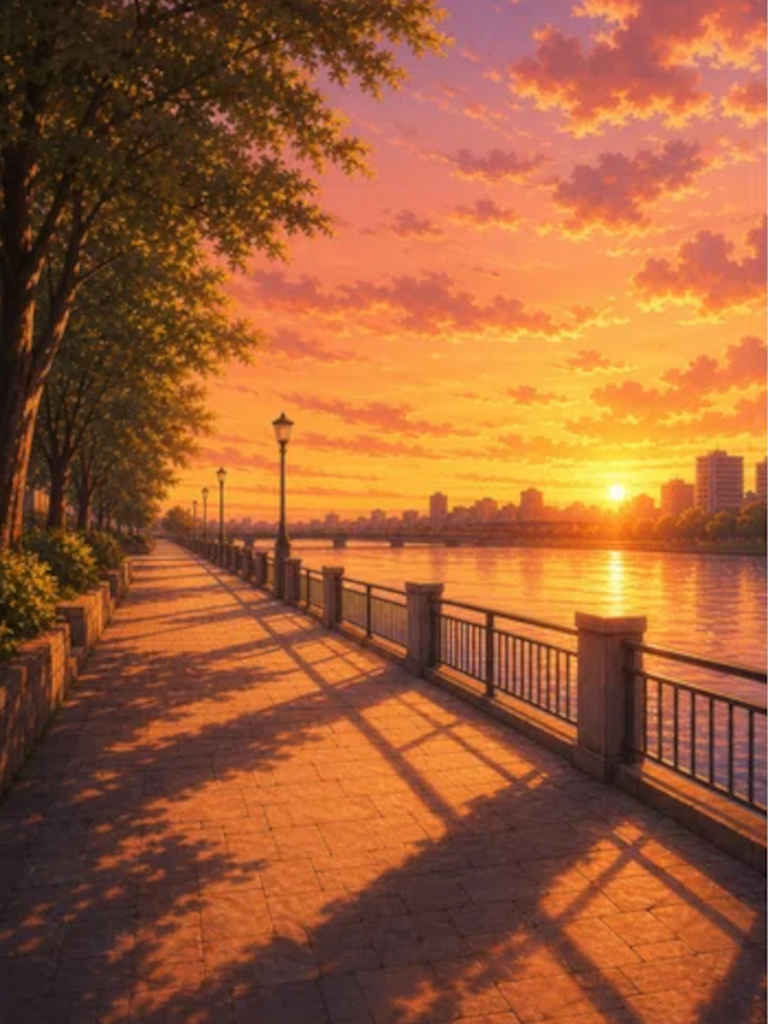
     ③ 背景へ合成して夕方にする ④ 背景へ遠景の人物として合成する
    back03_m.jpg 8412_2026-09-25_00003_m.jpg back04_m.jpg 8412_2026-09-25_00004_m.jpg
    参照画像 ②プロンプト生成画像
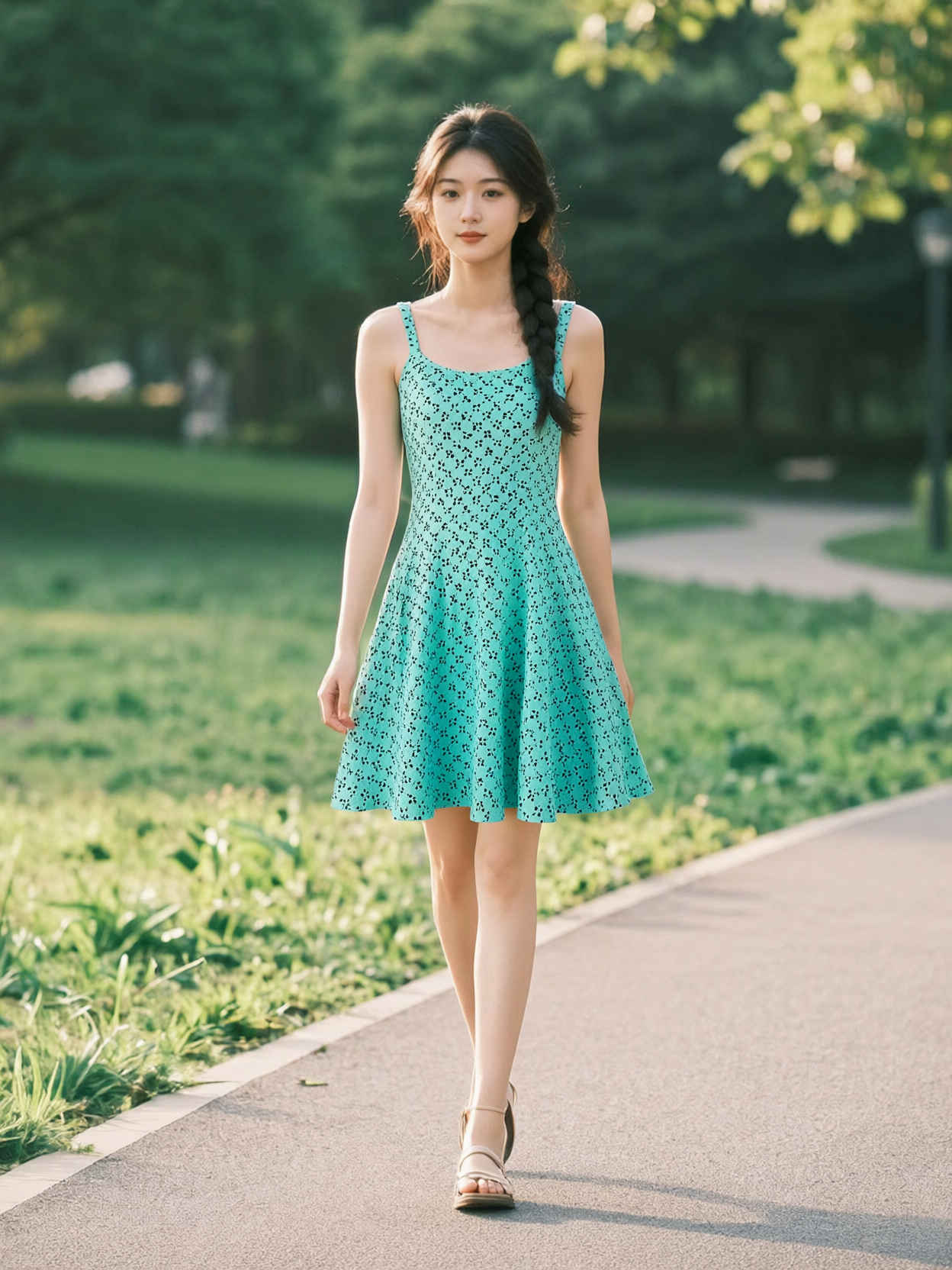
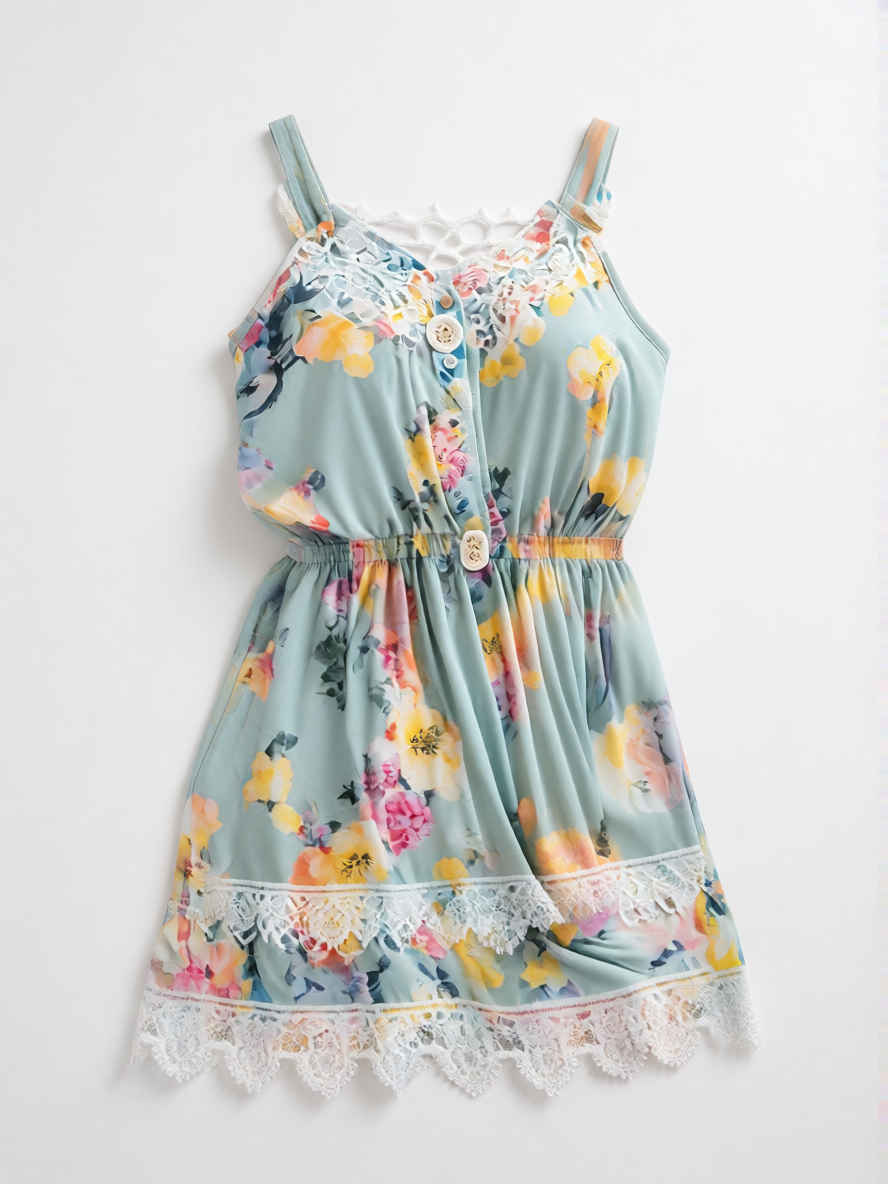
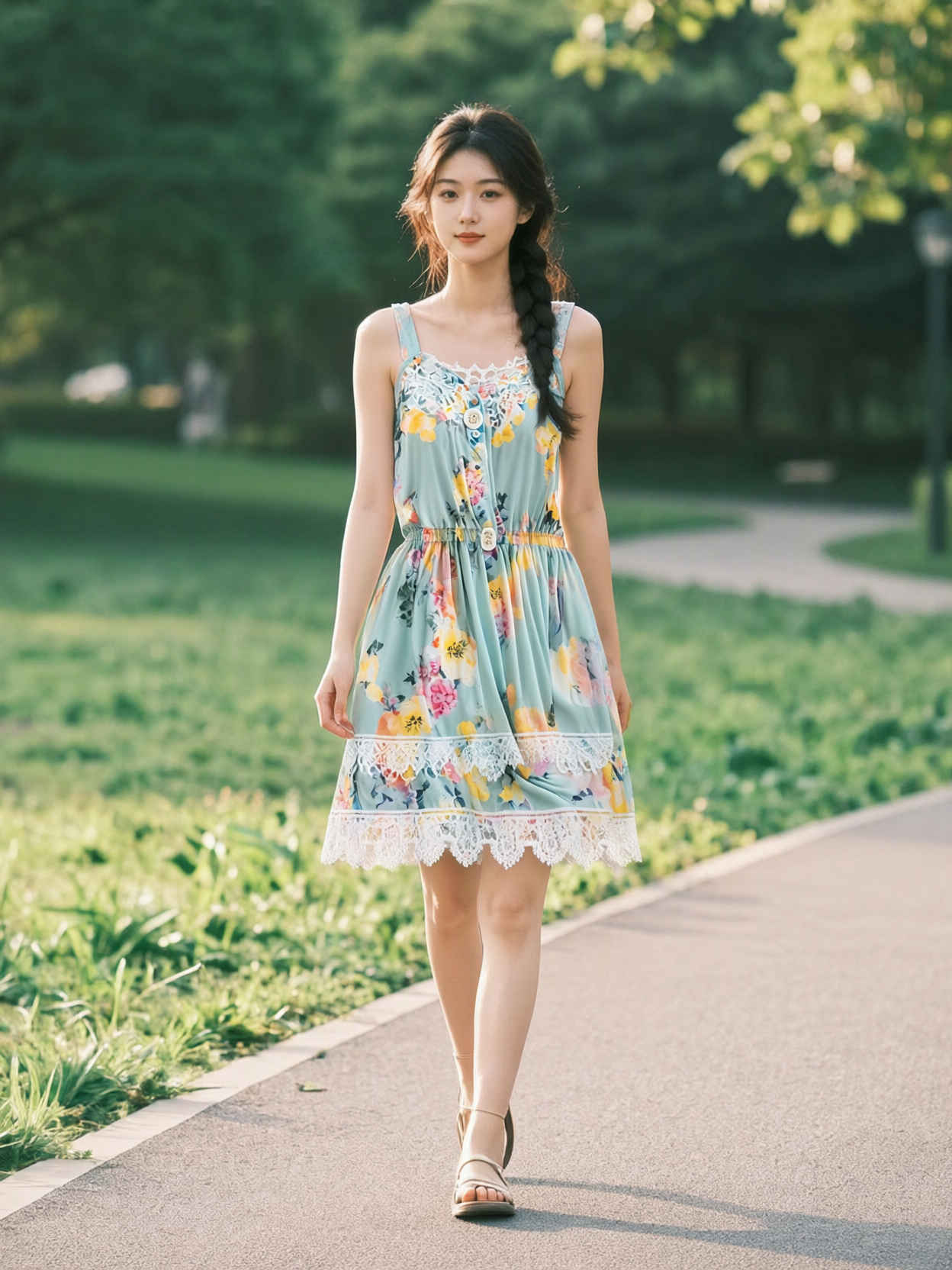
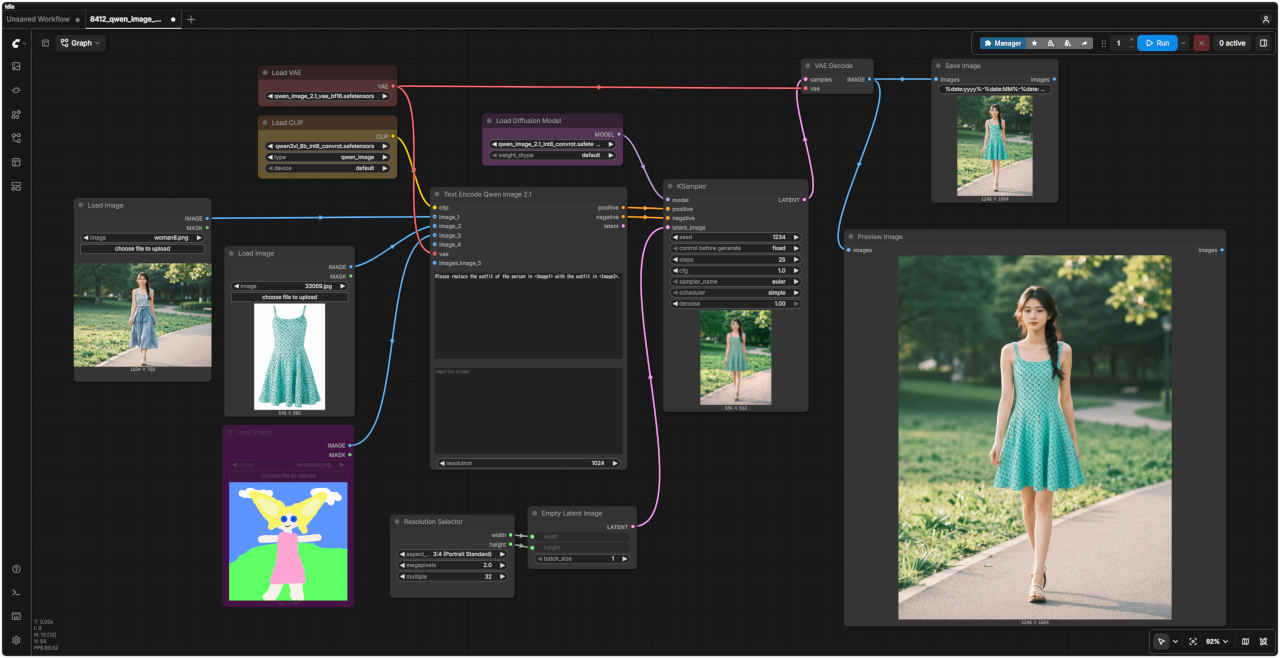
      ⑤ 服装を替える
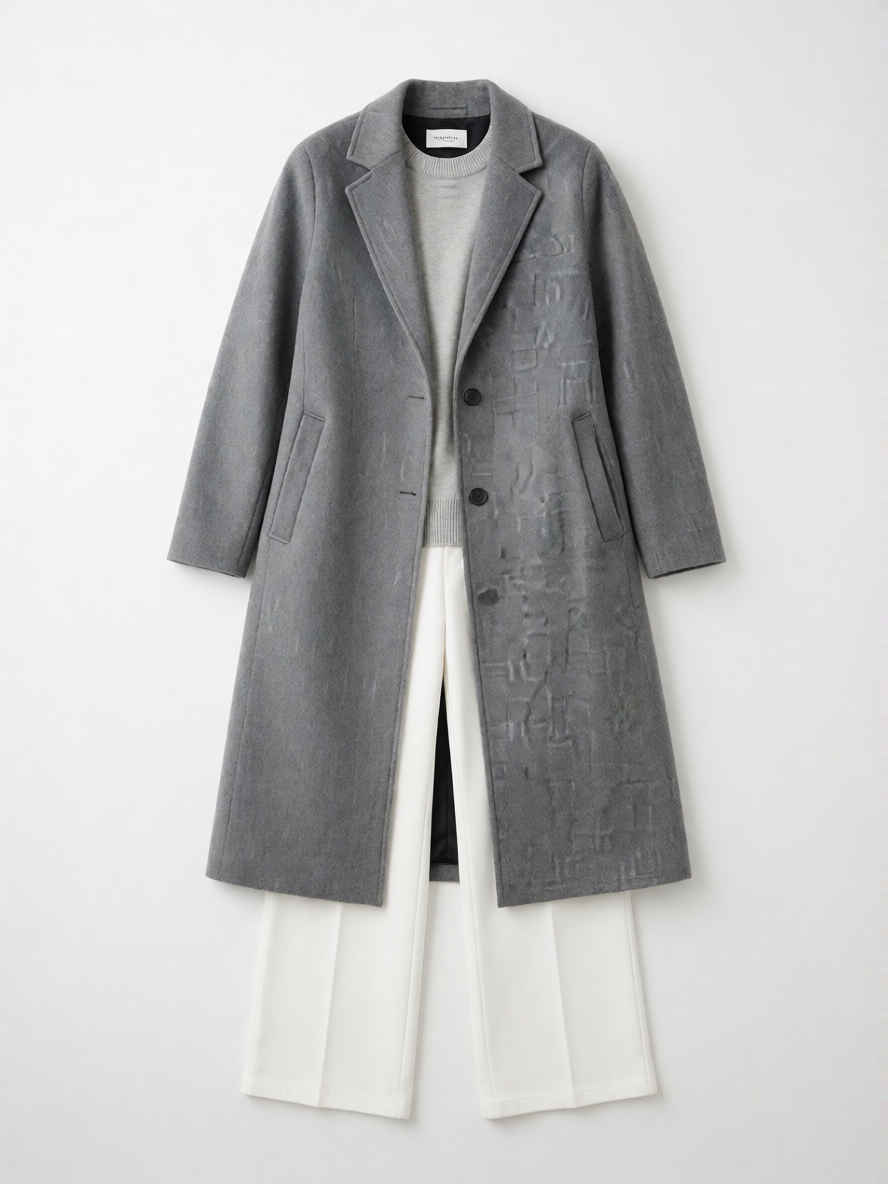
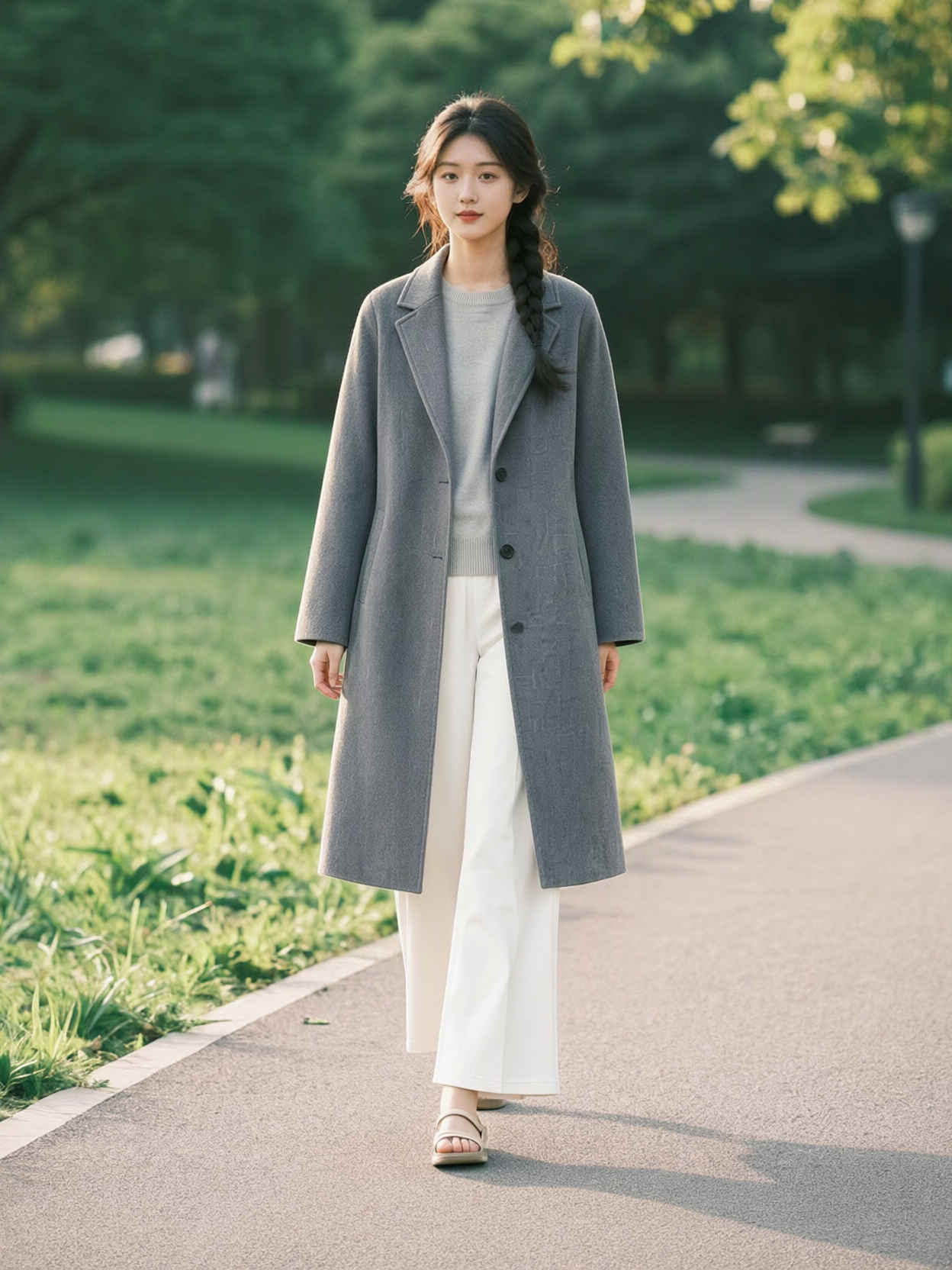
    8220_2026-08-03_00004_m.jpg Please replace the outfit of the person in <Image1> with the outfit in <Image2>. 8412_2026-09-25_00005_m.jpg
    <Image1>の人物の服装を、<Image2>の服装に置き換えてください。
    参照画像 ②生成画像参照画像 ②生成画像
    33069_m.jpg 8412_2026-09-25_00006_m.jpg 8220_2026-08-03_00003_m.jpg 8412_2026-09-25_00007_m.jpg
    参照画像 ②プロンプト生成画像
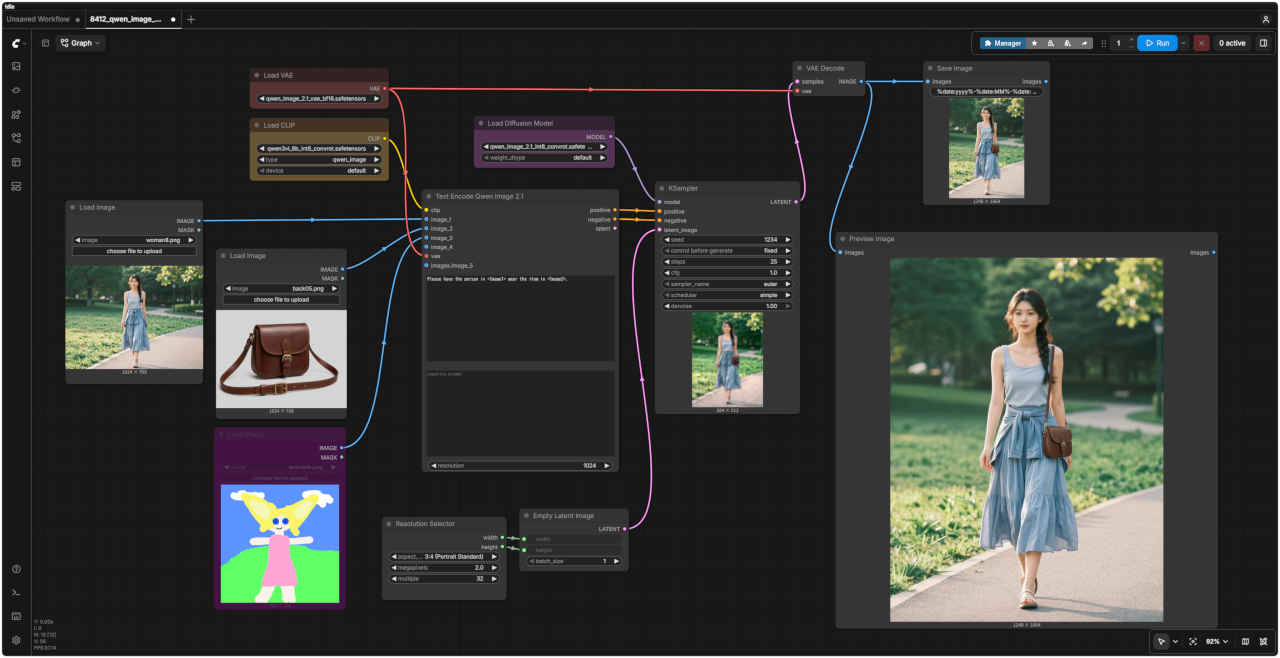
      ⑥ バッグを持たせる
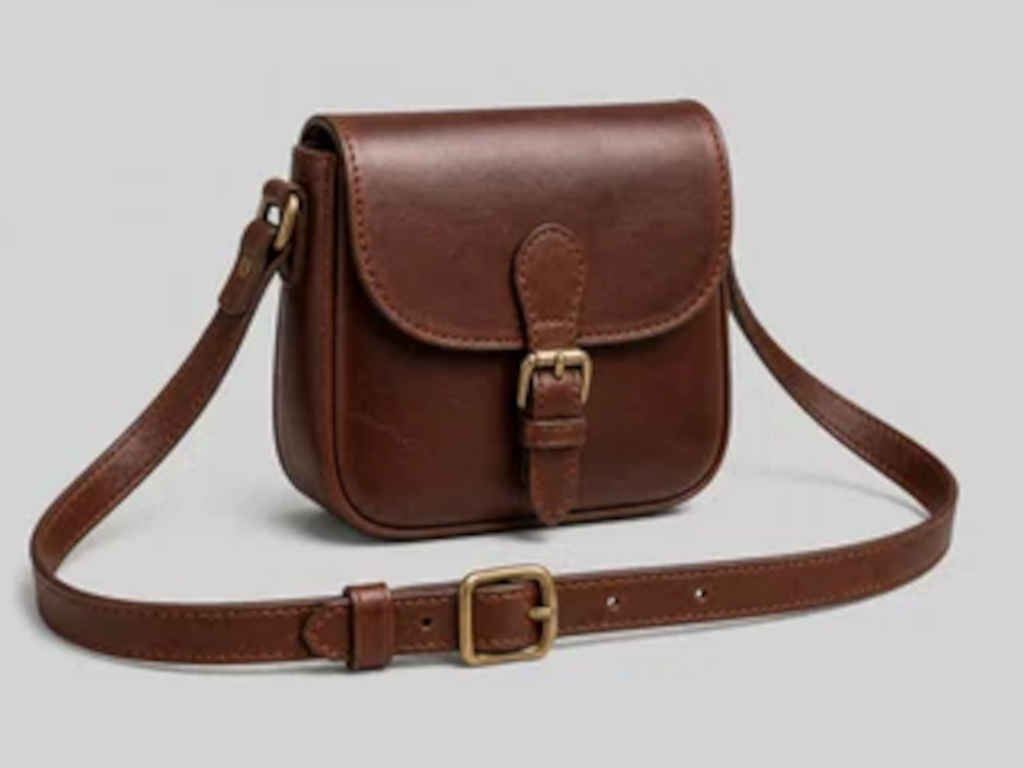
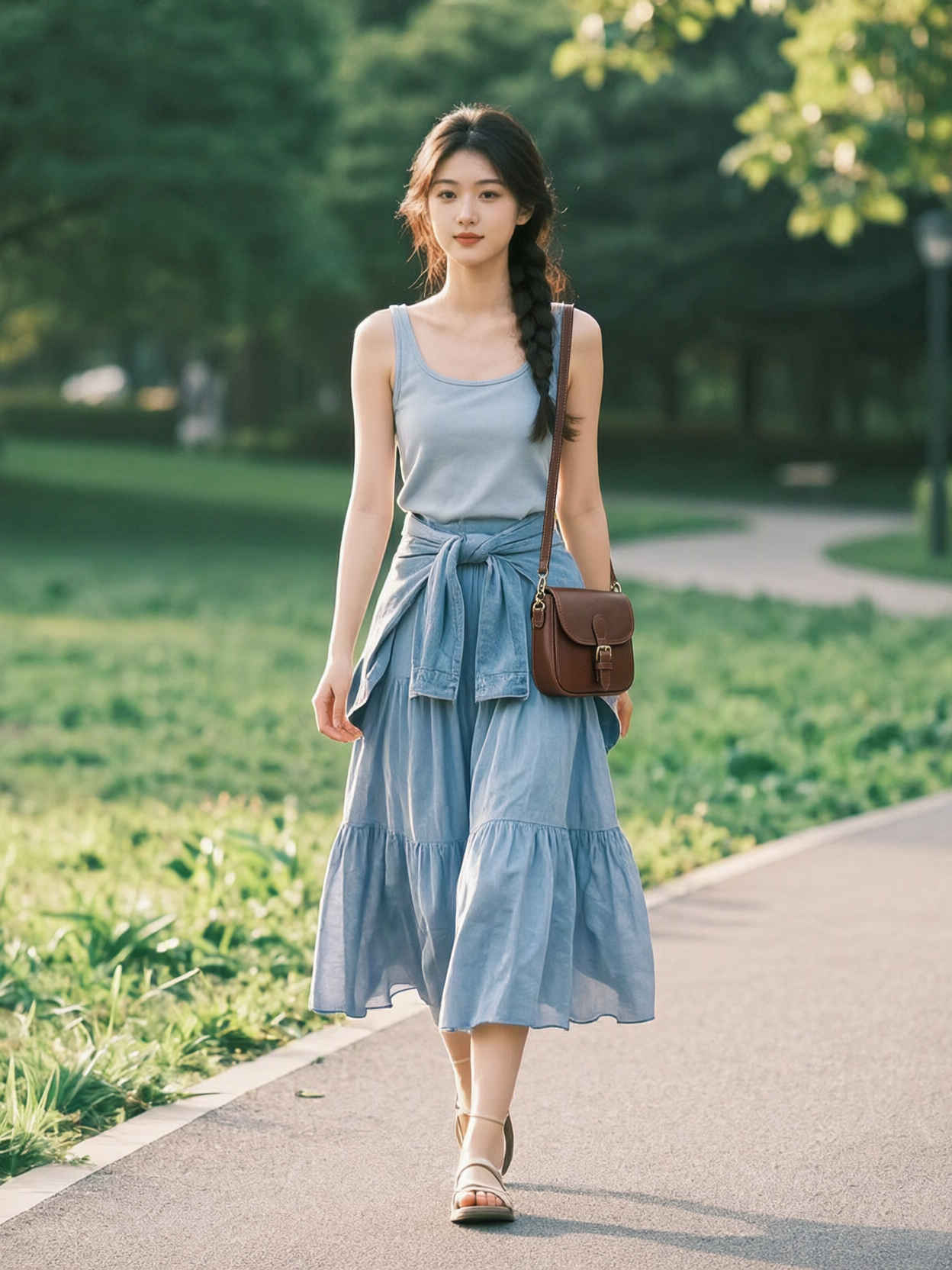
    back05_m.jpg Please have the person in <Image1> wear the item in <Image2>. 8412_2026-09-25_00008_m.jpg
    <Image1>の人物に、<Image2>のアイテムを着用させてください。
    ワークフロー 8412_qwen_image_2.1_ref2image.jsonワークフロー 8412_qwen_image_2.1_ref2image.json
    comfyui_A63_m.jpg comfyui_A64_m.jpg

    ・参照画像でポーズを指定する(「JoyAI-Image Edit」でうまくいかなかった問題点)
    参照画像 ②プロンプト生成画像
      ⑦ ポーズをつける (棒人間ポーズ画像の場合)
    openpose_test_m.jpg Change the pose of the character in <image1> to match the pose in <image2>. Preserve the character's identity, clothing, appearance, and art style from <image1>. 8412_2026-09-25_00010_m.jpg
    <image1>のキャラクターのポーズを、<image2>のポーズに合わせて変更してください。<image1>のキャラクターのアイデンティティ、服装、外見、および画風は維持してください。
    参照画像 ①ワークフロー 8412_qwen_image_2.1_ref2image.json
    woman8_m.jpg comfyui_A66_m.jpg
    参照画像 ②プロンプト生成画像
      ⑦ ポーズをつける (人物画像の場合)
    pose_02_m.jpg Change the pose of the character in <image1> to match the pose in <image2>. Preserve the character's identity, clothing, appearance, and art style from <image1>. 8415_2026-09-25_00001_m.jpg
    pose_89p_m.jpg 8415_2026-09-25_00002_m.jpg
    <image1>のキャラクターのポーズを、<image2>のポーズに合わせて変更してください。<image1>のキャラクターのアイデンティティ、服装、外見、および画風は維持してください。

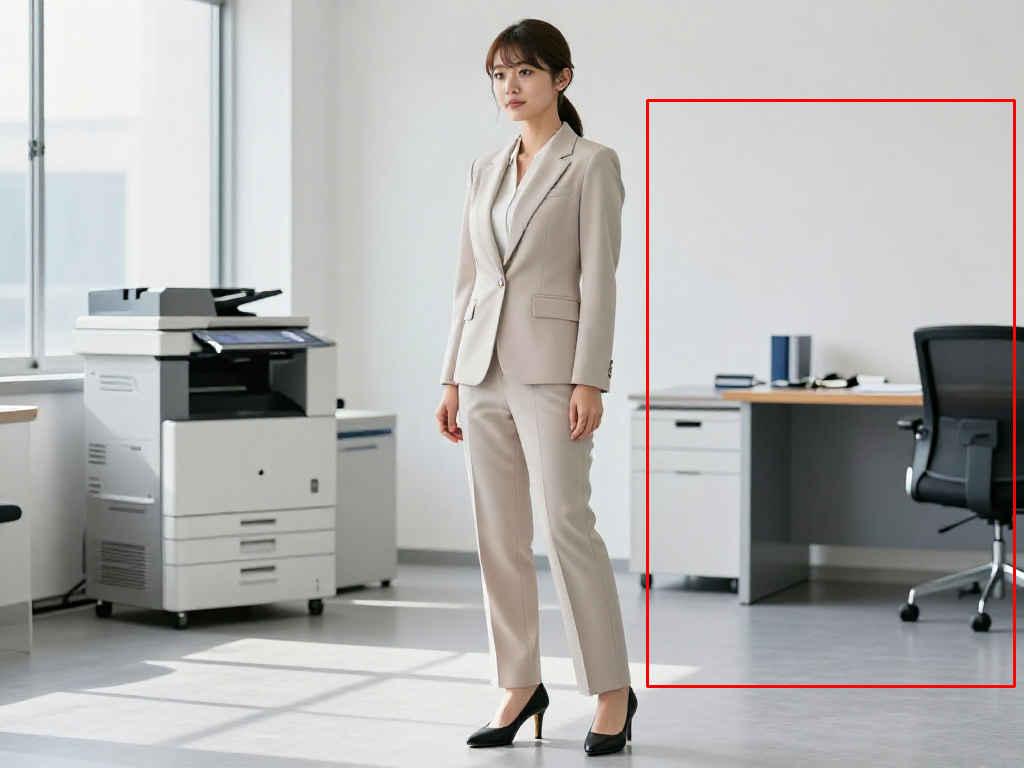
  2. 赤枠で画像編集
    他のモデルでの生成画像(共通のプロンプトで比較)
    FLUX.2 kleinZ-ImageERNIE-ImageHiDream-O1Ideogram4 4,0Boogu-ImageKrea 2JoyAI-ImagQwen-Image-2.1
    元画像ワークフロー 8412_qwen_image_2.1_ref2image>ComfyUI19a#Qwen21_8412.json
    2201_2026-08-11_00002_m.jpg comfyui_A67_m.jpg
    参照画像プロンプト生成画像
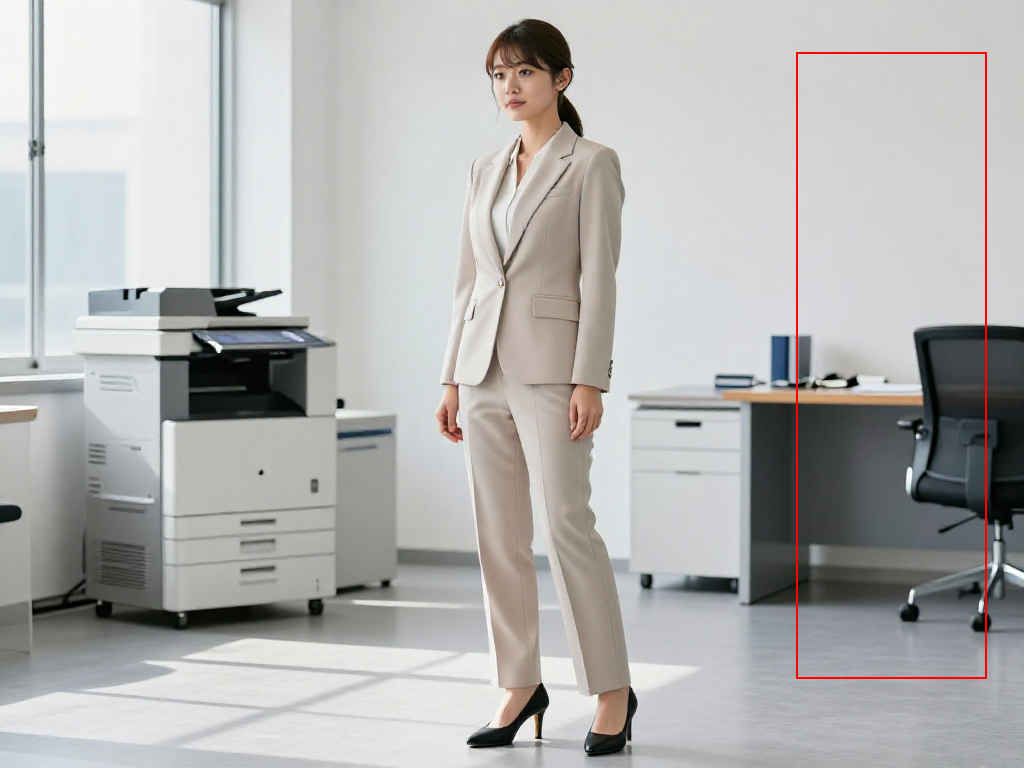
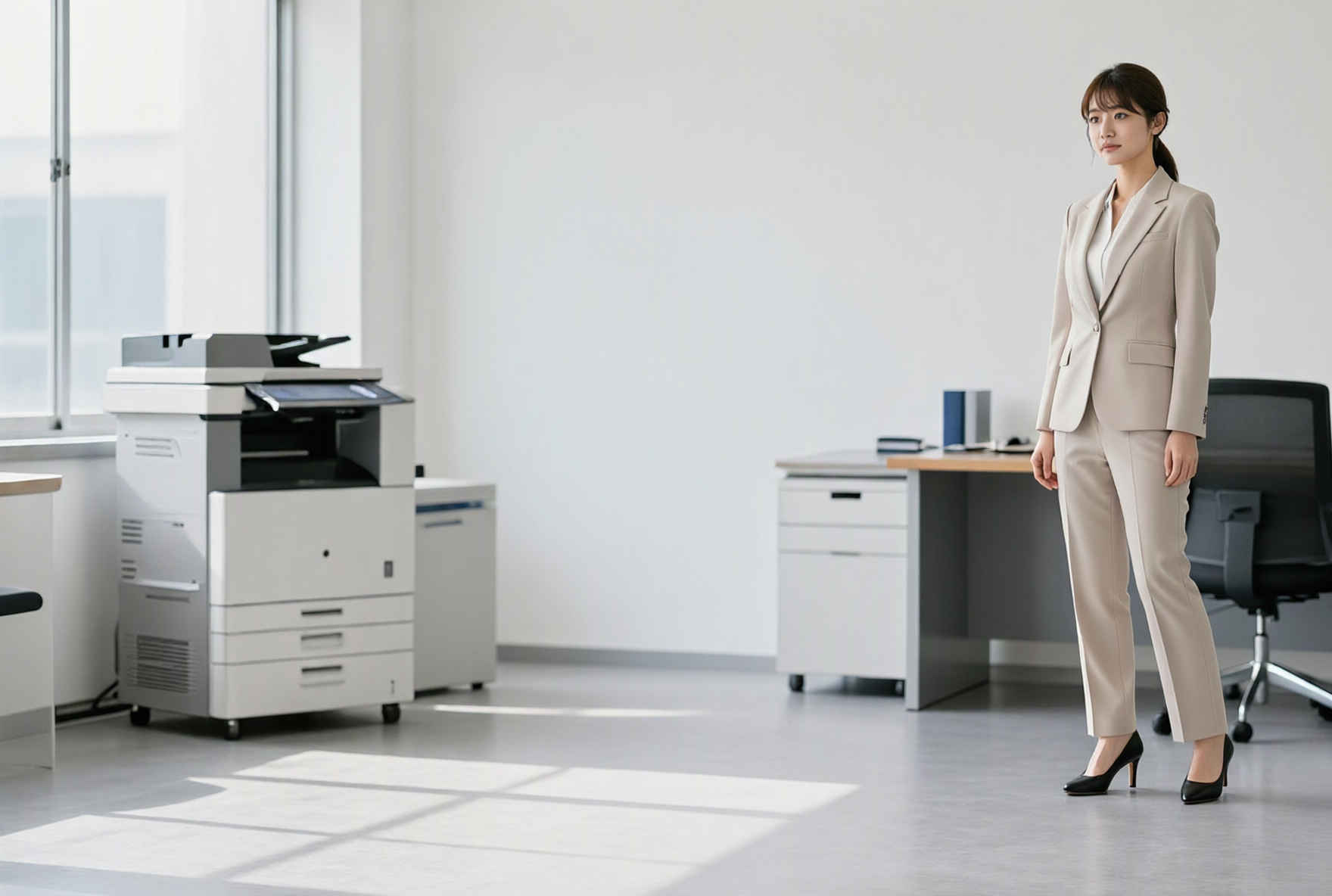
     ① 赤枠へ人物を移動する
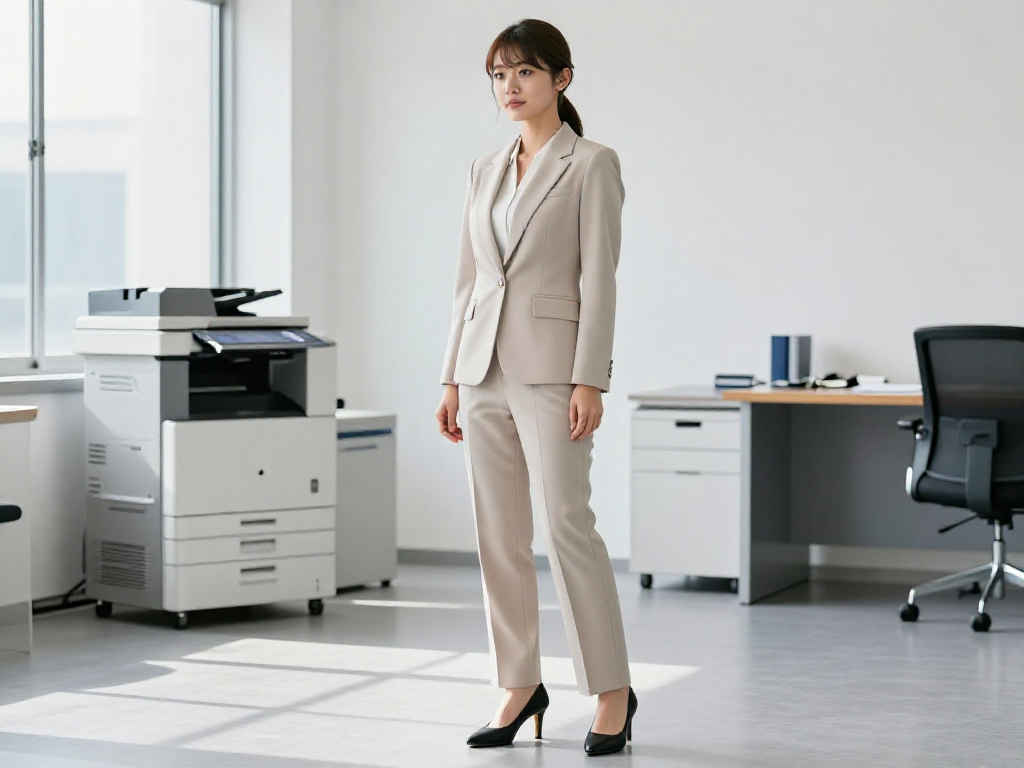
    layout_test_m.jpg Please move the person from <Image1> to the area outlined in red. 8412_2026-09-25_00012_m.jpg
    <Image1>の人物を、赤枠で囲まれたエリアに移動させてください。
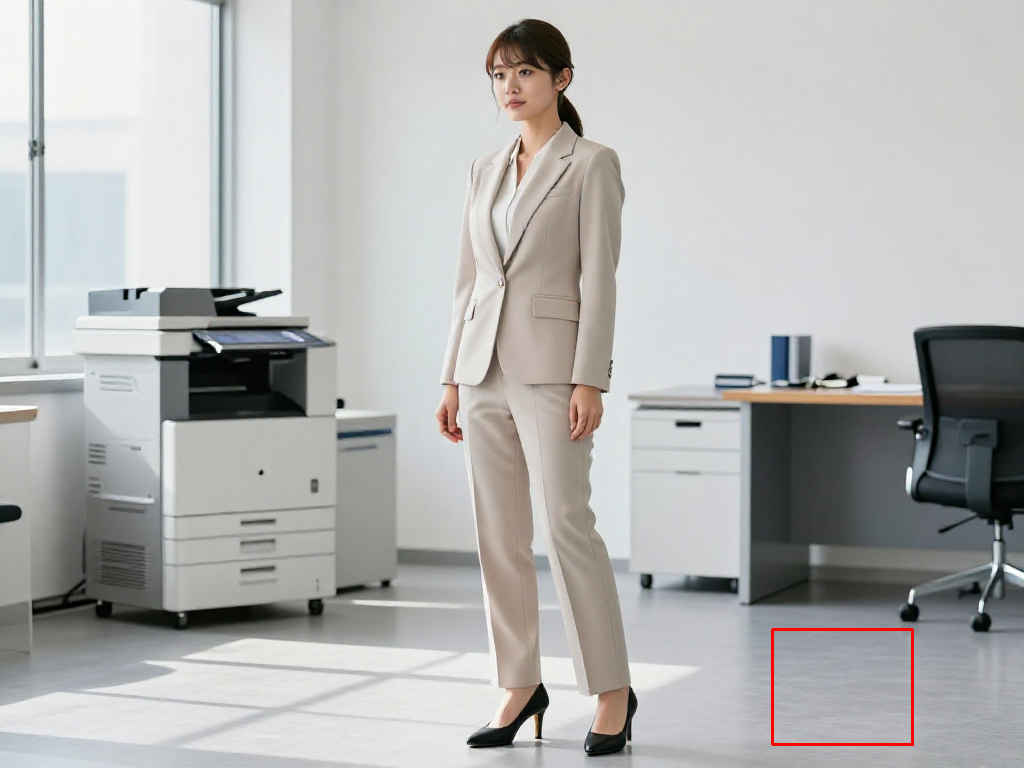
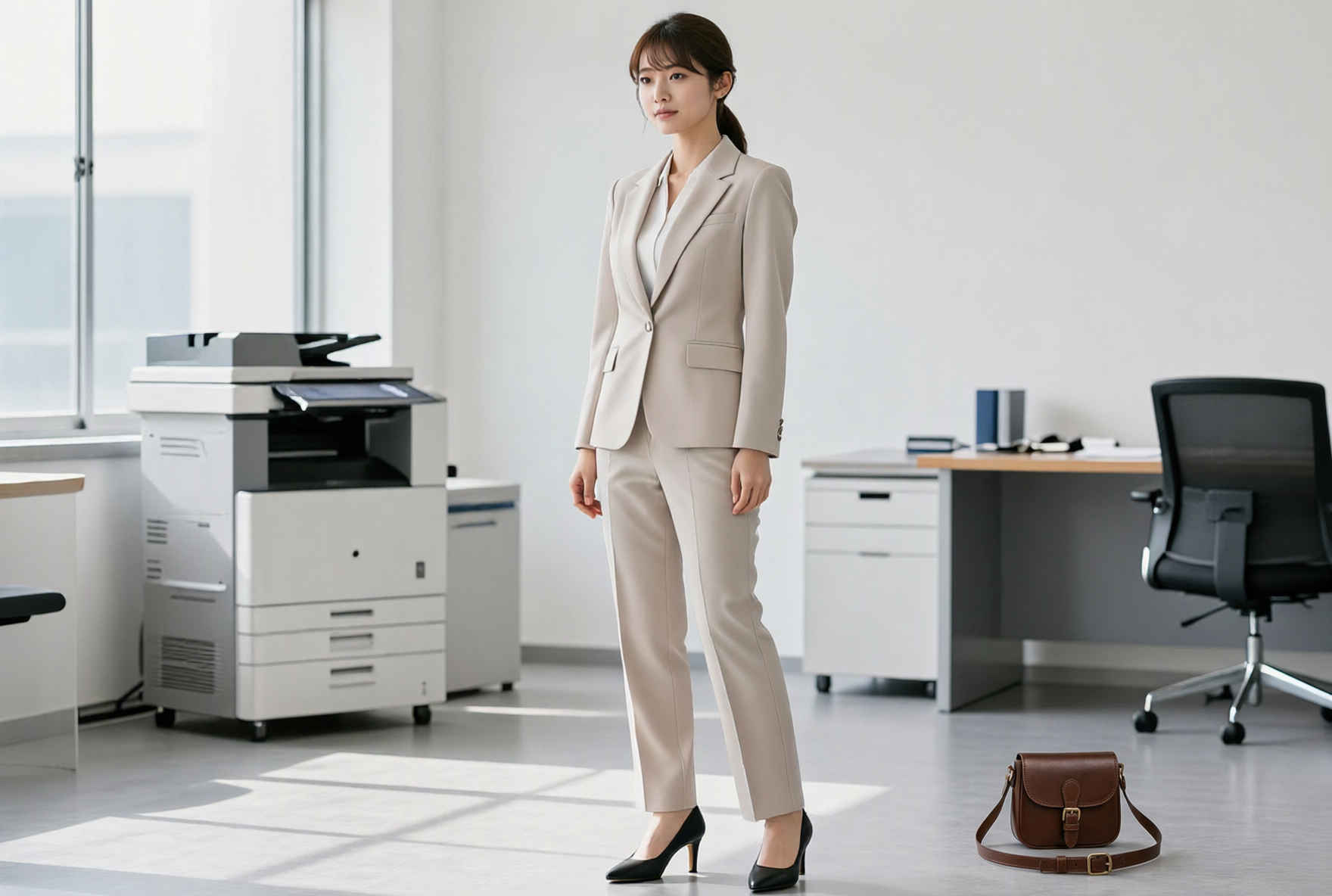
     ② 赤枠へ小物を配置する
    layout_test2_m.jpg参照画像 ②
    back05_m.jpg
    Please place the object from <Image1> inside the red frame in <Image1>. 8412_2026-09-25_00013_m.jpg
    <Image1>にある物体を、<Image1>内の赤い枠の中に置いてください。
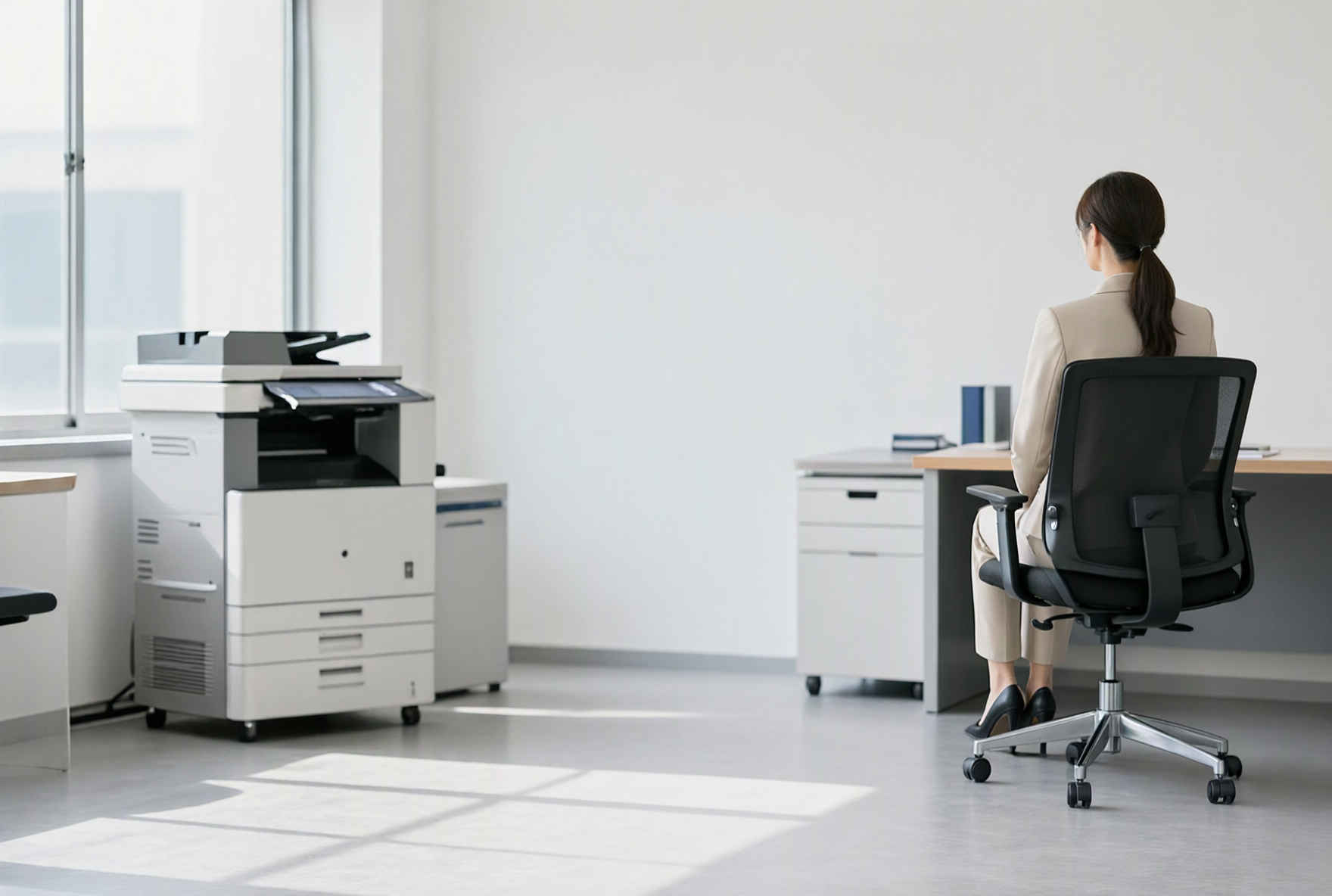
     ③ 赤枠へ人物を移動して姿勢を変える
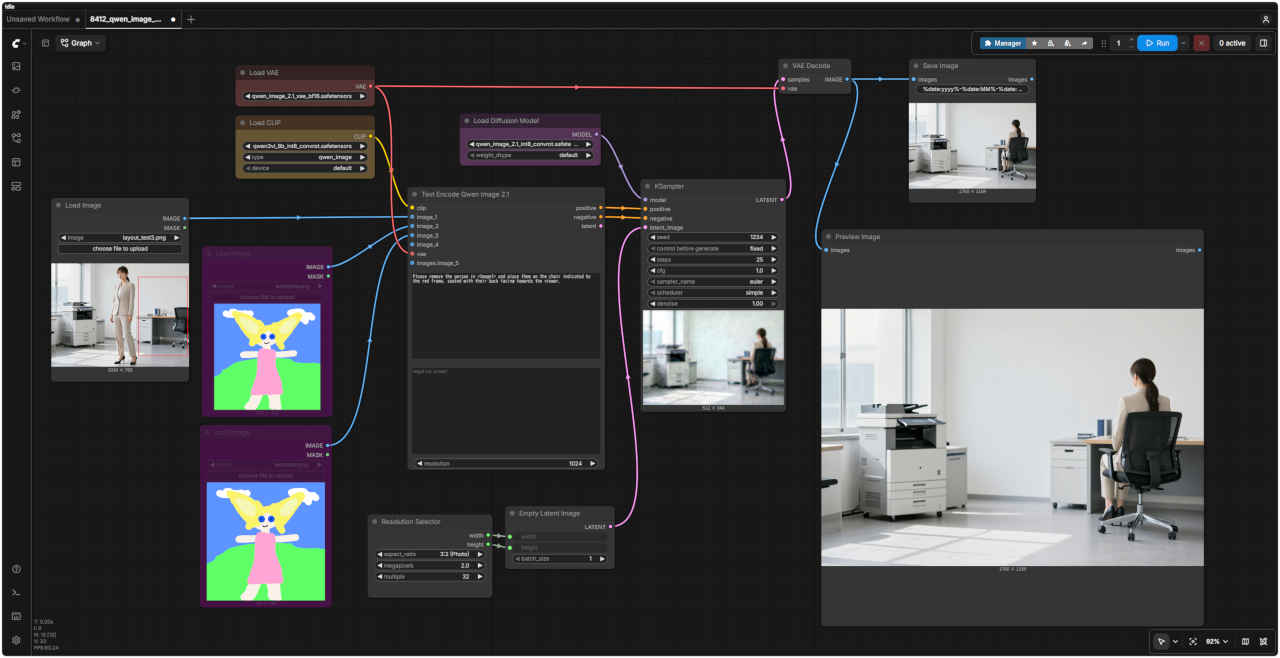
    layout_test3_m.jpg Please remove the person in <Image1> and place them on the chair indicated by the red frame, seated with their back facing towards the viewer. 8412_2026-09-25_00014_m.jpg
    <Image1>の人物を切り抜き、赤い枠で示された椅子に、背中をこちらに向けて座らせてください。

人物素材を作る†

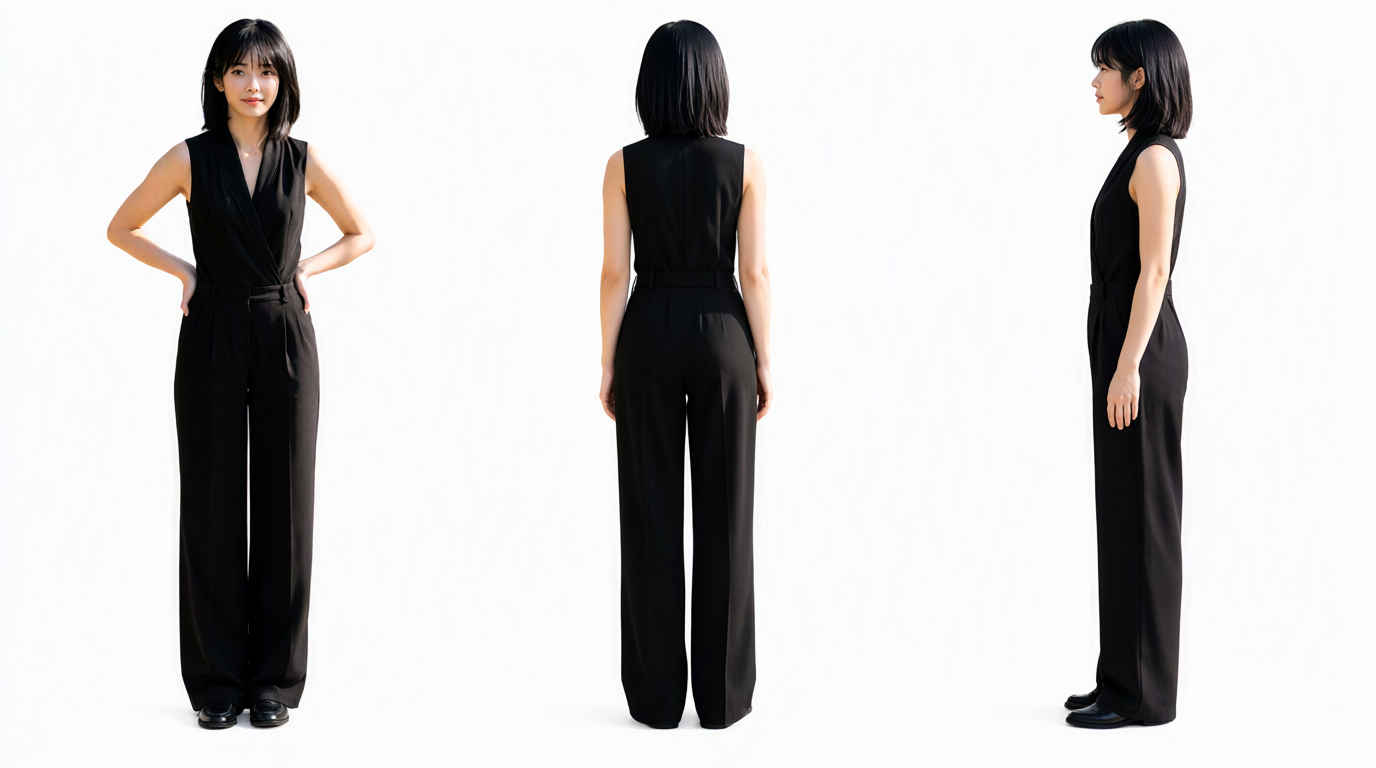
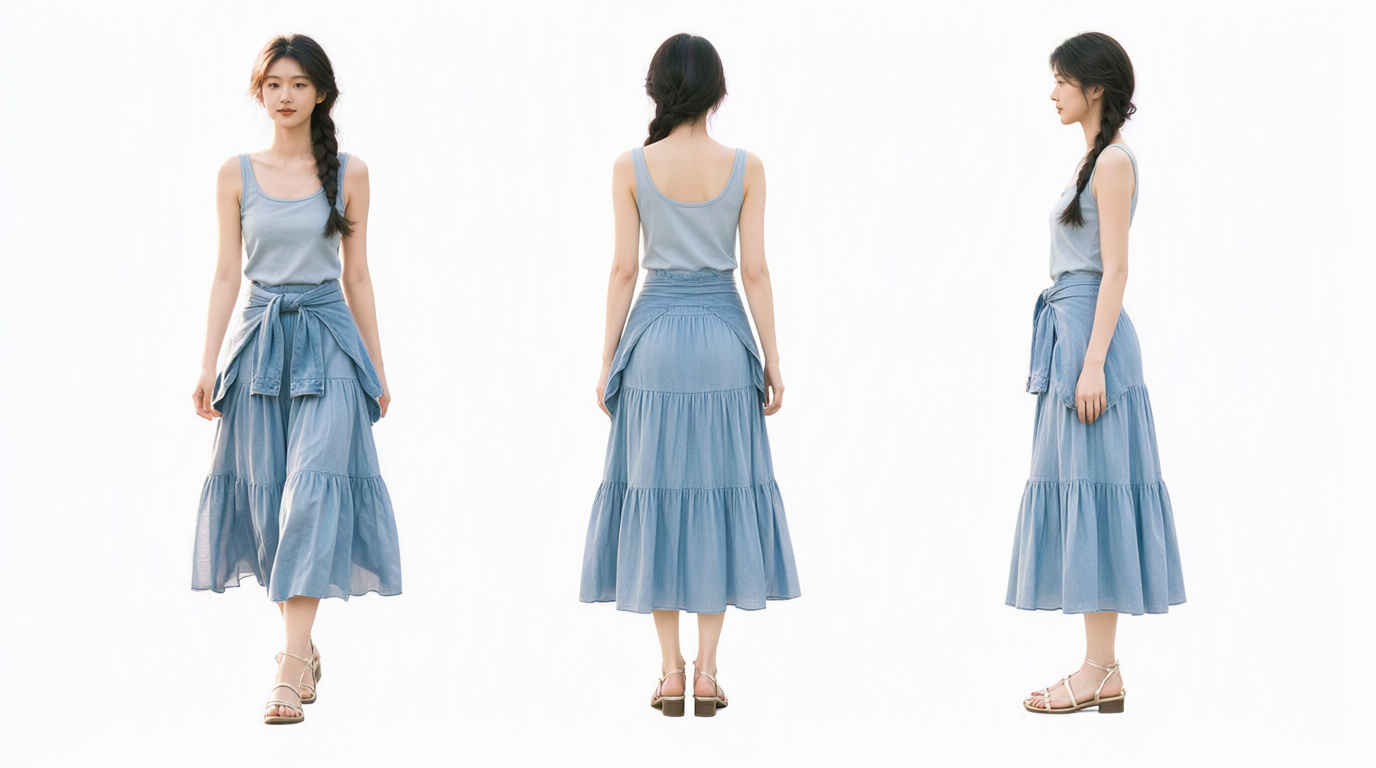
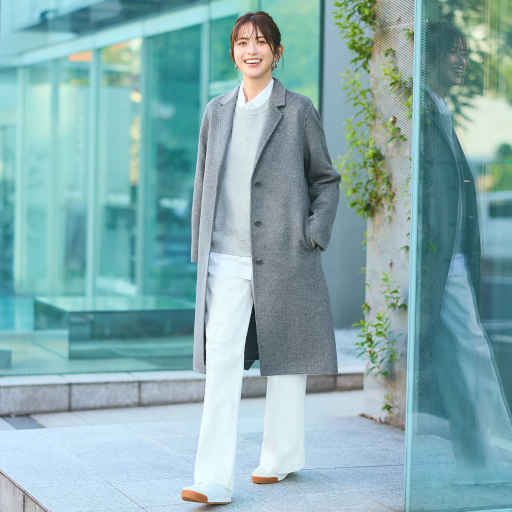
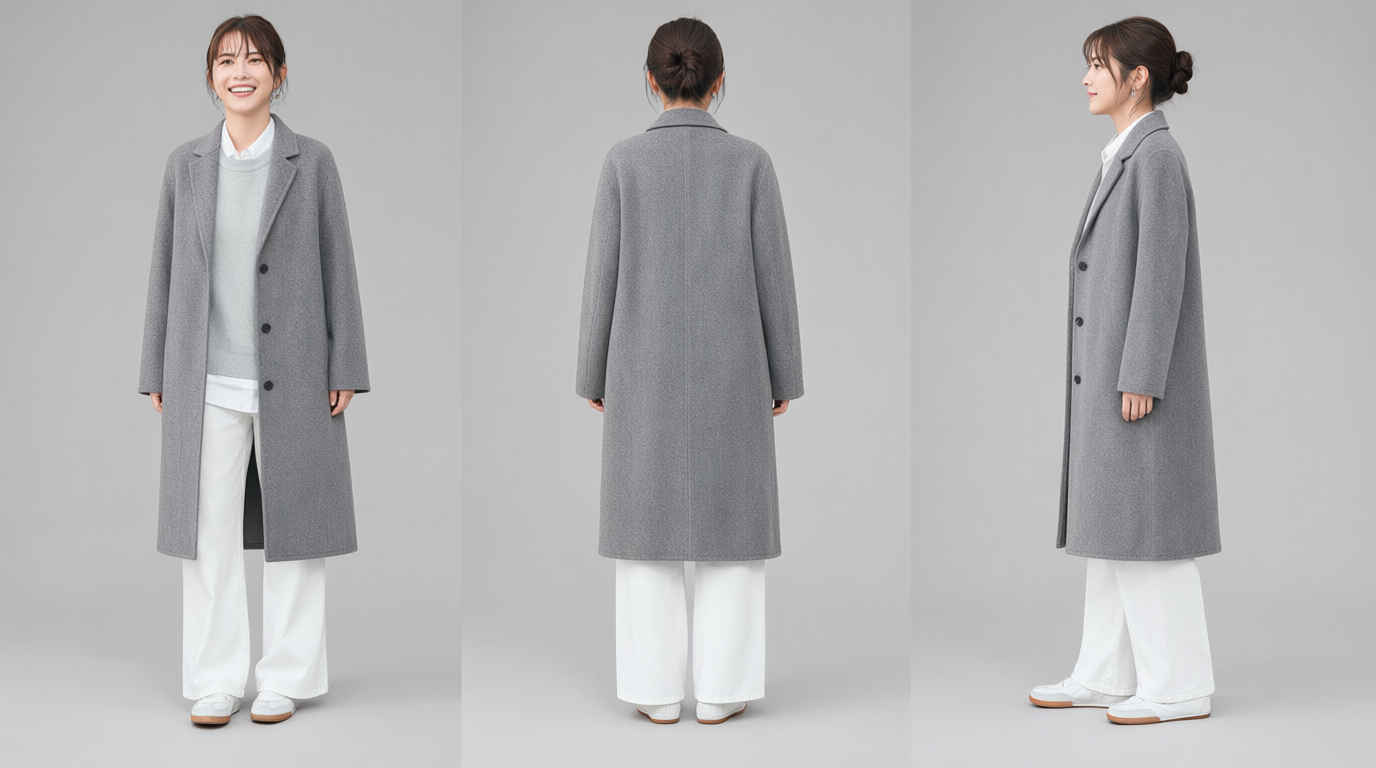
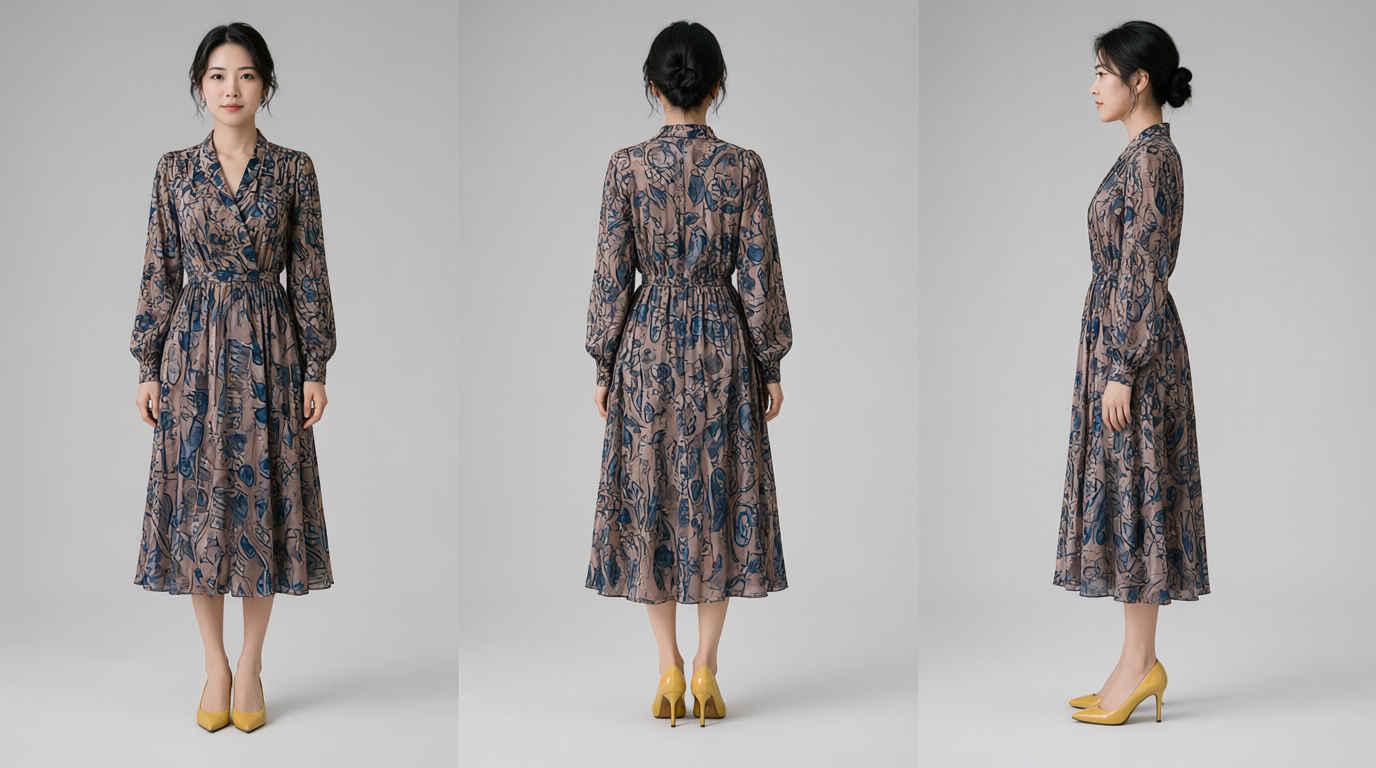
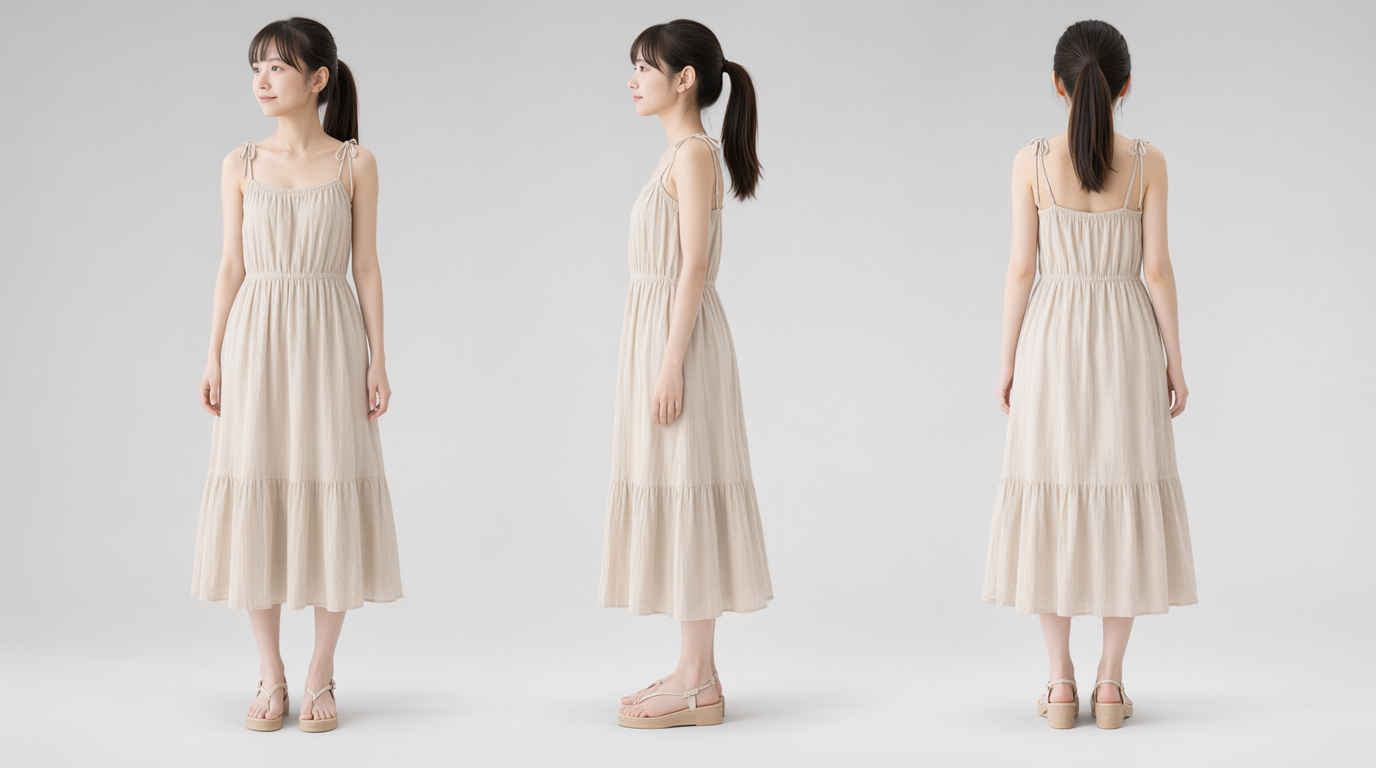
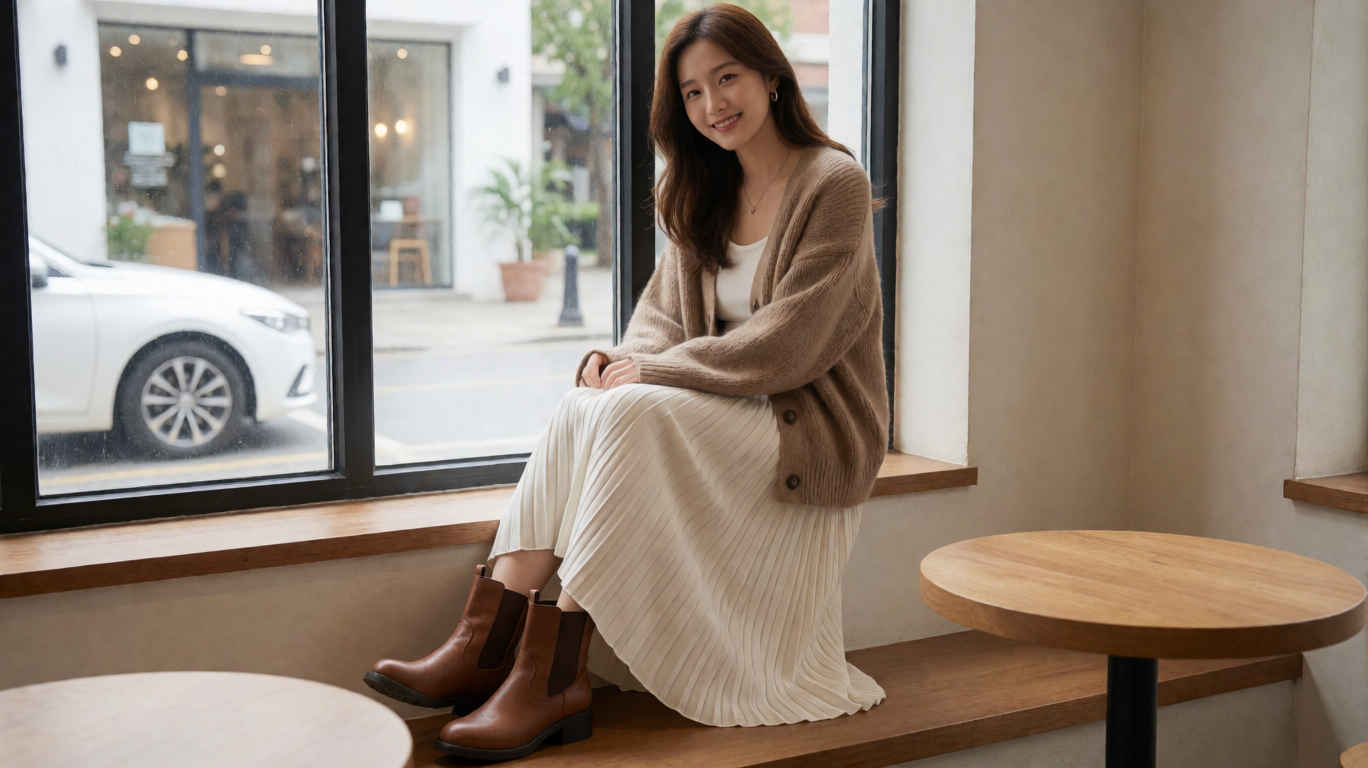
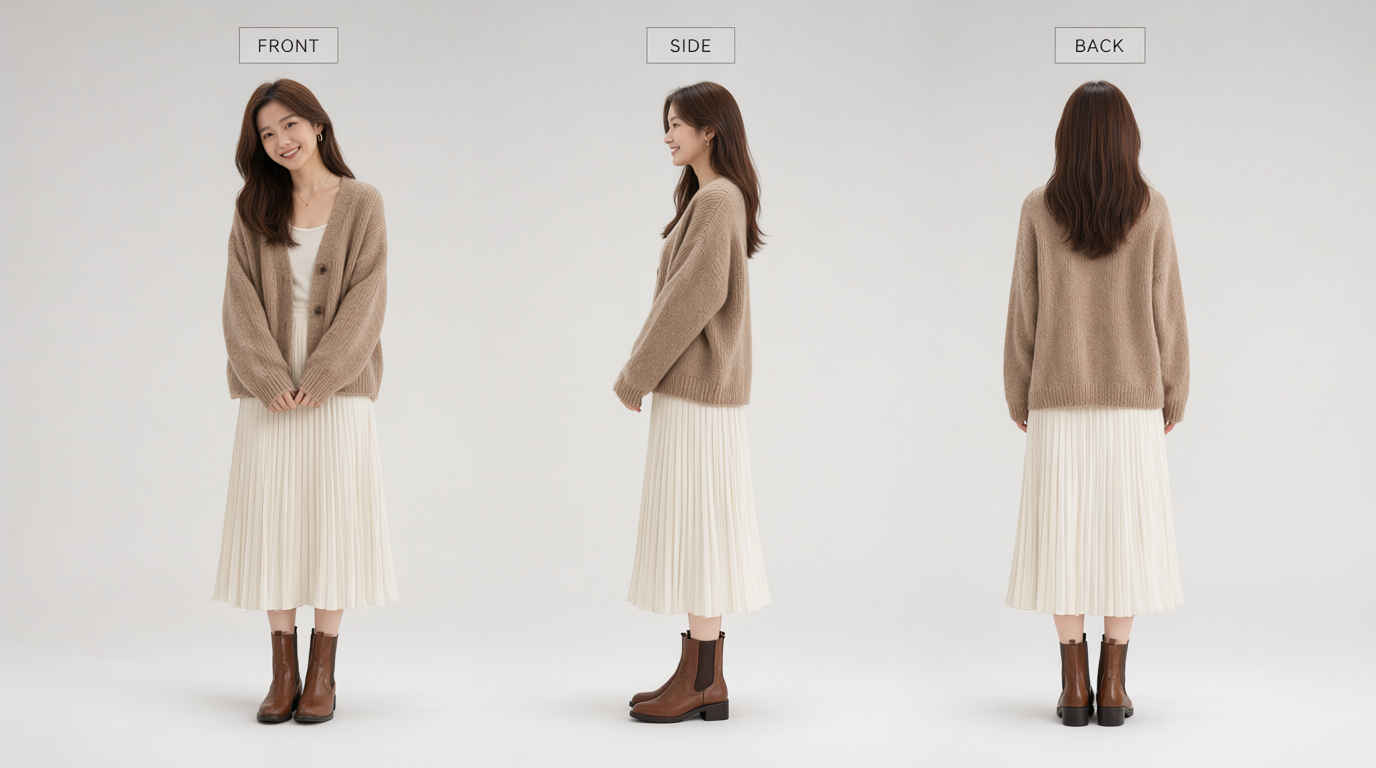
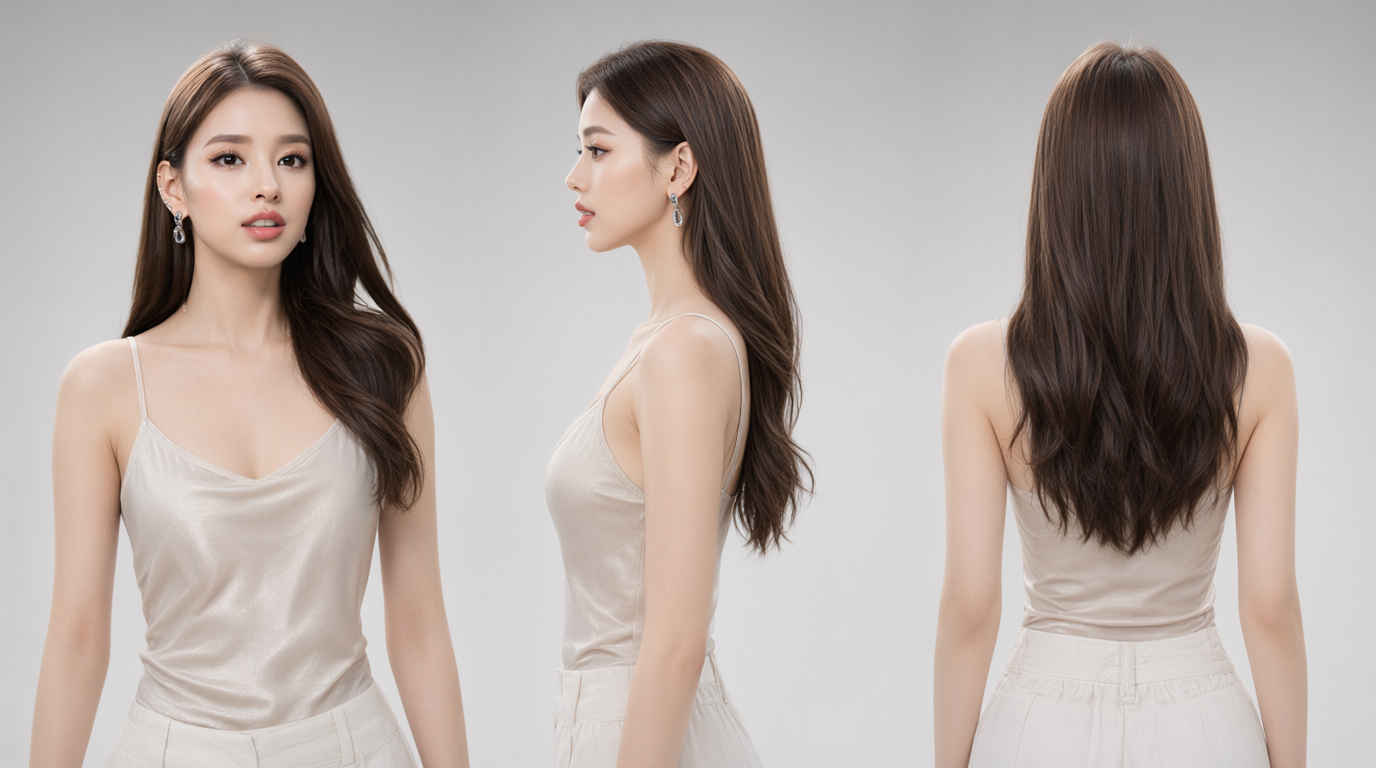
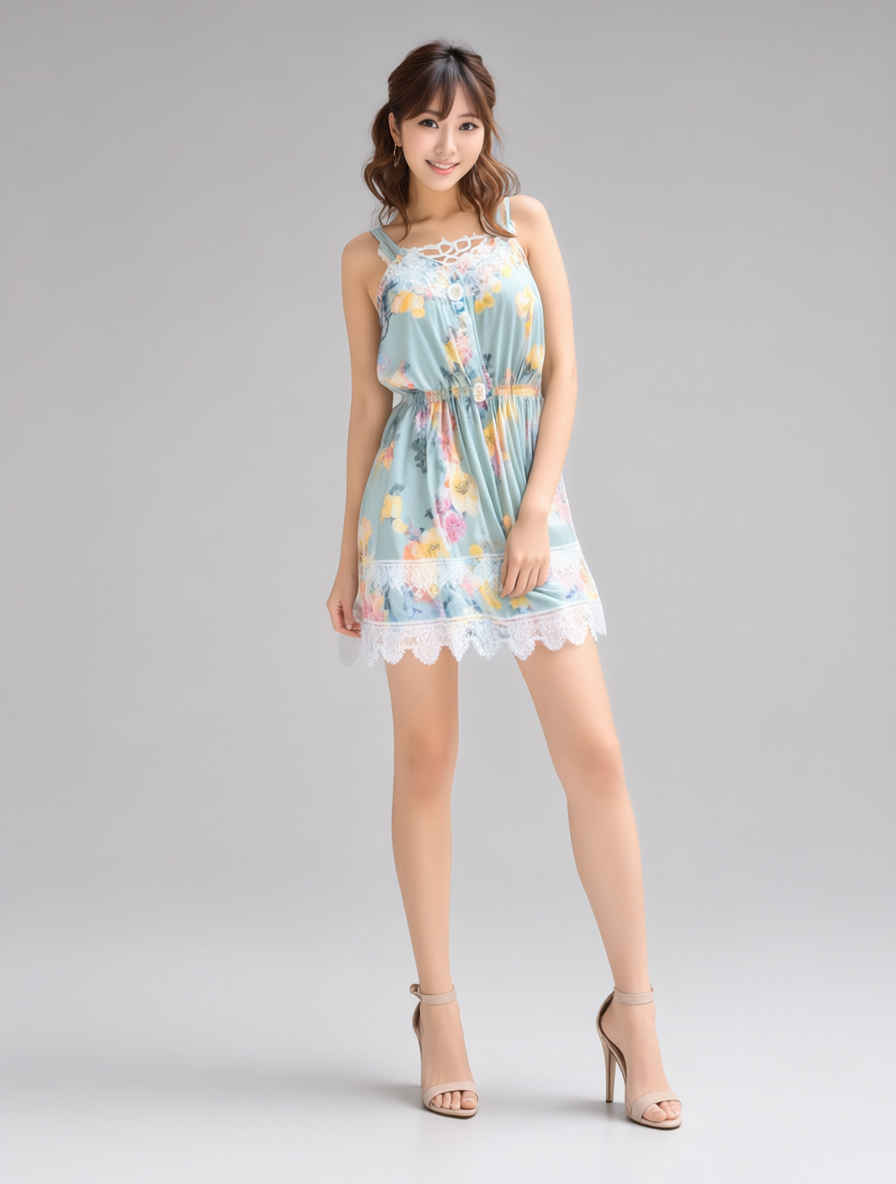
 スナップ写真(日常感や動きのある写真)をベースに、全身の姿が明確にわかる三面図(正面、背面、側面)をつくる
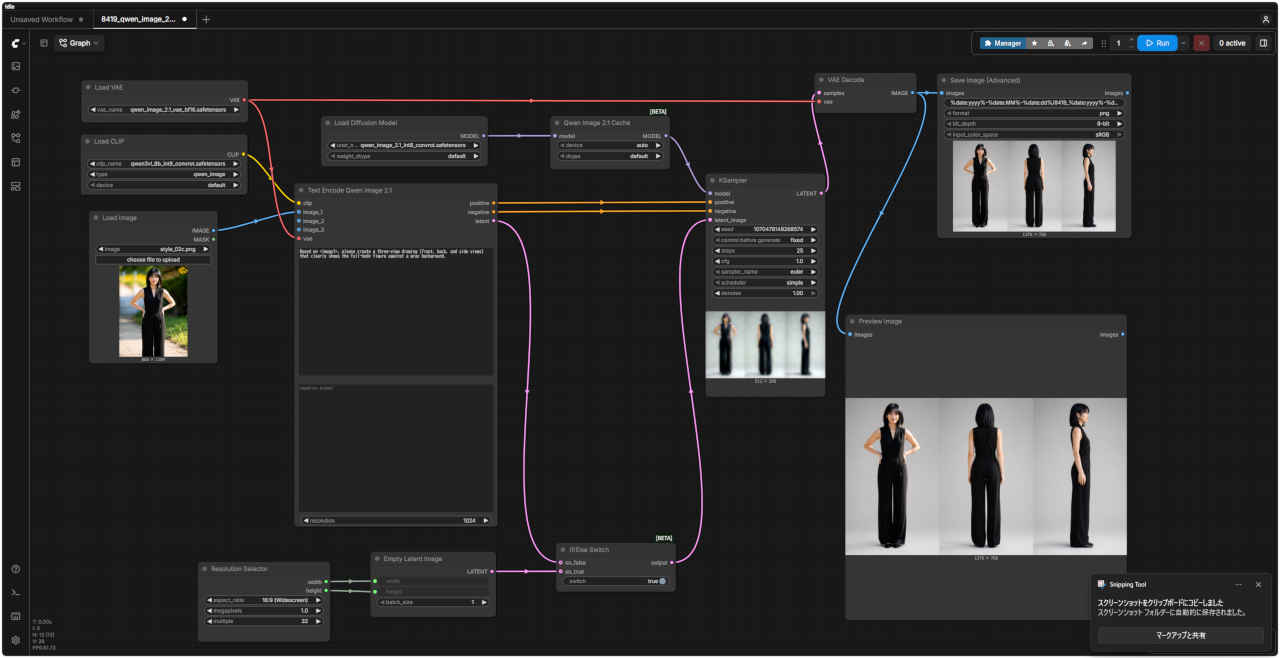
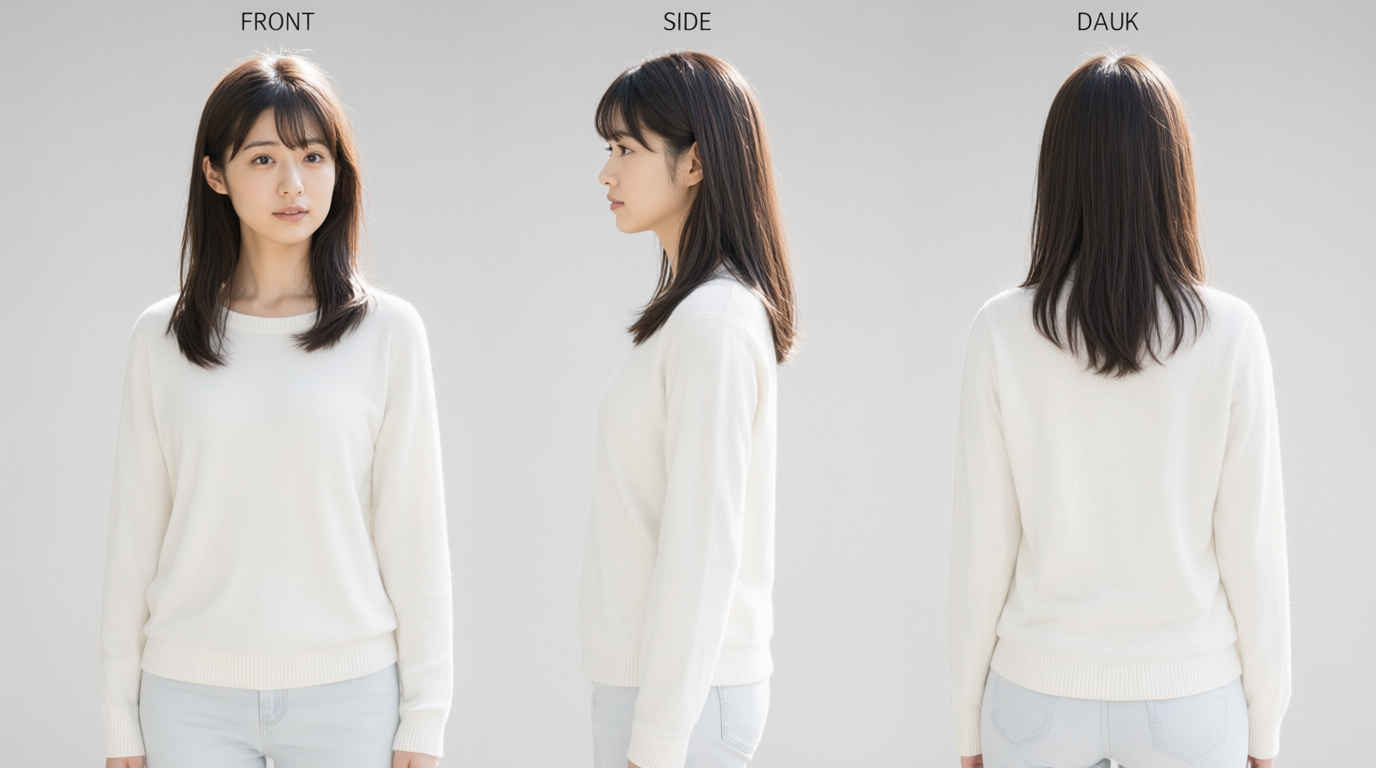
  1. キャラクター・リファレンスシート(正面、背面、側面)
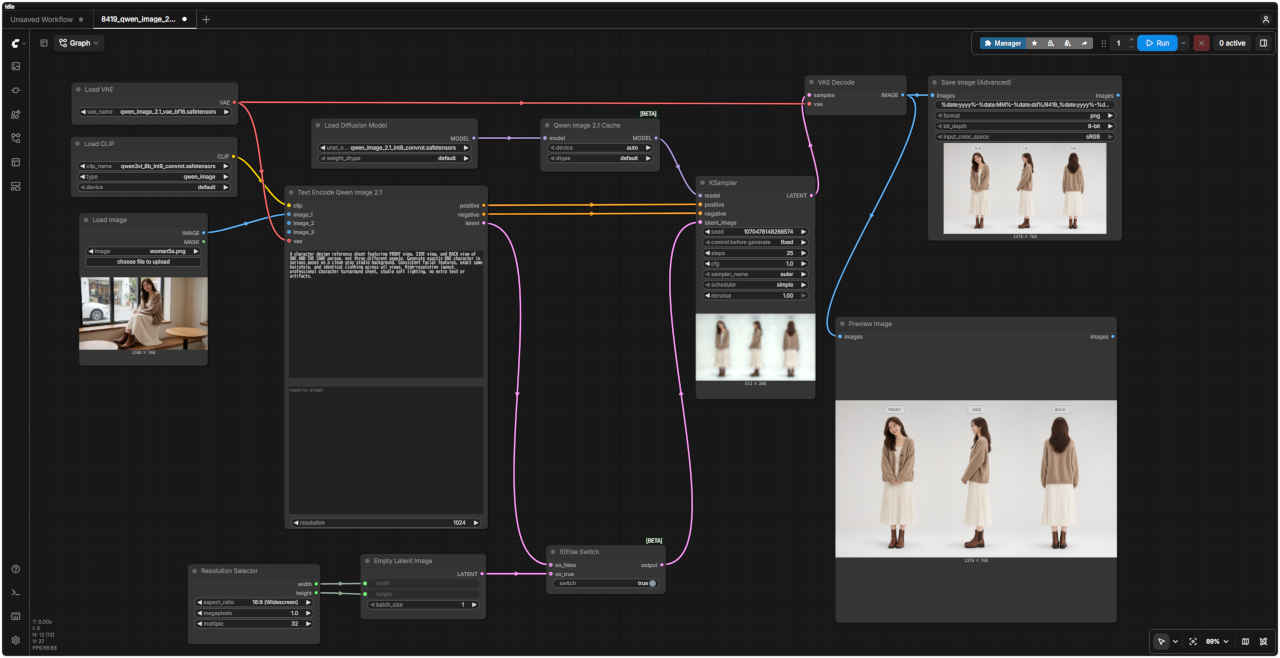
    プロンプトワークフロー 8402_qwen_image_2.1_image_edit
    Based on <image1>, please create a three-view drawing (front, back, and side views) that clearly shows the full-body figure against a gray background. comfyui_A71_m.jpg
    <image1>に基づき、グレーの背景を背景として全身の姿を明確に示す三面図(正面、背面、側面)を作成してください。
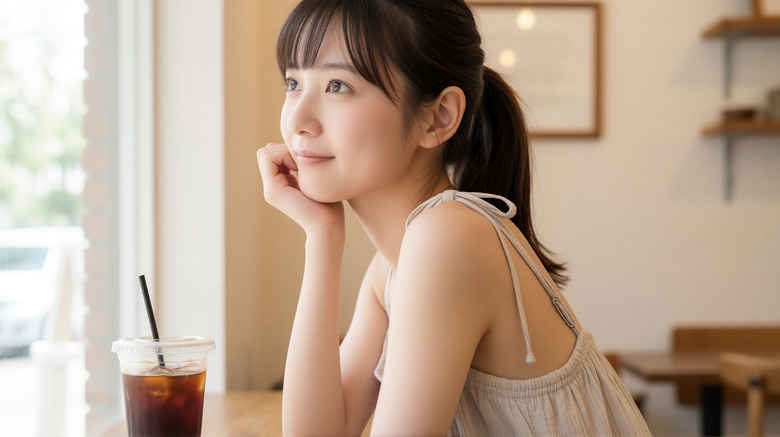
    参照画像生成画像参照画像生成画像
    style_02c_m.jpg 8402_2026-09-30_00001_m.jpg woman8_m.jpg 8402_2026-09-30_00002_m.jpg
    style_02_m.jpg 8402_2026-09-30_00004_m.jpg 31680_m.jpg 8402_2026-09-30_00005_m.jpg
    基本プロンプトワークフロー 8402_qwen_image_2.1_image_edit
    A character design reference sheet featuring FRONT view, SIDE view, and BACK view of ONE AND THE SAME person, not three different people. Generate exactly ONE character in various poses on a clean gray studio background. Consistent facial features, exact same hairstyle, and identical clothing across all views. High-resolution layout, professional character turnaround sheet, studio soft lighting, no extra text or artifacts. comfyui_A72_m.jpg
    同一人物(3人の別々の人物ではなく、あくまで1人の人物)の正面、側面、背面の姿を収めたキャラクターデザイン・リファレンスシート。清潔感のあるグレーのスタジオ背景をバックに、様々なポーズをとったそのキャラクターを1体だけ生成してください。すべての視点において、顔立ち、髪型、服装が完全に一致している必要があります。高解像度のレイアウト、プロ仕様のキャラクター・ターンアラウンド・シート(三面図)、スタジオの柔らかな照明を用い、余分な文字やノイズ(アーティファクト)は含めないようにしてください。
    参照画像生成画像参照画像生成画像
    32491_m.jpg 8402_2026-09-30_00009_m.jpg woman5a_m.jpg 8402_2026-09-30_00010_m.jpg
    ComfyUI_2026-02-04_00002_m.jpg 8402_2026-09-30_00011_m.jpg style_03b_m.jpg 8402_2026-09-30_00012_m.jpg

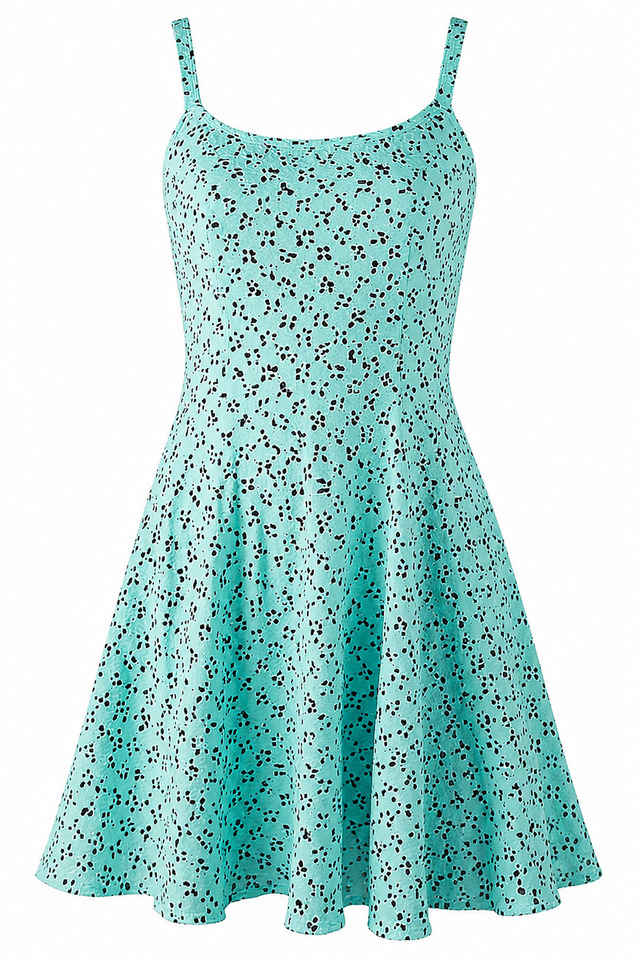
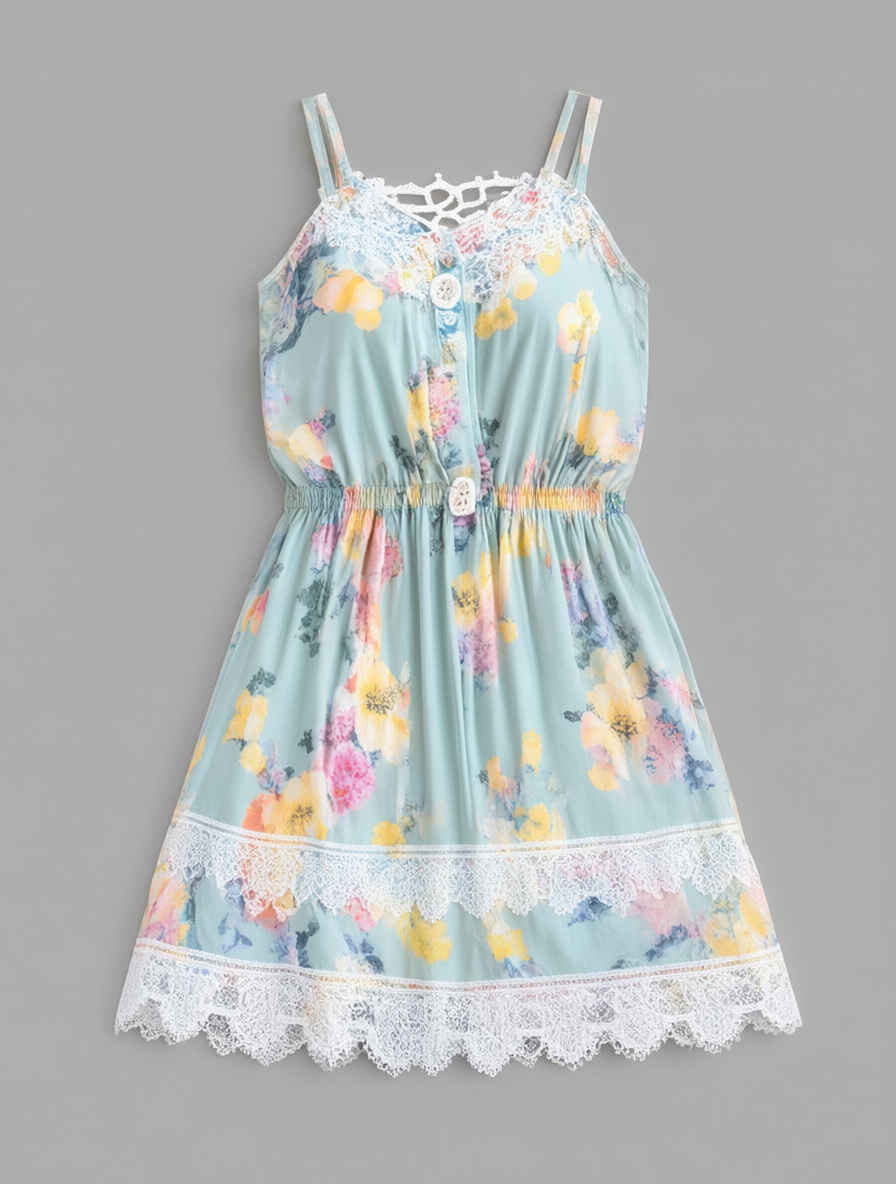
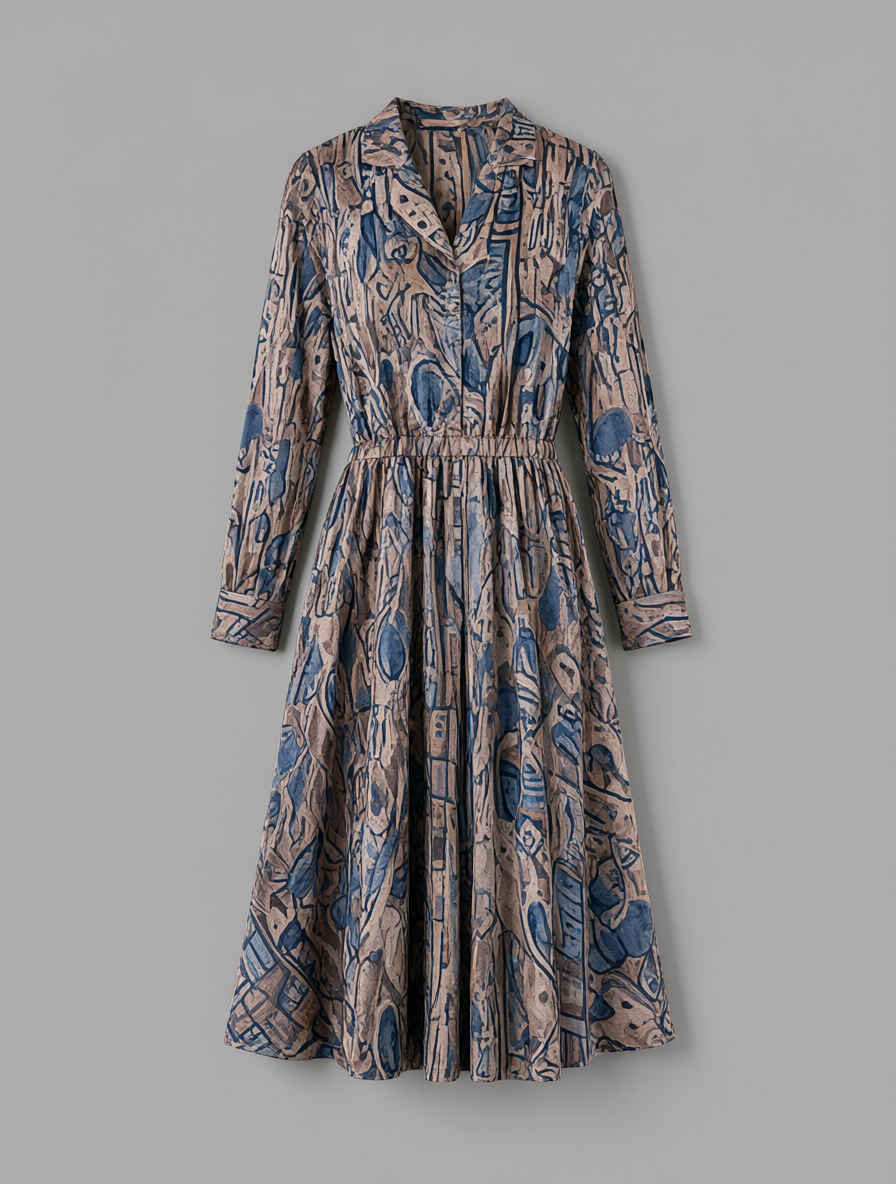
  2. アパレル写真
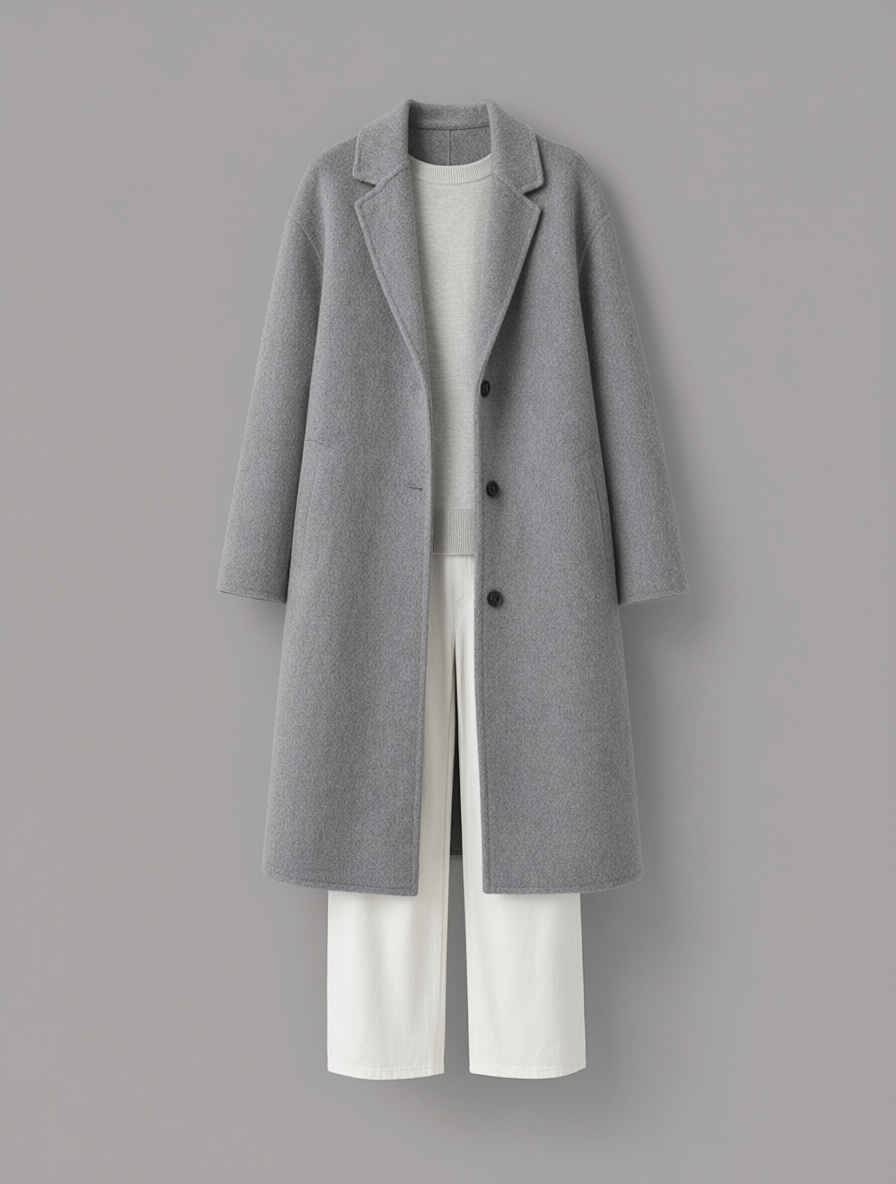
     スナップ写真の人物の服だけを取り出し、白背景の上に配置したアパレル商品写真(Flat Lay 平置き風)を生成する
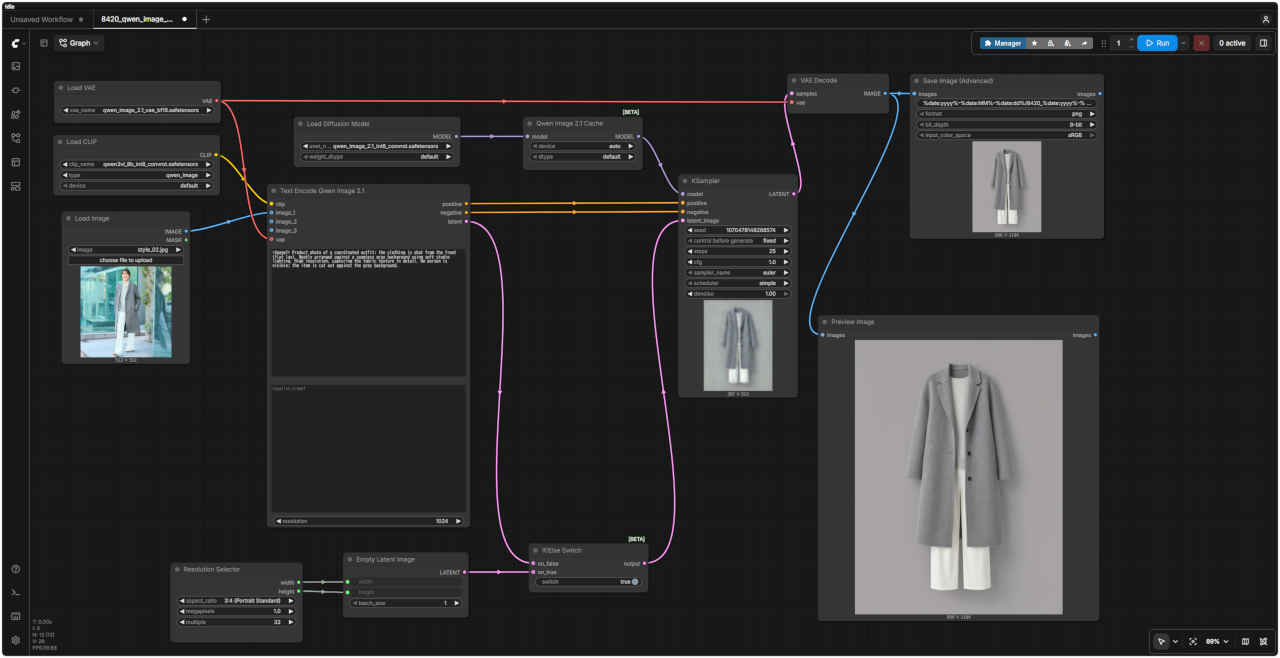
    プロンプトワークフロー 8402_qwen_image_2.1_image_edit
    <Image1> Product photo of a coordinated outfit; the clothing is shot from the front (flat lay). Neatly arranged against a seamless gray background using soft studio lighting. High resolution, capturing the fabric texture in detail. No person is visible; the item is cut out against the gray background. comfyui_A73_m.jpg
    <Image1> コーディネートされた服装の製品写真。正面からのショット(平置き)。継ぎ目のないグレーの背景に対し、柔らかなスタジオ照明を用いてきれいに配置されています。高解像度で、生地の質感を細部まで捉えています。人物は写っておらず、グレーの背景から切り抜かれた状態です。
    入力画像
    style_02_m.jpg style_04_m.jpg 31680_m.jpg
    生成結果画像
    8402_2026-09-30_00013_m.jpg 8402_2026-09-30_00014_m.jpg 8402_2026-09-30_00015_m.jpg

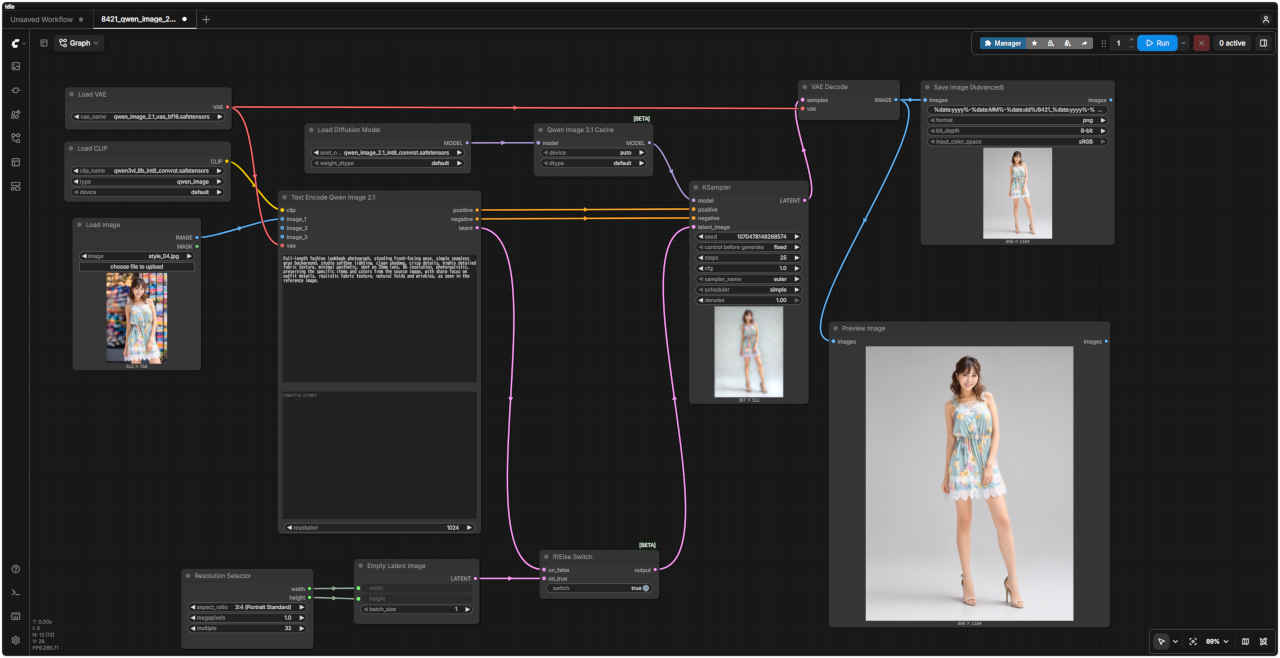
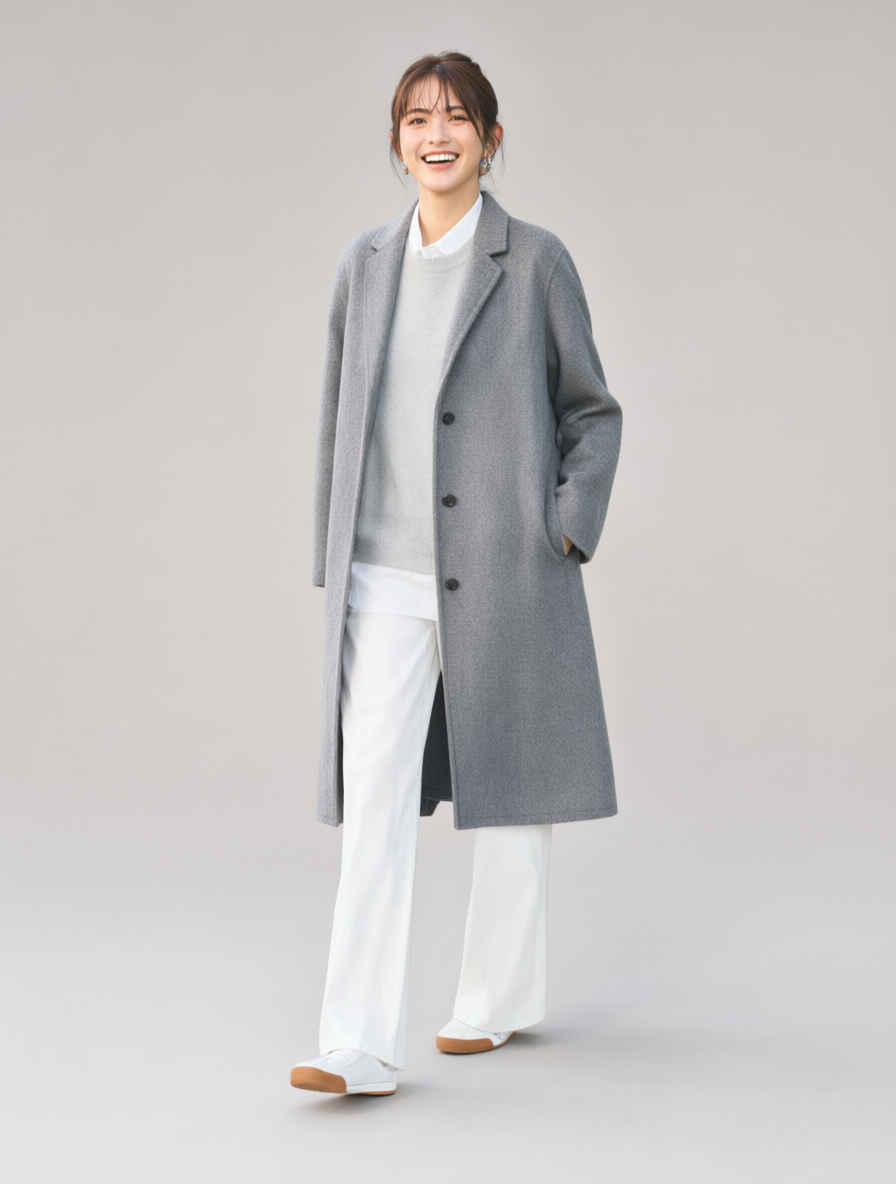
  3. ファッション写真
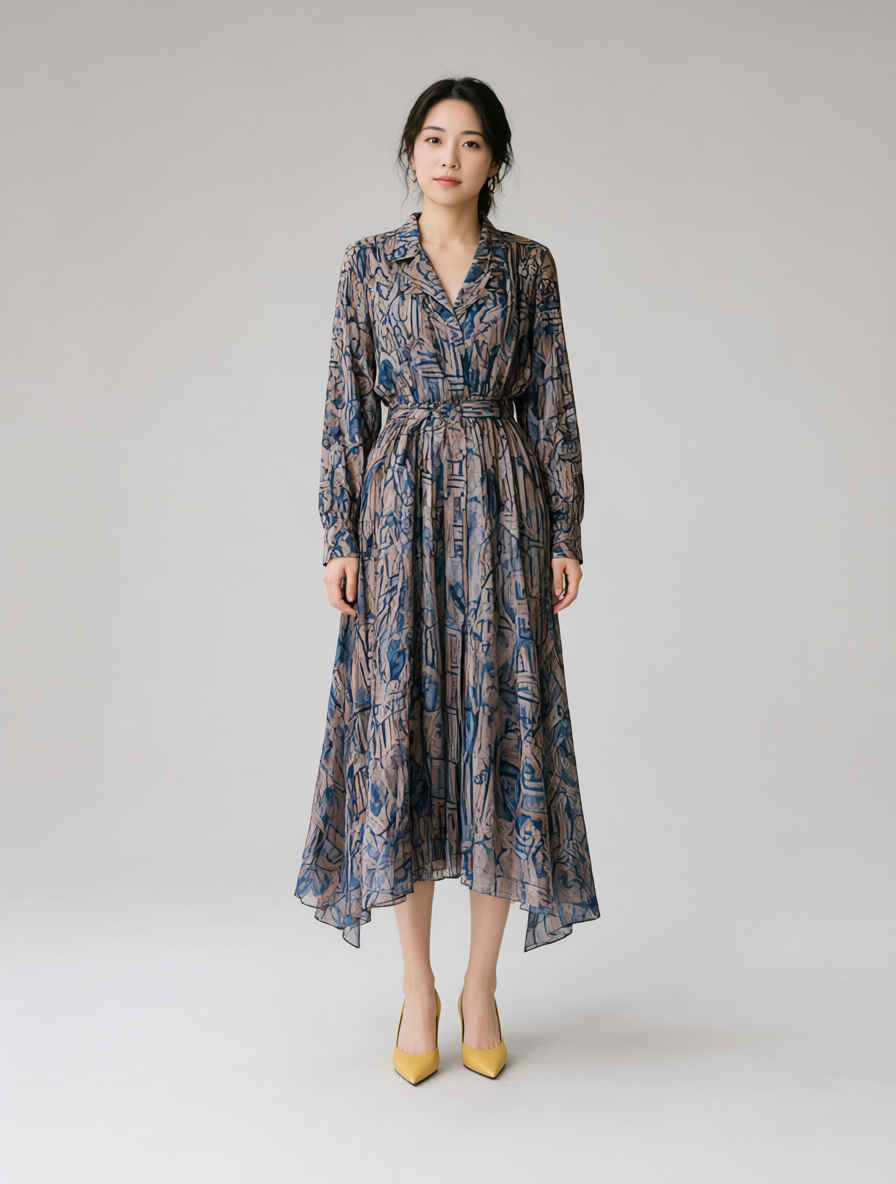
     スナップ写真(日常感や動きのある写真)をベースに、「白背景・正面・全身・ファッションカタログ風」 の高品位な画像へ再構築する
    プロンプトワークフロー 8402_qwen_image_2.1_image_edit
    Full-length fashion lookbook photograph, standing front-facing pose, simple seamless gray background, studio softbox lighting, clean shadows, crisp details, highly detailed fabric texture, minimal aesthetic, shot on 35mm lens, 8k resolution, photorealistic, preserving the specific items and colors from the source image, with sharp focus on outfit details, realistic fabric texture, natural folds and wrinkles, as seen in the reference image. comfyui_A74_m.jpg
    全身のファッションルックブック用写真。正面を向いて立つポーズ。シンプルで継ぎ目のないグレーの背景。スタジオのソフトボックス照明。すっきりとした影と鮮明なディテール。極めて精細な生地の質感。ミニマルな美学。35mmレンズで撮影。8K解像度。フォトリアリスティックな仕上がり。元画像の特定のアイテムや色を忠実に再現し、衣装の細部、リアルな生地の質感、自然なドレープやシワにシャープなピントを合わせています。
    入力画像
    style_02_m.jpg style_04_m.jpg 31680_m.jpg
    生成結果画像
    8402_2026-09-30_00016_m.jpg 8402_2026-09-30_00017_m.jpg 8402_2026-09-30_00018_m.jpg

  4. スタイルシート
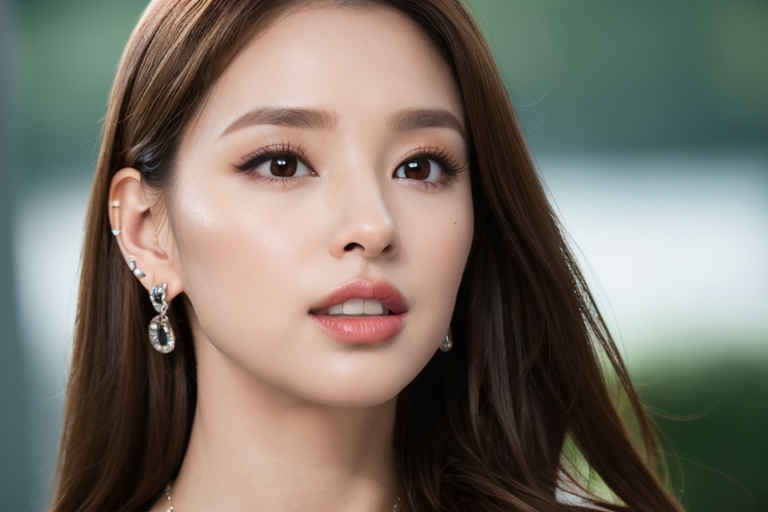
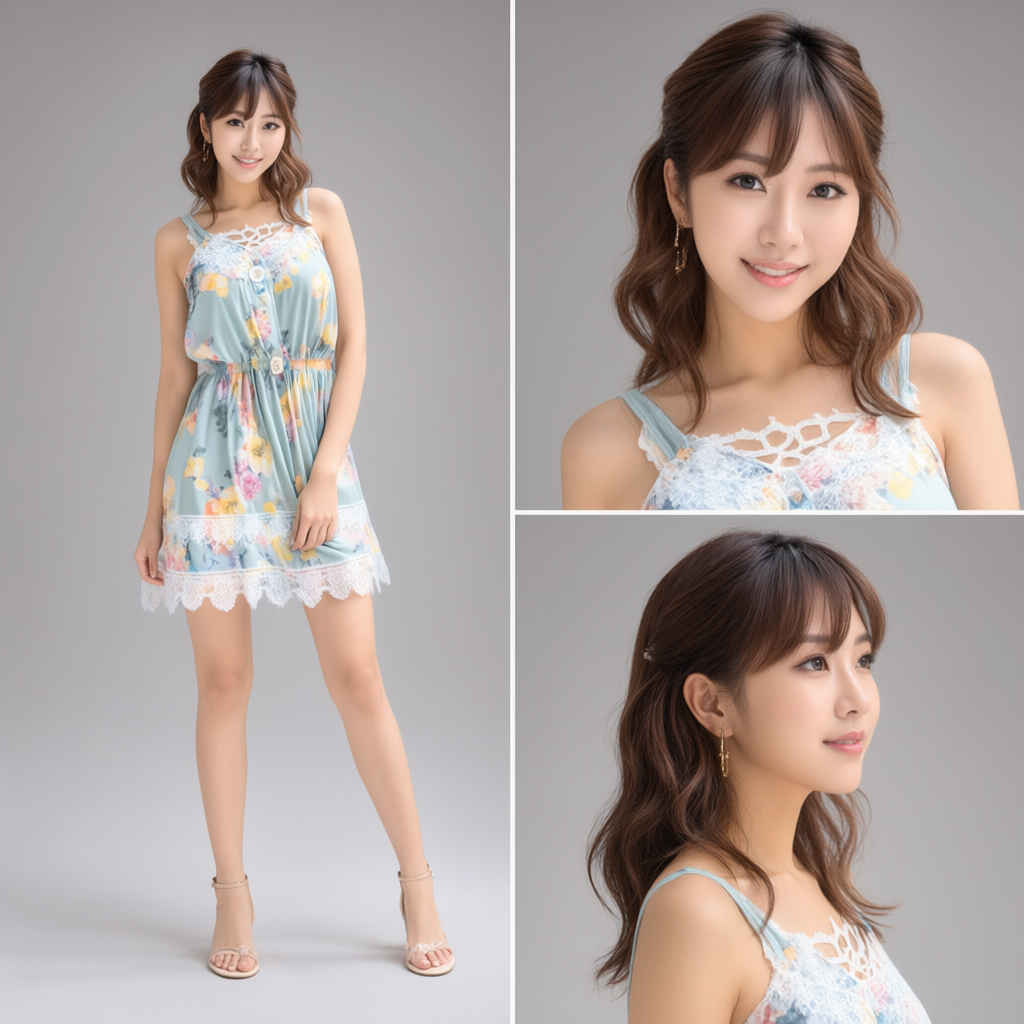
     スナップ写真から「全身、正面、服装・質感 の再現画像」「正面と横顔の顔写真」を配置したスタイルシートを生成する
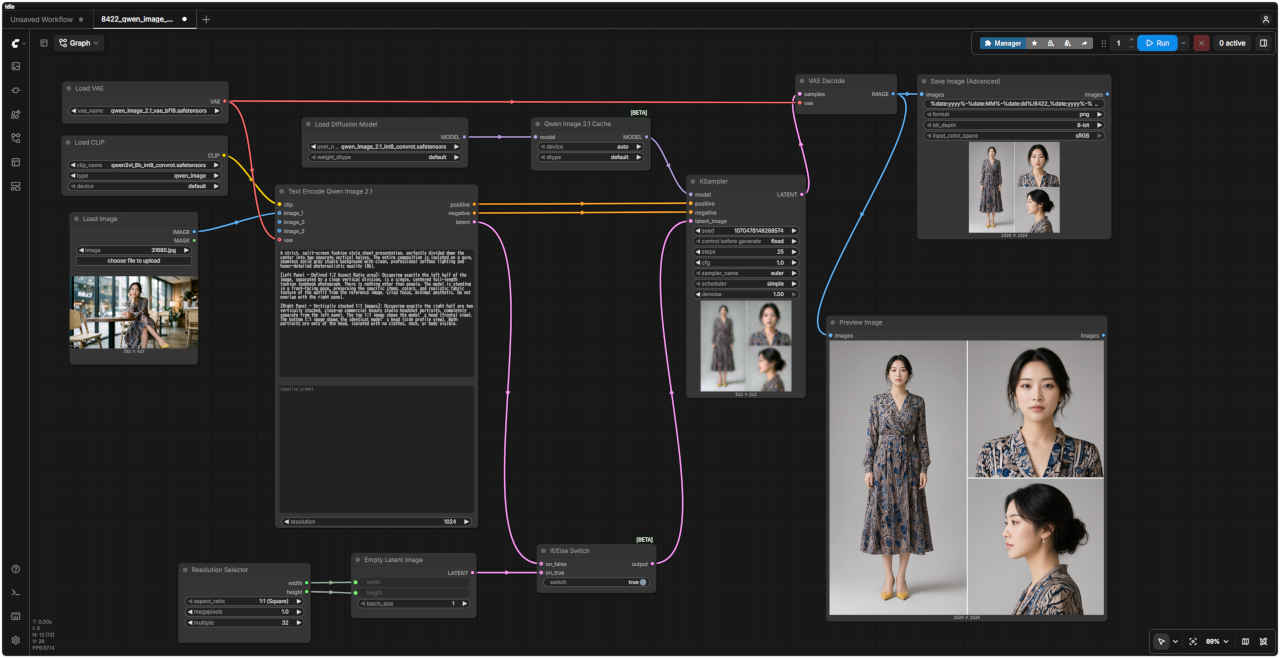
    プロンプトワークフロー 8402_qwen_image_2.1_image_edit
    A strict, split-screen fashion style sheet presentation, perfectly divided down the center into two separate vertical halves. The entire composition is isolated on a pure, seamless solid gray studio background with clean, professional softbox lighting and hyper-detailed photorealistic quality (8k).

    [Left Panel - Defined 1:2 Aspect Ratio area]: Occupying exactly the left half of the image, separated by a clean vertical division, is a single, centered full-length fashion lookbook photograph. There is nothing other than people. The model is standing in a front-facing pose, preserving the specific items, colors, and realistic fabric texture of the outfit from the reference image. Crisp focus, minimal aesthetic. Do not overlap with the right panel.

    [Right Panel - Vertically stacked 1:1 Images]: Occupying exactly the right half are two vertically stacked, close-up commercial beauty studio headshot portraits, completely separate from the left panel. The top 1:1 image shows the model’s head (frontal view). The bottom 1:1 image shows the identical model’s head (side profile view). Both portraits are only of the head, isolated with no clothes, neck, or body visible.
    comfyui_A75_m.jpg
    画面中央で左右にきれいに分割された、厳密なスプリットスクリーン形式のファッション・スタイルシート・レイアウト。背景は継ぎ目のない純粋なグレーのスタジオ背景で、プロフェッショナルなソフトボックス照明を使用し、8K解像度の超高精細かつフォトリアリスティックな品質で表現されています。

    [左パネル - アスペクト比1:2の領域]: 画像の左半分を占めるのは、中央に配置された全身のファッション・ルックブック写真1枚です。被写体は人物のみで、モデルは正面を向いて立っています。衣装のアイテム、色、リアルな生地の質感は、参照画像の内容を忠実に再現します。ピントは鮮明で、ミニマルな美学に基づいた構成です。右側のパネルとは重ならないようにしてください。

    [右パネル - 縦に並んだ1:1の画像]: 画像の右半分には、左側のパネルとは完全に独立した、縦に並ぶ2枚のクローズアップ・ビューティー・ポートレート(スタジオ撮影の顔写真)が配置されています。上部の1:1画像はモデルの顔(正面)を捉えたものです。下部の1:1画像は同じモデルの顔(横顔)を捉えたものです。どちらのポートレートも顔のみを写しており、衣服、首、胴体などは写り込まないように切り抜かれています。
    入力画像
    style_02_m.jpg style_04_m.jpg 31680_m.jpg
    生成結果画像
    8402_2026-09-30_00019_m.jpg 8402_2026-09-30_00020_m.jpg 8402_2026-09-30_00021_m.jpg


忘備録†

ERP(Equirectangular Panorama:正距円筒図法)†

画面の操作を動画にする(Windows 11)†

  1. アプリを開く
    ・スタートメニューを開き、「Snipping Tool」と検索して起動
  2. 録画モードに切り替える
    ・アプリの画面上部にある「ビデオカメラ(録画)」のアイコンをクリック
  3. 録画範囲を選ぶ
    ・「新規」ボタンをクリック
    ・画面が暗くなるので、マウスをドラッグして録画したい範囲を囲む
  4. 録画をスタートする
    ・範囲を決めたら、上部に出現する「スタート」ボタンをクリック(3秒のカウントダウン後に録画が始まる)
  5. 録画を止めて保存する
    ・録画を終わるときは、上部の「停止」ボタン(四角いアイコン)を押す
    ・プレビュー画面が表示される(動画は自動的に保存)
 

更新履歴†


参考資料†