

私的AI研究会 > ComfyUI19a
「ComfyUI」を使ってローカル環境でのAI画像生成を検証する
| フォルダ | ワークフロー名 (.json) | モデル | 機能 (参照ページ) | 特記事項 |
| QwenImage2.1 | 8401_qwen_image_2.1_t2i | INT8 ConvRot | Text to Image 基本ワークフロー | Text to Image 標準ワークフロー |
| 8402_qwen_image_2.1_image_edit | Image Edit 基本ワークフロー | Image Edit 標準ワークフロー | ||
| 8411_qwen_image_2.1_edit_base | 画像編集の基本 | (8402_qwen_image_2.1_image_edit) と同じ機能 | ||
| (8411_qwen_image_2.1_edit_base) | カラーペンで位置を指定して編集 | |||
| 8412_qwen_image_2.1_ref2image | 複数の参照画像から新しい画像を生成 | |||
| 8413_qwen_image_2.1_edit_mask | マスクで場所を指定して編集(Inpainting) | |||
| 8414_qwen_image_2.1_outpaint | アウトペイント(OutPainting) | |||
| 8415_qwen_image_2.1_openpose | ポーズを変える(OpenPose) | |||
| (8402_qwen_image_2.1_image_edit) | ポーズを変える2(棒人間画像で直接指定) |
| 画像編集を参試してみる 参考URL → https://comfyui.nomadoor.net/ja/basic-workflows/qwen-image-2-1/ |
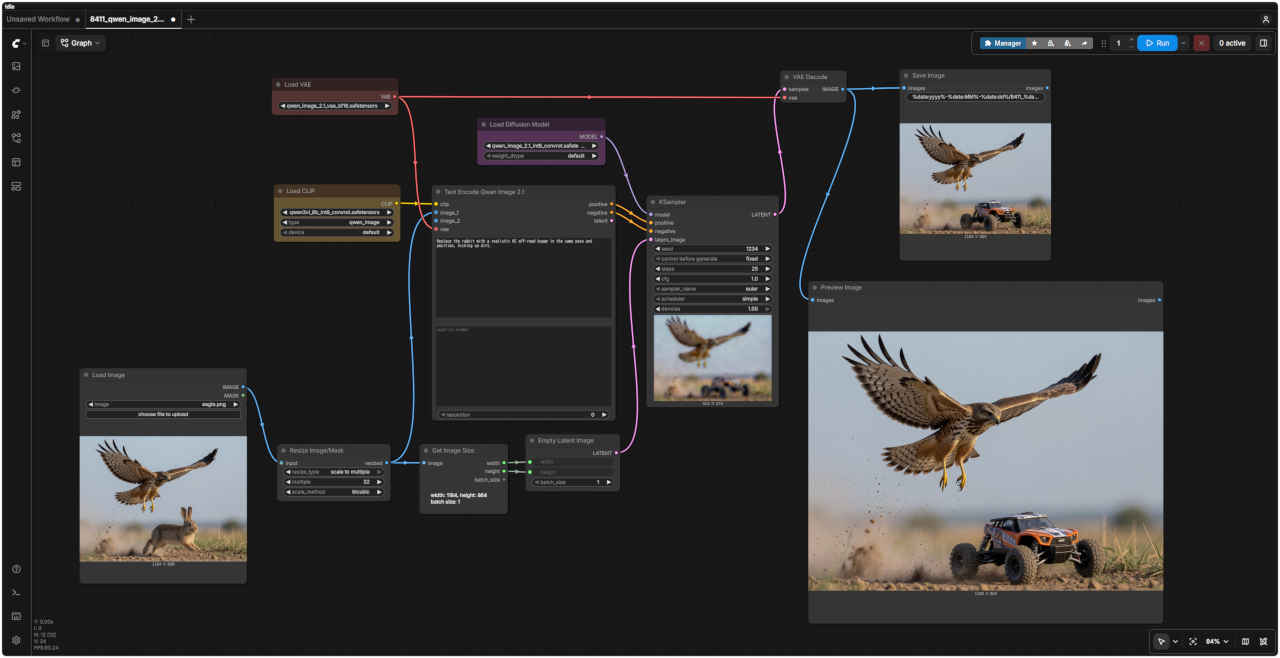
| 参照画像 | ワークフロー 8411_qwen_image_2.1_edit_base.json |
 |  |
| 編集内容 | プロンプト | 生成画像 | |
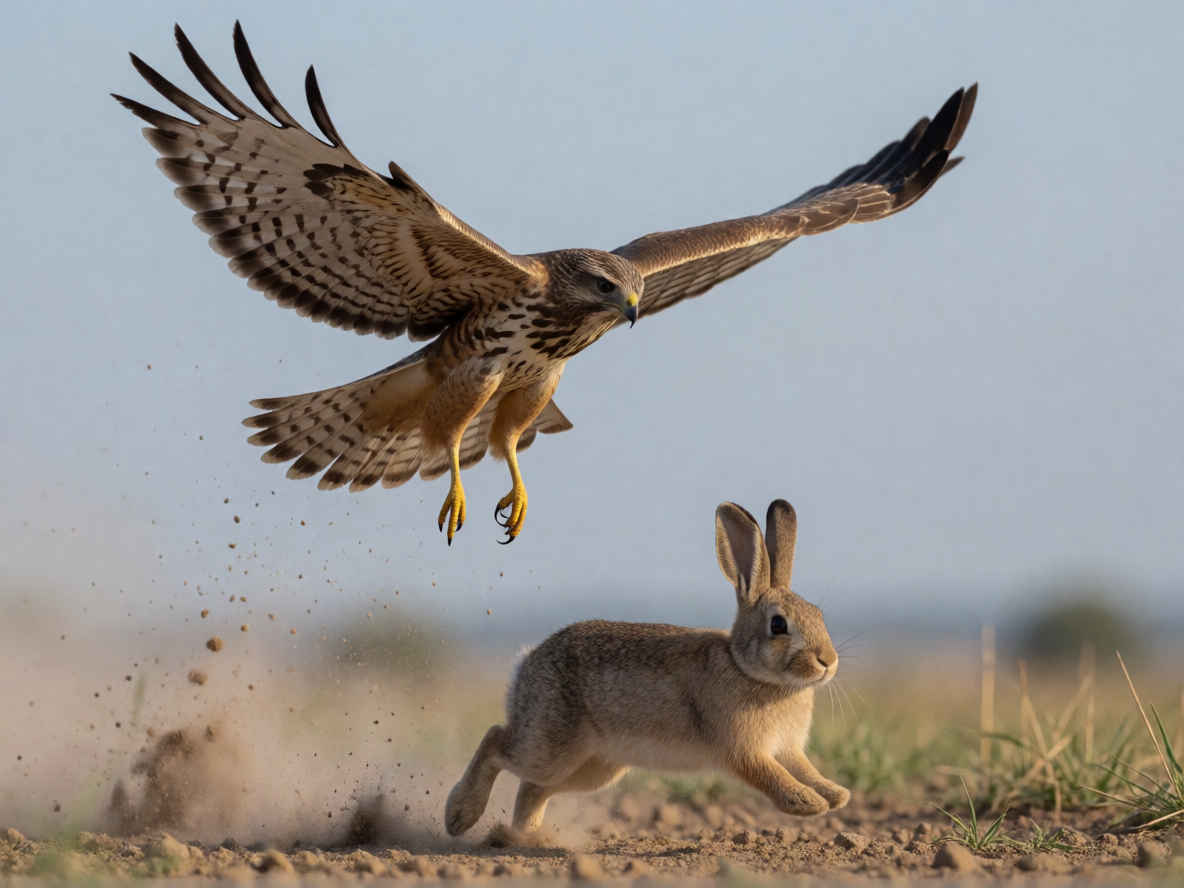
| ① | 基本の編集指示 ・「男性を消して」「服を赤くして」「水彩画に変えて」のように参照画像の中の変更内容を指定する | Replace the rabbit with a realistic RC off-road buggy in the same pose and position, kicking up dirt. | 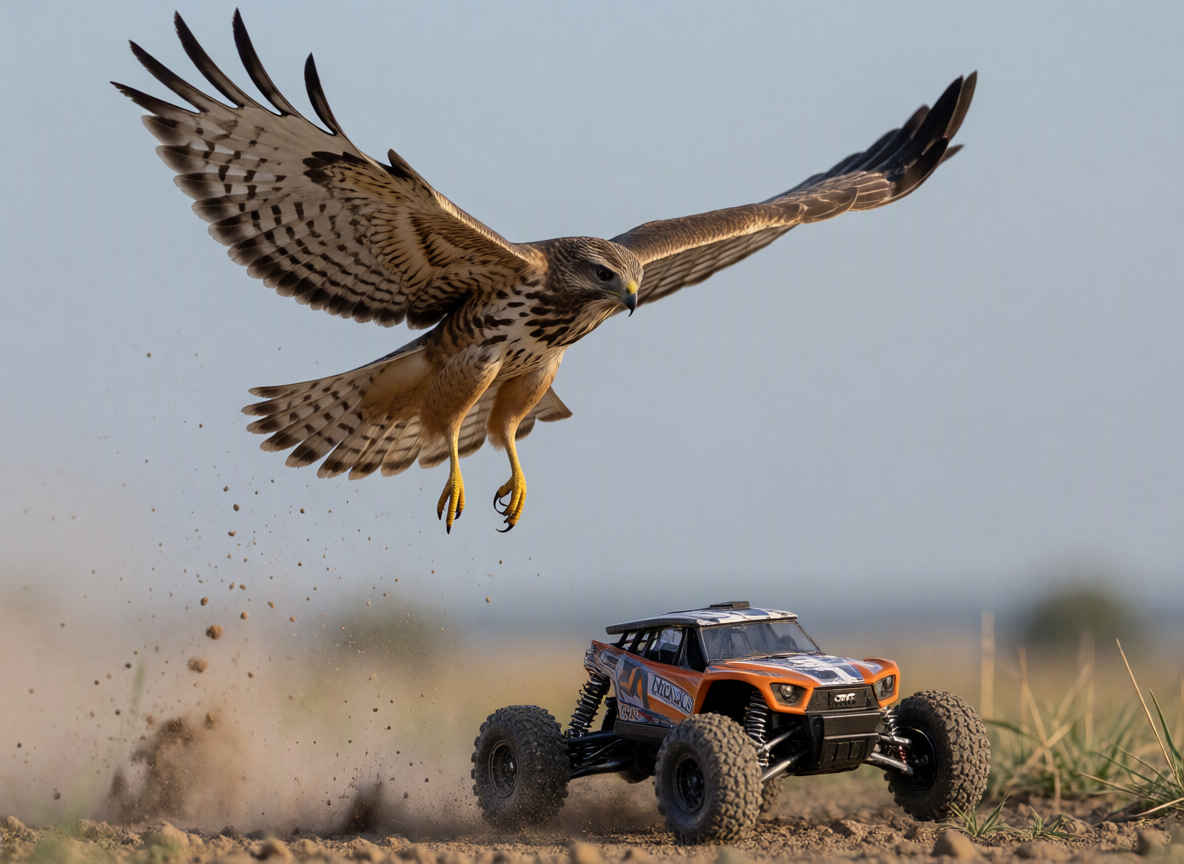 |
| ウサギを、同じポーズと位置で土を跳ね上げているリアルなRCオフロードバギーに置き換えてください。 |
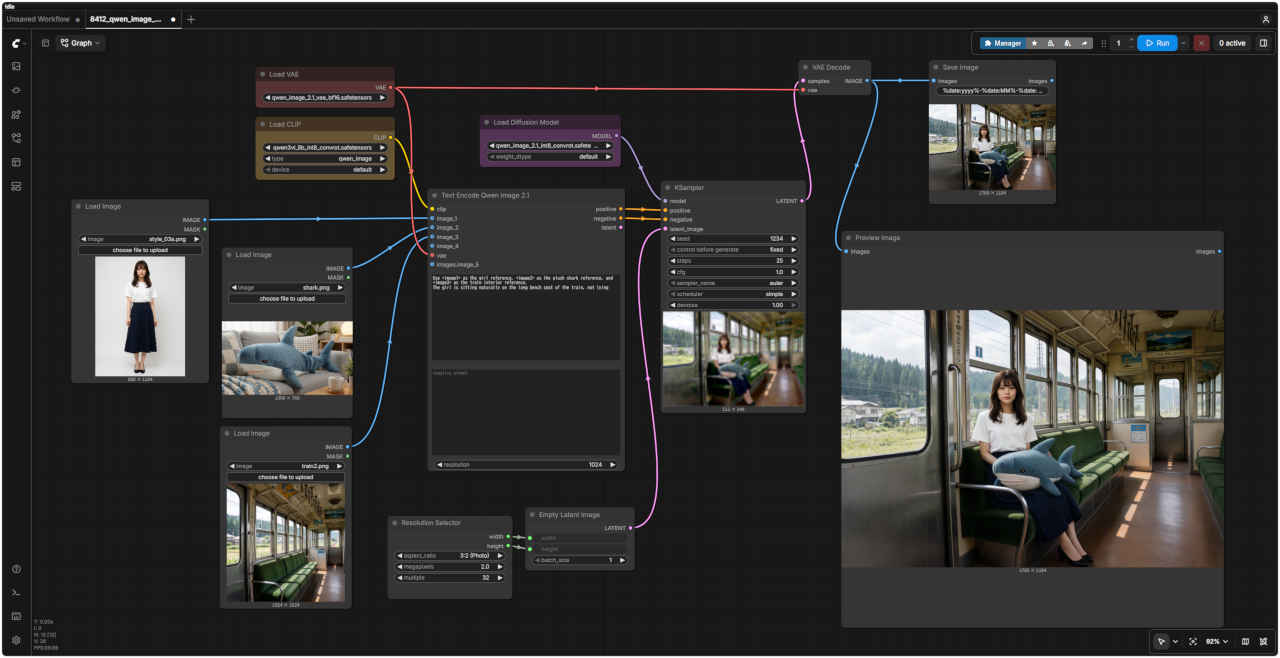
| 参照画像 | ワークフロー 8412_qwen_image_2.1_ref2image.json | |
  |  |  |
| 編集内容 | プロンプト | 生成画像 | |
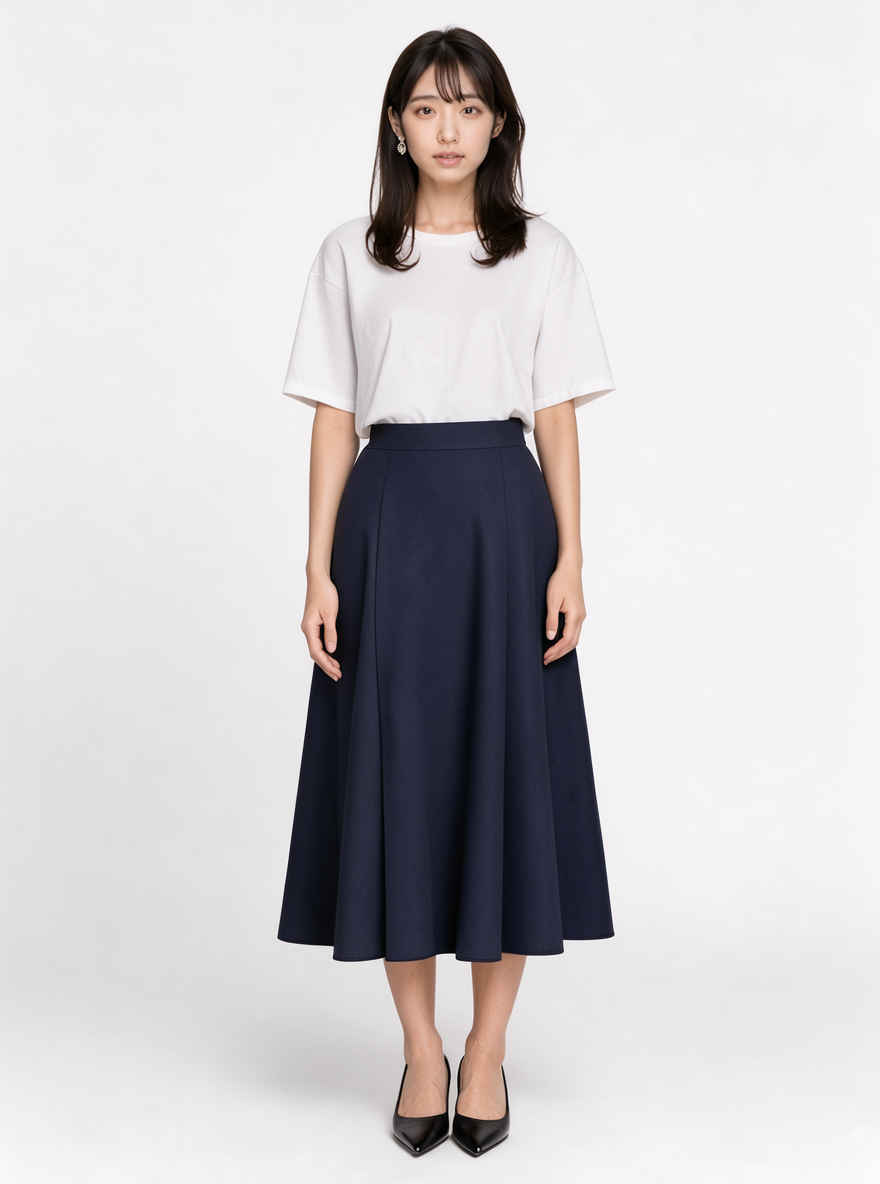
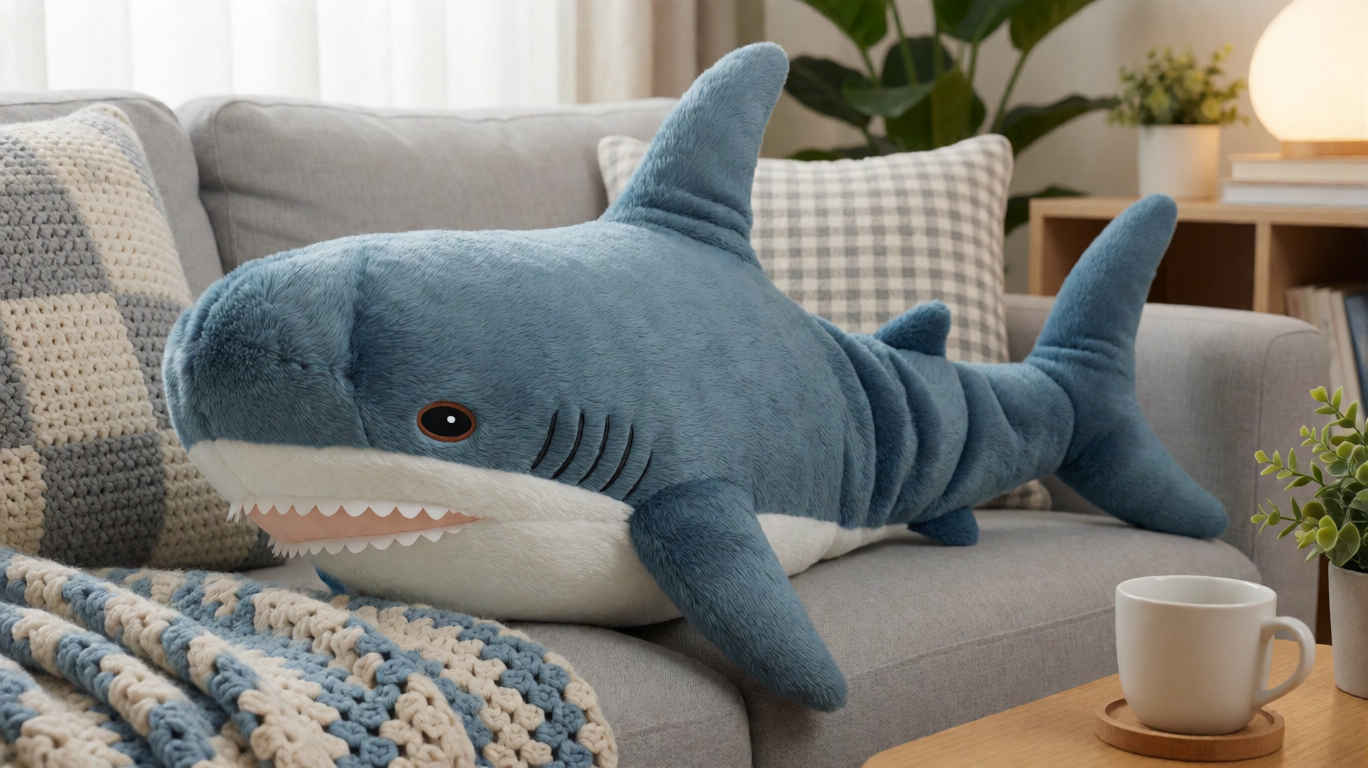
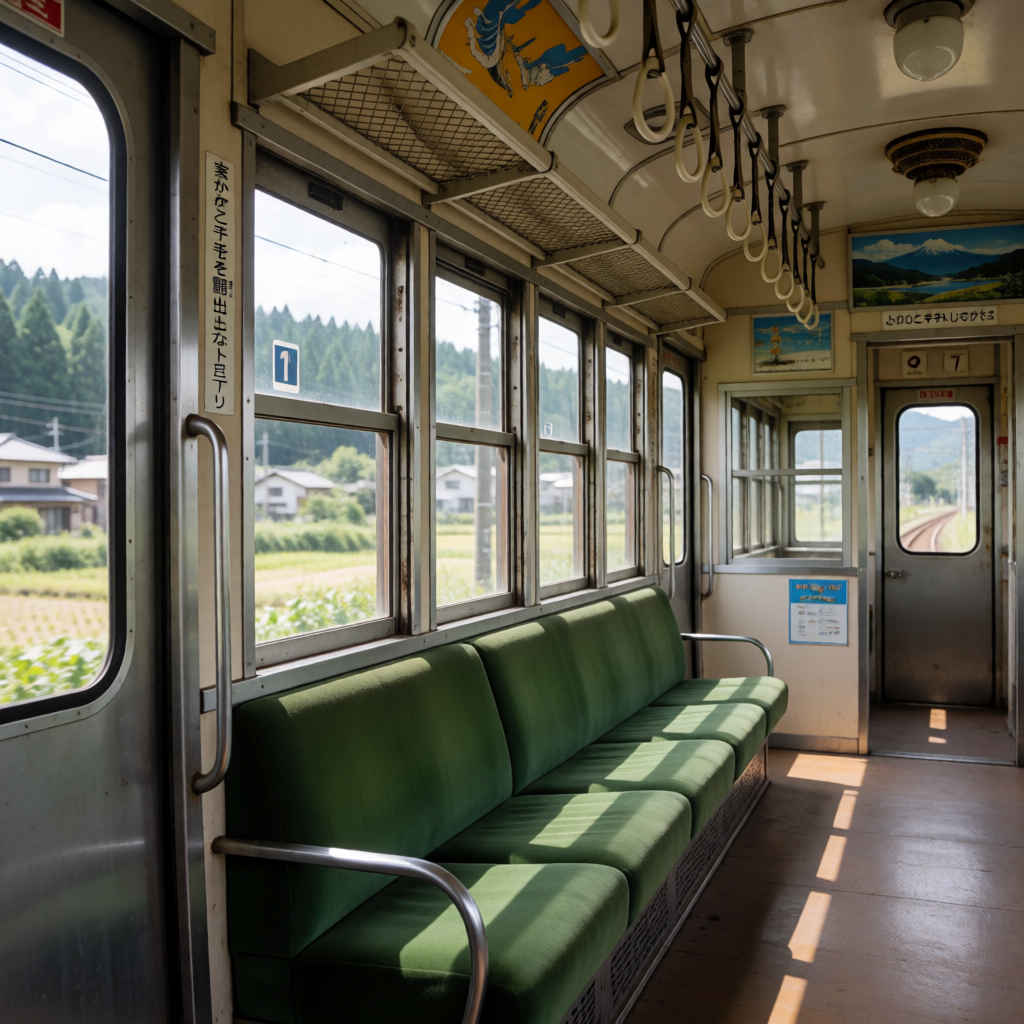
| ② | 参照画像を組み合わせる ・参照画像は最大 10 枚まで ・プロンプトで「<image1> の女性が <image2> の場所に座っている」のように、どの画像を使うのか指定する |
Use <image1> as the girl reference, <image2> as the plush shark reference, and <image3> as the train interior reference. The girl is sitting naturally on the long bench seat of the train, not lying | &ref(): File not found: "8412_2026-09-24_00001_m.jpg" at page "ComfyUI19a"; |
| <image1>を少女の参考画像、<image2>をサメのぬいぐるみの参考画像、<image3>を電車の車内の参考画像として使用してください。 少女は横たわるのではなく、電車の長いベンチシートに自然な姿勢で座っています。 |
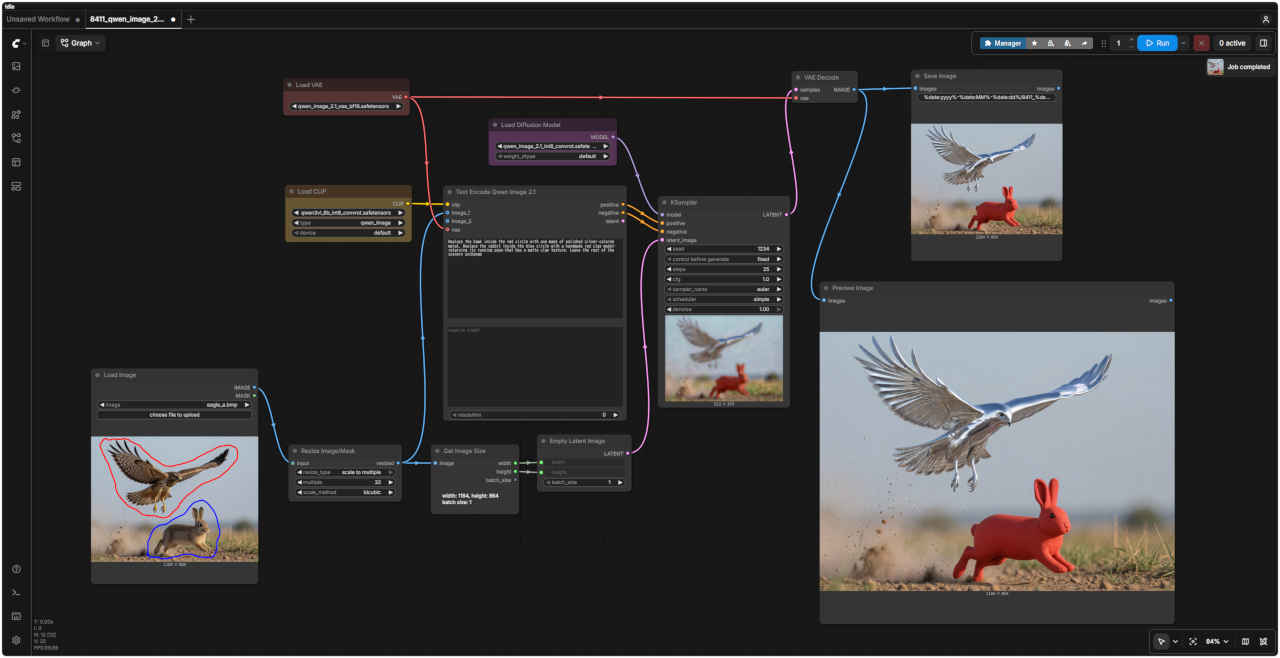
| 参照画像 | ワークフロー 8411_qwen_image_2.1_edit_base.json |
| |  |
| 編集内容 | プロンプト | 生成画像 | |
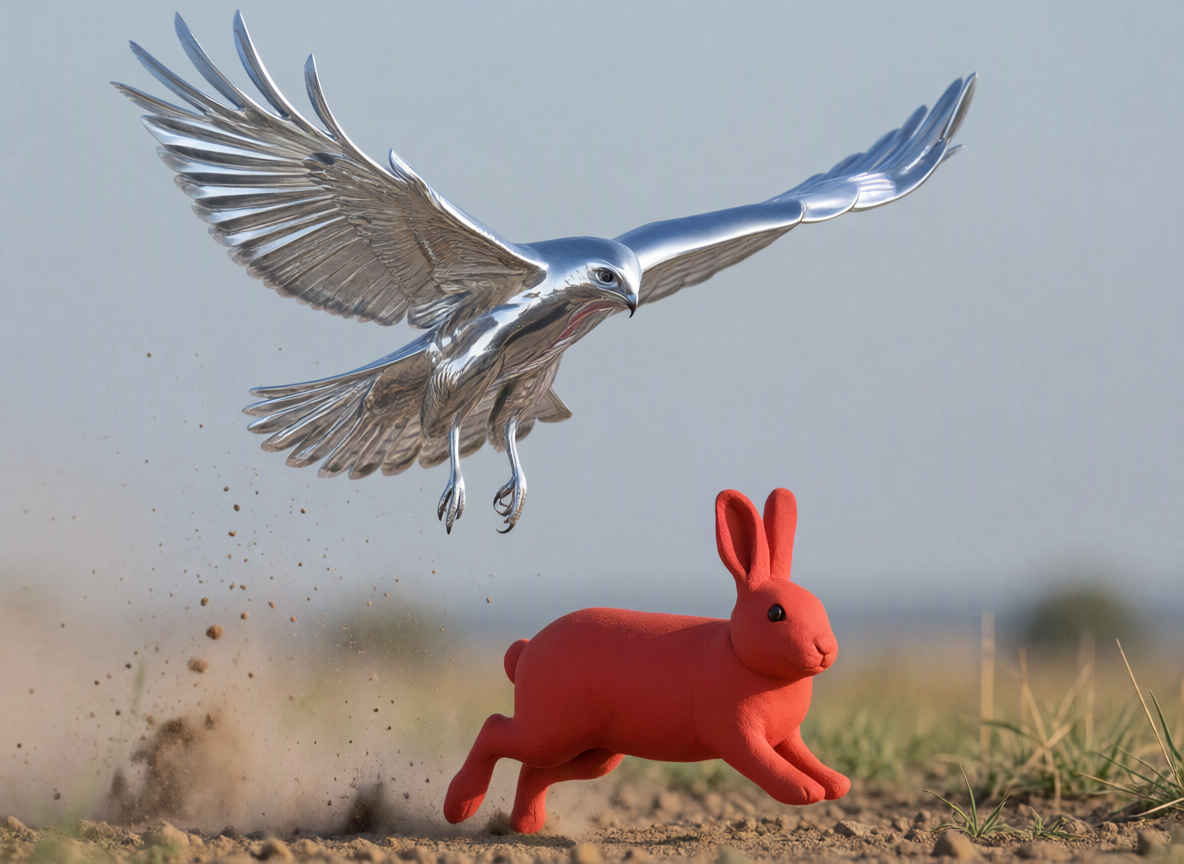
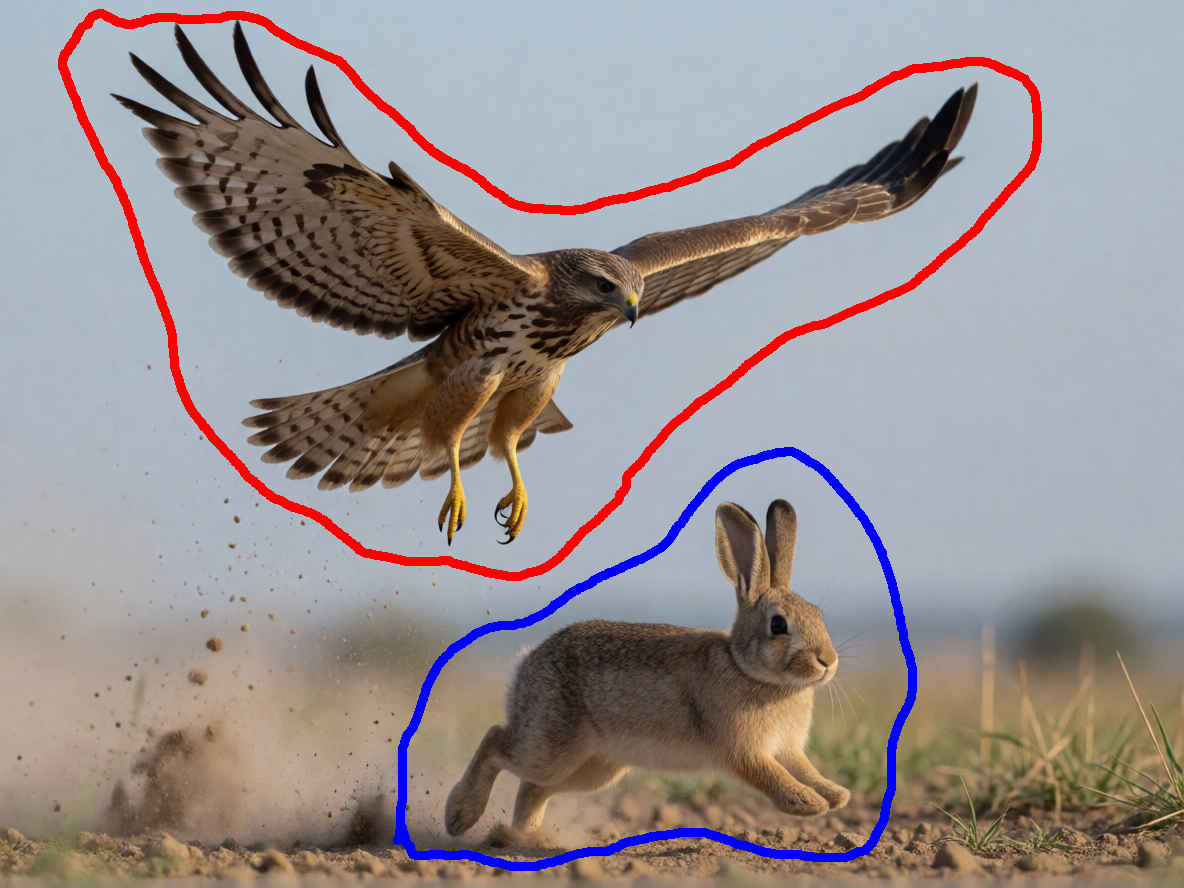
| ③ | 場所を色ペンで囲って指示 ・編集したい画像に直接、編集させたいオブジェクトを囲む・「赤丸で囲った腕時計を消して」のように指示 ・Load Image ノードの Mask Editor でも指定可能 | Replace the hawk inside the red circle with one made of polished silver-colored metal. Replace the rabbit inside the blue circle with a handmade red clay model—retaining its running pose—that has a matte clay texture. Leave the rest of the scenery unchange | |
| 赤い円の中にあるタカを、磨き上げられた銀色の金属製のものに置き換えてください。青い円の中にあるウサギは、走っているポーズはそのままに、赤い粘土で手作りされた、つや消しの質感を備えたモデルに置き換えてください。それ以外の風景は変更しないでください。 |
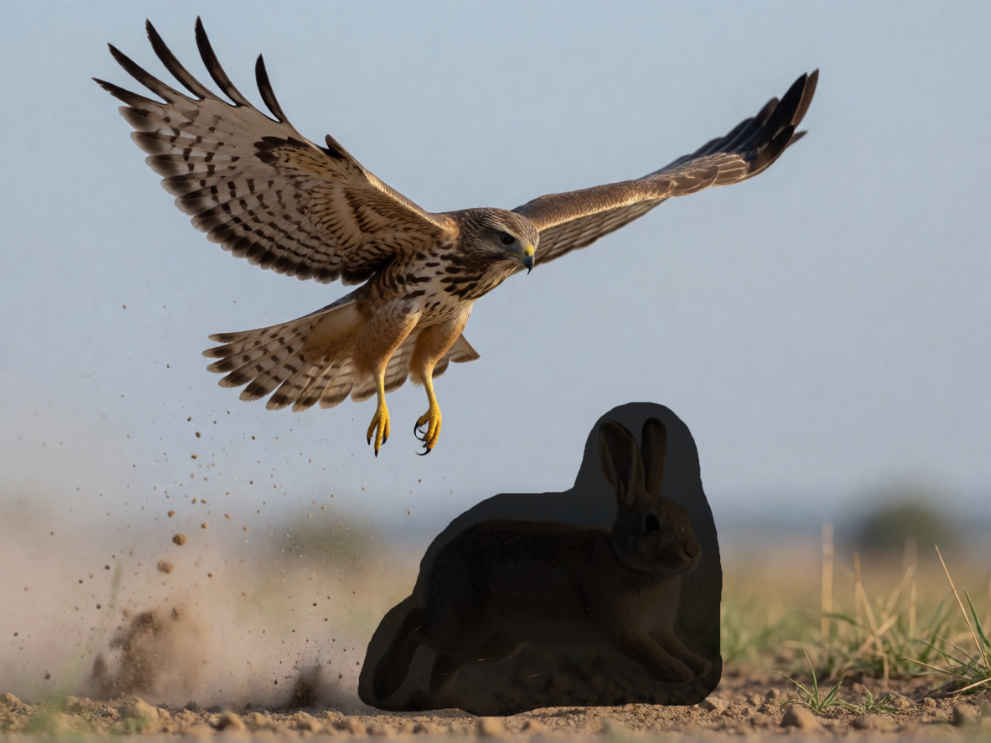
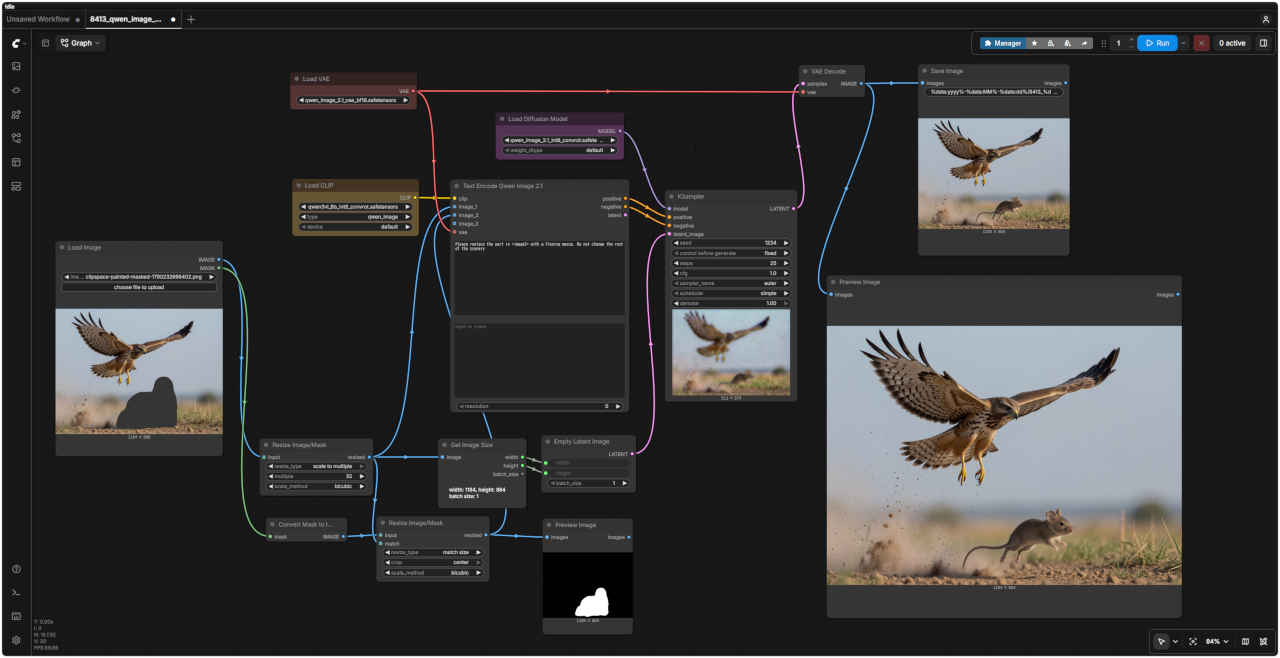
| 参照画像 | ワークフロー 8413_qwen_image_2.1_edit_mask.json |
 |  |
| 編集内容 | プロンプト | 生成画像 | |
| ④ | 場所をマスクで囲って指示 ・編集したい画像に直接、編集させたいオブジェクトを囲む・Load Image の MASK 出力を Convert Mask to Image で白黒画像に変換し、image_2 へ入力 ・マスクから変換せず、黒い背景に白で塗った画像を直接用意してもよい | Please replace the part in <image2> with a fleeing mouse. Do not change the rest of the scenery | 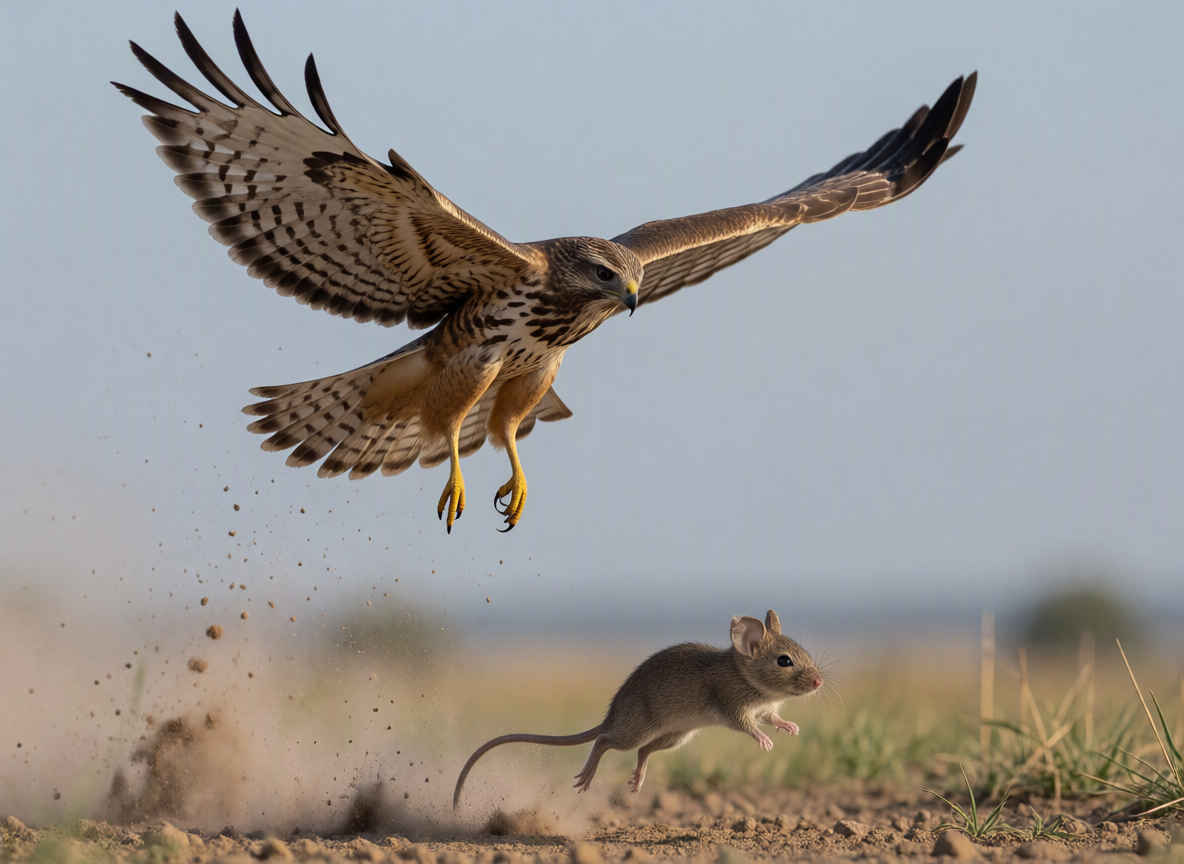 |
| <image2>の箇所を、逃げているネズミに置き換えてください。それ以外の風景は変更しないでください。 |
| 参照画像 | ワークフロー 8414_qwen_image_2.1_outpaint.json |
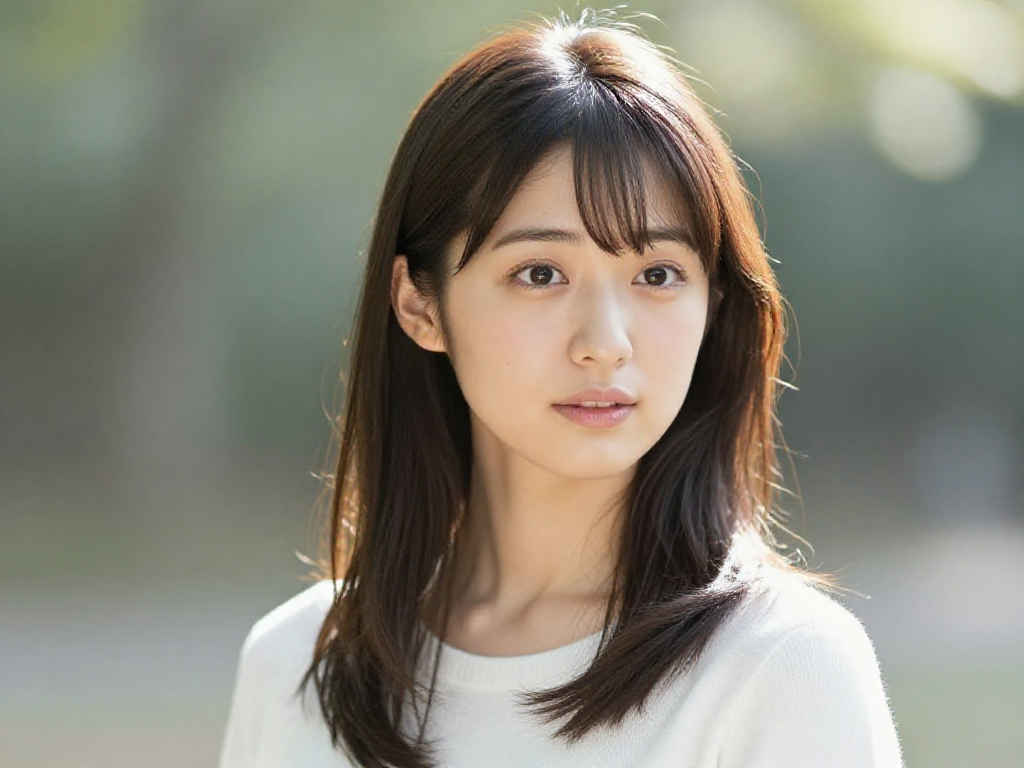 | 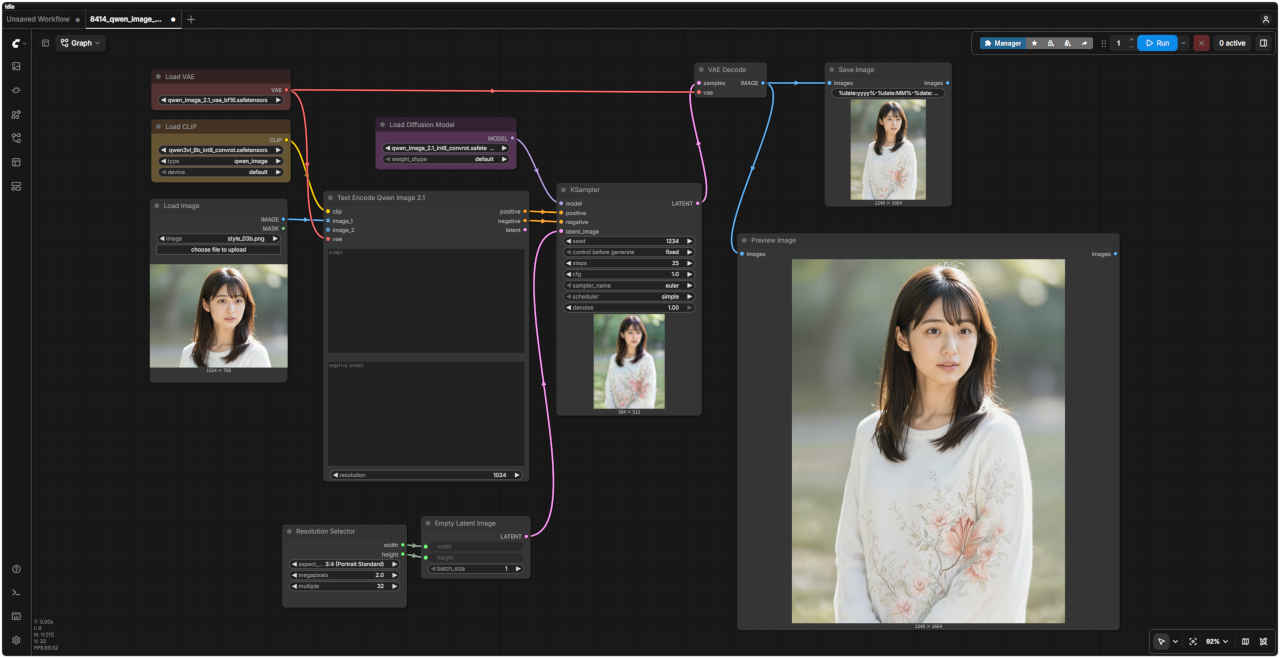 |
| 編集内容 | プロンプト | 生成画像 | |
| ⑤ | 周囲の画像を追加 ・横長の画像を縦長するなど周囲を埋めた画像を生成・余白のみならず画像全体を描き直しているので、元の部分も多少変化する | 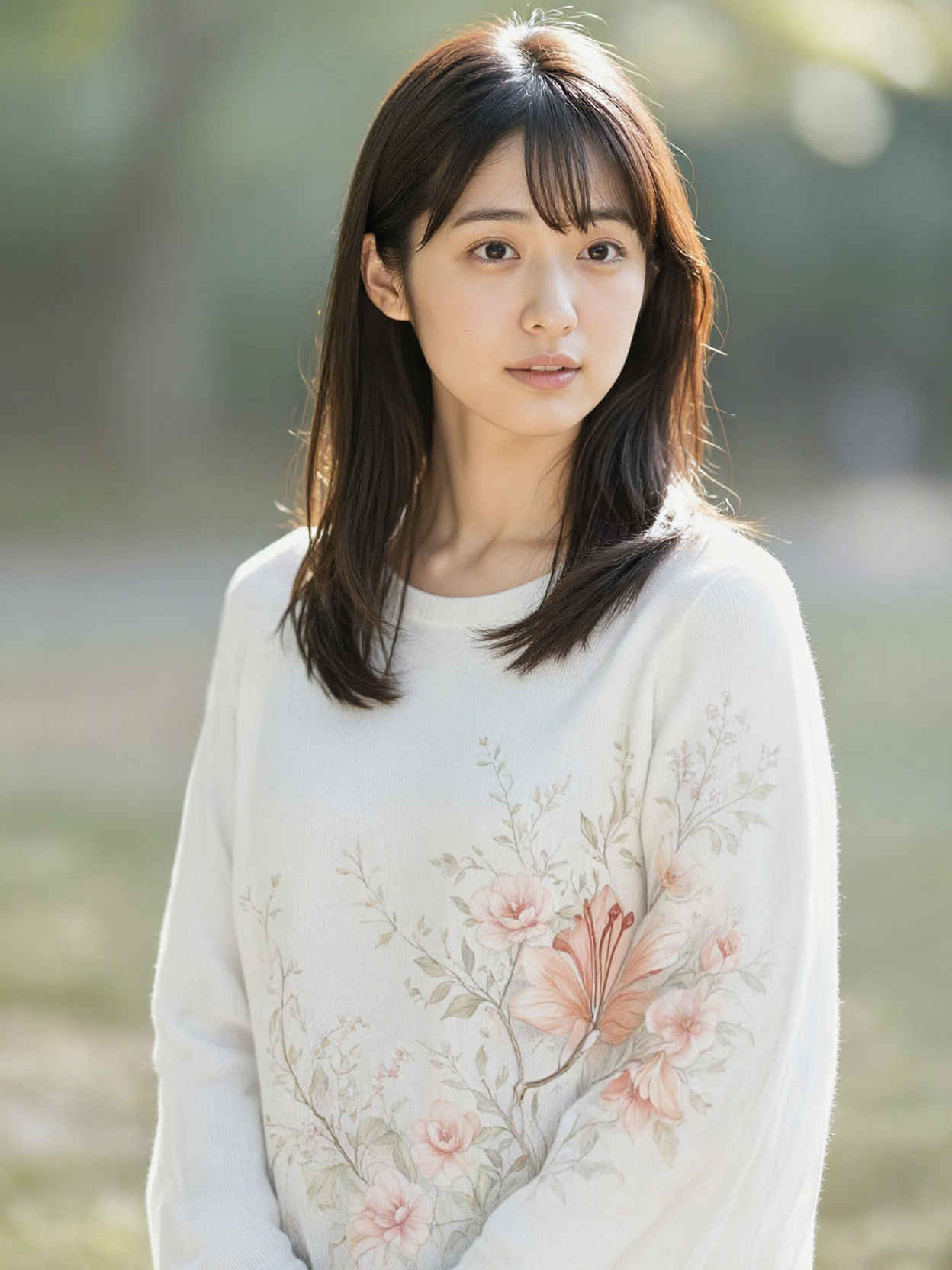 |
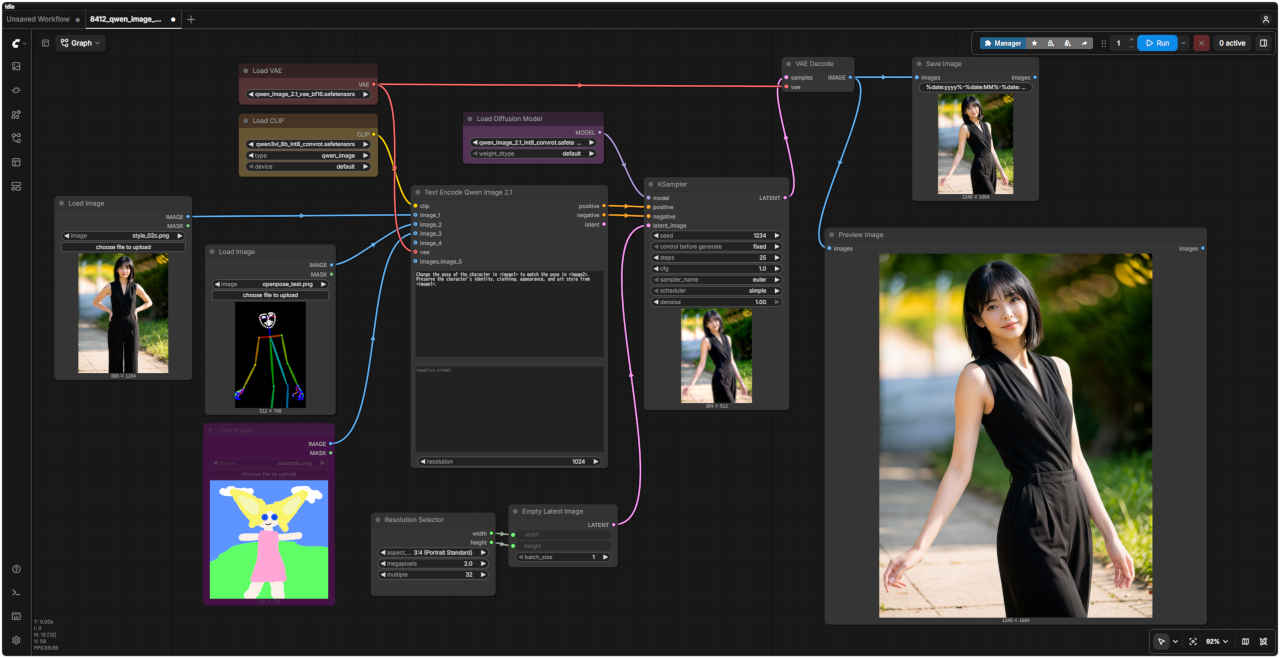
| 参照画像 | ワークフロー 8415_qwen_image_2.1_openpose.json | |
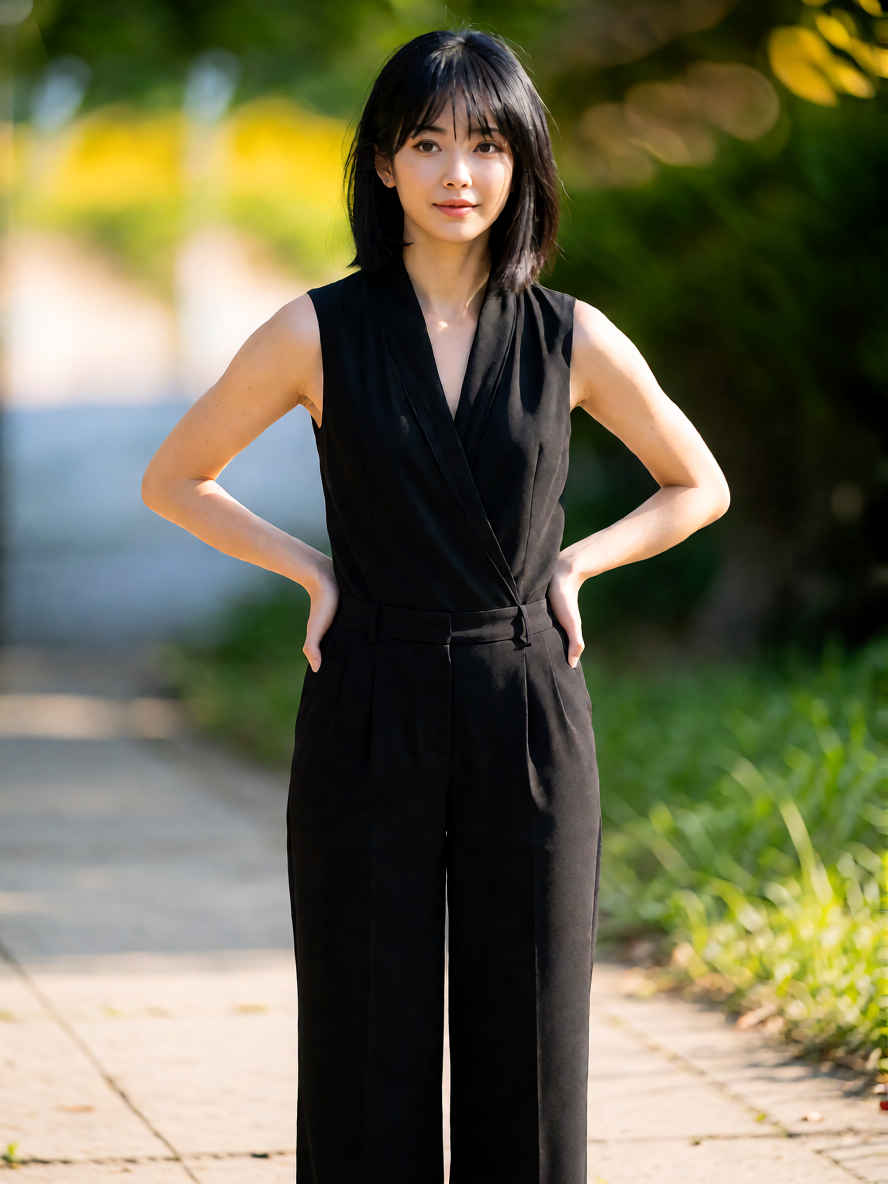 | 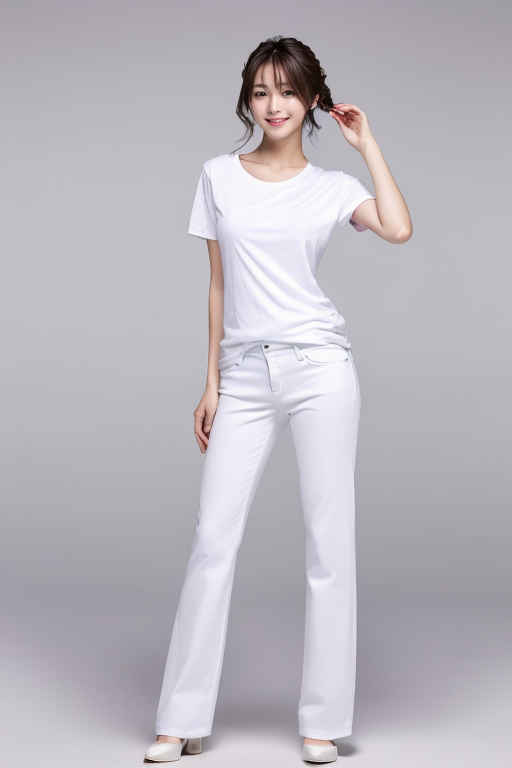 | 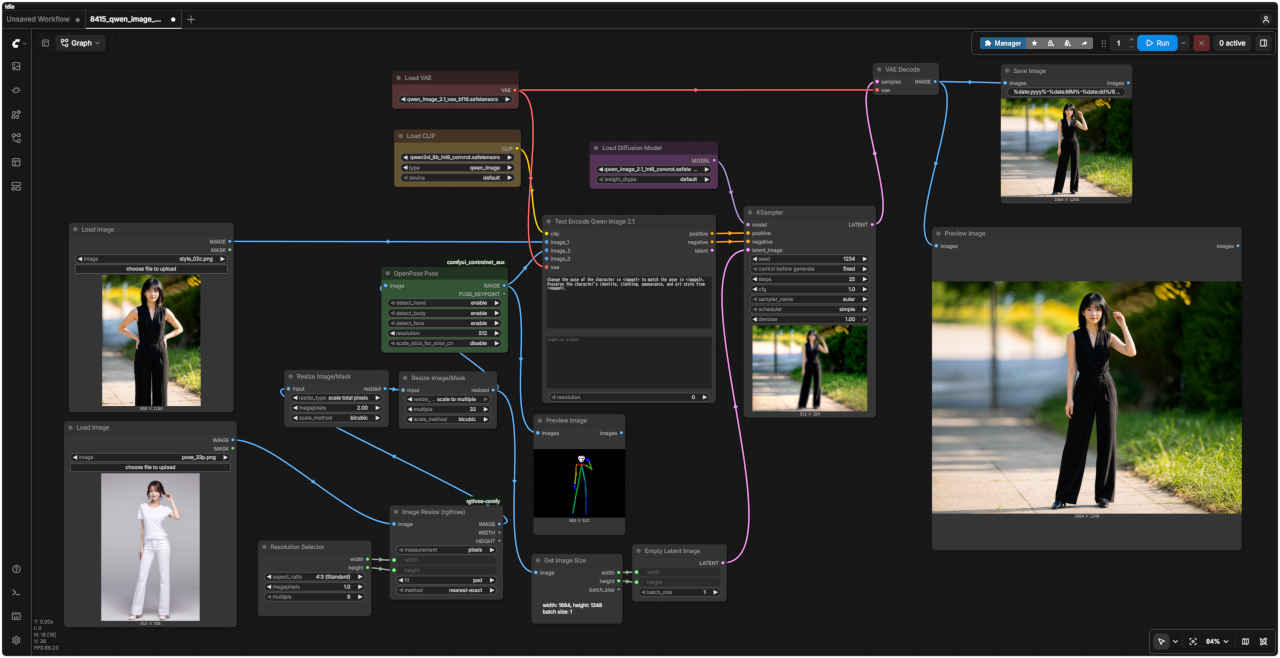 |
| 編集内容 | プロンプト | 生成画像 | |
| ⑥ | 人物を指定したポーズにする ・ControlNet で参照画像から余計な情報を削ぎ落とし、ポーズや形だけを取り出して渡す | Change the pose of the character in <image1> to match the pose in <image2>. Preserve the character's identity, clothing, appearance, and art style from <image1>. | 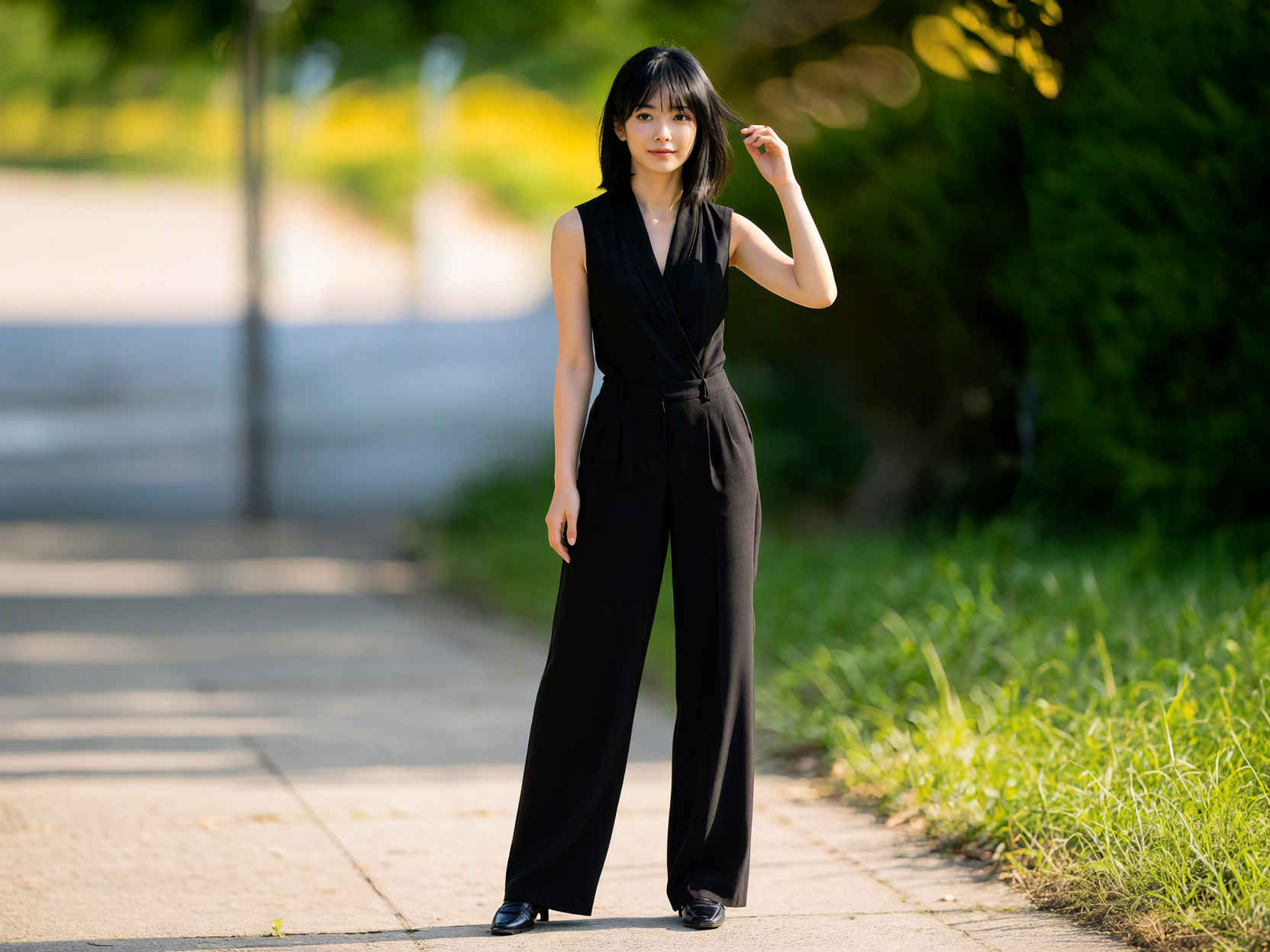 |
| <image1>のキャラクターのポーズを、<image2>のポーズに合わせて変更してください。<image1>のキャラクターのアイデンティティ、服装、外見、および画風は維持してください。 |
| 参照画像 | ワークフロー 8402_qwen_image_2.1_image_editi..json | |
| |  |  |
| 編集内容 | プロンプト | 生成画像 | |
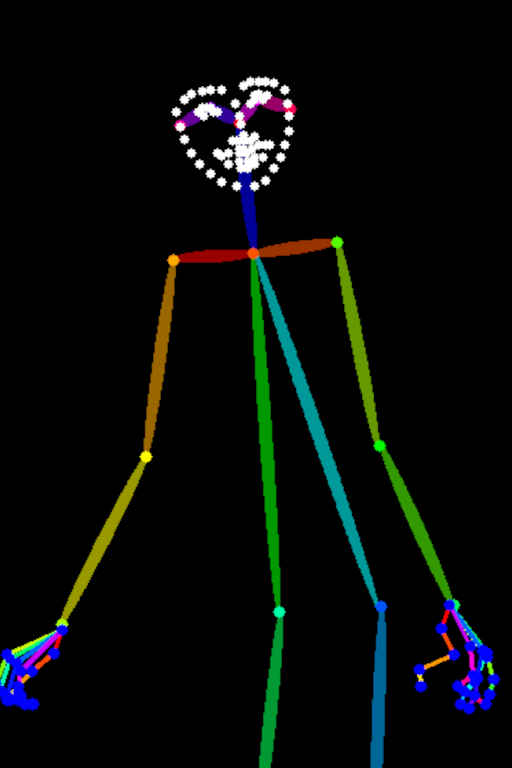
| ⑥ | 人物を指定したポーズにする ・ポーズ画像(棒人間の画像)を直接入力する → ポーズ集 | Change the pose of the character in <image1> to match the pose in <image2>. Preserve the character's identity, clothing, appearance, and art style from <image1>. | &ref(): File not found: "8402_2026-09-24_00022_m.jpg" at page "ComfyUI19a"; |
| <image1>のキャラクターのポーズを、<image2>のポーズに合わせて変更してください。<image1>のキャラクターのアイデンティティ、服装、外見、および画風は維持してください。 |