

私的AI研究会 > ComfyUI10
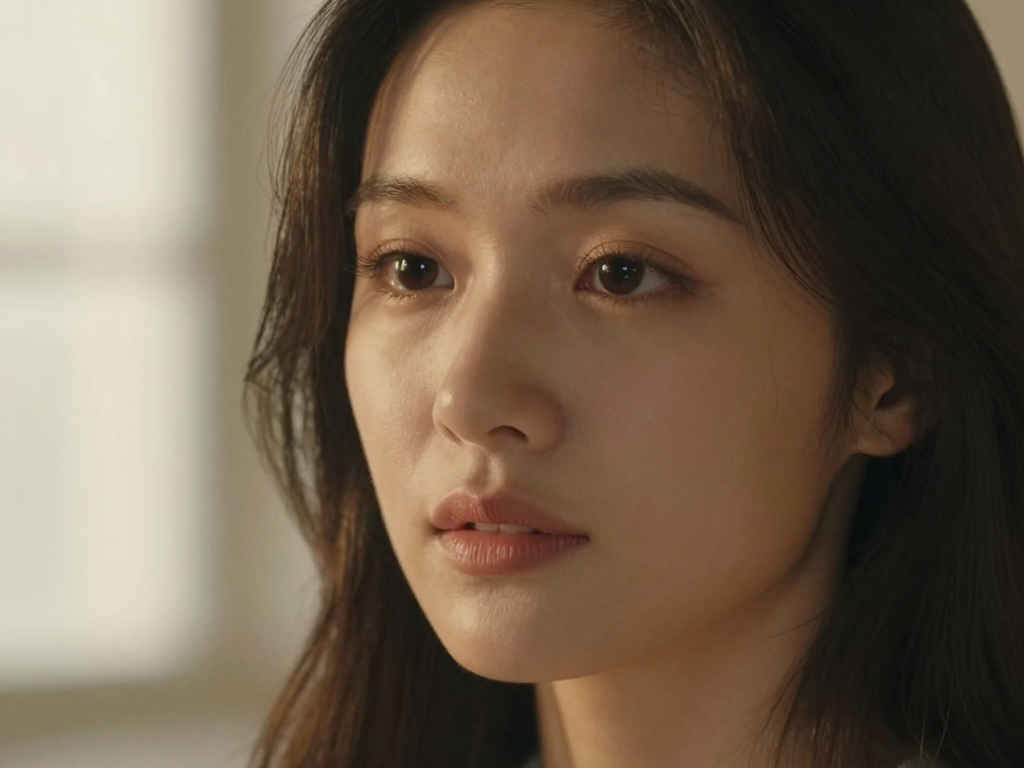
「ComfyUI」を使ってローカル環境でのAI画像生成を検証する
| 高速かつ高品質な画像を生成することができると評価の高い最新の画像生成AIモデル『Z-Image-Turbo』を検証する |
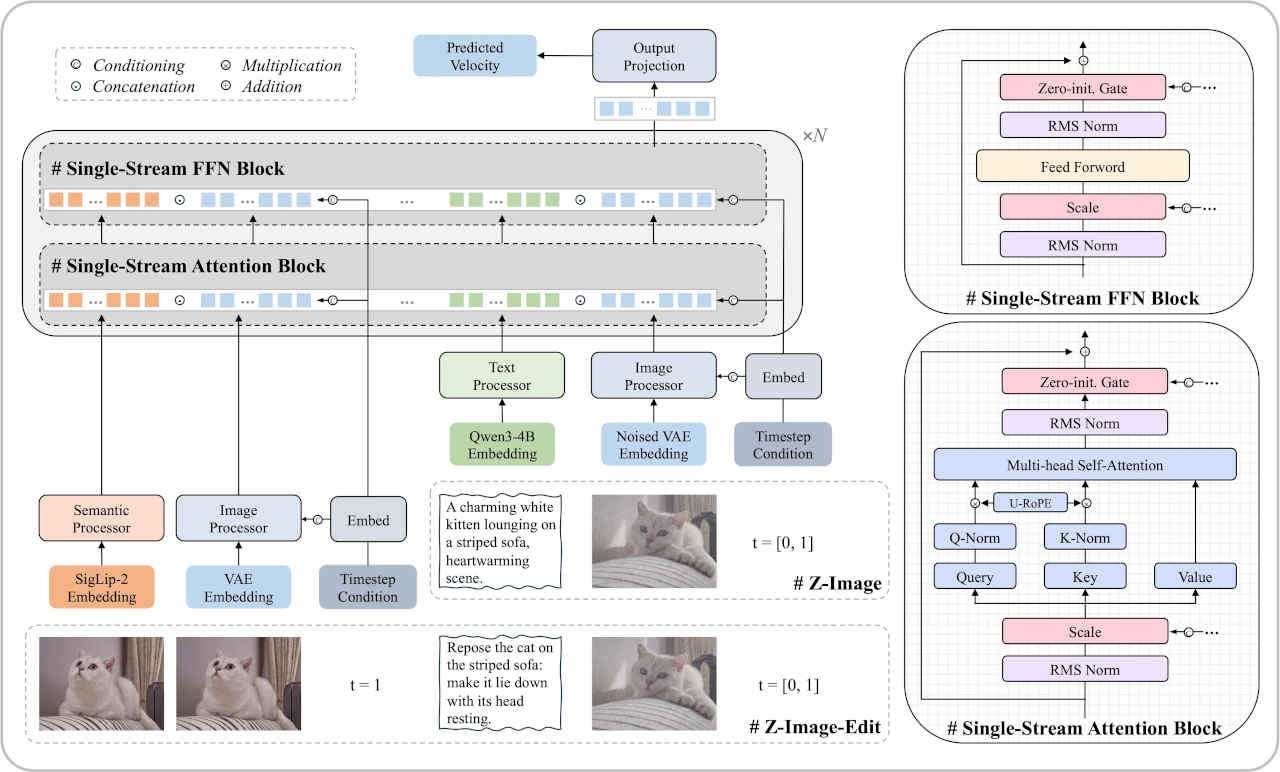
| 項目 | 仕様 |
| 必要VRAM | 16GB未満(<16GB VRAM)で動作 |
| 推奨解像度 | 1024×1024(学習時の標準解像度) |
| 対応解像度範囲 | 512×512〜2048×2048まで生成可能 |
📂ComfyUI
  ├─📂input              ← ワークフローに含まれる入力画像
  └─📂user
        └─📂default
              └─📂workflows        ← ワークフローの保存場所
                    :
                    ├─📂etc
                    └─📂z_imzge      ← この章で作成するワークフロー
・解凍してできる「ComfyUI/」フォルダを「StabilityMatrix/Data/Packages/ComfyUI」へ上書きコピーする| ワークフロー | 機 能 | CPU | CPU | |||||
| RTX 4070 | RTX 4060 | RTX 4060L | RTX 3050 | GTX 1050 | i7-1260P | i7-1185G7 | ||
| image_z_image_turbo.json | 標準テンプレートによる生成 | 00:05.62 | 00:13.96 | 00:21.22 | 00:26.36 | 03:15.97 | 17:20.62 | 17:06.47 |
| 2101_z_image_turbo_simple.json | ComfyUI_examples サイトから | 00:07.46 | 00:18.99 | 00:27.22 | 00:39.74 | 05:05.45 | 34:09.71 | 27:47.87 |
| 2102_z_image_turbo_controlnet.json | コントロールネットで画像を制御 | 00:21.02 | 00:29.68 | 00:43.61 | 41:15.66 | 31:09.73 | ||
| モデル名 | ファイル名(.safetensors) | 配置先 | ダウンロード URL | |
| Z-Image-Turbo本体 diffusion_models | z_image_turbo_nvfp4 | /StabilityMatrix/Data/ Models/ | diffusion_models/ | https://huggingface.co/Comfy-Org/z_image_turbo/tree/main/split_files/diffusion_models |
| z_image_turbo_bf16 | ||||
| テキストエンコーダー text_encoders | qwen_3_4b_fp4_mixed | text_encoders/ | https://huggingface.co/Comfy-Org/z_image_turbo/tree/main/split_files/text_encoders | |
| qwen_3_4b_fp8_mixed | ||||
| qwen_3_4b | ||||
| vae | ae | VAE/ | https://huggingface.co/Comfy-Org/z_image_turbo/tree/main/split_files/vae | |
| ControlNet | Z-Image-Turbo-Fun-Controlnet-Union | /StabilityMatrix/Data/ Packages/ComfyUI/models/ | model_patches/ | https://huggingface.co/alibaba-pai/Z-Image-Turbo-Fun-Controlnet-Union/tree/main |
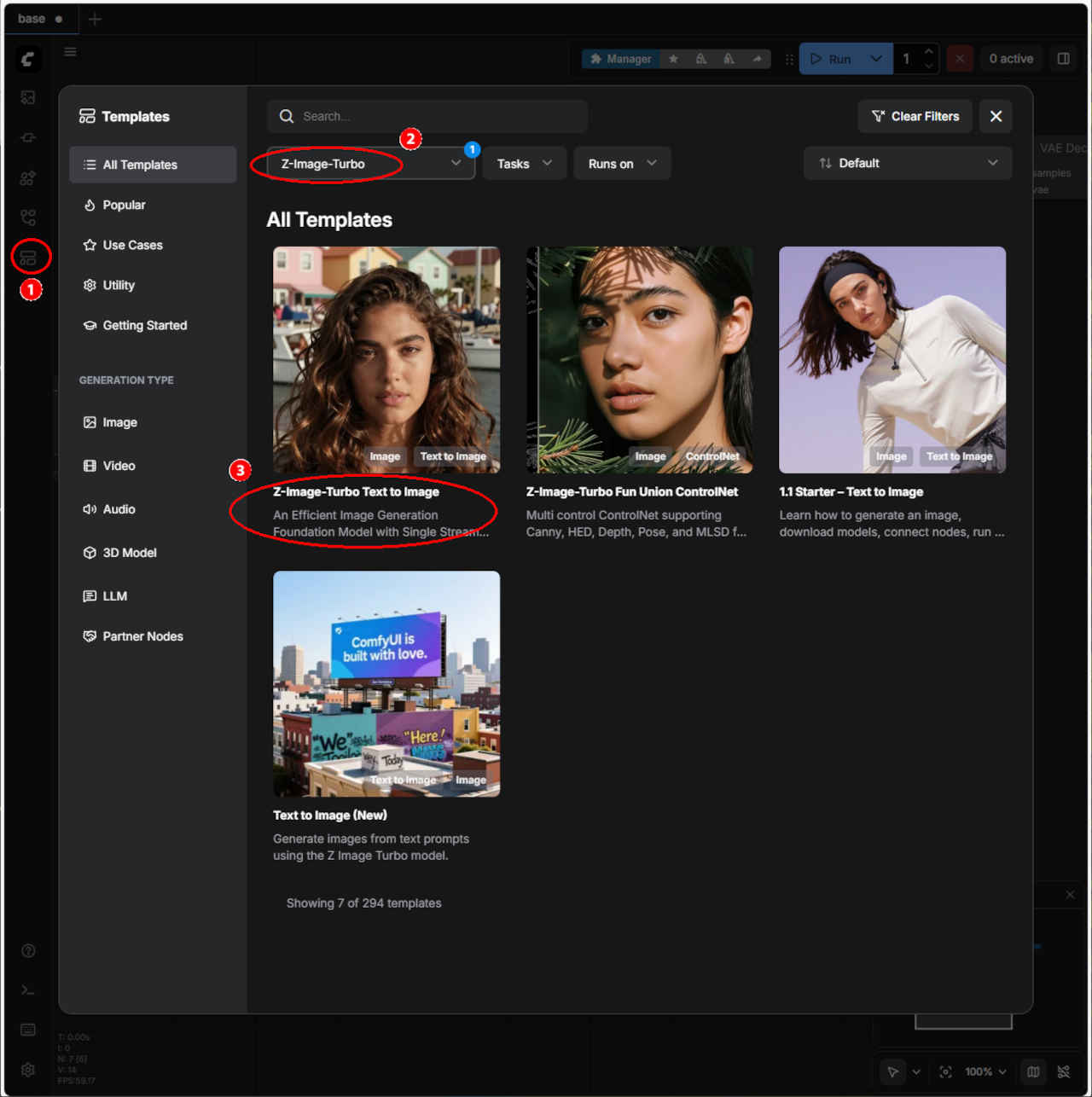
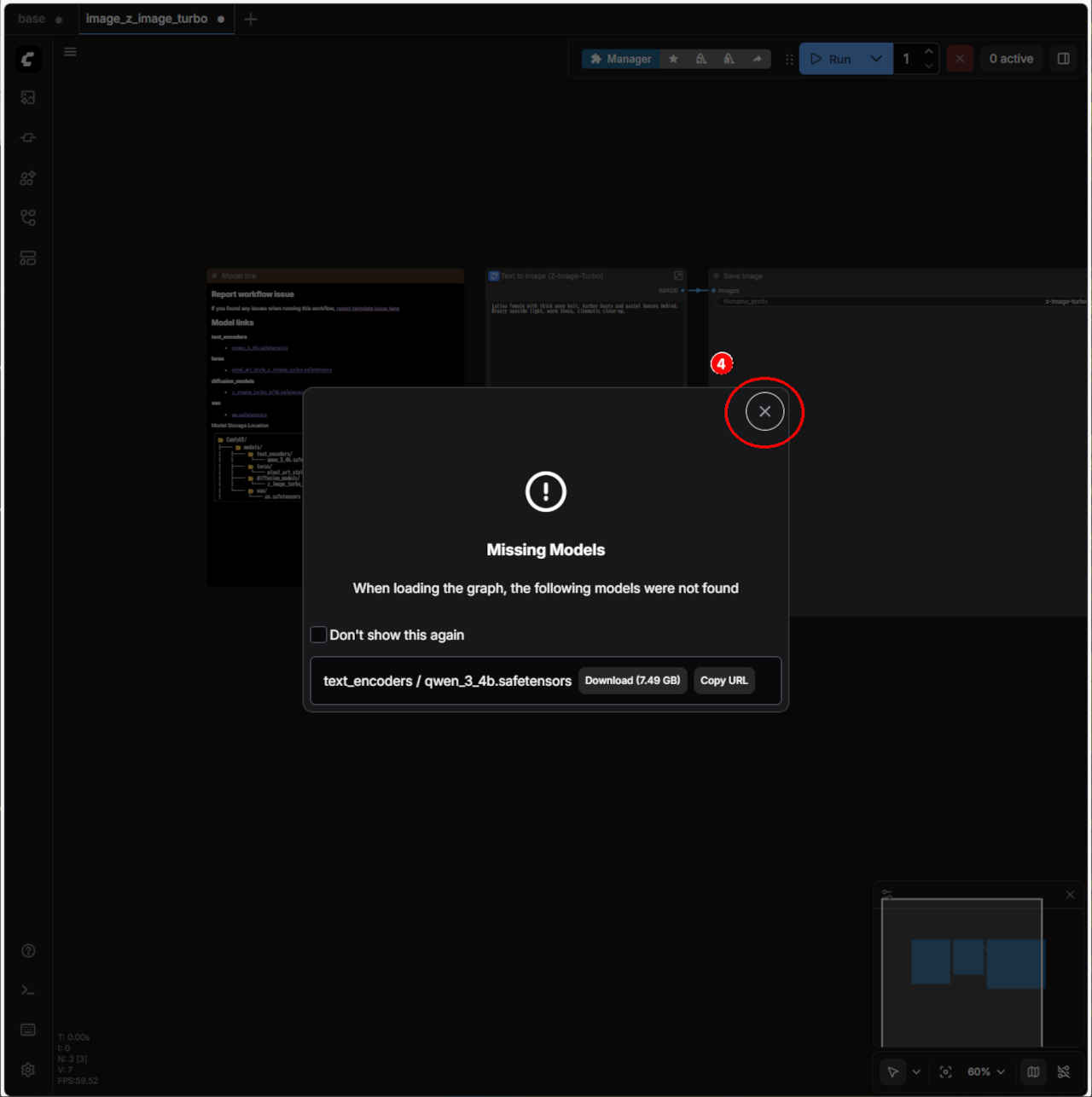
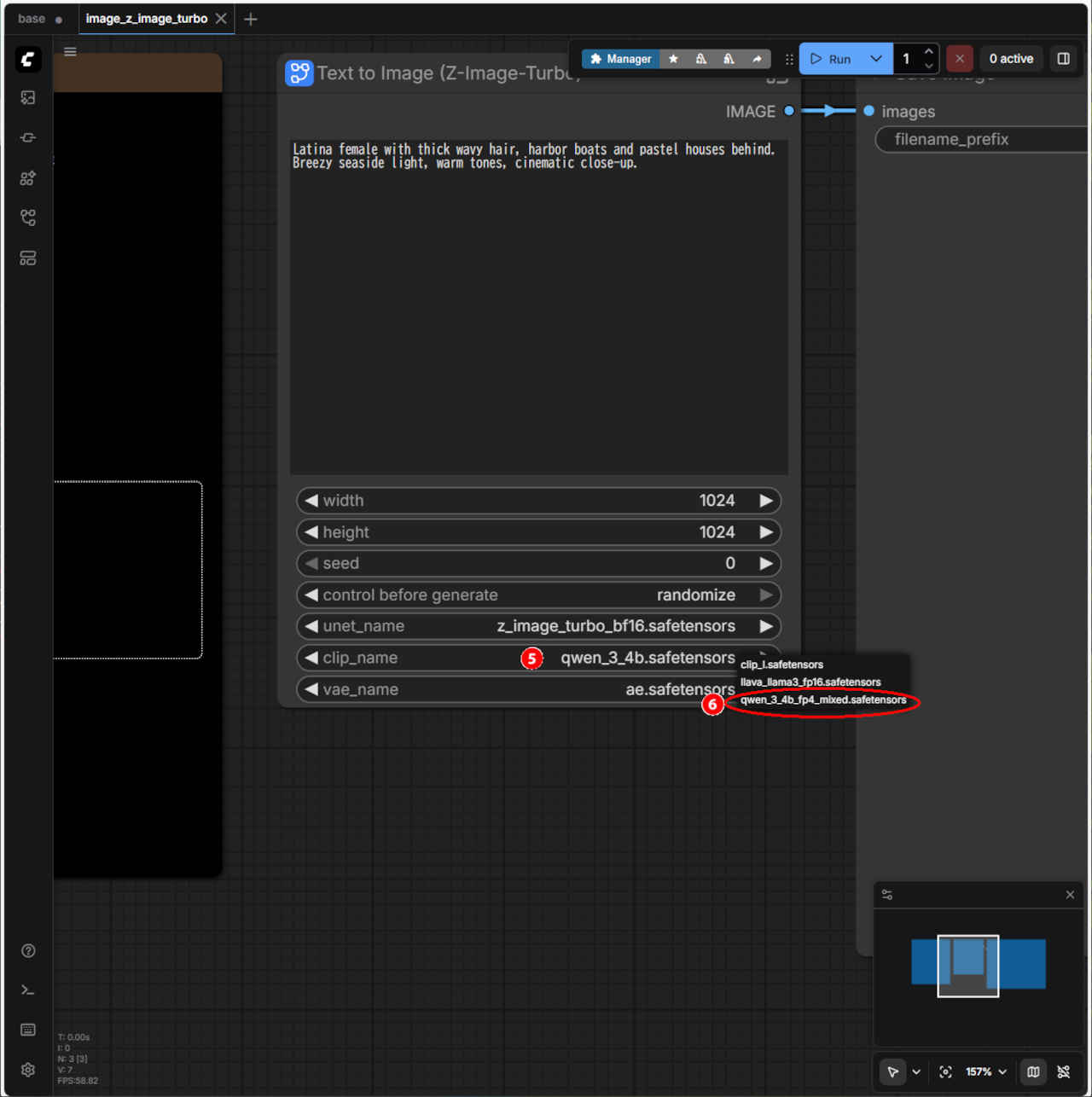
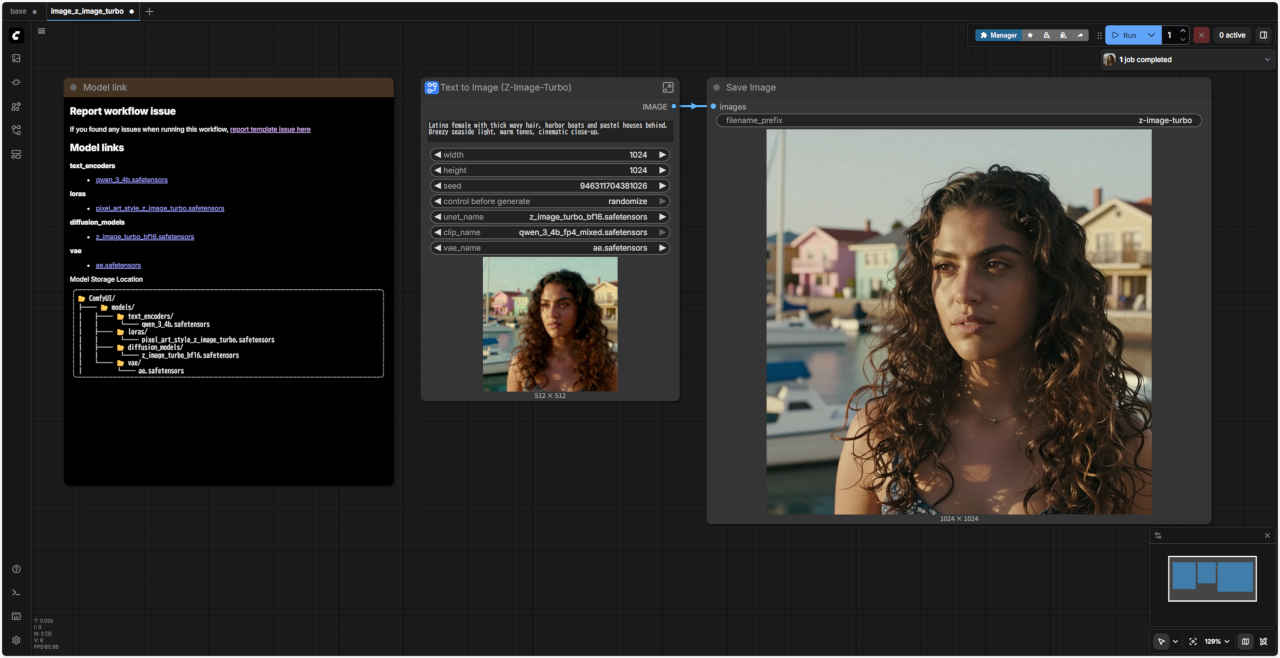

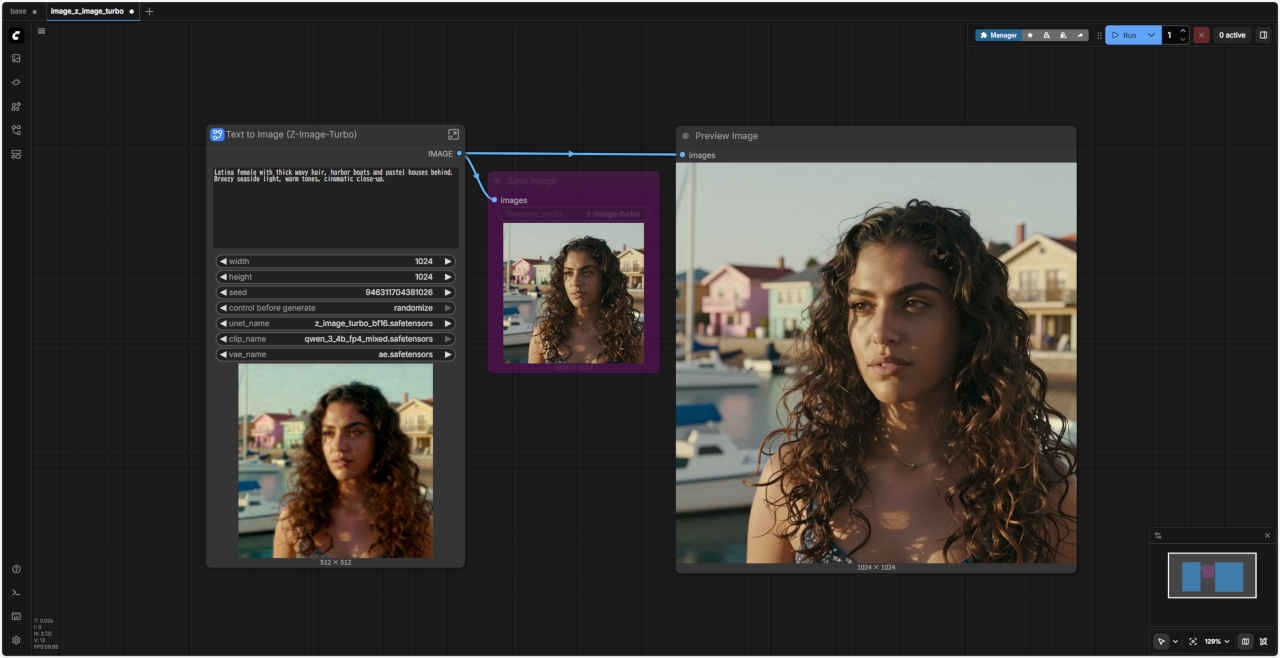
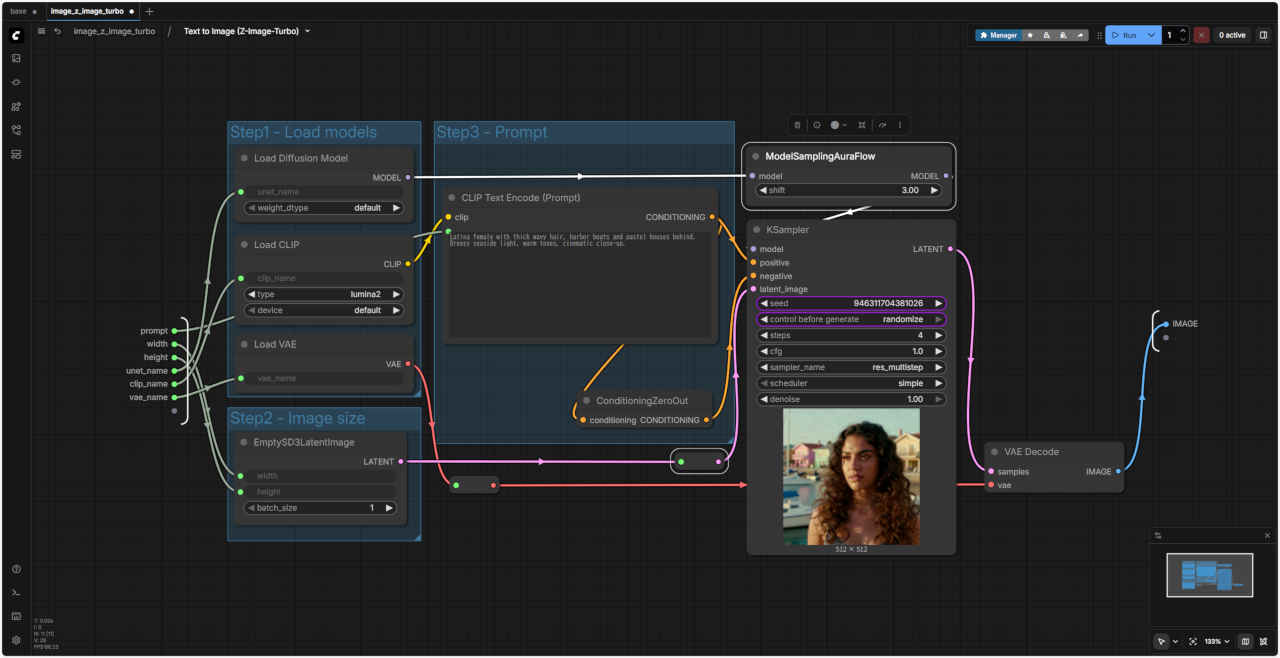
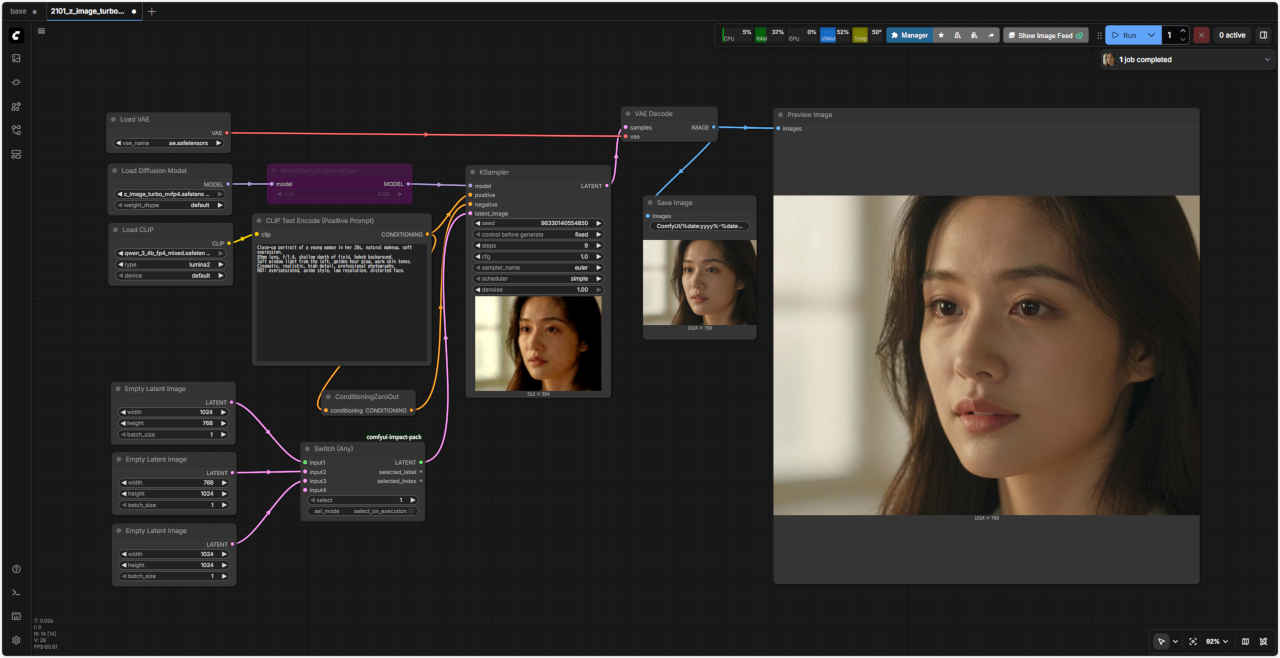
 image_z_image_turbo.json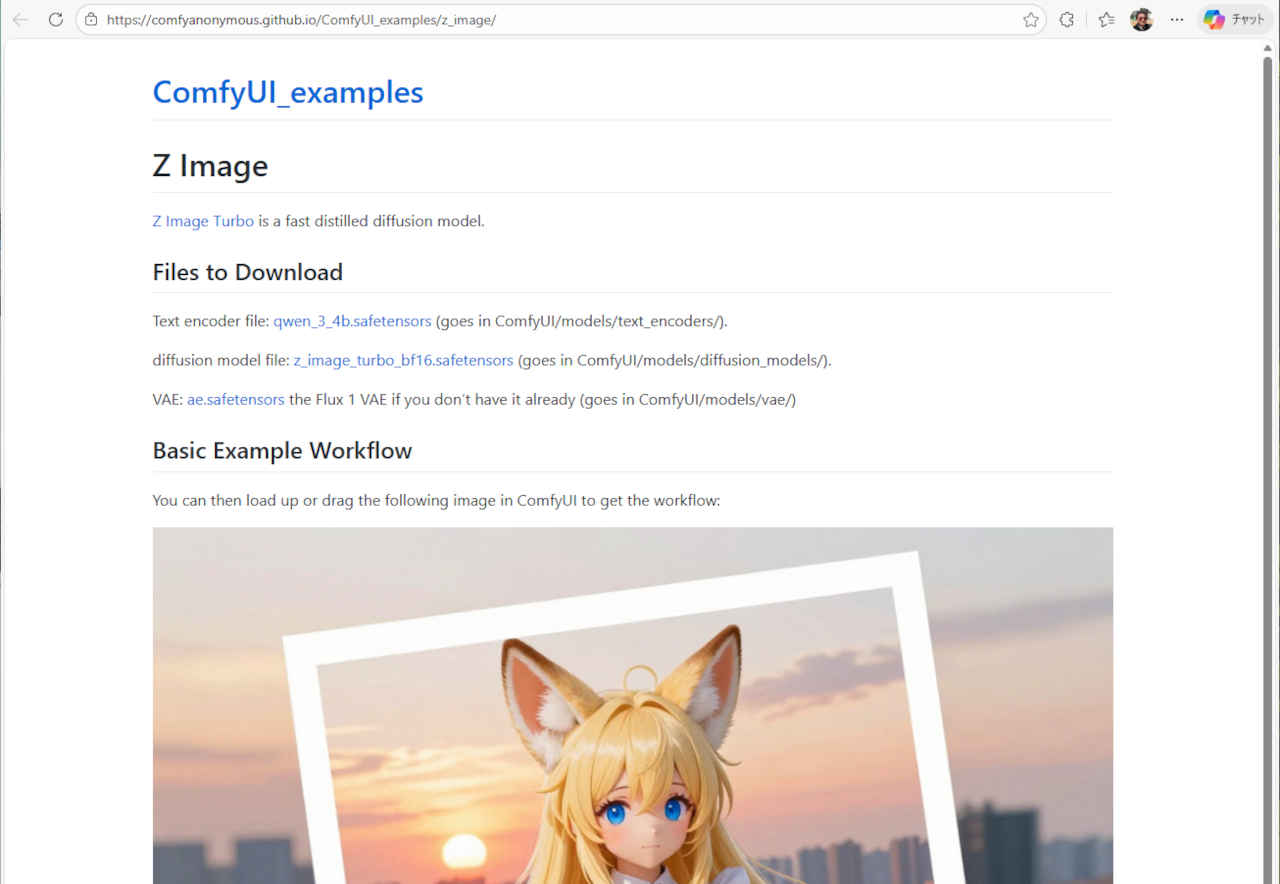
| プロンプト |
|
Close-up portrait of a young woman in her 20s, natural makeup, soft expression. 85mm lens, f/1.4, shallow depth of field, bokeh background. Soft window light from the left, golden hour glow, warm skin tones. Cinematic, realistic, high detail, professional photography. NOT: oversaturated, anime style, low resolution, distorted face. |
| 20代の若い女性のクローズアップポートレート。ナチュラルメイク、柔らかな表情。 85mmレンズ、f/1.4、浅い被写界深度、背景のボケ。 左から差し込む柔らかな窓の光、ゴールデンアワーの輝き、温かみのある肌色。 映画のような、リアルな、細部までこだわった、プロフェッショナルな写真。 注意点:彩度過度、アニメ調、低解像度、歪んだ顔。 |
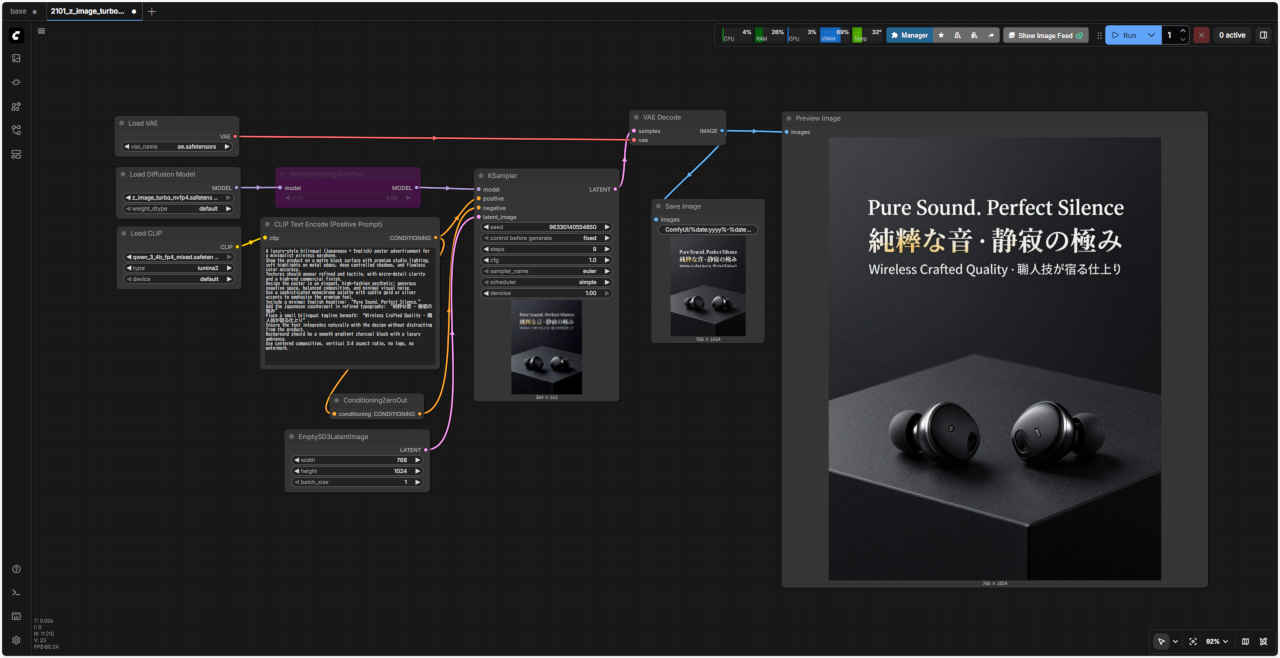
| ワークフロー:「z_image/」2101_z_image_turbo_simple.json | |
 |
| プロンプト |
|
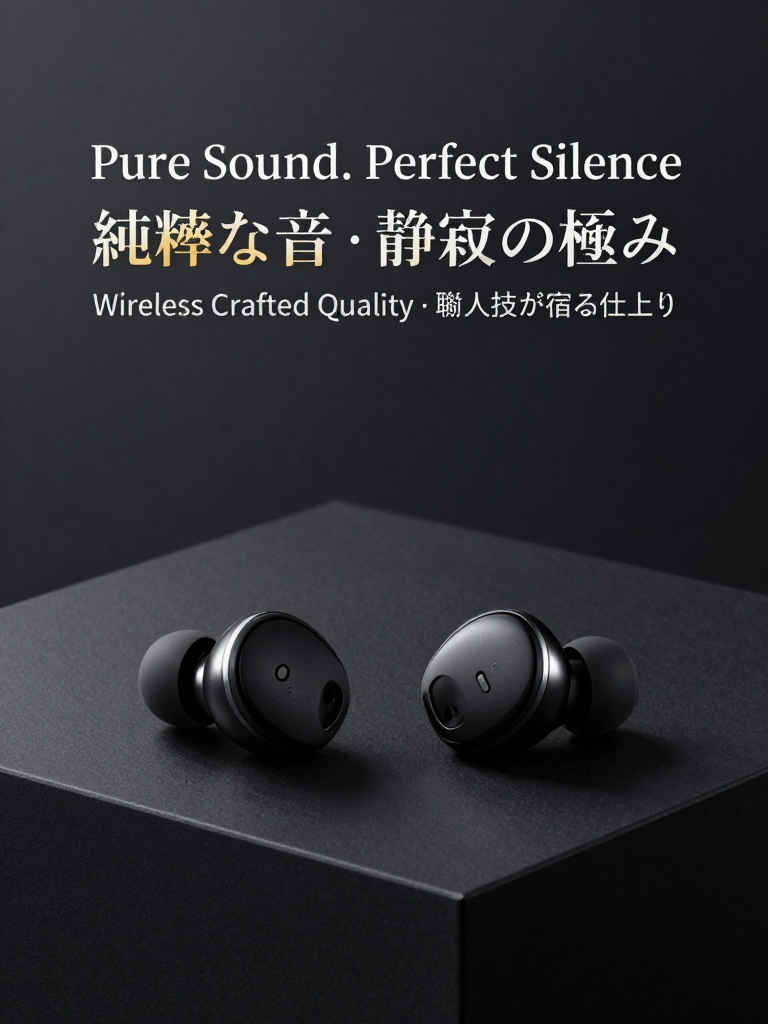
A luxury-style bilingual (Japanease + English) poster advertisement for a minimalist wireless earphone. Show the product on a matte black surface with premium studio lighting, soft highlights on metal edges, deep controlled shadows, and flawless color accuracy. Textures should appear refined and tactile, with micro-detail clarity and a high-end commercial finish. Design the poster in an elegant, high-fashion aesthetic: generous negative space, balanced composition, and minimal visual noise. Use a sophisticated monochrome palette with subtle gold or silver accents to emphasize the premium feel. Include a minimal English headline: “Pure Sound. Perfect Silence.” Add the Japanease counterpart in refined typography: “純粋な音 · 静寂の極み”. Place a small bilingual tagline beneath: “Wireless Crafted Quality · 職人技が宿る仕上り”. Ensure the text integrates naturally with the design without distracting from the product. Background should be a smooth gradient charcoal black with a luxury ambiance. Use centered composition, vertical 3:4 aspect ratio, no logo, no watermark. |
| ミニマルなワイヤレスイヤホンの、高級感あふれるバイリンガル(日本語+英語)ポスター広告です。 マットブラックの表面に、プレミアムスタジオ照明、金属エッジの柔らかなハイライト、深くコントロールされた陰影、そして完璧な色彩精度で製品を映し出します。 テクスチャは洗練され、触感があり、微細なディテールまで鮮明で、高級感のある商業的な仕上がりを実現します。 ポスターは、エレガントでハイファッションな美学に基づき、十分なネガティブスペース、バランスの取れた構成、そして最小限の視覚的ノイズでデザインします。 洗練されたモノクロパレットに、さりげないゴールドまたはシルバーのアクセントを加え、高級感を強調します。 簡潔な英語の見出し「Pure Sound. Perfect Silence.」を記載します。 洗練されたタイポグラフィで日本語の見出し「純粋な音・静寂の極み」を追加します。 その下に、小さなバイリンガルのタグライン「Wireless Crafted Quality・職人技が宿る仕上り」を配置します。 テキストは、製品から気を散らすことなく、デザインに自然に溶け込むようにしてください。 背景は、高級感のある滑らかなグラデーションのチャコールブラックにしてください。 中央配置、縦長の3:4アスペクト比、ロゴや透かしは使用しないでください |
| ワークフロー:「z_image/」2101_z_image_turbo_simple.json | |
 |
| ワークフロー:「z_image/」2102_z_image_turbo_controlnet.json | 入力画像 | プロンプト |
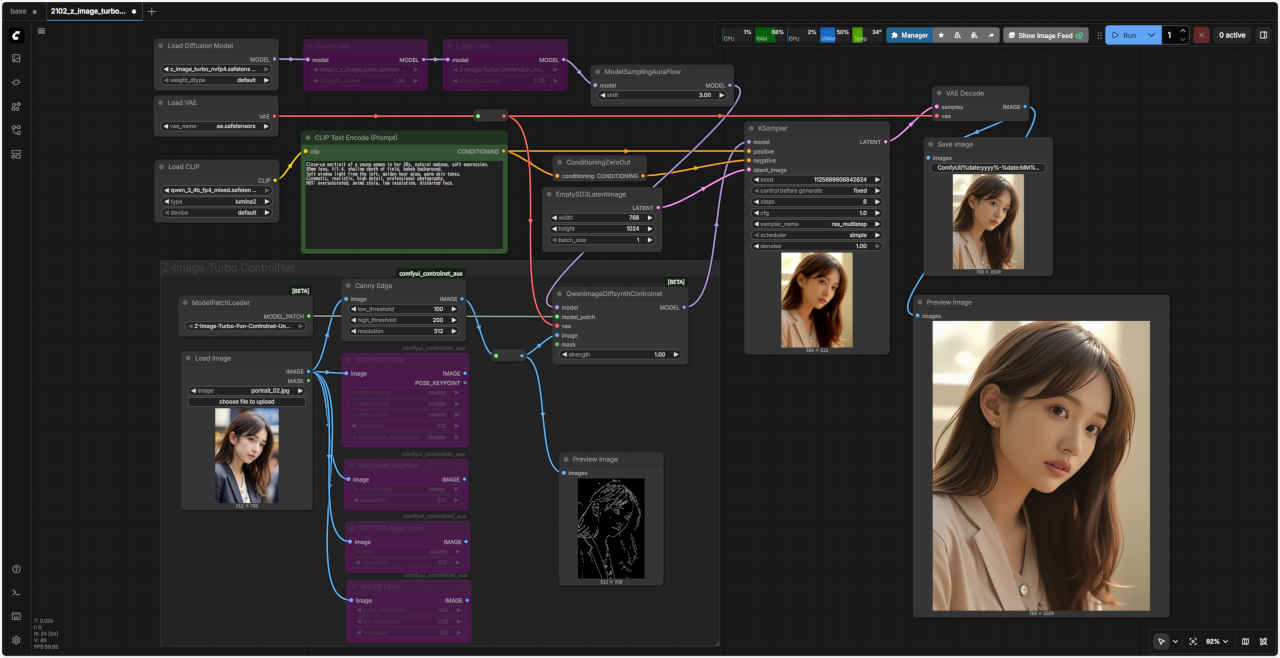 | 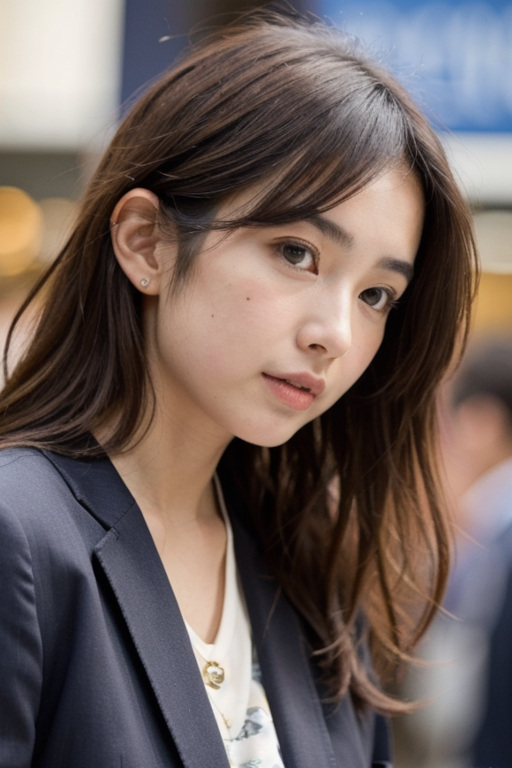 |
Close-up portrait of a young woman in her 20s, natural makeup, soft expression. 85mm lens, f/1.4, shallow depth of field, bokeh background. Soft window light from the left, golden hour glow, warm skin tones. Cinematic, realistic, high detail, professional photography. NOT: oversaturated, anime style, low resolution, distorted face. |
| 種類 | ワークフロー(変更部分) | コントロール画像 | 生成画像 |
| Canny | 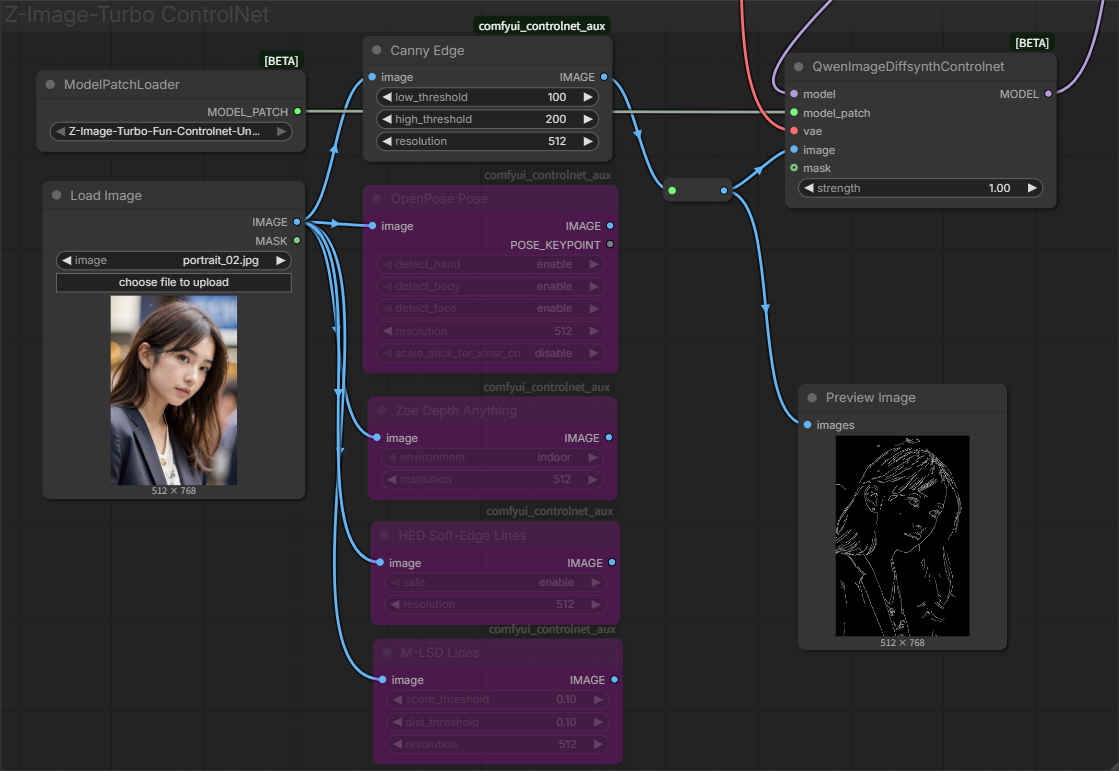 | 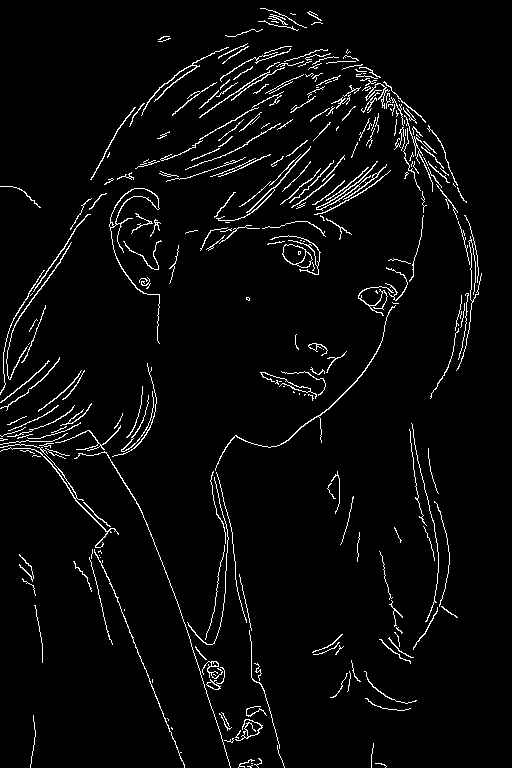 | 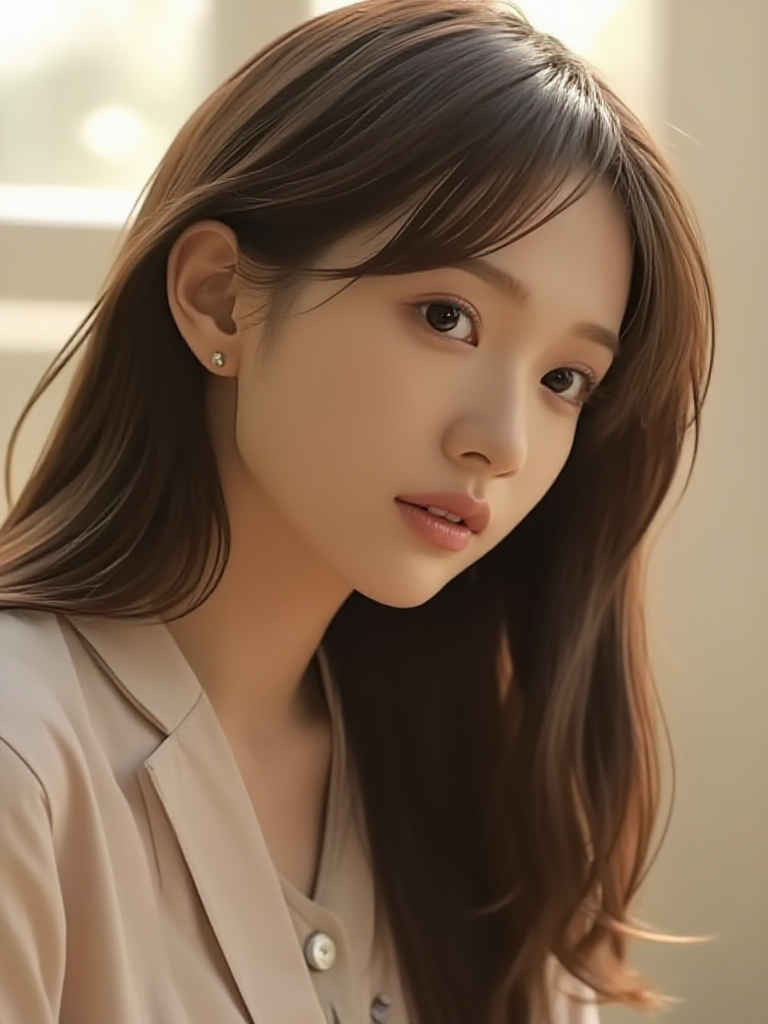 |
| Pose | 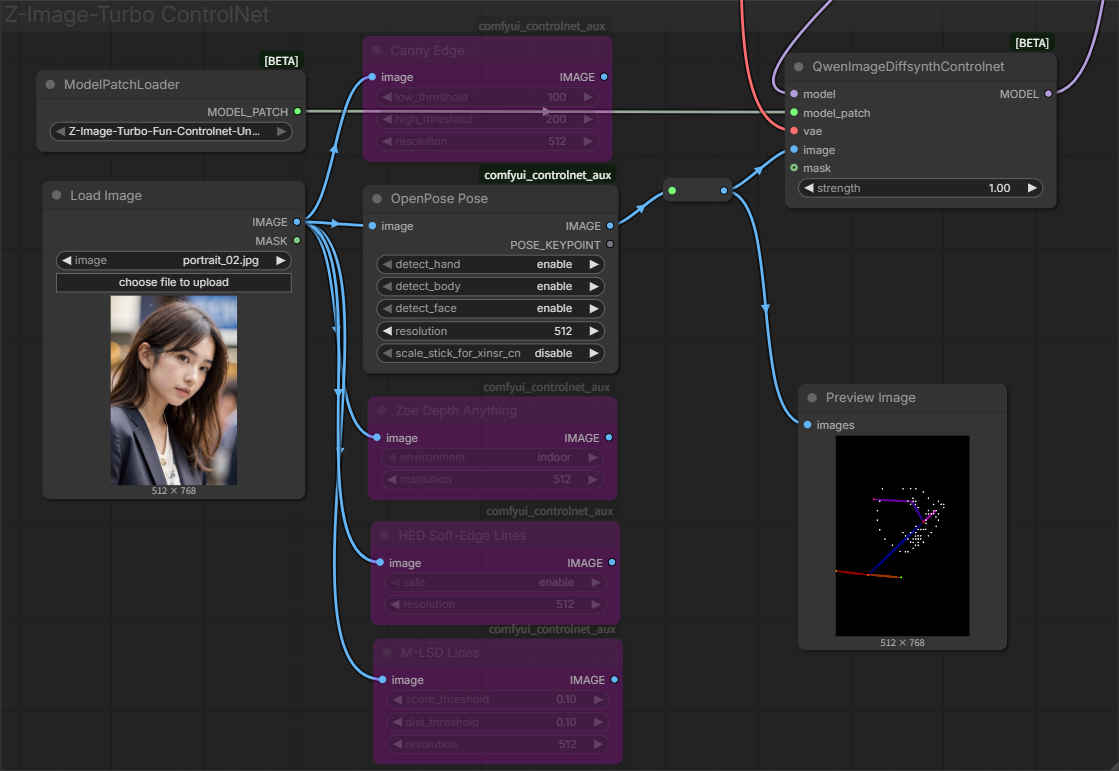 | 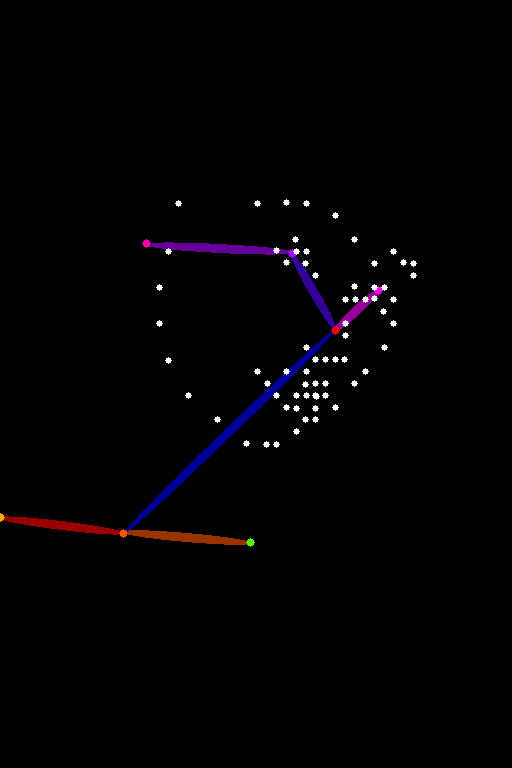 | 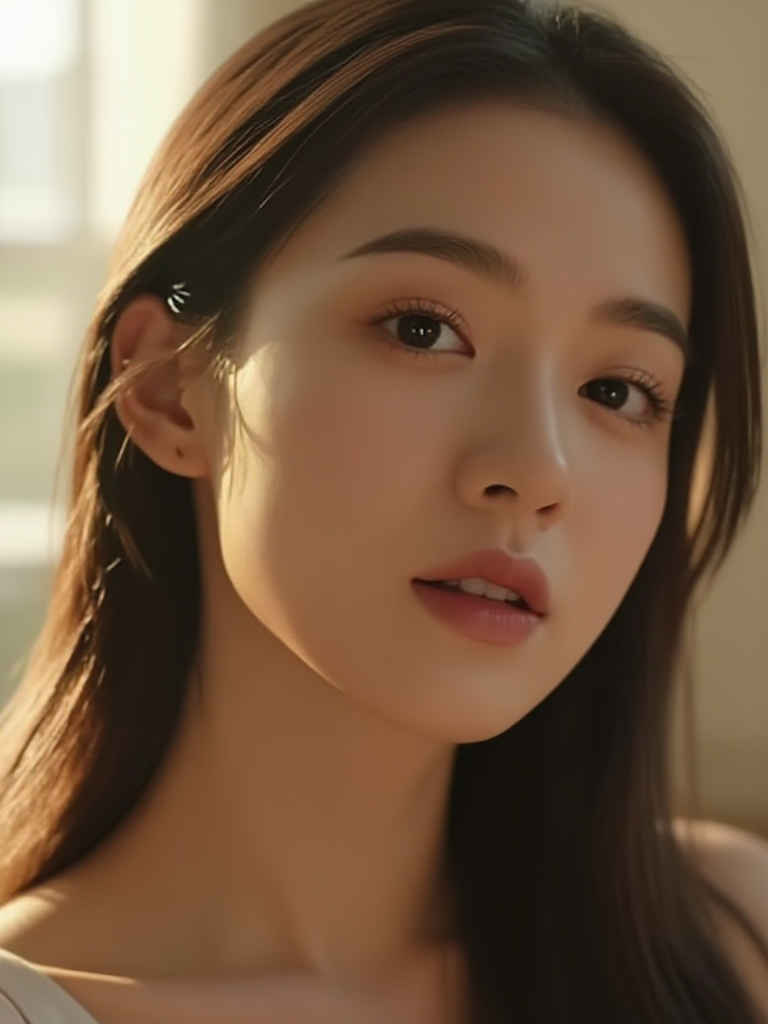 |
| Depyh | 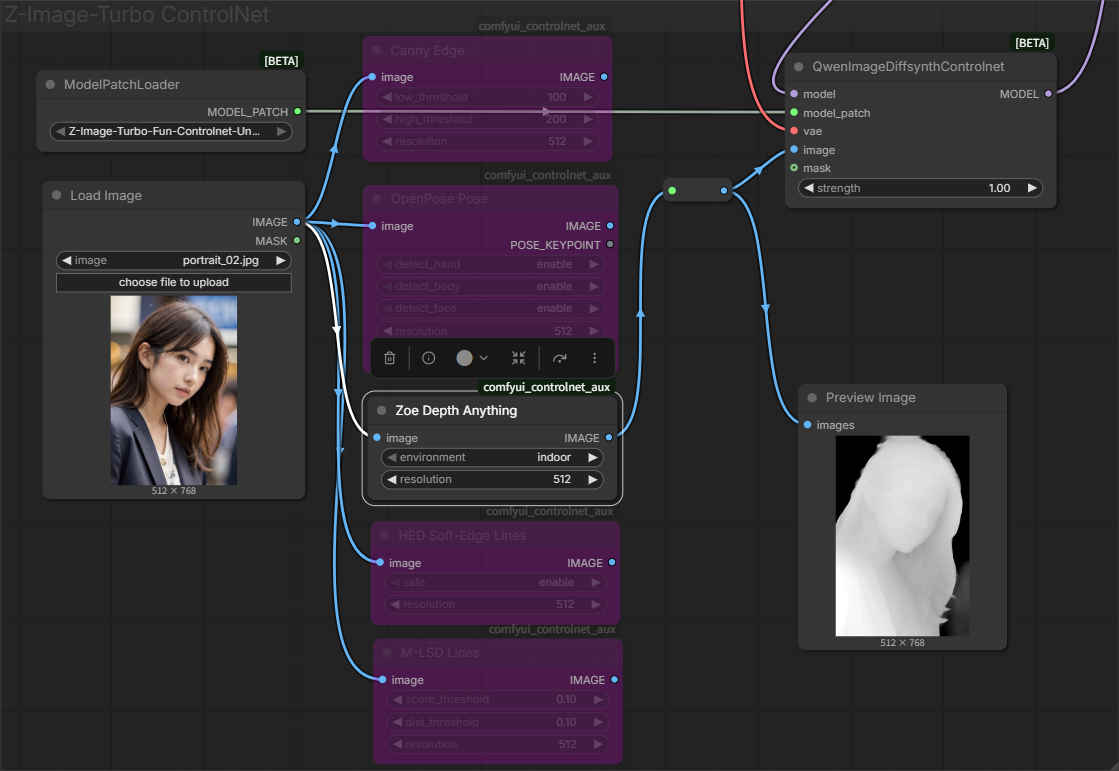 | 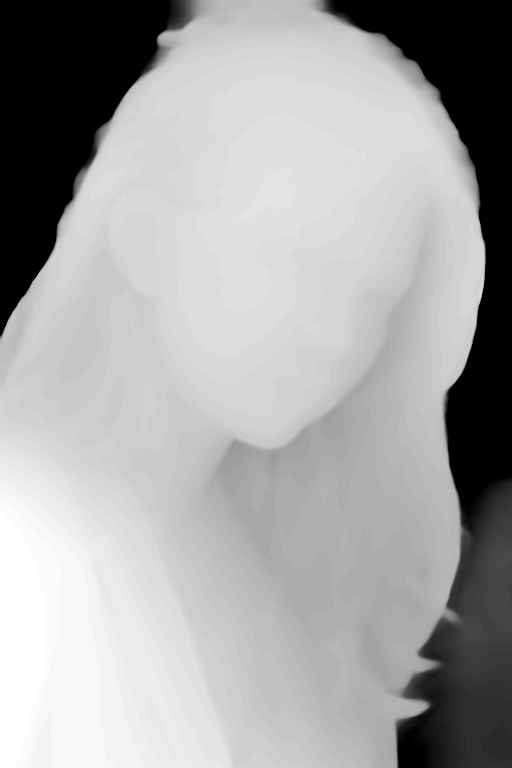 | 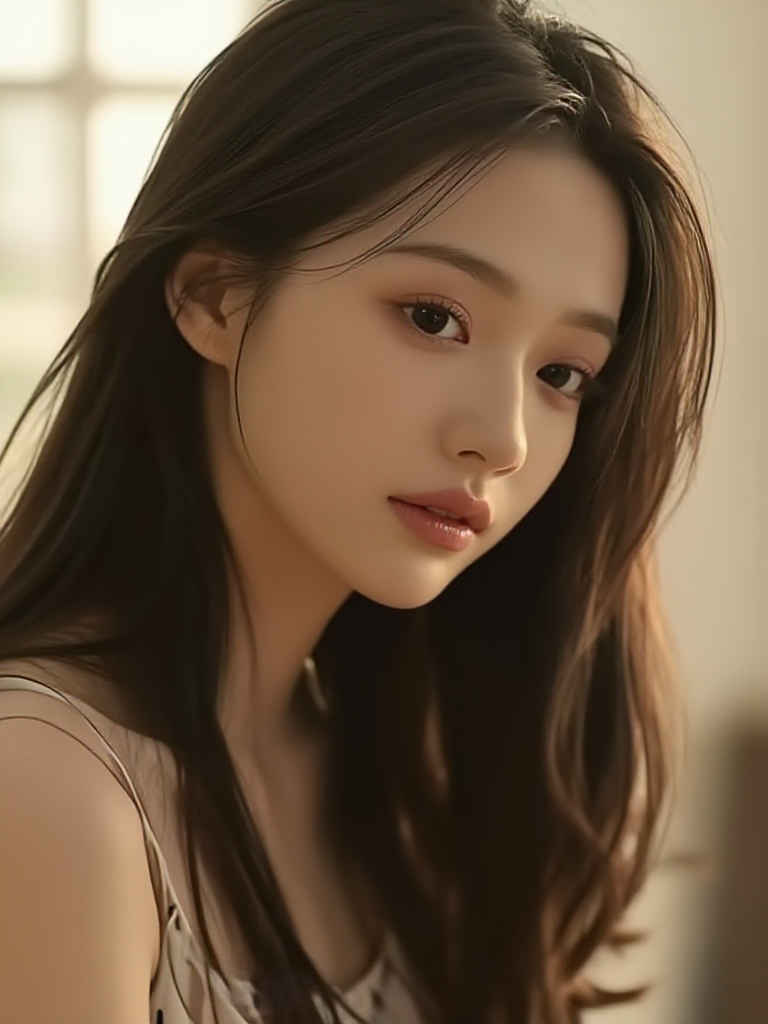 |
| HED LineArt | 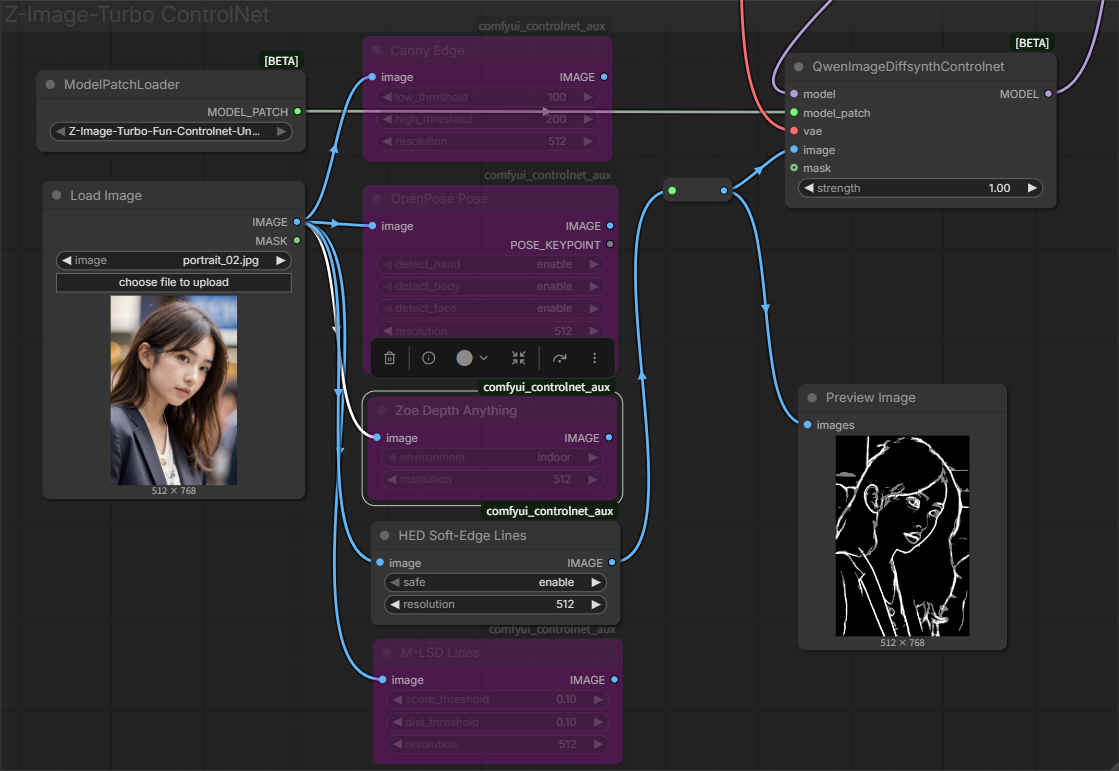 | 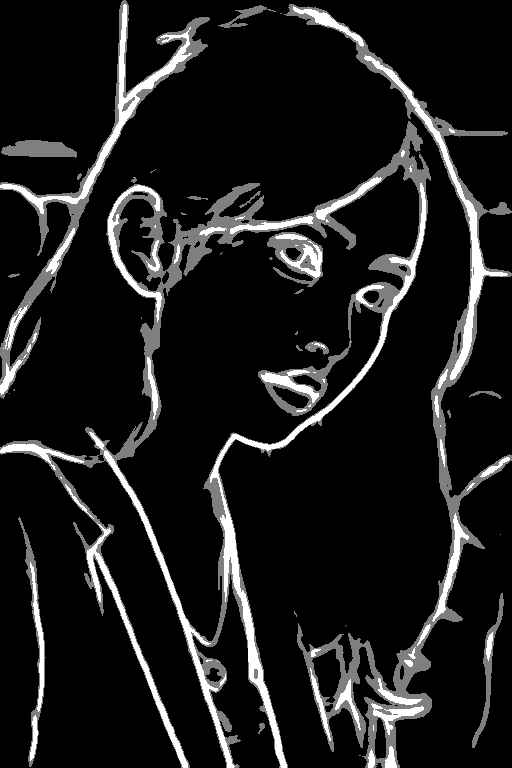 | 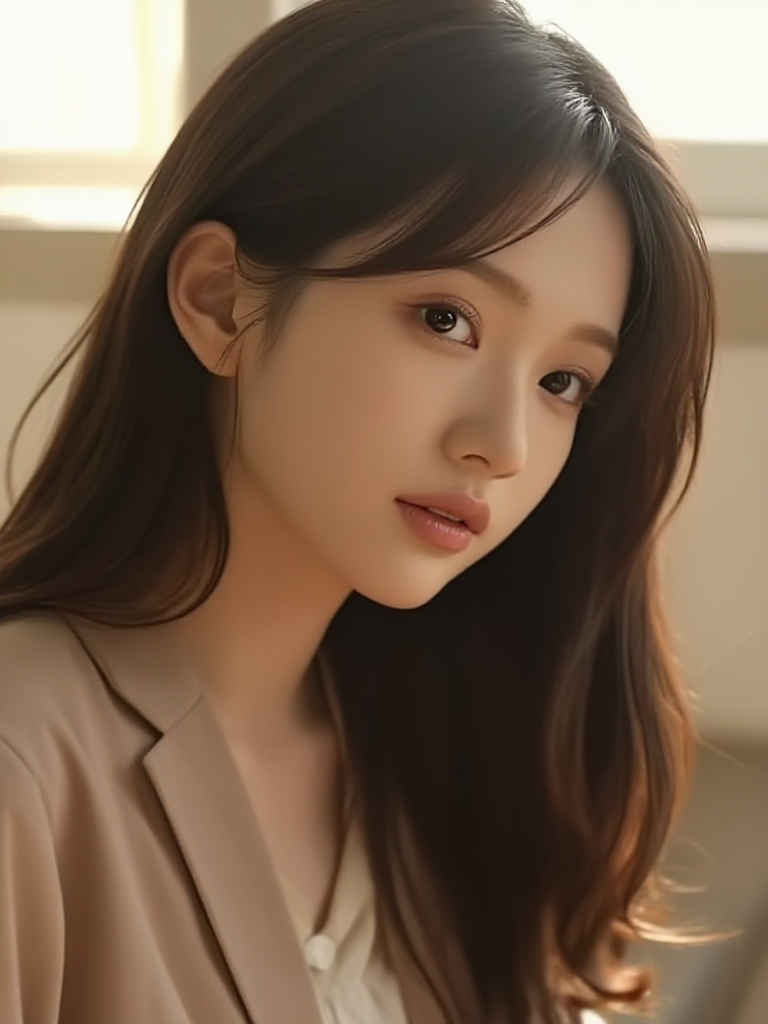 |
| MLSD | 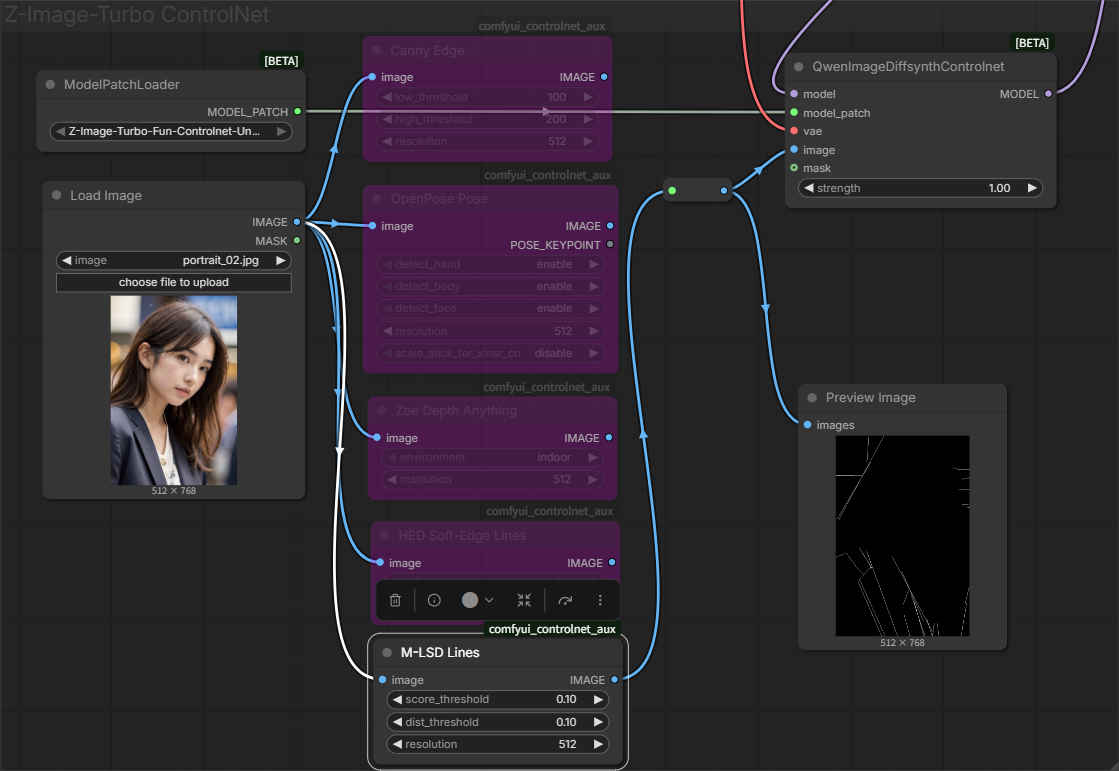 | 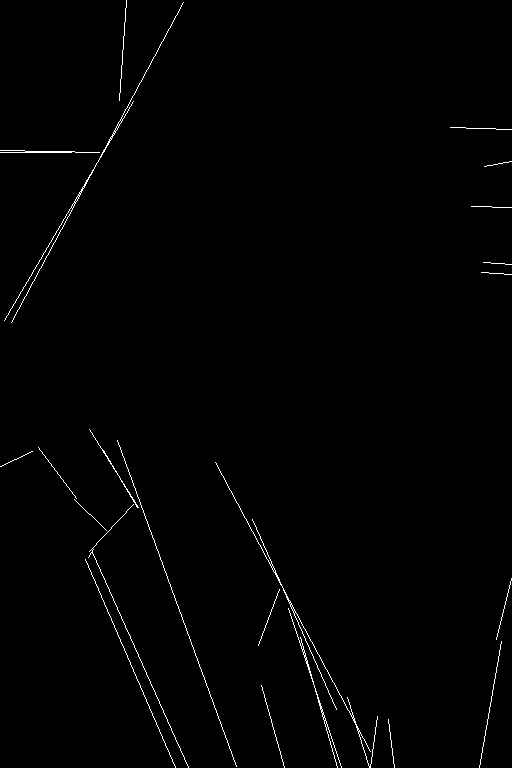 | 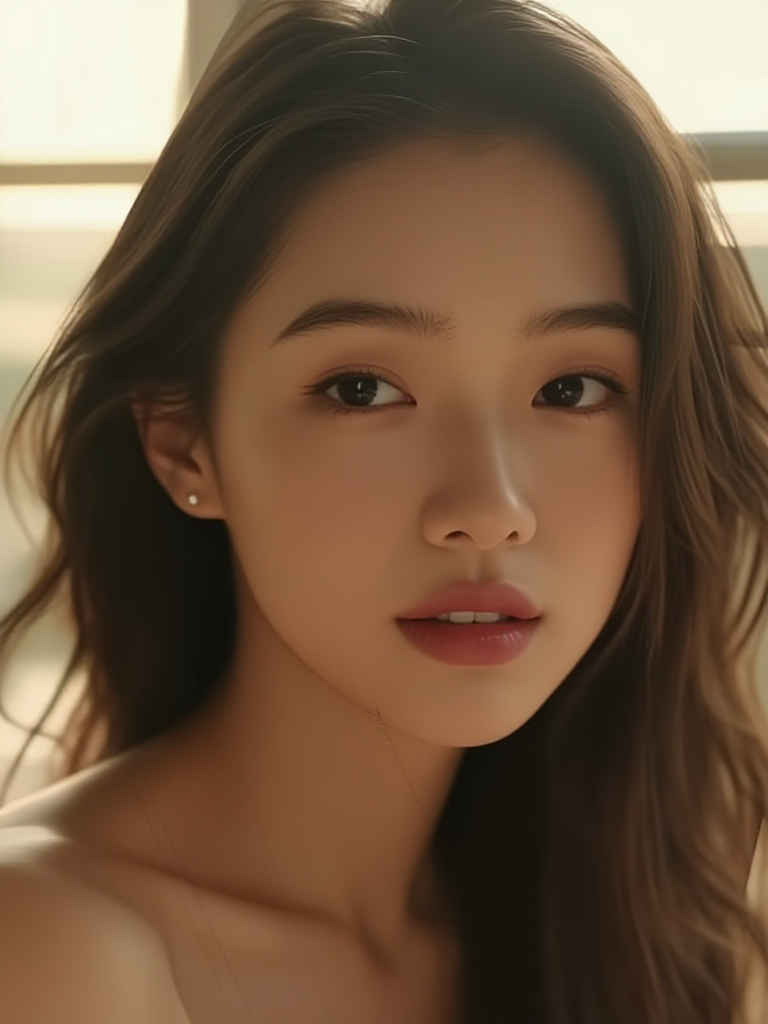 |